Add and Manage Certificates for Deployments
Learn about managing certificates for deployments.
Add Client Certificate
To add a client certificate:
-
Click the plus (+) sign next to the Client Certificates section. The Add Client Certificate dialog box appears.
-
Enter the following details for the client certificate:
-
Unique Name: Name of the certificate.
-
Certificate PEM: Enter a certificate .pem file or upload a .pem file.
-
Private-Key PEM: Enter or upload the private key for the .pem file.
-
CA Certificates: Enter or upload the CA certificate.
-
-
Click Add.
Add a CA Certificate
To add a CA certificate:
-
Click the plus (+) sign next to CA Certificates. The Add CA Certificate dialog box appears.
-
Enter the following details for the CA certificate:
-
Unique Name for the CA certificate.
-
Certificate PEM value can be entered in the box or uploaded.
-
Certificate location can be shared. CA Certificates for the Service Manager are always shared and cannot be local. When adding or replacing CA certificates, the Shared option is always force-checked.
-
-
Click Add.
Apply Certificates to an Oracle GoldenGate Deployment
Certificates can apply to:
-
A specific deployment: These certificates are local to the deployment. See Create RootCA and Server Certificates.
-
Shared across deployments added to the same Service Manager: These are shared certificates created from the Service Manager Certificate Management page. These certificates can be shared across multiple deployments supervised by one Service Manager.
-
Different source and target deployments: These are called external certificates (extern) with different source and target deployments. See Add External Trusted RootCA and Distribution Client Certificates.
Note: Adding a non-CA self-signed certificate as a trusted certificate using Certificate Management page’s CA Cert section is not supported and will result in an error.
Check Details of Certificates Used in a Deployment
To check the details of a certificate including start date and expiry date for any certificate:
-
Log in to the Service Manager.
-
Select Certificate Management from the left navigation pane of the Service Manager home page.
-
Select the deployment from the drop-down list to view information about the server, client, and CA certificates. The validity period (expiration date) of the certificate along with the used signing algorithms from the issuer are displayed. You can also view the certificates available with the Service Manager by selecting Service Manager from the Certificate Management sub-menu in the left navigation pane.
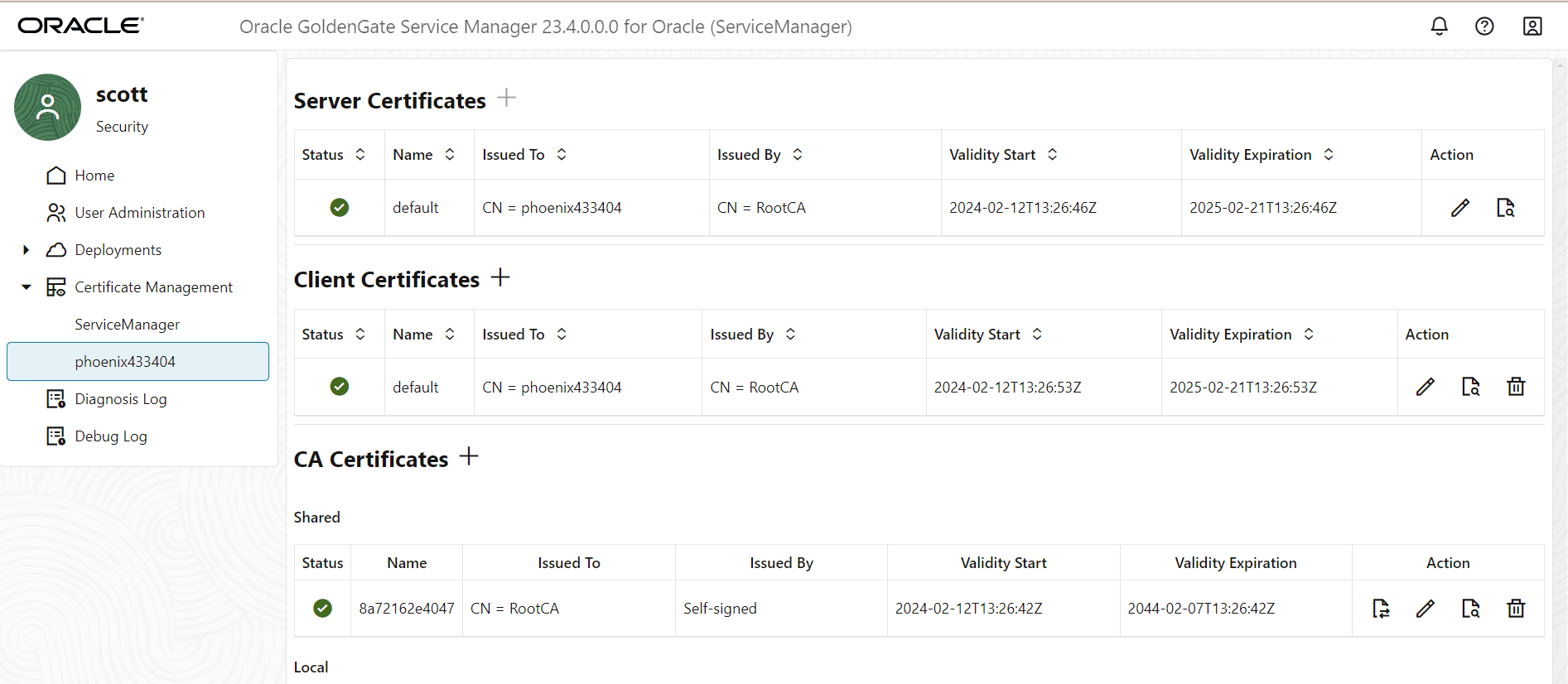
To retrieve certificate information using the REST API, see Certificates for details in the Oracle GoldenGate REST API Documentation.
-
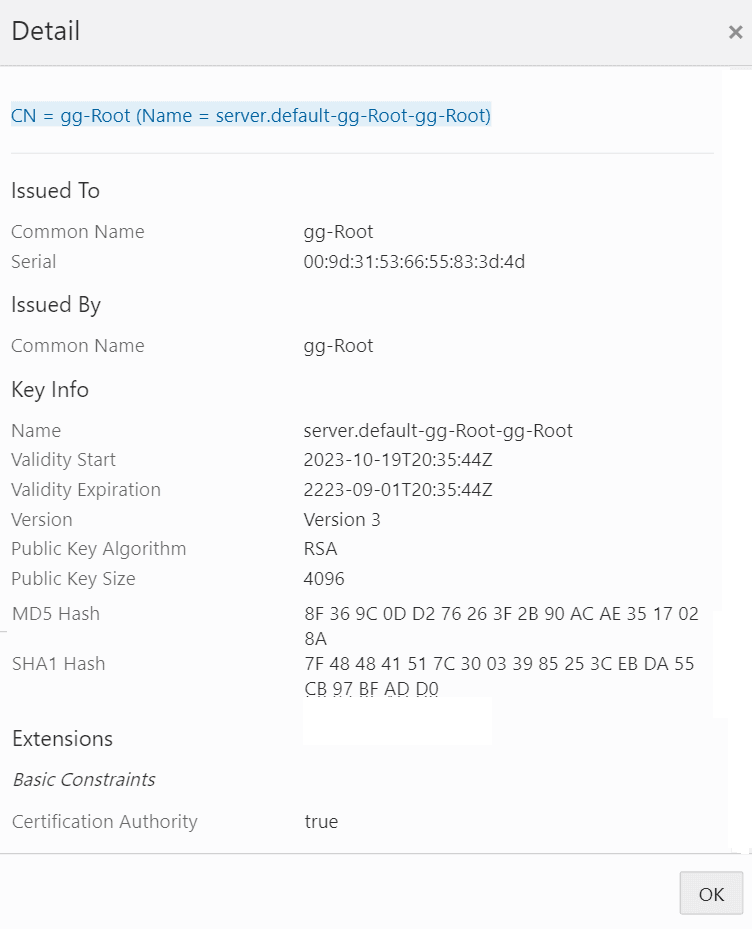
To view further details about a certificate, click the Details icon from the Action column. The certificate details are displayed, shown in the following image:
Replace Certificates in a Deployment
You cannot renew a certificate. You can only replace it with a new certificate. Make sure to check the expiry details of certificates that you intend to replace. Use the following steps to replace certificates:
-
Click the Certificate Management tab from the left navigation pane of the Service Manager.
-
Select the deployment from the drop-down list to view information about the server, client certificates, and CA certificates.
-
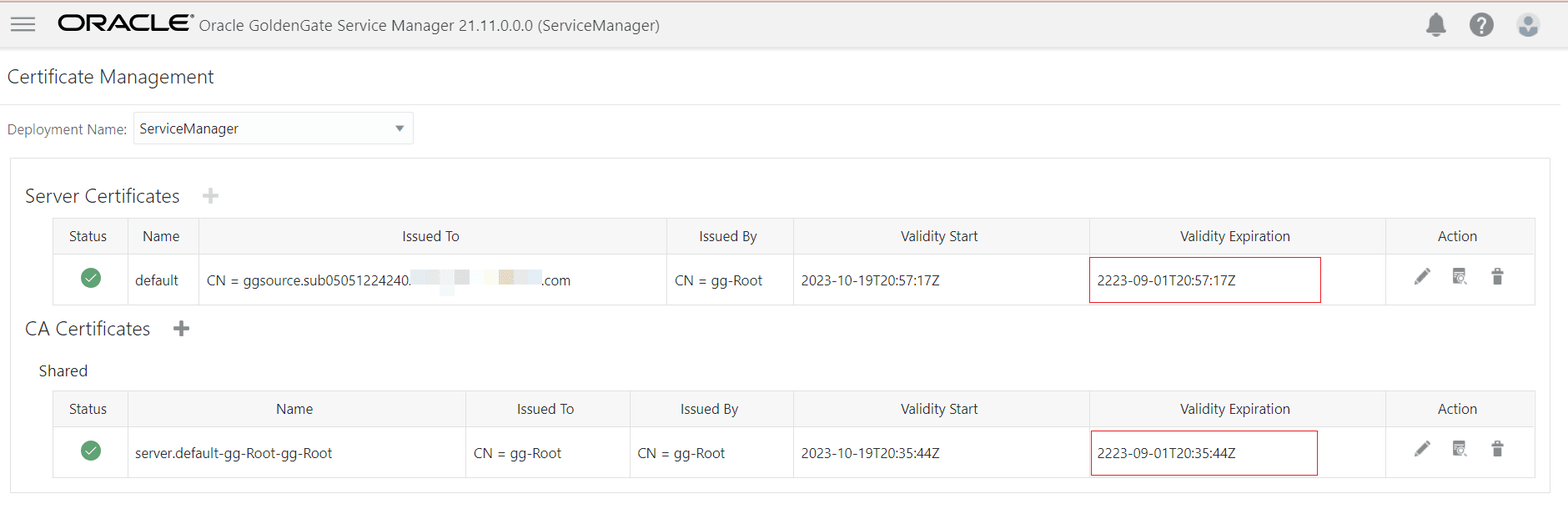
Click the Detail icon from the Action column of the certificate store table to view details about the certificate including certificate start and expiration dates, shown in the following image:
-
Click the Replace (pencil) icon to replace server certificates.
-
Click the Delete icon in the Action column to delete the certificate.