Create and Manage Data Streams
Create a Data Stream from the user interface
-
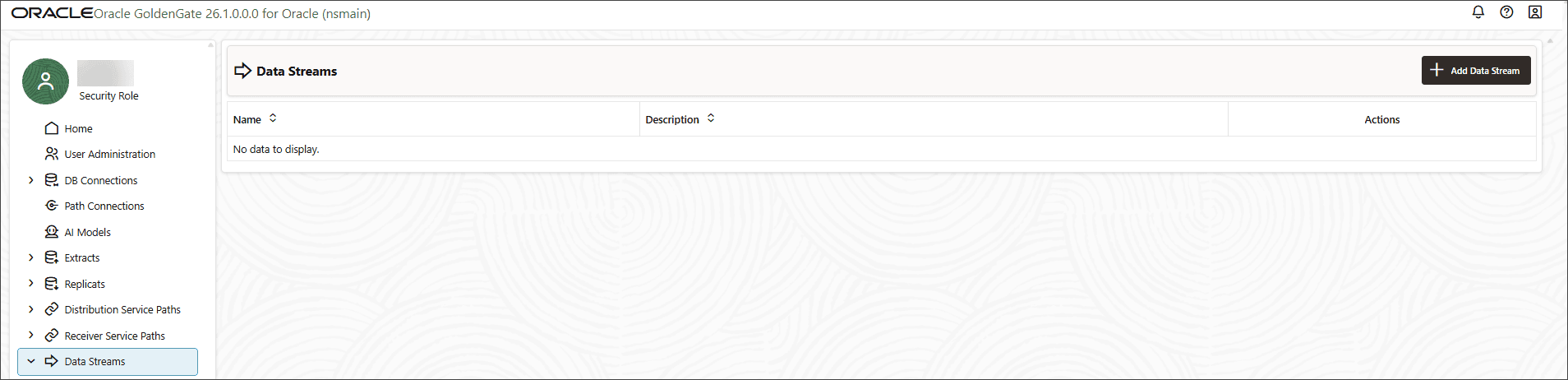
From the left-navigation pane, select Data Streams to open the Data Streams page.
-
Click the Add Data Stream button. The Add Data Stream diaglox box is displayed.
-
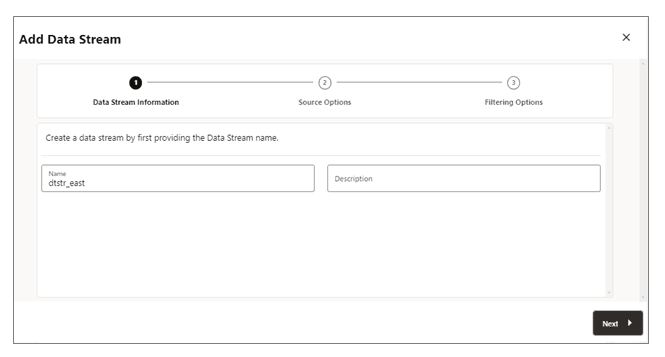
On the Data Stream Information page, enter a unique resource name in the Name box.
The name must be between 1 to 32 characters. Start with a letter. Use a stable name because checkpoints are scoped to the stream contract. Click Next.
-
Add the description with the business owner, source trail, tables, consumer, and recovery objective.
-
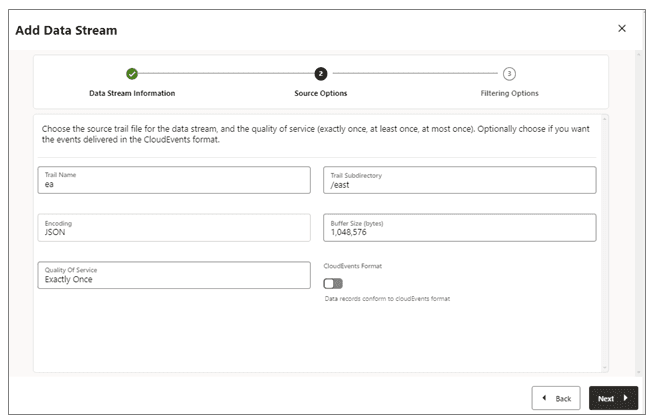
On the Source Options page, provide the values for options shown in the following image:
-
Trail Name: Name of the source trail file. The trail name must be two characters identifying the source trail prefix or source endpoint accepted by the service.
-
Trail Subdirectory: The path of the subdirectory where trail files are stored. This the directory beneath the GoldenGate deployment where the source trail is stored, when it is not in the default location.
-
Encoding: This option controls the encoding of records for the data stream. Currently, JSON encoding is supported. Use the YAML editor or REST configuration for advanced JSON options.
-
Buffer Size: This value controls the memory buffer size used in the data streaming service. The data streaming service will flush the in-memory message queue after its total byte size exceeds the specified value and delivers the records to the client. Range 131,072 to 10,485,760; default 1,048,576. This is not durable retention.
-
Quality of Service: This option defines the data stream duplicate suppression and recovery behavior.
exactlyOnce,atLeastOnce, oratMostOnce.See Checkpointing, Recovery, and Delivery Semantics before selecting a non-default value.
Three levels of quality of service are supported in the data streaming service:
-
Exactly Once: This mode is the most restrictive mode where the service filters out any duplicate records during recovery of seeing a
RESTART OK/ABENDrecords in the source trails. Clients will not see duplicate records. If the service cannot locate the record with given last processed position, an error occurs. -
At Least Once: This mode does not suppress duplicate records during recovery or seeing a
RESTART OK/ABENDrecords in the source trail. Clients may see duplicate records in the data stream. Also, if the service cannot locate the record with given last processed position, an error occurs. -
At Most Once: This mode suppresses duplicate records during recovery or seeing a
RESTART OK/ABENDrecords in the source trail. Clients will not see duplicate records in the data stream. If the service cannot locate the record with given last processed position, it will find the next available record and move forward.
-
-
CloudEvents Format: The data streaming service supports transmitting the data records in CloudEvents format. It wraps GoldenGate records in CloudEvents JSON. Disabled by default. By default this format is disabled and can be controlled by enabling the property using the toggle switch, when creating the data streaming channel.
-
-
On the Filtering Options page, the options for include and exclude filtering rules are available, as shown in the following image:
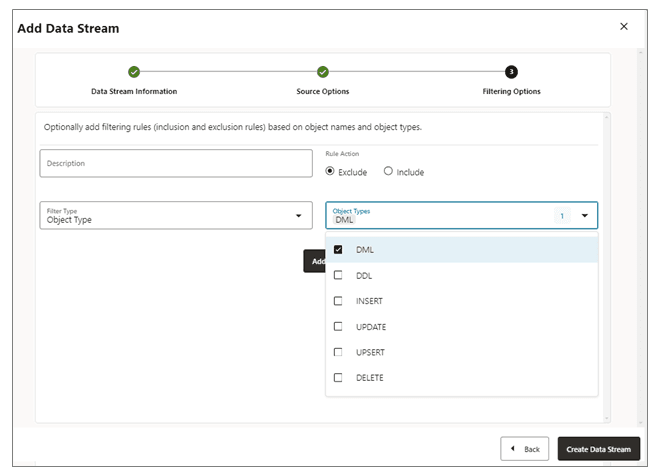
Specify the filtering rule options, as follows:
-
Rule Action: Select Exclude or Include options.
-
Filter Type: The filter type includes the following:
Object Type: You can select multiple options from the drop-down list including DML, DDL, INSERT, UPDATE, UPSERT, DELETE.
Object Names: Name of the previously created filtering object.
-
Click Add to add the filtering rule to the Data Stream process.
-
Click Create Data Stream. You will be returned to the Distribution Service home page where the Data Stream is listed.
-
Click on the created Data Stream to view the YAML document Data Streaming AsyncAPI definitions for the stream.
Edit Data Streams Configuration from the user interface
To edit the Data Streams configuration:
-
From the left navigation pane, click Data Streams.
-
Select the name of the data stream that needs to be modified.
-
From the Data Streams page, use the Action column to view data stream details, delete a data stream, and change it’s filtering.

-
If you click the Change Filtering option from the Action menu, the Edit Data Stream Filtering Rules dialog box is displayed. From this box, you can change the Rule Action (Include, Exclude) and Filter Type (Object Name or Object Type).
-
Click Add to apply the filtering.
-
Click Submit to return the Data Streams page.
You can edit the data stream further by clicking the data stream from the Name column. This displays the complete data stream configuration. Use the pencil icon next to each configuration setting, to change it. You can change the source trail file used by a data stream, it’s filtering rules, and quality of service. You can also use the YAML editor to change the data stream configuration and upload changes using the Upload Changes icon next to YAML Editor.
Create a Data Stream with REST API
Use POST /services/v2/stream/{streamName} with an Administrator account. The minimal request identifies a source trail:
{
  "$schema": "ogg:dataStream",
  "source": {
    "trail": "ea",
    "path": "./dirdat"
  }
}
A production request normally sets quality of service, filters, JSON schema emission, metadata fields, and size controls explicitly. The supporting file data_stream_create_request.json contains a complete sanitized example.
{
  "$schema": "ogg:dataStream",
  "description": "Streams sales order changes",
  "source": {"trail": "ea", "path": "./dirdat"},
  "qualityOfService": "exactlyOnce",
  "bufferSize": 1048576,
  "tcpKeepAliveTimeout": 120,
  "cloudEventsFormat": false,
  "rules": [
    {
      "action": "include",
      "filter": {"objectNames": ["SALES.ORDERS", "SALES.ORDER_ITEMS"]}
    }
  ],
  "encoding": {
    "json": {
      "$schema": "ogg:outputFormatJson",
      "model": "op",
      "includeJSONSchemaRecord": true,
      "includeObjectMetadataRecords": true,
      "includeStreamMetadataRecord": true,
      "metaFields": {
        "qualifiedTable": true,
        "opType": true,
        "opTs": true,
        "pos": true,
        "xid": true,
        "csn": "csn",
        "opSeqno": "op_seqno",
        "transInd": "trans_ind"
      }
    }
  }
}
Top-level configuration properties
The following table provides the configuration properties used to configure the stream.
| Property | Type / default | Description |
|---|---|---|
$schema |
String / ogg:dataStream |
Configuration schema identifier. |
source |
Object / required | Source trail and optional path. |
description |
String / none | 1 to 4,096 characters describing the Data Stream. |
qualityOfService |
Enum / exactlyOnce |
atLeastOnce, exactlyOnce, or atMostOnce. |
bufferSize |
Integer / 1,048,576 | Flush threshold in bytes. Minimum 131,072; maximum 10,485,760. |
tcpKeepAliveTimeout |
Integer / 120 | TCP keep-alive timeout in seconds. Minimum 1; maximum 10,800. |
cloudEventsFormat |
Boolean / false |
Enables CloudEvents JSON envelopes. |
rules |
Array / none | 1 to 1,024 include or exclude rules. |
encoding |
String or object / json |
Use "json" for defaults or {"json": {...}} for advanced output settings. |
Retrieve, update, list, and delete data stream
Use the following table to manage or delete data streams:
| Task | Method and path | Role |
|---|---|---|
| List streams | GET /services/v2/stream |
User |
| Get configuration | GET /services/v2/stream/{streamName} |
Operator |
| Get generated YAML | GET /services/v2/stream/{streamName}/yaml |
User |
| Update configuration | PATCH /services/v2/stream/{streamName} |
Administrator |
| Update YAML | PATCH /services/v2/stream/{streamName}/yaml |
Administrator |
| Delete stream | DELETE /services/v2/stream/{streamName} |
Administrator |
Caution: Changing field names, operation strings, record model, filters, or schema emission changes the consumer contract. Coordinate the change, version the contract, and test restart from an existing checkpoint before production rollout.
Use the generated YAML as the deployed contract
The generated YAML includes the deployment-specific server, channel address, begin query parameter, message payload, and supported record schemas. Retrieve it after creation and after every configuration change. Store a reviewed copy with the consumer release, but always compare it with the runtime version during deployment validation.