Extract Actions
Extract actions include tasks like monitoring details for the Extract, checkpoint details, DDL/DML statistics, cache manager statistics, and other details.
Use the Actions column to start or stop the Extract or view and manage its details. When you click the Details icon for an Extract, you can perform the following tasks for it.
When you change the status, the list options change accordingly. As status changes, the icons change to indicate the current and final status. The events are added to the Critical Events table. Additionally, progress pop-up notifications appear at the bottom of the page.
Access Extract Details
From the Extract section of the Administration Service Overview page, click Action, Details for the specific Extract to view its details. The following tabs are displayed:
-
Process Information:
The status of the selected Extract process including the type, credentials, and trail details including trail name, trail subdirectory, trail sequence, and trail size.
-
Checkpoint:
The checkpoint log name, path, timestamp, sequence, and offset value. You can monitor the input details, such as when starting, at recovery, and the current state. The checkpoint output values display the current checkpoint details.
-
Statistics:
The active replication maps along with replication statistics based on the process type. You sort the lost to view the entire statistical data, daily, or hourly basis.
-
Cache Manager Statistics:
Access the global statistics and object pool statistics information for the Extract process from this page.
-
Parameters:
The parameters configured when the process was added. You can edit the parameters by clicking the pencil icon. Make sure that you apply your changes.
-
Report:
A detailed report of the process including parameter settings and a log of the transactions. You could copy the report text and save it to a file so that you can share or archive it.
-
Integrated Diagnostics:
Integrated Diagnostics feature is responsible for collecting diagnostic and performance data for each of the Oracle GoldenGate replication components and sub-components. This process preserves interval data in memory and computes all statistical values related to CPU usage, session wait times, various counts and status. See About Integrated Diagnostics.
Start or Stop Extract
From the Administration Service web page, click Extract to open the Extracts information web page, where all Extracts are listed. From the Action column, you can select the Start/Stop icon depending on the current state of the Extract.
If the Extract is in abended state, it displays with a yellow icon. A green icon indicates that the Extract is running and a red icon indicates Extract is in stopped state.
Alter Extract
To alter an Extract:
-
Stop the Extract:
-
From the Administration Service left navigation pane, click Extracts.
-
Click Action from the Extracts and then click Stop.
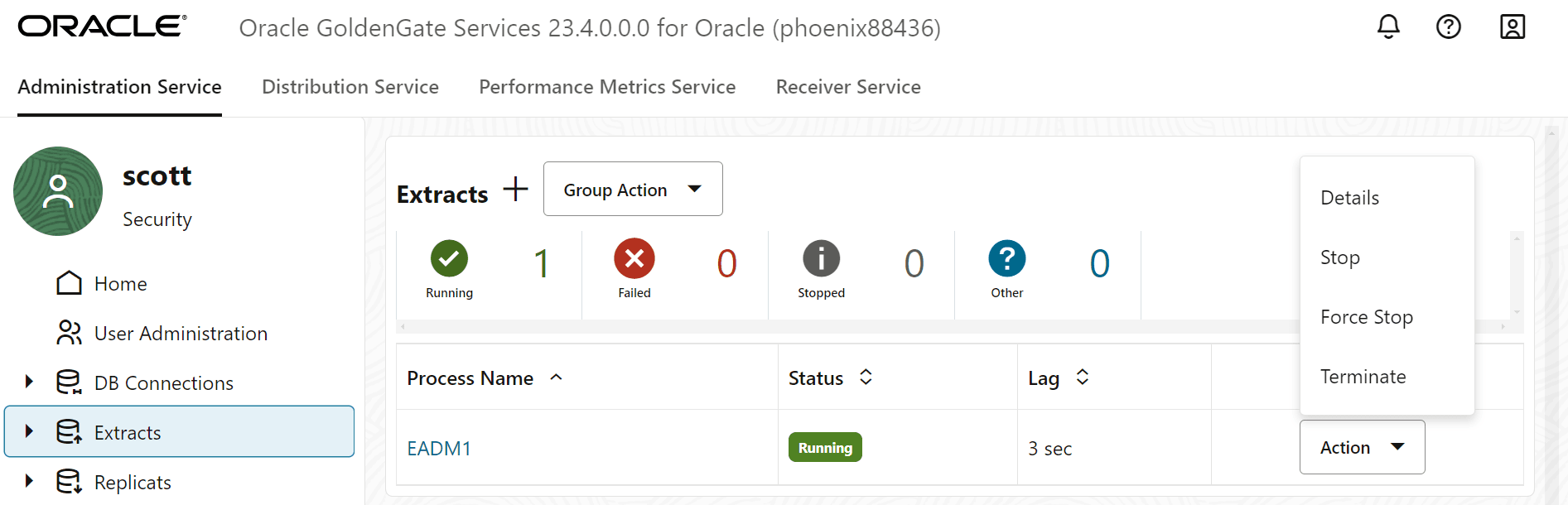
-
-
After the Extract stops, click Action again. The Alter option is displayed.
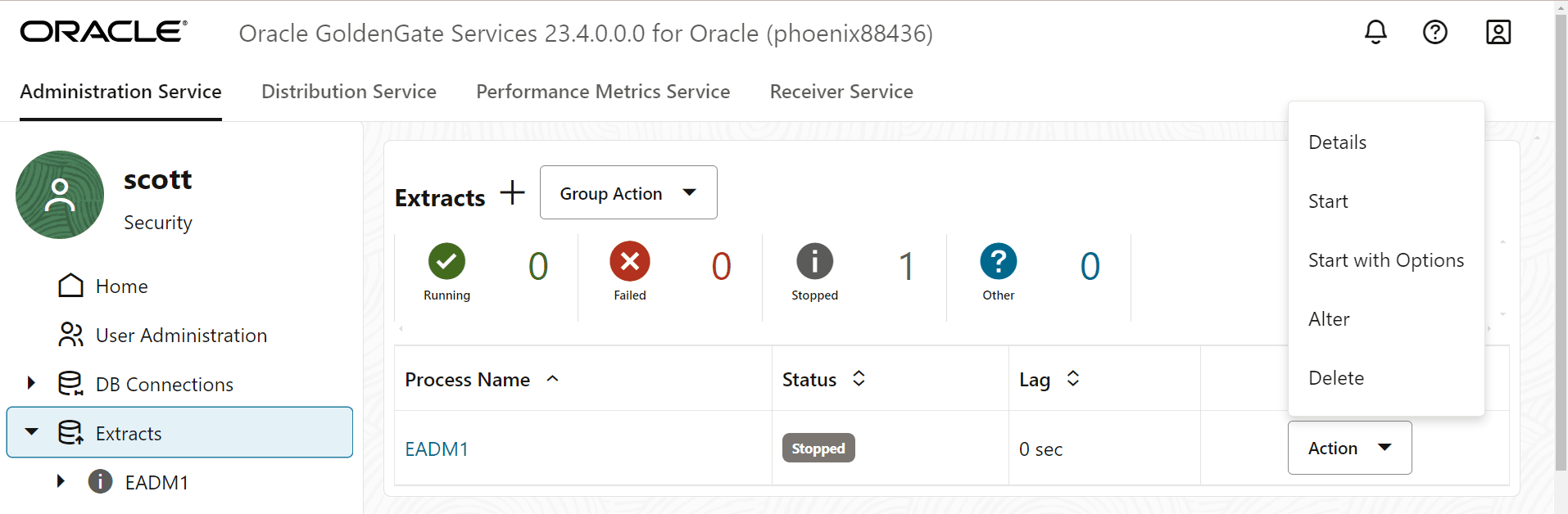
-
Click Alter. The Alter Extract diaglog box is displayed. This option allows you to change when the Extract begins. It does not start the Extract.
-
Select the start option for the Extract from the drop down list. The available options are:
-
Begin Now: Use this option to immediately start the Extract.
-
Custom Time: Use this option to set a time for starting the Extract.
-
CSN: Use this option to set a CSN value for starting the Extract.
-
Delete Extract
To delete an Extract:
-
Stop the Extract using the Actions, Stop option from the Extract section of the Administration Service Overview page.
-
Click Delete to remove the Extract. Note: The Delete option appears only when the Extract is in Stopped state.