Manage A2A Agents
Use Agent2Agent (A2A) to connect agents that run in different applications. Your workflow can ask a remote agent to handle part of a request, or another application can call a workflow you’ve published in Agent Factory.
| What you want to do | Start here |
|---|---|
| Use an agent provided by another application | Register an external A2A agent |
| Let another application call your workflow | Enable A2A access |
| Write a client that sends A2A requests | Send a request and get the result |
An Agent Card is a document that tells a client how to connect to an agent: its address, authentication requirements, and the types of messages it accepts. You’ll use the card’s URL when setting up a connection.
Before You Begin
To use a remote agent, ask its provider for the Agent Card URL and any credentials you need. The Agent Factory application must be able to reach the remote service.
To let clients call your workflow, save and publish it first. You’ll need an Administrator or Editor account with access to the workflow to create an integration API key.
The workflow cannot contain an External Agent node.
Register an External A2A Agent
- Open Utilities > A2A Agents > External agents.
- Select Add external agent.
- Enter the Agent Card URL from the agent’s provider.
- Choose the authentication method the provider requires: None, Bearer token, API key, Auth Request, or OAuth. Enter its details when required.
- Select Discover agent. Review the agent’s name, description, and supported skills. Skills describe what the agent can do.
- Confirm that the card shows External agent is compatible, then select Add.
- Enable the agent. A new agent is disabled until you enable it.
The agent is ready to select in an External Agent node when its status is Connected.
If the provider changes the agent’s address, authentication, or capabilities, use Rediscover agent to update the saved connection. Refresh reloads the table; it doesn’t fetch a new Agent Card.
Add the Agent to a Workflow
Add an External Agent node from Components > Agents, then select the remote agent you registered.
You can use the node in either of these ways:
- Call the remote agent as a workflow step. Connect the request to Input and connect Result to the next node. For a text conversation, you can connect Chat Input to Input and Result to Chat Output.
- Let a local Agent decide when to ask for help. Connect the External Agent’s Agent output to the local Agent’s Sub-agents input. Give the local Agent instructions such as “Ask Basic Math Service to calculate arithmetic results.”
In the second case, the local Agent sends the request to the remote agent. You don’t need to fill in the External Agent node’s Input field for that request.
See External Agent for the node’s inputs and outputs, or try the Math Help Assistant and Basic Math Service example.
Enable A2A Access for a Published Agent Factory Agent
- Save your workflow and publish it.
- Open the published agent’s chat window.
- Select Integration options, then A2A.
- Enable A2A access.
- Copy the Agent Card URL.
- Generate an agent-specific API key. Copy and store it securely; the full key is shown only when you create it.
- Give the client the Agent Card URL and provide the key through a secure channel.
Do not share an A2A API key in a URL, request body, log, or screenshot. Store it securely. Agent Factory displays the raw key only when you generate it.
The client uses the key to read the Agent Card and send requests. For HTTP requests, include this header:
Authorization: Bearer <api_key>Requests made with a key use the permissions of the person who created it. If you created the key, your account must remain enabled and you must keep access to the workflow.
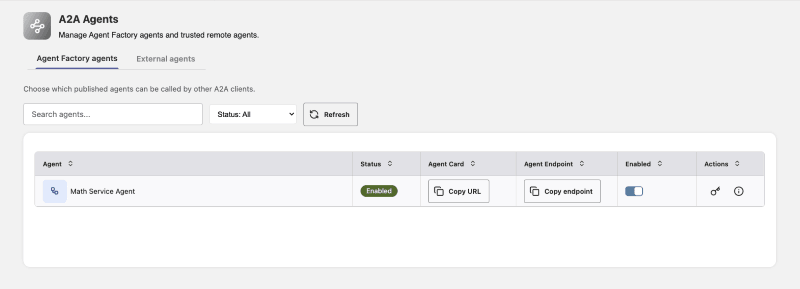
You can review the agent’s card, address, and A2A status in Utilities > A2A Agents > Agent Factory agents.
Enabling A2A automatically turns off Share memory between chat threads. This keeps each external conversation’s memory separate while allowing the agent to remember details within that conversation.
Turning cross-thread sharing on disables A2A; turning A2A off turns cross-thread sharing on.
For a workflow that exchanges text messages, you can now connect your client. If your client needs to send or receive JSON, follow Send and receive JSON.
Supported in the Current Release
The current release supports these A2A capabilities.
| Capability | Support |
|---|---|
| Outbound delegation | Register, authenticate, and use a trusted external A2A agent in an External Agent node. |
| Inbound A2A access | Enable an eligible published Agent Factory agent for authorized external A2A clients. |
| Protocol | A2A 1.0 and 0.3 using JSON-RPC over HTTP(S). |
| Authentication | External-agent authentication by None, Bearer token, API key, Auth Request, or OAuth. Inbound Agent Factory access uses an agent-specific API key as a Bearer token. |
| Content | Text and JSON. A2A 1.0 also supports Markdown text when the Agent Card advertises text/markdown. |
| Endpoint operations | Send work, retrieve task status, continue a conversation, and request task cancellation through supported A2A operations. |
Workflows using DB Agent Engine or imported workflows without a visual graph support plain text only. Check the Agent Card before sending JSON or requesting Markdown.
Send a Request and Get the Result
This section is for developers connecting an external application to an Agent Factory agent. The examples use A2A 1.0 and JSON-RPC, the request format used by the A2A endpoint. For A2A 0.3 field names, see Protocol reference.
When Agent Factory accepts a request, it creates a task. The task records progress and holds the result when the agent finishes. You can wait for the result or save the task ID and check it later.
Send a Message
Use the endpoint URL from the Agent Card. Send a POST request with these headers:
Authorization: Bearer <api_key>
Content-Type: application/json
A2A-Version: 1.0
Use this request body for an agent that accepts text:
{
  "jsonrpc": "2.0",
  "id": "request-001",
  "method": "SendMessage",
  "params": {
    "message": {
      "messageId": "message-001",
      "role": "ROLE_USER",
      "parts": [
        {"text": "What can you help me with?", "mediaType": "text/plain"}
      ]
    },
    "configuration": {"returnImmediately": true}
  }
}
messageId identifies this request to the agent. Keep the ID and the original message in case you need to retry after a connection failure.
returnImmediately: true asks Agent Factory to return once it has accepted the work. Save the task ID from result.task.id. The agent may still be working when this response arrives.
The message goes in the parts list. Each part is one piece of content. This request contains one text part; a request can also contain JSON or several parts.
Check the Task
Send another POST request to the same endpoint, using the same headers and API key. Replace <task_id> with the ID you saved:
{
  "jsonrpc": "2.0",
  "id": "request-002",
  "method": "GetTask",
  "params": {"id": "<task_id>", "historyLength": 0}
}
Read result.status.state. While it is TASK_STATE_SUBMITTED or TASK_STATE_WORKING, wait at least one second before checking again. When it is TASK_STATE_COMPLETED, the result is ready. If it is TASK_STATE_FAILED or TASK_STATE_REJECTED, check the task’s status message.
In a GetTask response, the task is directly inside result. In a SendMessage response, it is inside result.task.
Read the Result
The artifacts list contains the agent’s output. An artifact is a result entry, and its parts list holds the text or data returned by the agent. For a plain-text answer, read the text fields in those parts.
The example uses historyLength: 0 to leave conversation messages out of the response. Omit it or request a larger value if you also need the task’s message history. This history covers the task, not every message in the conversation.
Check for an error in every JSON-RPC response before reading result. A successful HTTP status alone doesn’t mean the A2A operation succeeded.
Wait for Completion Instead
For A2A 1.0, omit returnImmediately or set it to false to wait for the task to finish before the send request returns.
If your application stops waiting or loses its connection after the request was accepted, the task continues. Use its task ID to retrieve the result later. If you never received the task ID, retry the original message.
Send and Receive JSON
Use JSON when your client needs individual values, such as an order number, quantity, or price. For example, a client can send this order record:
{"orderId": "A123", "quantity": 2, "amount": 125}The workflow must have connections that can carry JSON. Agent Builder labels connections by data type: Message carries text; JSON carries values that later nodes can read by field name.
Prepare a Workflow for JSON
To try a simple workflow that receives and returns an order record:
- Add Chat Input, Combine JSON Data, and Chat Output to an Agent Builder workflow.
- Connect Chat Input to the Combine JSON Data node’s JSON inputs input.
- Connect its JSON output to Chat Output. The node also has a Message output for displaying JSON as text; choose JSON here so the client receives data.
- Leave Keys to include empty to keep all fields from the incoming record.
- Save and publish the workflow, then enable A2A.
- Open its Agent Card in Utilities > A2A Agents. Confirm that both Input and Output include
application/json.
The card lists the content types clients can use. For this example, application/json means the workflow can receive and return JSON records. You can use the same approach in a larger workflow by connecting its JSON inputs and outputs to Chat Input and Chat Output.
Send the Record
In the SendMessage example, replace the text part with this JSON part:
{
  "data": {"orderId": "A123", "quantity": 2, "amount": 125},
  "mediaType": "application/json"
}
To request a JSON result, use this configuration:
{
  "returnImmediately": true,
  "acceptedOutputModes": ["application/json"]
}
Retrieve the task as before. Read the returned record from the data field in the result’s artifact parts. With the example workflow and no key filter, the record contains orderId, quantity, and amount.
acceptedOutputModes tells the agent which result formats your client can read. Choose a format listed in the card’s Output types. You can omit this setting if your client can handle any of the agent’s supported formats.
Why JSON Arrives as Text
The field used in an A2A part determines how the message is sent. For example, this part puts {"amount":125} in a text message:
{"text": "{\"amount\":125}", "mediaType": "text/plain"}This part sends an object with a numeric amount field:
{"data": {"amount": 125}, "mediaType": "application/json"}Use the second form when the workflow needs to read amount as a value. If a workflow needs to turn text into JSON later, use the Type Convert node.
For output, check which connection reaches Chat Output. A Message output returns text, even if the text contains a printed JSON record. Connect the JSON output when the client needs the record itself.
Use Markdown
A2A 1.0 supports Markdown text when the agent’s card lists text/markdown. Set the part’s mediaType to text/markdown and put the Markdown in text. For example:
{"text": "# Order summary\n\n- Two items\n- Total: 125", "mediaType": "text/markdown"}Workflows using in-database execution or imported workflows without a visual graph support plain text only. Check the Agent Card before sending JSON or requesting Markdown from those workflows.
Continue a Conversation
The response includes a context ID, which identifies the conversation. After the current task finishes, send a new message with that contextId and a new messageId.
For example, a client can first ask for a price, then send “Does that include delivery?” using the context ID from the first response. Each message creates a new task in the same conversation. Don’t include the earlier taskId; Agent Factory doesn’t resume a finished or paused task with new input.
Retry After a Connection Failure
If you know the task ID, check that task before sending the work again.
If you didn’t receive the response, resend the original message using the same API key, agent, message ID, conversation ID if you supplied one, and message content. Agent Factory recognizes the retry and returns the existing task. If you reuse those IDs with different content, it returns an idempotency conflict—an error indicating that the ID already belongs to another message.
Use a new message ID when you intend to start new work. If you receive HTTP 429 or a temporary service error, wait before retrying. Increase the delay after repeated errors, for example from one to two to four seconds.
Cancel a Task
Use CancelTask with the task ID in params.id for A2A 1.0. Cancellation succeeds only while the task is waiting and no worker has started handling it.
A task that is running or has finished returns TaskNotCancelable. Check its current status. Canceling a task doesn’t undo actions the workflow has already performed.
Disabling A2A stops new requests without unpublishing the workflow. It doesn’t guarantee that work already running will stop.
Check the A2A Service
This section is for administrators with shell access to the Agent Factory container. Use it when A2A tasks stay in the waiting state.
Run the Agent Factory command-line utility from any directory inside the container:
aaictl statusFind A2A Runtime in the status table. This is the background service that runs A2A tasks. The web application can be available while this service needs attention.
| Status | Meaning |
|---|---|
| Running | The A2A runtime status check passed. |
| Not Running | The A2A runtime status check failed and needs attention. |
| Disabled | The A2A runtime service is turned off for this installation. |
For command-line help and instructions for starting, stopping, or restarting Agent Factory services, see Manage Agent Factory from the Command Line.
Protocol Reference
Use this section when building a client that sends JSON-RPC requests directly.
Supported Versions and Methods
Agent Factory supports A2A 1.0 and 0.3 over JSON-RPC HTTP(S). Use the version advertised in the selected Agent Card and set the matching A2A-Version header. The standard card URL returns the A2A 1.0 card. Requests without a version selector default to 0.3, so include the header when using the 1.0 examples above.
| Operation or field | A2A 1.0 | A2A 0.3 |
|---|---|---|
| Send a message | SendMessage |
message/send |
| Retrieve a task | GetTask |
tasks/get |
| Cancel a task | CancelTask |
tasks/cancel |
| Message ID | messageId |
message_id |
| Conversation ID | contextId |
context_id |
| User role | ROLE_USER |
user |
| Text part | {"text":"Hello","mediaType":"text/plain"} |
{"kind":"text","text":"Hello"} |
| JSON object part | {"data":{"amount":125},"mediaType":"application/json"} |
{"kind":"data","data":{"amount":125}} |
| Return after accepting work | returnImmediately: true |
blocking: false or omitted |
| Wait for completion | returnImmediately: false or omitted |
blocking: true |
Put the waiting option in params.configuration. In both versions, retrieve or cancel a task by passing its ID in params.id. For 0.3, both send and get responses contain the task directly in result.
Task States
| Meaning | A2A 1.0 | A2A 0.3 |
|---|---|---|
| Waiting to run | TASK_STATE_SUBMITTED |
submitted |
| Running | TASK_STATE_WORKING |
working |
| Completed | TASK_STATE_COMPLETED |
completed |
| Failed | TASK_STATE_FAILED |
failed |
| Canceled | TASK_STATE_CANCELED |
canceled |
| Rejected before execution | TASK_STATE_REJECTED |
rejected |
JSON Values and Multiple Parts
When a JSON part reaches a workflow input of type JSON, an object or array keeps its structure. A single value such as 42 or null is placed in an object so the workflow can use it:
| Incoming JSON value | Value received by the workflow’s JSON input |
|---|---|
{"amount":125} |
{"amount":125} |
[1,2] |
[1,2] |
42 |
{"value":42} |
null |
{"value":null} |
For several message parts, the workflow’s JSON input receives a parts list. Each entry includes the type, media type, and value, in the original order. A text input receives the content as text instead. Remote results with several artifacts use an artifacts list when passed to a workflow JSON input.
A2A 0.3 requires the data in a DataPart to be an object. To send a single value such as 42, use this compatibility form:
{"kind": "data", "data": {"value": 42}, "metadata": {"data_part_compat": true}}The marker tells Agent Factory that the intended value is 42. Without it, {"value":42} is treated as the object you sent. A2A 0.3 doesn’t support an explicit Markdown media type.
Request and Result Limits
| Limit | Maximum |
|---|---|
| HTTP JSON body, including decompressed content | 1 MiB |
| Combined content and metadata | 512 KiB |
| Text across all parts in the content | 256 KiB |
| JSON data across all parts in the content | 512 KiB |
| Metadata across the content | 32 KiB |
| Parts in a message | 32 |
| JSON nesting depth | 32 |
These content limits also apply across a task’s result artifacts. Splitting a result into more parts doesn’t increase the total allowed size. Returned history may be shortened to fit the response size limit.
JSON objects must use unique property names. Numbers such as NaN and Infinity aren’t accepted. Integers must be between -9,007,199,254,740,991 and 9,007,199,254,740,991; send larger numeric identifiers as strings.
Workflow Changes and Interrupted Execution
A task uses the workflow version saved when the request was accepted. Saving later changes to the workflow doesn’t alter that task.
Agent Factory may retry a task if its execution is interrupted. If your workflow changes data in another service, use that service’s duplicate-request protection to prevent repeated actions.
An External Agent node waits up to 120 seconds for a remote result. If it times out, check the remote service before resending work that could repeat an action.
Not Supported in the Current Release
- Streaming responses, subscriptions, and push notifications.
- gRPC transport.
- File and image parts.
- Explicit Markdown media with A2A 0.3.
- Multiple advertised skills in an Agent Factory Agent Card.
- A global public catalog of Agent Cards.
- Inbound A2A access for a workflow containing an External Agent node.
- Supplying more input to resume the same paused task.
Troubleshoot A2A Agents
The External agents tab shows the state of each remote connection:
| Status | Meaning |
|---|---|
| Disabled | The agent is registered but isn’t available for workflow calls. Enable it when its connection is ready. |
| Connected | The enabled connection is available for use in an External Agent node. |
| Warning | The connection needs attention. Review its card and authentication, then rediscover the agent. |
| Unavailable | Agent Factory can’t reach the remote agent. Check that the service is running and its address and credentials are correct. |
For a published local workflow, the Agent Factory agents tab shows Enabled when A2A access is on, Disabled when it is off, or Unavailable when the agent isn’t ready for A2A. Check that the workflow is published and review its configuration if it is unavailable.
| Issue | What to check |
|---|---|
| Agent discovery fails. | Check the card URL and credentials. Make sure the Agent Factory application can reach the remote address and trusts its TLS certificate. |
| Refresh doesn’t show the remote agent’s latest details. | Select Rediscover agent. Refresh only reloads the table. |
| An agent isn’t available in the External Agent node. | Register and enable the agent, confirm that its status is Connected, and reopen the picker. |
| The local Agent doesn’t ask the remote agent for help. | Check the Agent-to-Sub-agents connection and give the local Agent clear instructions about when to use the remote agent. |
| A client can’t call a published workflow. | Check that A2A is enabled and the key is active and unexpired. The key creator must still have access to the workflow. |
| The card loads, but a request fails. | Check the endpoint URL, A2A-Version header, method name, and content types against the card. |
| A JSON request arrives as text. | Check whether the request uses a text part or a data part. See Why did my JSON arrive as text? above. |
| The client asks for JSON, but the result isn’t available in that format. | Check the card’s Output types and the connection to Chat Output. Use the workflow’s JSON output when the client needs JSON data. |
| A task stays in TASK_STATE_SUBMITTED. | Ask an administrator to check A2A Runtime status, worker availability, and whether processing is paused. |
| A response was lost. | Retrieve the task if you have its ID. Otherwise retry the original message with the same IDs, key, and content. |
| A cancellation request fails. | Check the task’s status. It may already be running or finished. |
| A follow-up starts a separate conversation. | Send the context ID from the previous response and a new message ID. |
| A new API key can’t read a task created with an earlier key. | Use the original key. A new key doesn’t inherit the earlier key’s tasks. |
| One chat thread receives another thread’s A2A state. | Disable A2A and contact support before enabling it again. Cross-thread memory sharing is turned off automatically when A2A is enabled. |
| A workflow cannot be enabled for inbound A2A. | Remove its External Agent node or use the workflow for outbound delegation only. |