File Data Source
File data sources let you create a knowledge base for your agents from supported files. You can upload .pdf, .txt, .pptx, .doc, or .docx files up to 1 GB each. Direct upload of standalone .jpg, .jpeg, or .png images through a File data source is still pending. To ingest images, use a supported source such as File System, SharePoint, Google Drive, S3-compatible storage, or OCI Object Storage.
Important: Markdown .md files are not supported for RAG Agent data source file ingestion. You cannot upload, parse, index, or retrieve content from Markdown files in RAG Agent data sources.
Image support applies to standalone images only. Images embedded in another file are not processed as image inputs for a RAG Agent.
-
Seamless Integration: Easily add files or directories as data sources to expand the information available to your agents.
-
Asynchronous and Chunked Uploads: File uploads are processed asynchronously and transmitted in chunks.
-
Concurrent Uploads: Upload up to 10 files concurrently improving productivity.
-
Intuitive UI: Track the upload progress in real time with a window that is available across the Agent Factory.
-
Manage Uploads: Cancel uploads or retry them individually or for all files if a network or system failure occurs.
-
Backend Upload for Large Volumes: Upload very large data volumes directly through the backend. Administrators can create directories and subdirectories within the
/scratch/<project-folder>/volume/dataSourcesfolder and add files to configure them as file sources.
See Data Sources Troubleshooting for information about data source-related statuses and errors.
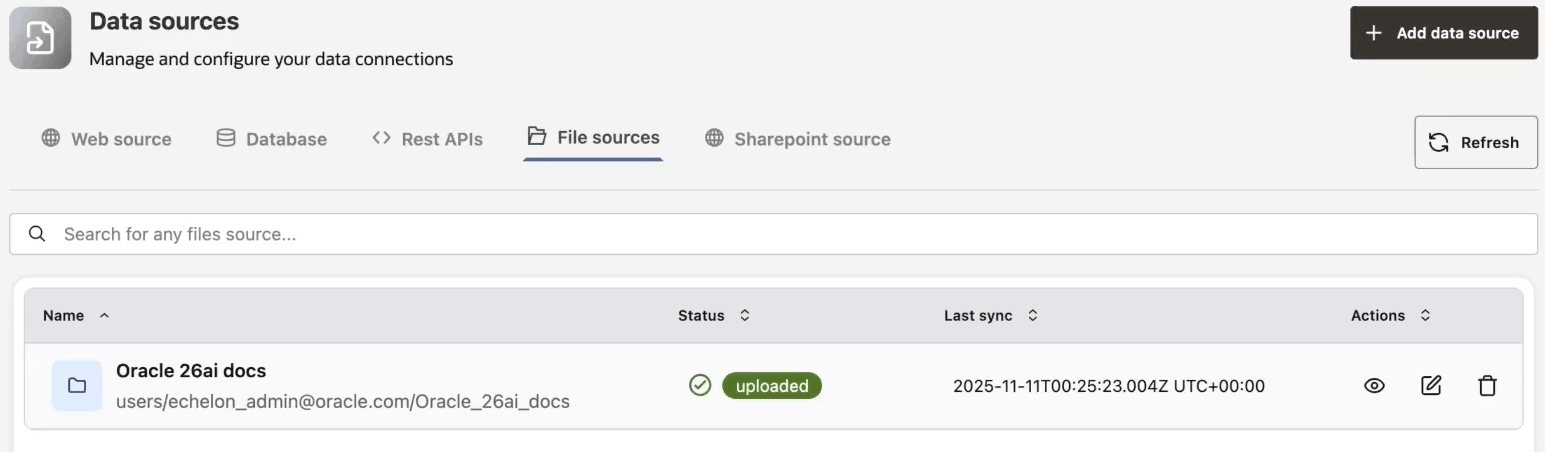
File Upload and Processing
File data sources are processed asynchronously. The INGESTION_QUEUED status indicates that a data source is queued for ingestion, but processing has not started. After upload, Agent Factory stores the file, parses text, chunks content, creates embeddings, and indexes the chunks for retrieval. A file source is not ready for RAG Agent selection until processing completes.
Large uploads use upload sessions and chunks. If a network interruption occurs, retry the failed upload from the upload panel instead of creating duplicate sources.
Backend File Sources
Administrators can stage large volumes of files on the host under the Agent Factory persistent data source path. Use this approach when browser upload is not practical.
Before adding backend files:
- Keep files inside the configured Agent Factory data source directory.
- Avoid symlinks to unrelated filesystem locations.
- Use clear directory names that identify the source owner and purpose.
- Confirm that the application container can read the files.
Share a File Data Source
You can share a file data source that you own or for which you have the Can manage access level.
- Open Data Sources and select the file source.
- Select Share from the source actions.
- In the Share dialog, review the users and groups that have access and their current access levels.
- Search for and select users or groups to add, change an existing access level, or remove access. Click Save changes to apply the changes.
The Share dialog identifies the resource owner as Owner. You cannot change or remove the owner’s access. See Manage Identity and Access for access-level definitions.
Troubleshoot File Ingestion
| Symptom | Check |
|---|---|
| File does not appear for RAG Agent selection | Wait for ingestion to complete and verify the data source status. |
| Upload fails partway through | Retry the failed upload, then check browser network stability and available disk space. |
| Agent does not answer from an image | Confirm the source contains a standalone JPG, JPEG, or PNG image and ingestion completed. If the LLM used during ingestion is not vision-capable, select a vision-capable LLM for the RAG Agent. |
| File is accepted but answers miss expected content | Confirm the file type is supported and the file contains extractable text. Scanned PDFs may require OCR before upload. |
| Backend staged files do not ingest | Confirm the directory is under the expected data source path and readable by the application container. |