Configure Observability
Use observability to debug prompts, inspect tool calls, profile latency, trace multi-step flow output, and review agent-to-agent calls. Traces also help you attribute token usage and cost to a complete or partial agent run.
Agent Factory provides native observability dashboards for reviewing metrics, sessions, traces, and spans. Administrators can also configure an external tracing provider to export Agent Factory execution traces.
A trace records one end-to-end run. A span records a timed operation inside the run, such as a flow step, an LLM call, or a tool execution.
Prerequisites
Before you configure observability in Agent Factory, complete these prerequisites.
- You must be signed in to Agent Factory as an administrator.
- If you use an external tracing provider, its server must be running and reachable from the Agent Factory deployment.
-
For an external tracing provider, you must know the provider’s traces endpoint. The endpoint typically uses the following format:
Arize Phoenix:
http://<phoenix-host>:6006/v1/tracesLangfuse:
http://<langfuse-host>:3000/api/public/otel/v1/tracesComet Opik:
https://www.comet.com/opik/api/v1/private/otel/v1/traces - If an external tracing provider requires authentication, you must have the API key.
Note: To enable Oracle AI Observability, ensure that the Agent Factory application database user has the CREATE JOB privilege. For the grant syntax, see Database Preparation and Grants.
Configure a Tracing Tool
After completing the prerequisites for the selected provider, add the tracing tool configuration in Agent Factory.
Note: At any point in time, you can have only one tracing tool configuration. The Add tracing tool button is disabled when a tracing configuration already exists. To add a different provider, delete the existing configuration, and then add the new provider configuration.
-
Sign in to Agent Factory as an administrator.
-
In the left navigation menu, select Application settings.
-
Select the Observability tab.
-
Click Add tracing tool.
-
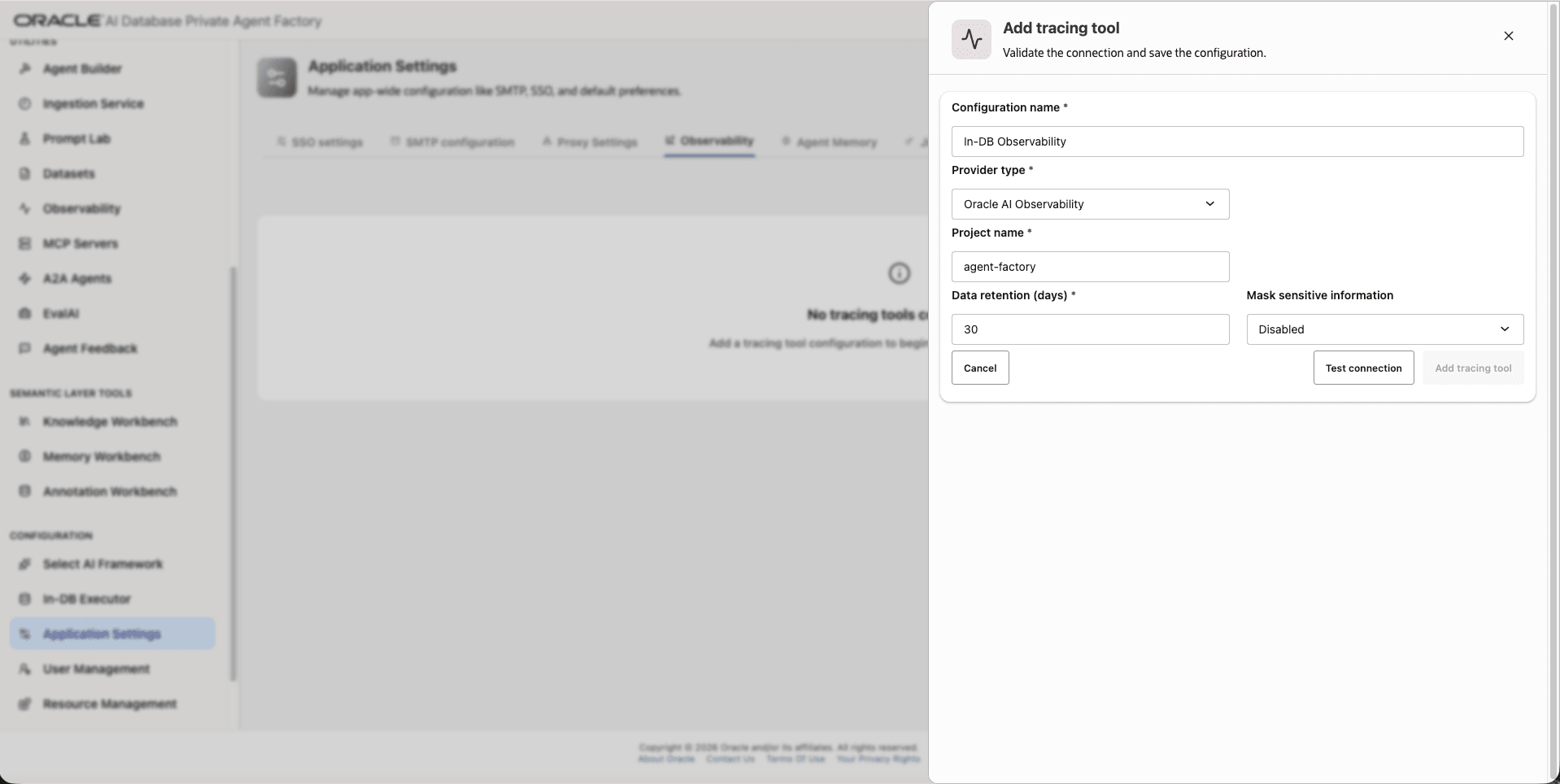
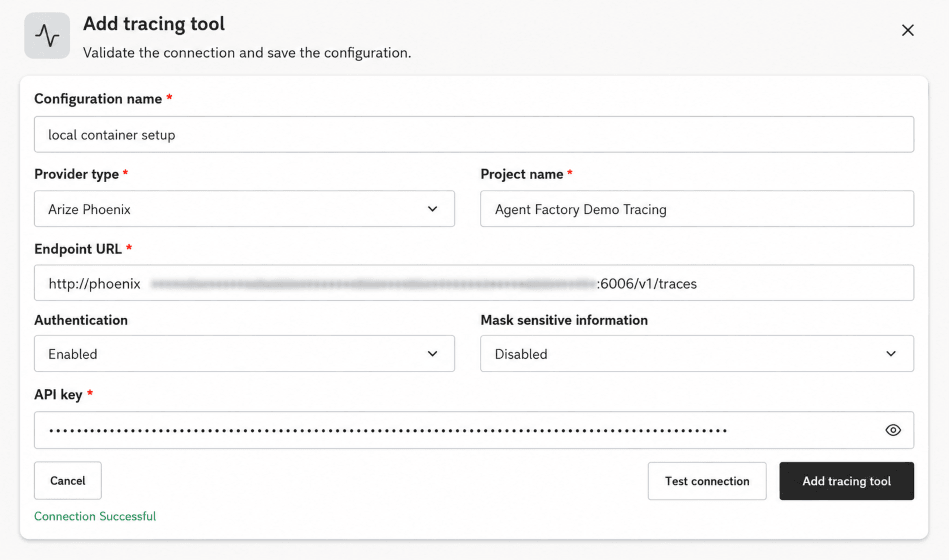
In Configuration name, enter a name that identifies this configuration.
This name identifies the saved tracing configuration in Agent Factory. Use a short name that helps administrators recognize the target environment, such as
local container setuporproduction phoenix. -
For Tracing provider, select Oracle AI Observability, Arize Phoenix, Langfuse, or Comet Opik.
Oracle AI Observability enables the native Observability dashboards in Agent Factory. Arize Phoenix, Langfuse, and Comet Opik are external tracing providers.
-
In Project name, enter the project name where Agent Factory traces are stored.
The project name groups traces in the tracing provider. Use a project name that helps operators find traces for the deployment, environment, or team. For example, use
Agent Factory Demo Tracingfor a demonstration environment. -
Complete the settings for the selected provider:
-
For Oracle AI Observability, enter the required Data retention (days).
-
For an external provider, in Endpoint URL, enter the provider’s HTTP traces endpoint. This can be a local deployment or a cloud server where you have set up the provider. Include the
/v1/tracespath.http://<phoenix-host>:6006/v1/traceshttp://<langfuse-host>:3000/api/public/otel/v1/traceshttps://www.comet.com/opik/api/v1/private/otel/v1/tracesNote: Do not use
localhostin the URL unless the tracing provider and Agent Factory resolvelocalhostto the same runtime environment. Use a host name or IP address that Agent Factory can reach. If the host is outside the network, make sure to enable the Allow User Supplied Proxy and disable the Block Private Outbound Urls in Proxy Settings. See Configure Proxy.
-
-
For an external provider, if authentication is required, enable authentication and enter the API key. If the provider doesn’t require authentication, leave authentication disabled.
Authentication controls whether Agent Factory sends an API key when it exports traces. The API key provides the token used to authenticate to the tracing provider. To configure an API key, in Phoenix, select Settings in the left sidebar, then select System Keys. In the Create an API Key dialog, click Create Key. When the confirmation dialog appears, copy the new API key and paste it in the API key field.
-
If you want Agent Factory to redact sensitive trace payloads, enable Mask sensitive information.
This field redacts sensitive values before trace data is exported.
Note:
Enable masking when prompts, model responses, system messages, tool arguments, or tool results can contain sensitive data. When masking is enabled, Agent Factory redacts LLM inputs and outputs, tool inputs and outputs, and OpenInference attributes such as
input.value,output.value,llm.prompts,llm.completions, andtool.parameters.Agent Factory keeps non-sensitive operational metadata visible so traces remain useful. For example, traces can still include token counts, model identifiers, latency, trace IDs, span IDs, and session IDs.
-
Click Test connection. Agent Factory validates the configuration for the selected provider.
-
Review the connection test result.
If the connection test fails, use the returned message to correct the configuration.
- For an external provider,
Connection Failed: 401 Unauthorized. Please check your API key.: Check whether authentication is enabled and whether the API key is correct. - For an external provider,
Connection Refused: Please ensure the tracing server is running and accessible at the specified endpoint.: Confirm that the tracing server is running and that Agent Factory can reach the endpoint URL. - For external-provider network or endpoint errors: Check the host name, port,
/v1/tracespath, firewall rules, and container networking.
- For an external provider,
-
If the connection test succeeds, click Add Tracing Tool.
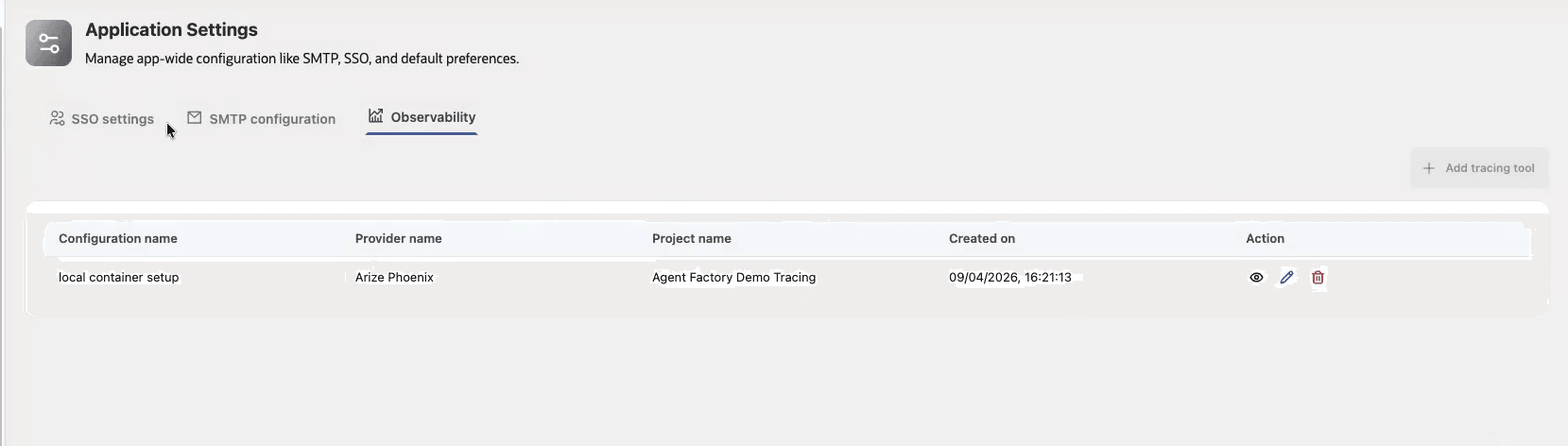
After the configuration is saved, Agent Factory shows it in the Observability table with the configuration name, provider name, project name, creation date, and actions to view, edit, or delete the configuration.
Use the Native Observability Dashboards
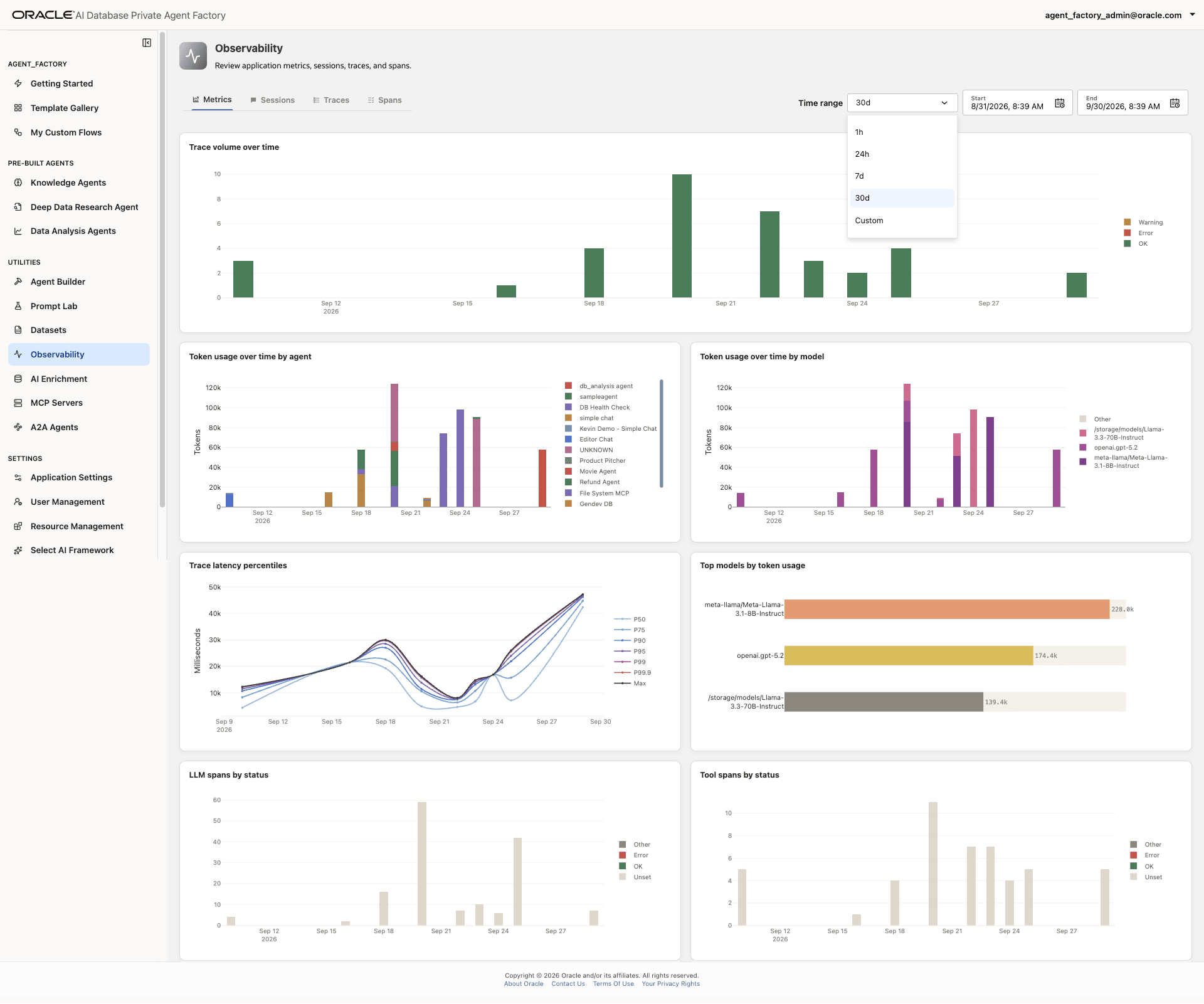
Use the native dashboards to explore telemetry from an agent run. Follow this workflow to move from the metrics overview to an individual span.
Administrators can view all telemetry. Editors can view their own telemetry and telemetry for agents, rooms, users, and groups they are authorized to access. Viewers cannot access the Observability dashboard or its telemetry.
-
Run an agent and submit a request.
-
In the left navigation menu, open Observability.
-
Set the time range and apply any relevant filters. Review the metrics for the agent runs in that range.
-
Select Sessions to review sessions for the selected time range and filters.
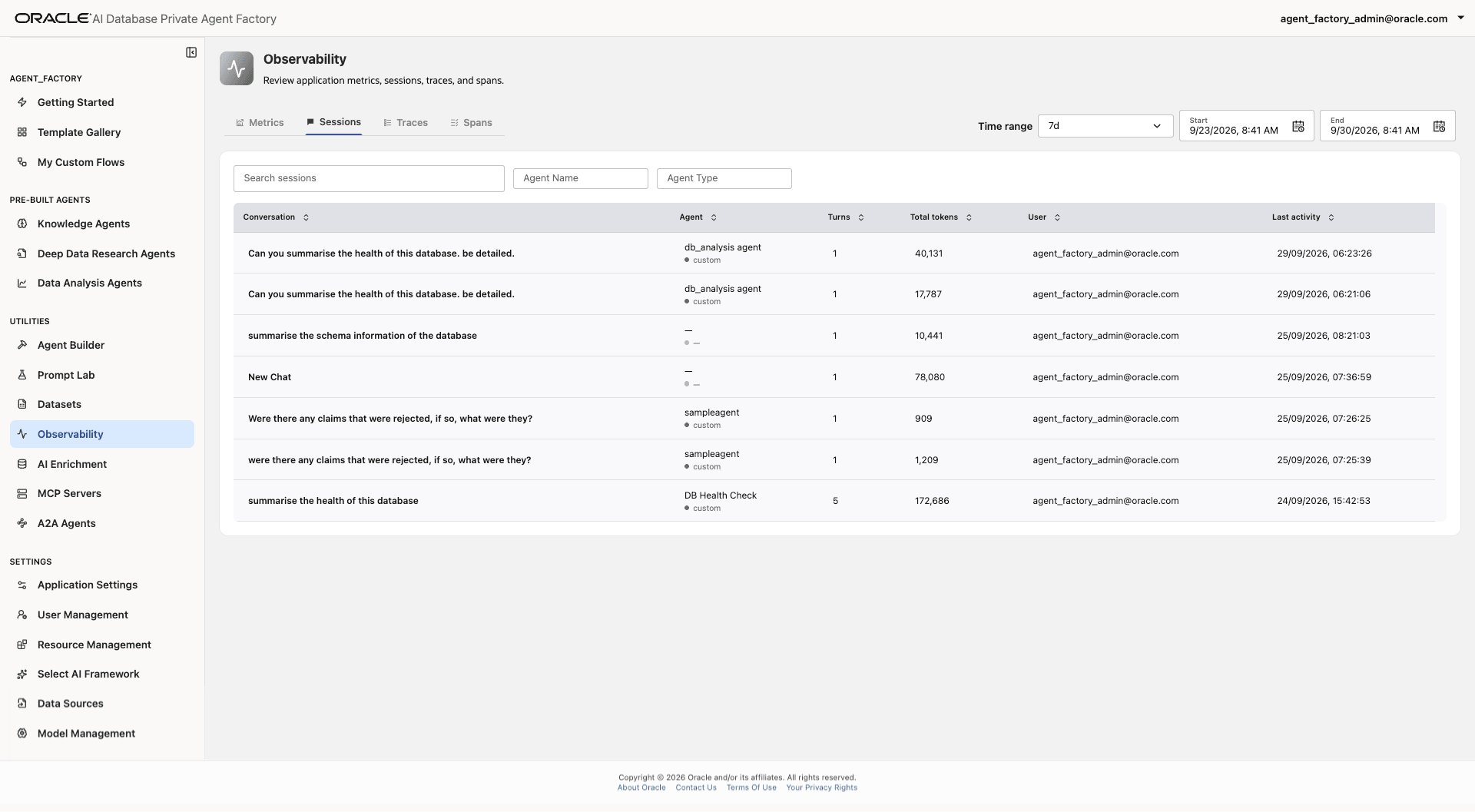
-
Select a session to inspect its conversation and related activity. In the session details, select View trace.
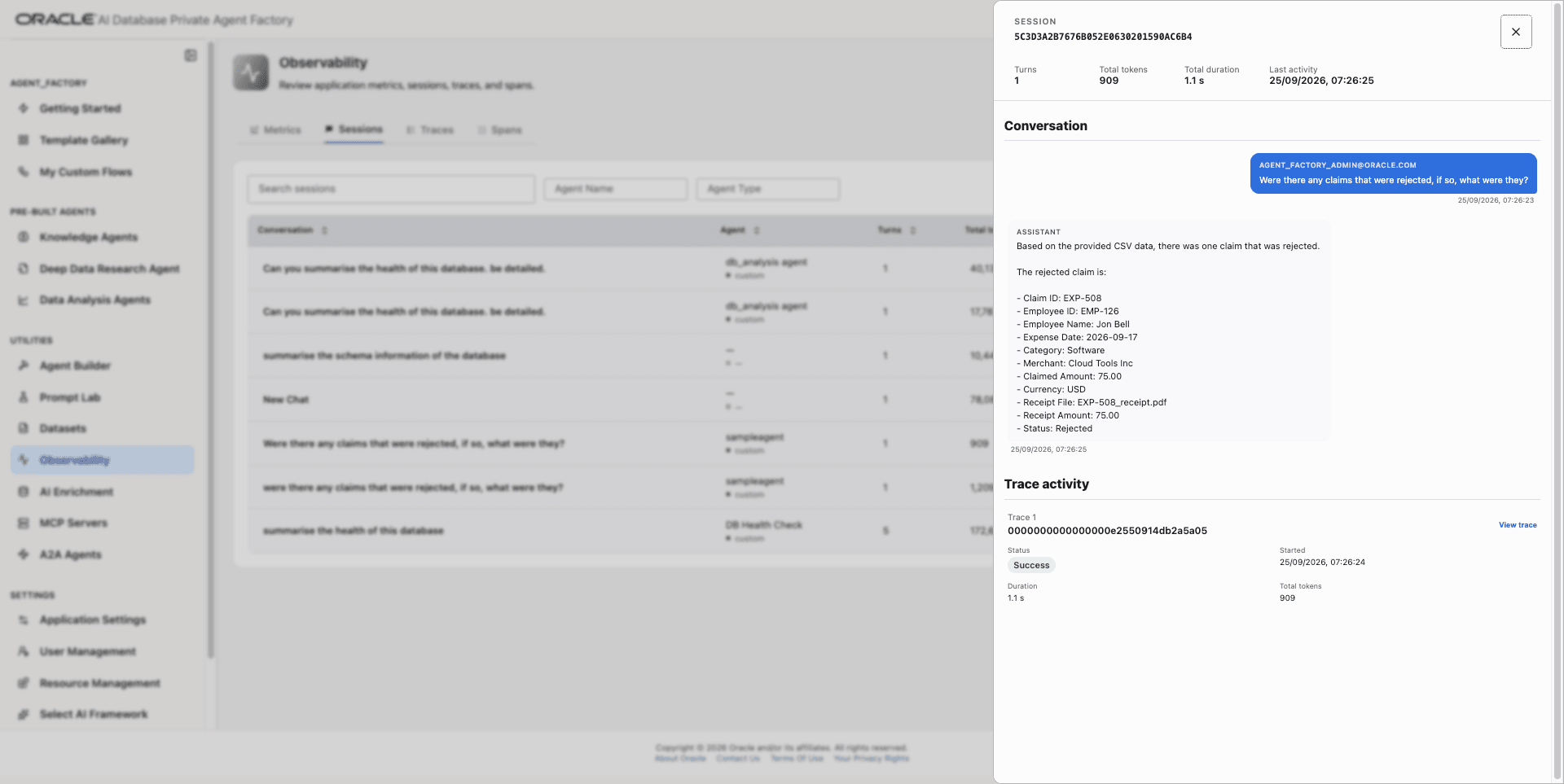
-
Review the trace timeline and execution sequence.
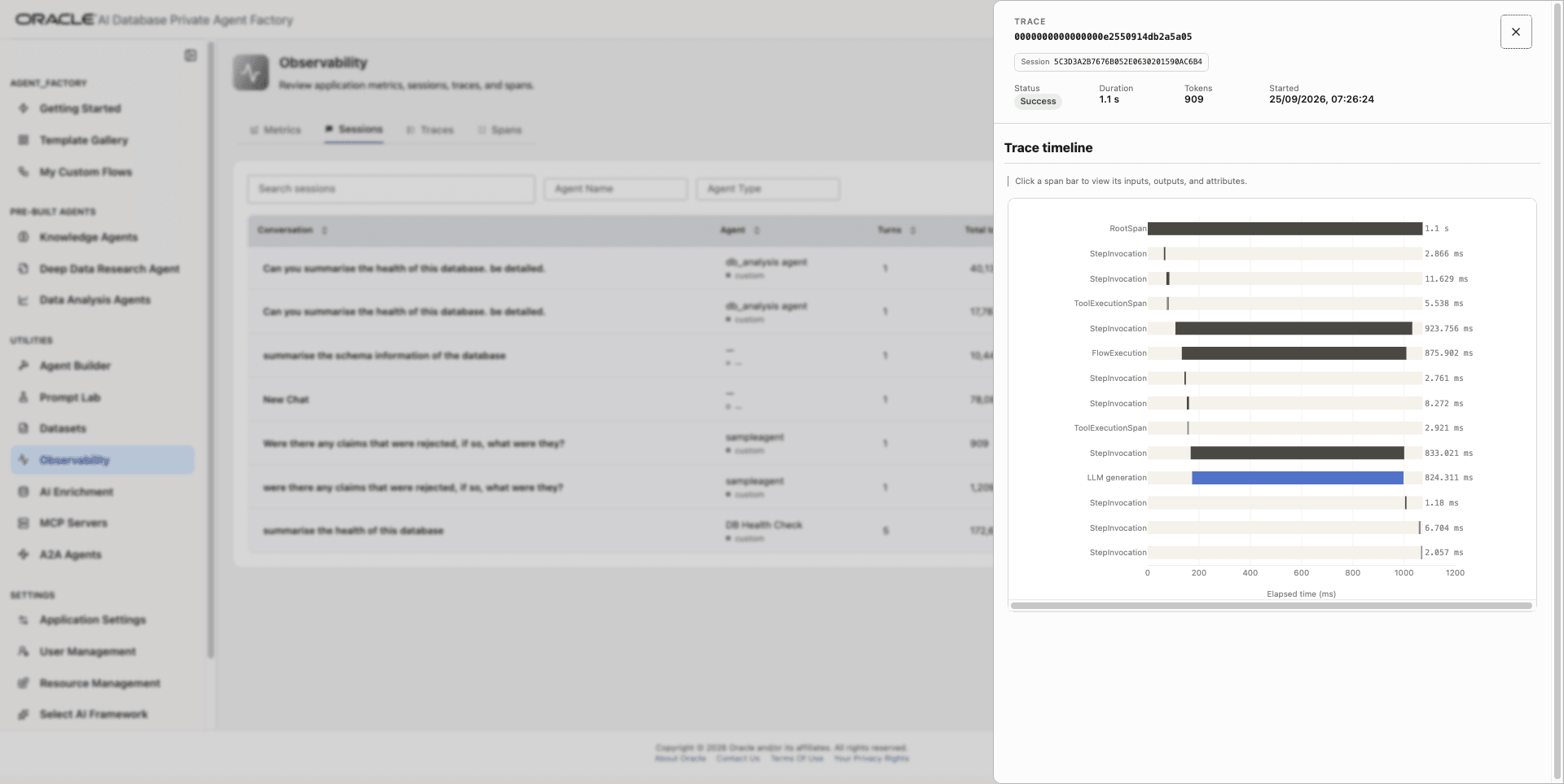
-
Select an individual span to inspect its available inputs, outputs, attributes, and timing information.
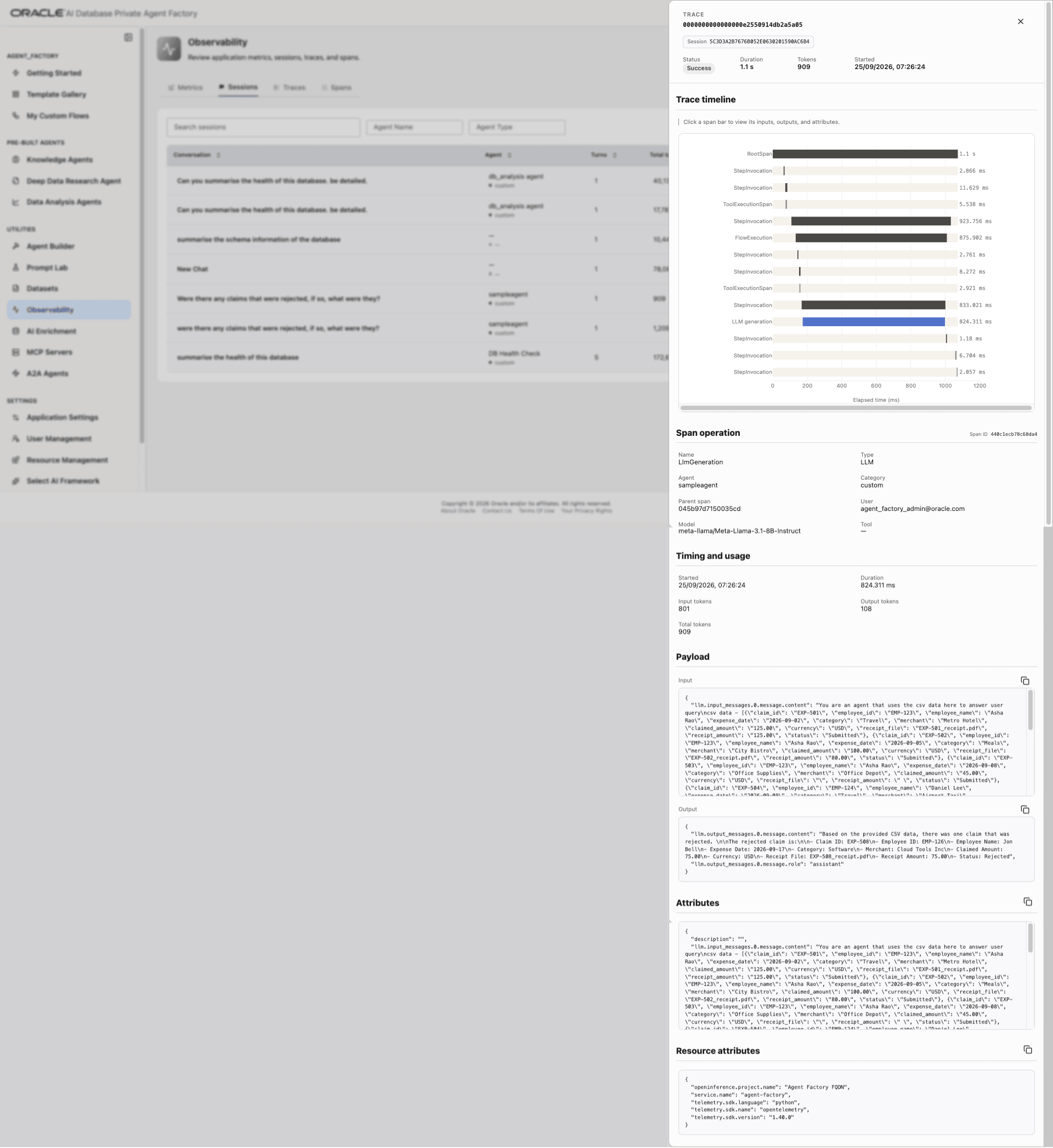
You can also browse traces and spans directly from their respective dashboard views.
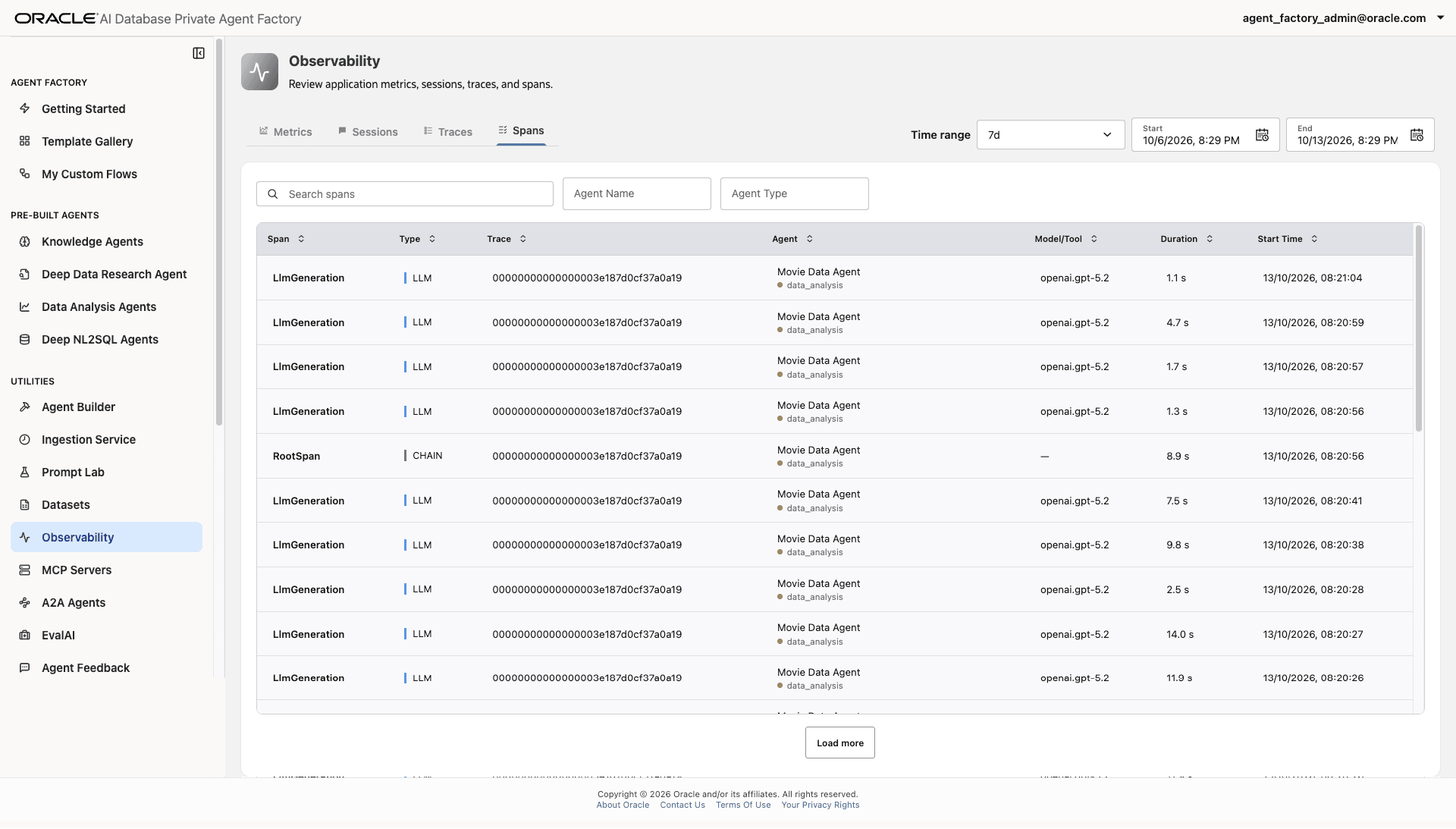
Note: Oracle AI Observability enables the native dashboards. External tracing providers supported in this release are Arize Phoenix, Langfuse, and Comet Opik.
View Captured Traces
After you save an external tracing provider configuration, Agent Factory starts exporting traces for subsequent flow and agent executions.
-
Open or create a flow in Agent builder.
-
Run the flow and send a message in the chat.
-
In the tracing server, open the project that you configured in Agent Factory.
-
Select the trace for the flow run.
-
The trace tree shows the overall flow run, each flow step, tool executions, and LLM calls. Use the trace tree to inspect the execution order, latency, span attributes, and status for each flow step.
The following examples show how traces are captured for common Agent Factory runs in Arize Phoenix.
- Single flow run: When a user runs a custom flow, Phoenix shows one trace for that run. The trace contains spans for the root operation, flow execution, each step invocation, tools, and LLM generation.
- Multi-agent flow: When a flow routes work to multiple agents, Phoenix groups the related agent and sub-agent spans under the same trace. Use this view to see which agent received the request, which sub-agent ran, and which step produced the final response.
- Tool inspection: When an agent calls a tool, Phoenix shows a tool execution span. Use the span attributes and timing to check whether the agent called the expected tool and whether the tool returned successfully.
- Latency analysis: Use span durations to find slow LLM calls, long-running tools, or flow steps that add most of the run time.
- Prompt debugging: If sensitive data masking is disabled, use the LLM spans to inspect prompts and completions. If masking is enabled, Phoenix shows the operational metadata but redacts sensitive values.