Upgrade Agent Factory
You can upgrade the Agent Factory application to the latest version by following the steps below. See Upgrade Marketplace Instance for instructions on upgrading your Marketplace instance.
Agent Factory 26.10 supports upgrades from the previous three releases: 26.7, 26.4, and 25.3.
Before upgrading to 26.10, verify that the existing PAF runtime database user retains the base grants required for Agent Factory installation, including
CREATE JOB, and has these additional grants for NL2SQL and A2A:
CTXAPPandEXECUTEonCTXSYS.CTX_DDL.SELECTonSYS.V_$SQL_PLAN.EXECUTEonSYS.DBMS_AQ.EXECUTEonSYS.DBMS_AQADM.If any grant is missing, ask an authorized DBA to apply it before you start the upgrade. For the SQL, see Example Grants for a PDB or Non-Autonomous Database or Autonomous Database Grant Syntax.
-
Download the latest kit according to your environment specifications. See Download Kit.
-
Create a directory and copy the downloaded tar.gz into the directory. Please note that this directory should not be the previous installation staging directory.
Note: For Marketplace deployments, run
sudo setenforce permissivebefore runninginteractive_install.sh. This temporarily sets SELinux to permissive mode, allowing the Podman build to proceed without being blocked. This change applies only to the current runtime and does not modify the permanent SELinux configuration. Use it only for the duration of the upgrade.cd <directory where the zip was copied> tar xzf <installer>.tar.gz bash interactive_install.sh --reset bash interactive_install.sh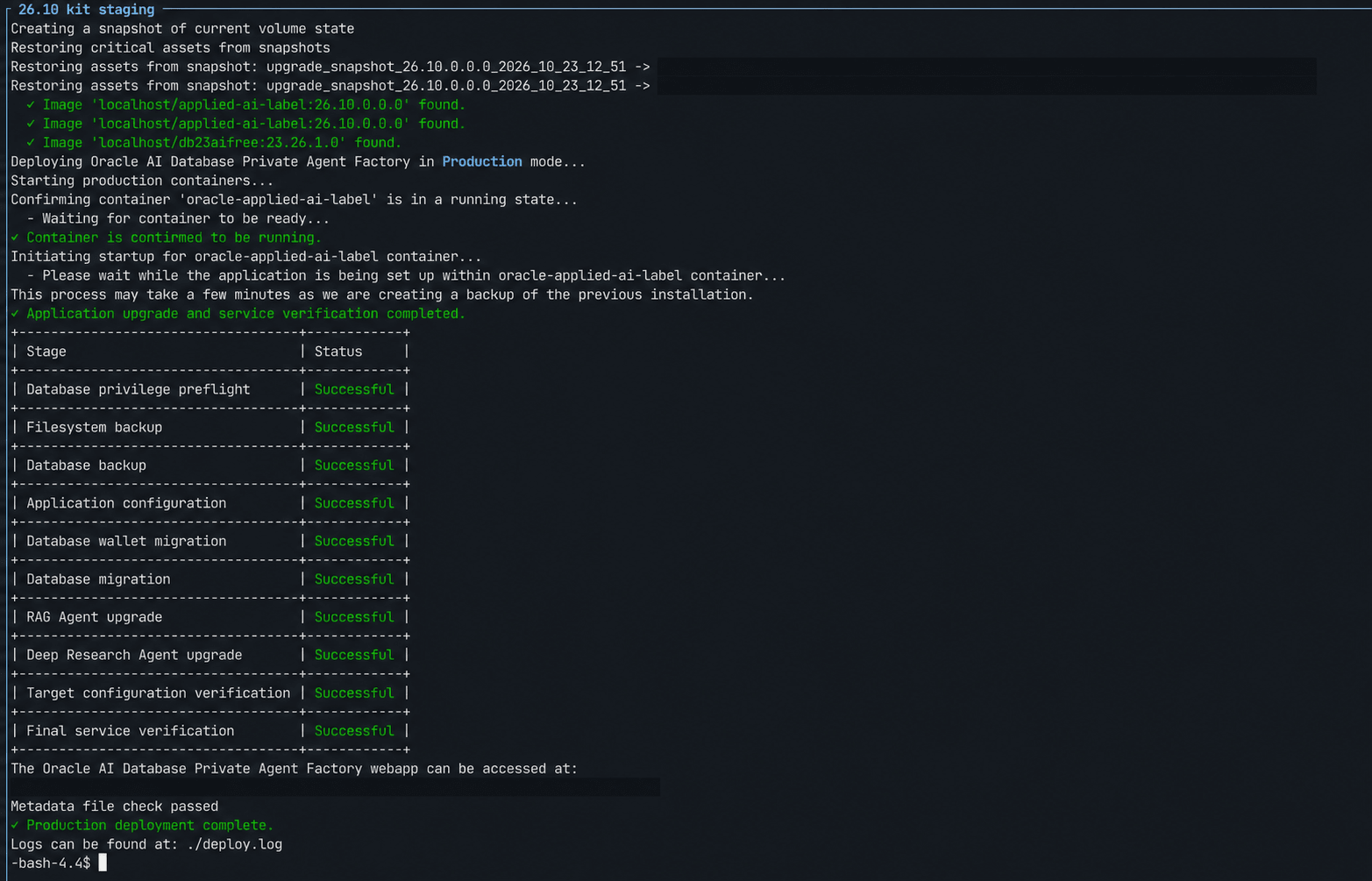
-
Log in using the application URL. A version upgrade notification should pop up, confirming that the update was successful.
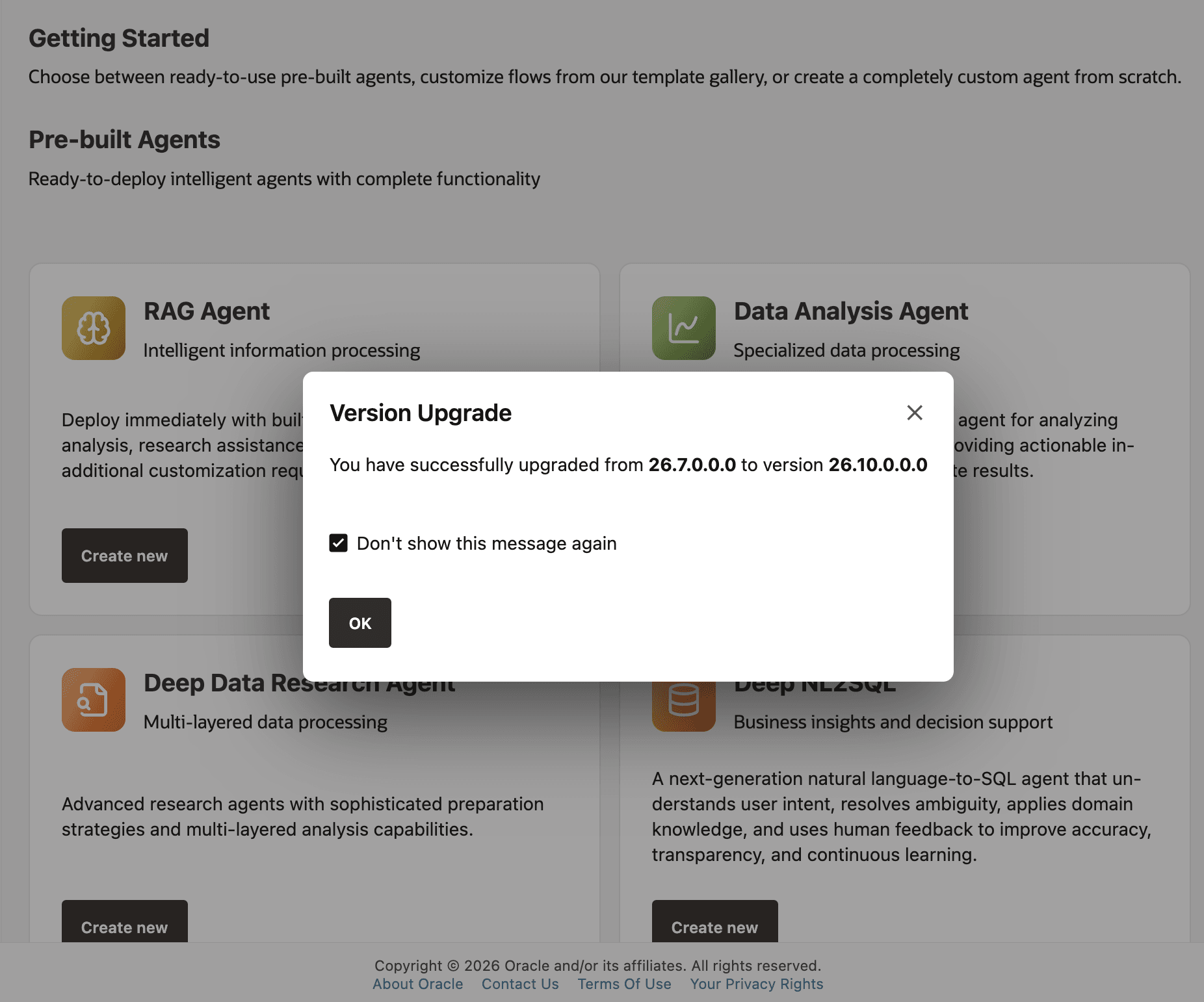
See Upgrade Troubleshooting for upgrade-related FAQs.
Upgrade Your Marketplace Instance
Follow these steps to upgrade your Marketplace instance.
-
Download the latest installation kit. See Download Kit.
The filename
oracle_agent_factory_<version>_<architecture>.tar.gzvaries by version and architecture. Replace<version>and<architecture>with the appropriate values for your release. -
Generate and save a download token, and then download the corresponding
wget.shscript.Make sure to select the package that matches your VM architecture, ARM or x86. Review your VM details page or contact your tenancy administrator if you are unsure.
-
Copy the downloaded
wget.shfile to your VM usingscp, or copy and paste its contents directly.scp -i <path_to_private_key> wget.sh opc@<public_ip>:~ -
Connect to the VM.
The following command keeps the SSH session alive, so the upgrade is less likely to be interrupted:
ssh -i <path_to_private_key> -o ServerAliveInterval=60 -o ServerAliveCountMax=5 opc@<public_ip> -
Create a new staging directory for the upgrade and grant access to the installation user.
sudo mkdir -p /u01/staging_upgrade/ sudo chown opc:opc /u01/staging_upgrade/ cd /u01/staging_upgrade/ -
Execute the downloaded
wget.shscript.You are prompted for the previously generated token.
bash ~/wget.shThis command downloads the binary file into the current directory.
-
Extract the installation kit and start the installer.
tar -xzf oracle_agent_factory_<version>_<architecture>.tar.gz
sudo setenforce permissive
./interactive_install.sh
When prompted for the staging location, enter the new staging directory you created earlier, such as
/u01/staging_upgrade.
The installer detects the existing installation and performs the upgrade while preserving your configuration and data.
Upgrade Validation and Recovery
After the installer completes, validate the upgraded deployment before returning it to users.
Important: For upgrades from release 26.4 or earlier to release 26.7 or later, Agent Factory disables SSO if it was previously enabled to complete the required role transition. Agent Factory redirects users to the local login page. Sign in as a local administrator and re-enable SSO in Configure Single Sign-On (SSO).
- Open
https://<host>:8080/agentFactory/and confirm that the login page loads. - Sign in as an administrator.
- Confirm that the version upgrade notification appears.
- Open LLM Management and test the default generative and embedding model configurations.
- Open Data Sources and confirm that existing sources are present.
- Run a simple published agent or Agent Builder flow.
- Generate a diagnostics bundle. See Collect Diagnostics.
If the upgrade fails, keep the new staging directory and the previous staging directory intact until diagnostics have been collected. From the new staging directory, run:
make diagnoseThen review the generated diagnostics archive or provide it to support.