Website Data Source
Web data sources allow you to use publicly available website content, including unauthenticated web pages, as a data source for your agents.
Configure a Website Data Source
-
Provide Source Name and Description of the data source.
Note: Data source names can be any UTF-8 string.
-
Enter the root (homepage) URL in the Endpoint field.
-
If you wish to exclude certain file extensions from crawling, select them from the Exclude File Extensions dropdown. At present, .pdf and .doc files can be excluded.
-
Enter URL patterns to include or exclude from crawling in the URL Filter.
-
Use Include filters to limit the scope of search to specific site sections or paths so the crawler collects only relevant content.
-
Use Exclude filters to skip sections or paths that are not expected to be crawled.
Include filters restrict the crawl to the content that matters. Exclude filters skip what doesn’t. Combining both the include and exclude filters helps you control crawl scope, improve speed, and avoid gathering unrelated data.
Adding URL filters is optional.
-
-
Enter Crawl Depth to specify the maximum number of links to follow from the start endpoint. Select the Unlimited checkbox to crawl the endpoint exhaustively.
-
Provide Crawl Frequency to specify how often (in days) the data source should be crawled.
-
Configure a Proxy URL for the data source when operating within a firewall or an internal corporate network.
-
Click Test Connection and make sure the connection is successful before adding the web source.
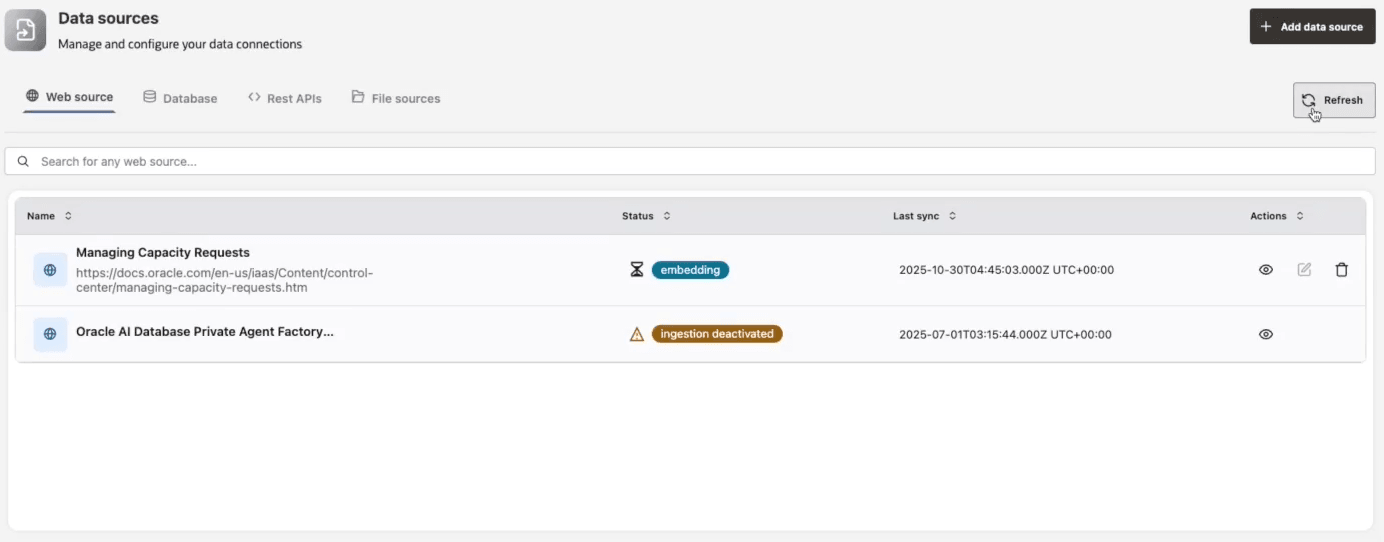
See Data Sources Troubleshooting for information about data source-related statuses and errors.
Network and Security Behavior
Web crawling runs from the Agent Factory application container. The URL must be reachable from the container, not only from your browser.
Agent Factory validates outbound URLs and proxy settings before crawling. Depending on administrator settings, Agent Factory can reject:
- Plain
httpURLs. - User-supplied proxy URLs.
- Private, loopback, link-local, reserved, multicast, or metadata-service addresses.
- Unsafe host names or ports.
If you need to crawl an internal website, coordinate with the administrator responsible for Configure Proxy and private subnet access. Do not disable private URL blocking broadly unless the deployment has compensating network controls.
Crawl Scope Guidance
- Use include filters to keep the crawl inside the business-relevant path.
- Use exclude filters to avoid login pages, calendars, search pages, large archives, and irrelevant sections.
- Set crawl depth conservatively first, then increase it after checking ingestion results.
- Set crawl frequency according to how often the source content changes.
Troubleshooting Web Sources
| Symptom | Likely cause | Action |
|---|---|---|
| Test connection fails from Agent Factory but works in your browser | The container cannot reach the site, DNS, firewall, or proxy path. | Test from the host/container network and configure a proxy if required. |
| Private URL is rejected | Private outbound URL blocking is enabled. | Use an approved internal access pattern or ask an administrator to review proxy settings. |
| Crawl returns too much content | Filters or depth are too broad. | Add include/exclude filters and lower crawl depth. |
| Crawl misses pages | Depth is too low, links are generated dynamically, or filters are too strict. | Increase depth, adjust filters, or provide a more specific start URL. |