Export and Import Workflows
Export custom workflows from Agent Builder and import them into another Agent Factory environment by using either a .paf archive or an Agent Spec file.
Use a .paf archive to move one or more Agent Factory workflows between environments by using the product’s password-protected archive format.
Use Agent Spec to export workflows in Open Agent Specification format or exchange flows with tools that support Agent Spec.
Export and Import Workflows as a .paf Archive
Use the .paf archive flow to export selected workflows into an encrypted archive and import that archive into another Agent Factory environment.
During import, Agent Factory uses workflow lineage metadata to identify matching workflows. When a match exists, Agent Factory updates the workflow as a new version instead of creating a duplicate workflow entry.
Export Workflows as an Archive
-
In the navigation menu, click My custom flows.
-
Select the workflows that you want to export.
- To export specific workflows, select the check box for each workflow.
- To export all workflows in the current list, select the Select all check box at the top left of the list.
-
Click Import/Export and choose Export Selected.
-
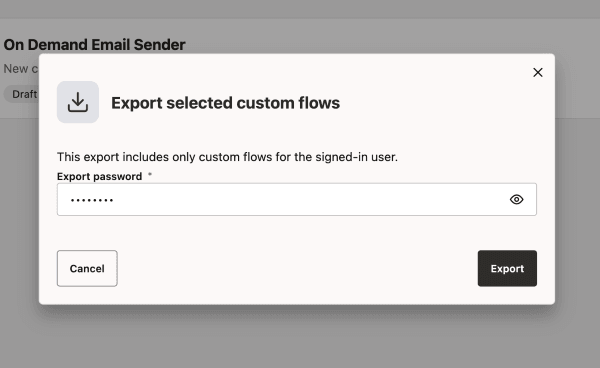
In the export dialog, enter a strong password for encrypting the archive. You must use this same password when you import the archive.
-
Click Export.
-
Save the downloaded
.pafarchive.The file name uses the format
exported_flows_<date>_<time>.paf.Note:
- Store
.pafarchives only in restricted locations and delete stale archives after use. - Share the archive and its password only with trusted users. Use secure channels to share them. Avoid emailing or sharing archives over insecure channels.
- Rotate credentials if an archive is shared beyond the intended boundary.
- Store
Import Workflows from an Archive
-
In the navigation menu, click My custom flows.
-
Click Import/Export and choose Import Flows.
-
Upload the
.pafarchive.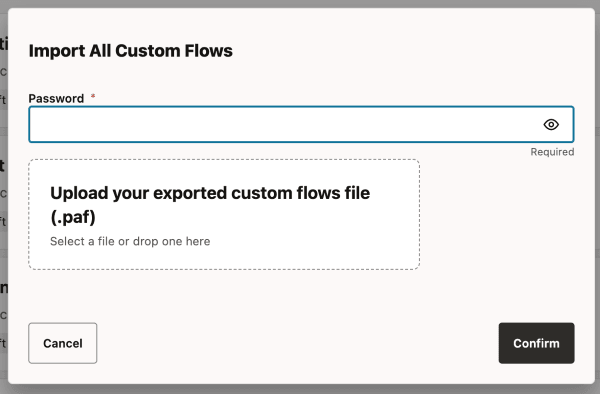
-
Enter the password that was used to export the archive.
-
Click Confirm.
Agent Factory decrypts the archive and creates or updates the imported workflows. When an imported workflow matches an existing workflow in the target environment by lineage metadata, Agent Factory saves the imported content as the next version of that workflow. Workflow names are not used to determine whether a workflow is created or updated.
Note: Workflow versioning prevents duplicate workflow entries when you import the same
.pafarchive more than once. -
Once the import completes successfully, a notification displays the number of flows created and updated.
Note: If an import fails, Agent Factory performs a best-effort cleanup of newly created flows and restored resources. Existing flows updated during the import may not be reverted.
-
Review all imported workflows and manually configure any required LLM, database data source, REST API source, MCP server, or Select AI metadata references.
Note:
-
Imported workflows are created as unpublished workflows, even if they were published before export.
-
If the archive was exported from a newer application version than the current environment, the import continues, but Agent Factory displays a warning.
Export and Import Workflows as Agent Spec
Use the Agent Spec flow to export workflows as Open Agent Specification files and import Agent Spec files back into Agent Builder.
Export Workflows as Agent Spec
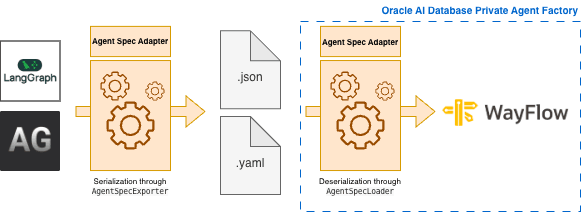
Use Agent Spec export to export custom workflows in Open Agent Specification format, a standard that enables serialization and deserialization of agentic flows via runtime adapters.
This export path is separate from the .paf archive export and does not require an archive password.
-
In the navigation menu, click My custom flows.
-
Select the workflows that you want to export.
To export all workflows, you do not need to select individual workflows.
-
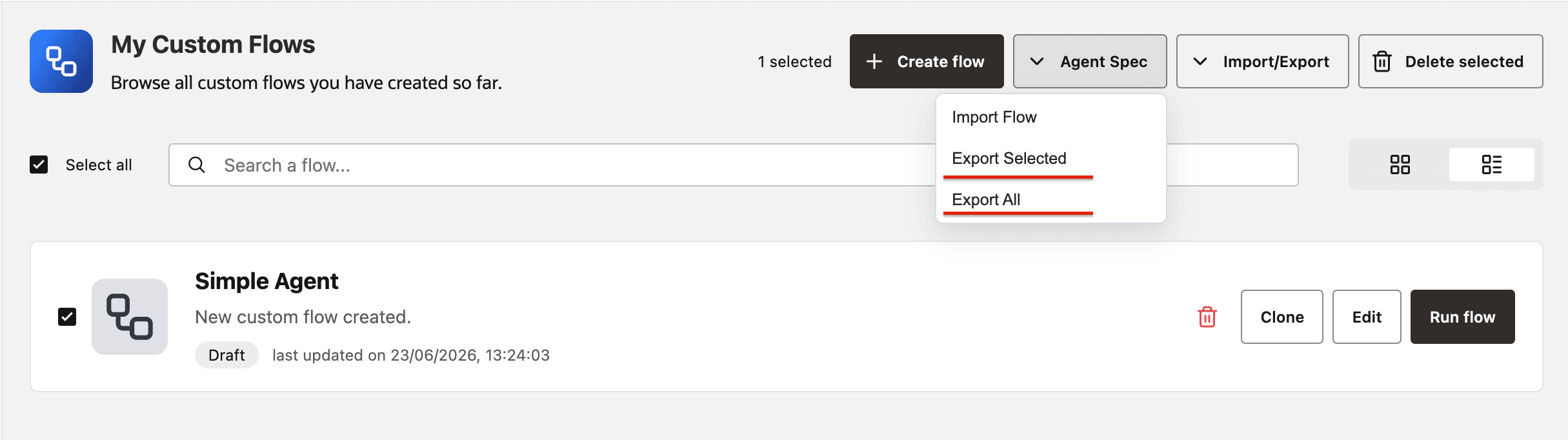
Click Agent Spec.
-
Choose one of the following options:
- To export selected workflows, click Export Selected.
- To export all workflows, click Export All.
-
Wait for the export progress dialog to complete.
-
Save the downloaded ZIP file.
The file name uses the format
agent_spec_flows_<YYYYMMDD_HHMMSS>.zip. The ZIP file contains one Agent Spec file for each exported workflow.
Agent Factory exports visual Agent Builder workflows as .agent.json files. Workflows that were originally imported from Agent Spec are exported in their original JSON or YAML format, such as .agent.json or .agent.yaml.
Note:
- Agent Spec export does not include secrets, credentials, wallets, private certificates, uploaded file contents, runtime-only state, conversation history, scheduler state, or transient execution state.
- Visual Agent Builder workflows export as JSON. Workflows that were originally imported from Agent Spec preserve their original JSON or YAML format.
- Agent Spec export does not provision missing resources in another environment or test external tool connectivity.
- Bulk export does not return a partial ZIP file when one selected workflow fails.
- External portability depends on whether the target runtime supports the exported Agent Spec components, Agent Factory custom tools, and referenced resources.
If Agent Spec export fails, review the following errors:
| Error | Cause | Action |
|---|---|---|
| You are not authorized to export the workflow. | You are not signed in, or you do not have access to use or export the workflow. | Sign in with an authorized account or request access to the workflow. |
| The workflow is not found. | The selected workflow no longer exists or is not visible to your account. | Refresh the workflow list and select an available workflow. |
| The workflow cannot be exported as Agent Spec. | The visual graph is invalid, missing nodes or edges, contains malformed connections, or uses a node that cannot be converted. | Open the workflow, resolve validation errors, and retry the export. |
| The generated Agent Spec file does not pass validation. | Agent Factory cannot serialize or validate the generated Agent Spec output. | Review the workflow for unsupported node configuration and retry after updating the workflow. |
| Bulk export fails before download. | One selected workflow failed export, and Agent Factory does not return a partial ZIP file. | Export fewer workflows to identify the failing workflow, then fix or exclude it. |
Import Workflows from Agent Spec
Import an Agent Spec file to create workflows from an Open Agent Specification, a standard that enables serialization and deserialization of agentic flows via runtime adapters.
Imported visual Agent Builder exports remain editable when the exported file includes Agent Builder metadata. Agent Spec files generated by external frameworks, such as LangGraph or AutoGen, are not editable after import.
-
In the navigation menu, click My custom flows.
-
Click Agent Spec and choose Import Flow.
-
Select a
.agent.json,.json,.agent.yaml, or.yamlAgent Spec file. -
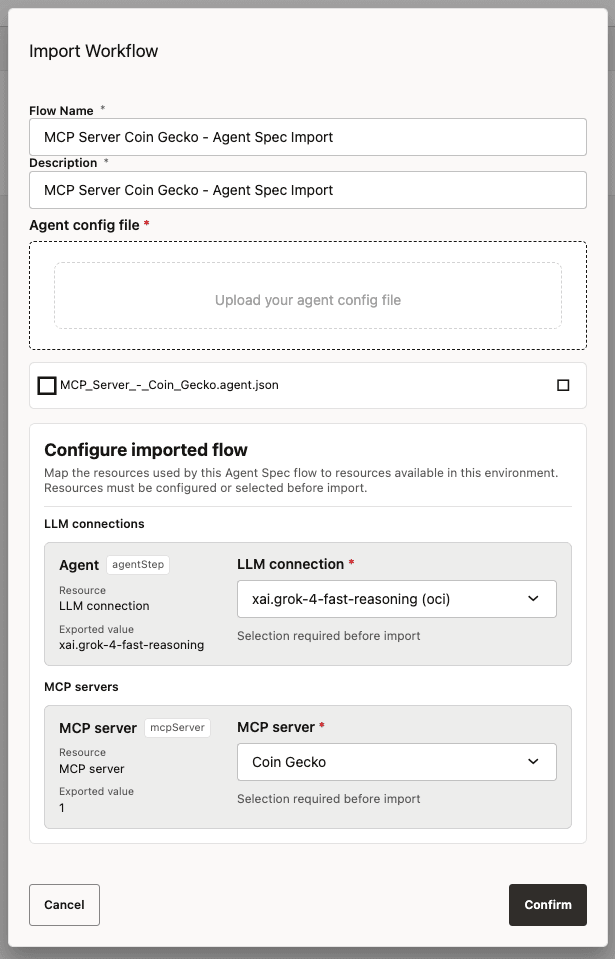
If Agent Factory displays Configure imported flow, map each required resource to a resource available in the current environment.
Agent Factory can prompt you to map resources such as LLM connections, embedding models, database connections, REST API sources, MCP servers, and RAG pipelines. Some values, such as Select AI objects, MCP tool names, uploaded files, image files, location URIs, and root paths, may be preserved for later review or manual editing.
-
Click Import.
-
Review the imported workflow and configure any missing or environment-specific resources before testing the workflow.
Note:
- Editable round-trip import works best when the file was exported by Agent Builder and includes Agent Builder metadata.
- External Agent Spec files without Agent Builder metadata are imported as non-visual or non-editable Agent Spec workflows.
- Agent Spec import does not automatically create missing LLM connections, embedding models, databases, REST sources, MCP servers, RAG pipelines, Select AI objects, or files in the target environment..
- Some Select AI-dependent resources are preserved for manual review instead of being fully remapped during import.
- File references might require user upload or manual correction after import.
- Import validation confirms that Agent Factory can parse and load the file. It does not guarantee that every external service call will succeed at runtime.
If Agent Spec import fails, review the following errors:
| Error | Cause | Action |
|---|---|---|
| The uploaded file is missing or unsupported. | The selected file is missing or does not use a supported JSON or YAML Agent Spec extension. | Select a .agent.json, .json, .agent.yaml, or .yaml file. |
| The file cannot be parsed or loaded. | The JSON or YAML content is malformed, or the Agent Spec loader rejects the file. | Validate the file content and retry the import. |
| Configure imported flow is required. | The file is valid but references environment-specific resources. | Map each required resource to a resource in the current environment. |
| Required resource mapping is incomplete or invalid. | A required LLM, embedding model, database, REST API source, MCP server, or RAG pipeline mapping was not selected or is no longer available. | Select valid resources and submit the import again. |
| Referenced files or resources cannot be attached. | The imported flow references uploaded files or resources that are missing or unsupported in the target environment. | Upload replacement files or edit the imported workflow after import. |
Note: If you created flows in external frameworks, such as LangGraph or AutoGen, and want to import them into Agent Factory, use the PyAgentSpec library to generate a JSON or YAML representation of each flow. Then import that Agent Spec file into Agent Factory.