4.2 About Editable Interactive Grids
Editable interactive grids possess all the same functionality of regular interactive grids, plus some additional functions in the interface and the customization menus. You can add, edit, delete, copy, paste, and refresh much of the underlying data in an editable grid.
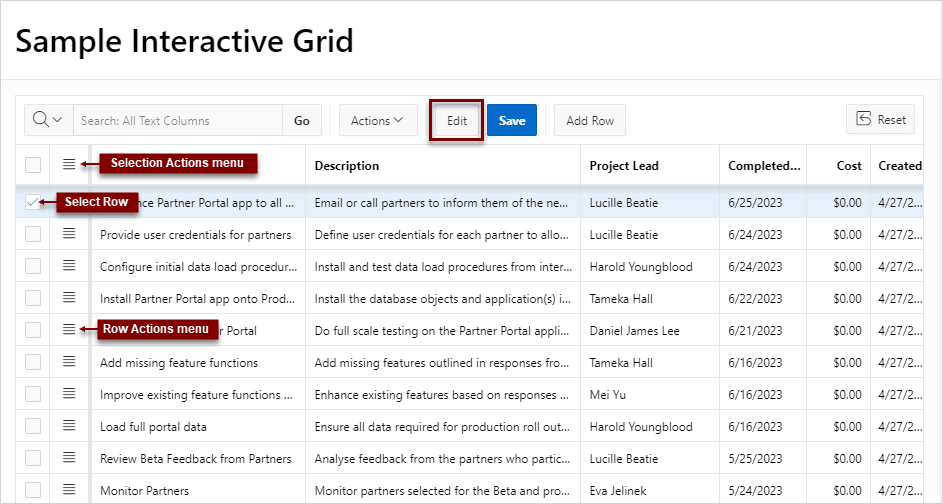
About Editable Interactive Grids
With an editable interactive grid, you can change or update data directly in the form. The in-line editing allows selecting, adding, and changing a grid's contents. Interactive grids can have other views, including details, icon, and chart views. Editing only applies to the grid view of interactive grid.
Editable Cells
You can change the contents of an individual cell in real time by double-clicking a cell.
- Clicking Edit
- Doubleclicking a data cell
- Pressing Enter or F2 while focus is in a data cell
- Click Edit
- Press Escape
Editable Rows
The primary way of adding new content to an editable interactive grid is by adding new rows. You can use the Row Actions menu to edit an individual row, or the Selection Actions menu to edit multiple rows at once.
Copy, Cut, Paste, and Paste Insert
The Selection Actions menu contains clipboard features, including Copy, Cut, Paste, and Paste Insert, which inserts data rather than overwriting existing data. Standard operating system keyboard shortcuts for copy, cut, and paste work in interactive grid. You can copy and paste between interactive grids or even within an interactive grid. In addition to these commands, editable interactive grids also support dragging data from a spreadsheet to the interactive grid. Hold down the Shift key while dragging to insert.
Interactive grid has two selection modes: Row Selection and Cell Selection. Row selection, which selects multiple rows, is the default. You can change to cell selection by using Actions, Selection, or by pressing F8.
Copying data works even when the grid is not editable.
Tip:
Paste (and drag and drop) only work with source applications that put tabular data on the clipboard in an appropriate format. Many applications use HTML format, which works well.Browsers differ in how they implement access to the clipboard. You may need to grant permission to your browser in order to paste data.
Related Topics
Parent topic: Using Interactive Grids