25.1.9.1.8.9.1 Adding Page Items to Edit Parameters
Add page items to give users a better experience when entering task parameter values.
The Details region in the generated Task Details page offers a basic parameter
editing experience. However, your end users might appreciate entering data using page
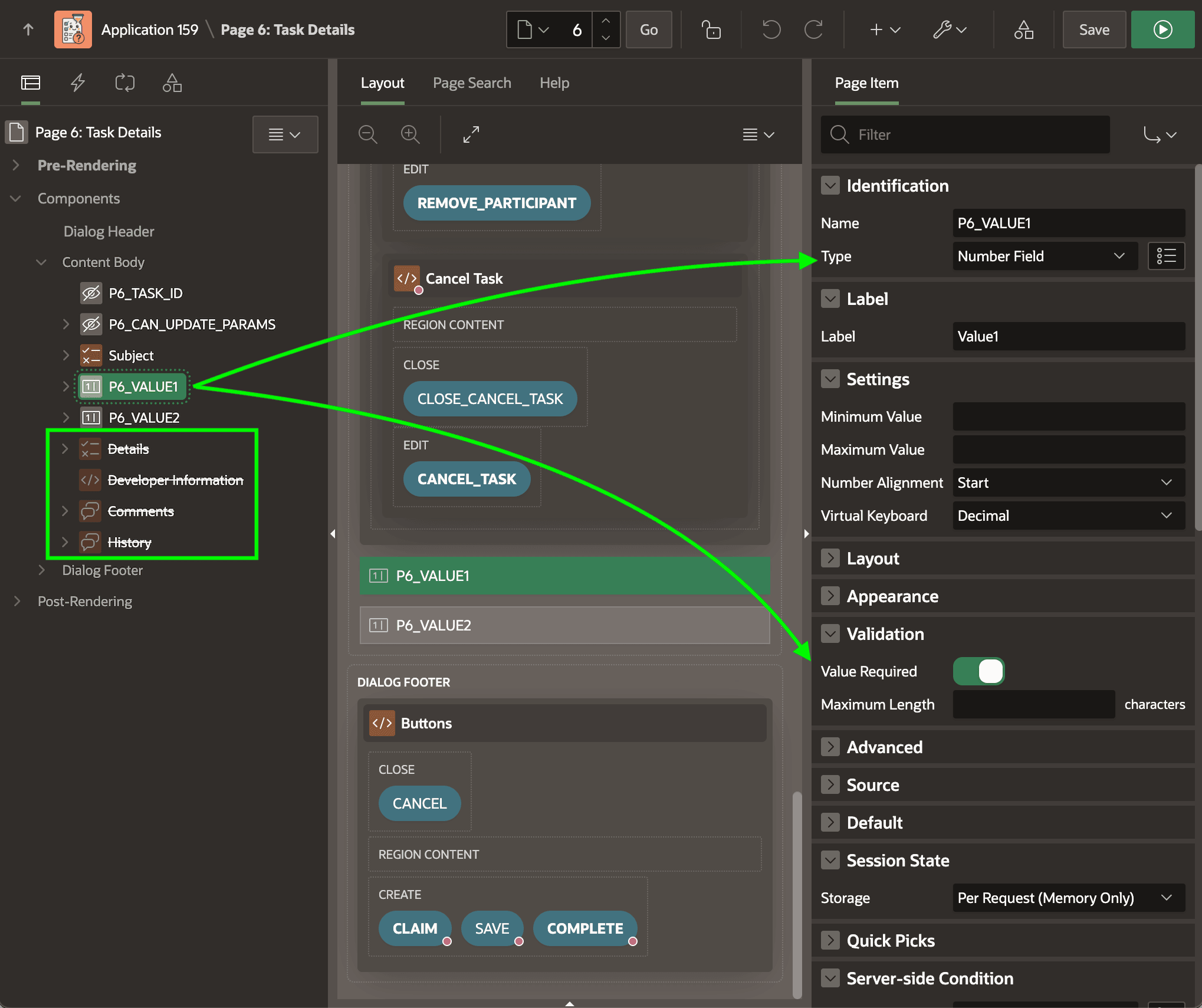
items. As shown below, you can right-click on a region like Details, Developer
Information, Comments, and History and choose Comment Out
to temporarily ignore those regions when the page is run. As shown below, commented out
elements display with a line through their label in the tree. After adding page items
P6_VALUE1 and P6_VALUE2 you can set their
Type to Number Field, enable Value Required, and set their
Session State > Storage to Per Request (Memory Only).
Figure 25-47 Commenting Out Regions and Adding Page Items to Enter Additional Data
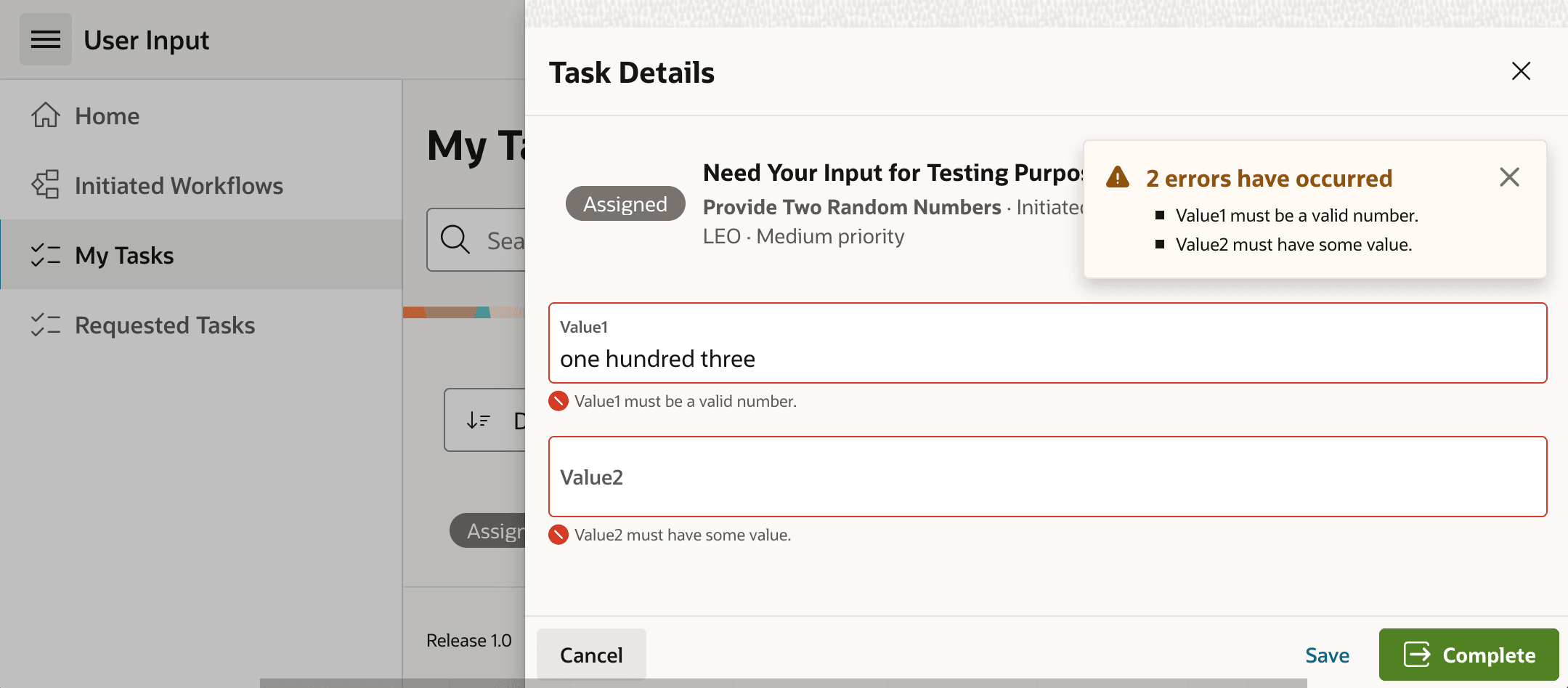
Trying out the modified page, you can see that your end user immediately gets a better data entry experience. Any attempts to submit the page with non-numeric values or without filling in a required value gives the normal APEX field validation errors shown below. The figure shows the customized Task Details page for the Provide Two Random Numbers task definition. If Leo submits a Value1 by typing in words, and leaves Value 2 blank, he sees the error notification on clicking the (Complete) button. It displays "2 errors have occurred" and shows the two validation errors "Value1 must be a valid number", and "Value2 must have some value".
Figure 25-48 Automatic Field Types and Required Fields Validation
Parent topic: Fine-Tuning a Task Details Page