16.3.2 Controlling Image Upload User Experience
Use the Image Upload page item's properties in the Display, Cropping, and Resize To sections to control your end users' experience when uploading an image.
Allow Cropping lets the end user adjust the selected portion of the image to upload. When enabled, an additional Aspect Ratio list appears to impose a standard format if appropriate.
Use the Maximum File Size, Maximum Width, and Maximum Height to constrain the size of the image. If needed, the page item resizes the file on the client before uploading. This helps avoid storing multi-megapixel images from modern smartphones when that resolution adds no value.
To let the user take a photo, set Capture Using to open a device's main or selfie camera. Users can still select an existing image file instead.
The Display As and Preview Size control how the user sees the image upload item on the page. By default, it shows as an Icon Dropzone with a preview of the selected image.
The Display Download Link controls whether the user can download an existing image when editing a row. When enabled, you can also set the Download Link Text.
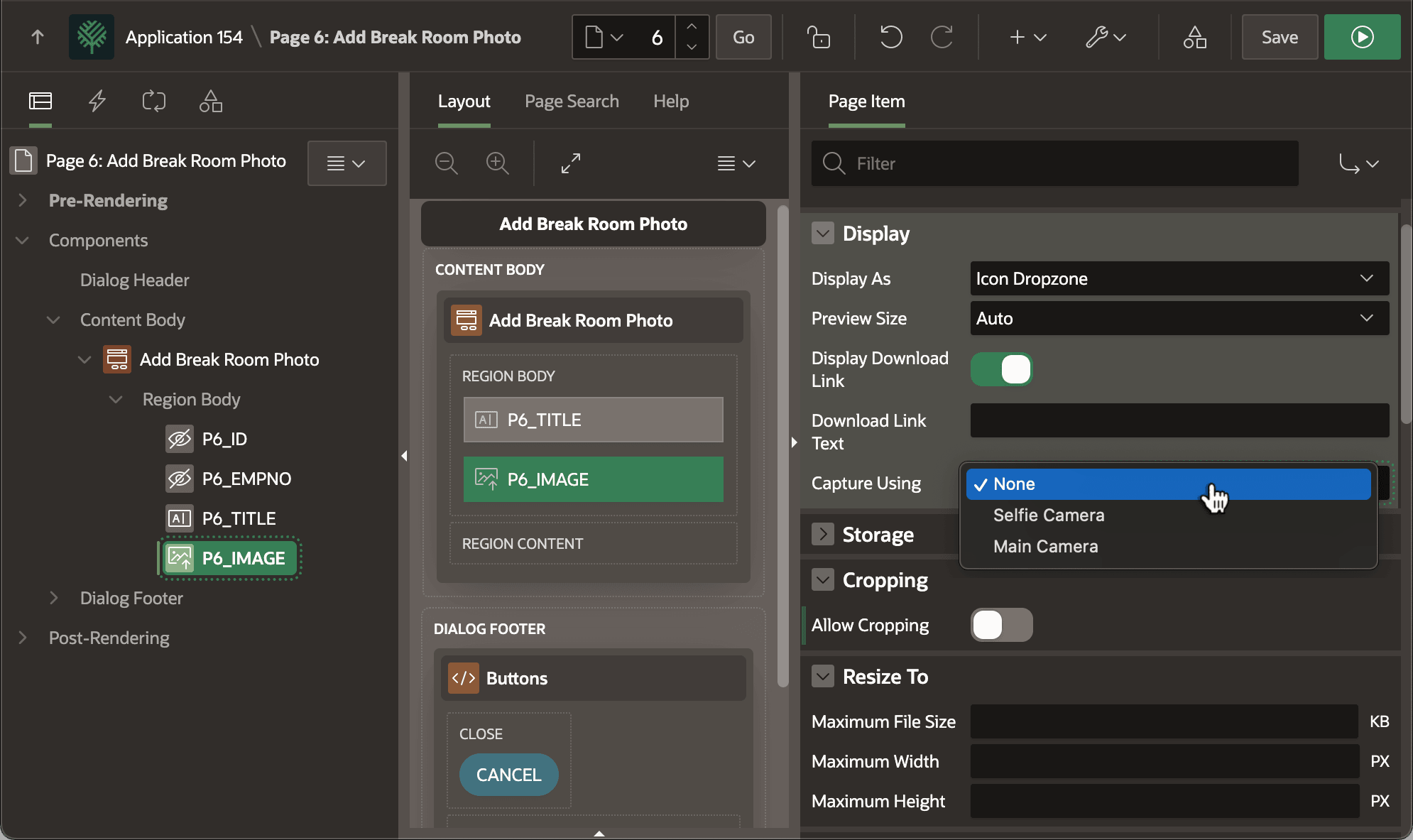
The figure shows the P6_IMAGE Image Upload page item selected in the component tree and values of its properties in the Display, Cropping, and Resize To sections in the Property Editor. The mouse is showing the different values of the Capture Using property: Selfie Camera, Main Camera, or None.
Figure 16-11 Configuring Properties That Control Image Upload Behavior
Parent topic: Uploading an Image to a BLOB Column