13.8 Debugging REST API Errors
If you work with REST APIs, one of them might return an error at runtime. Use APEX's built-in debug tracing facility to diagnose the problem and identify a fix.
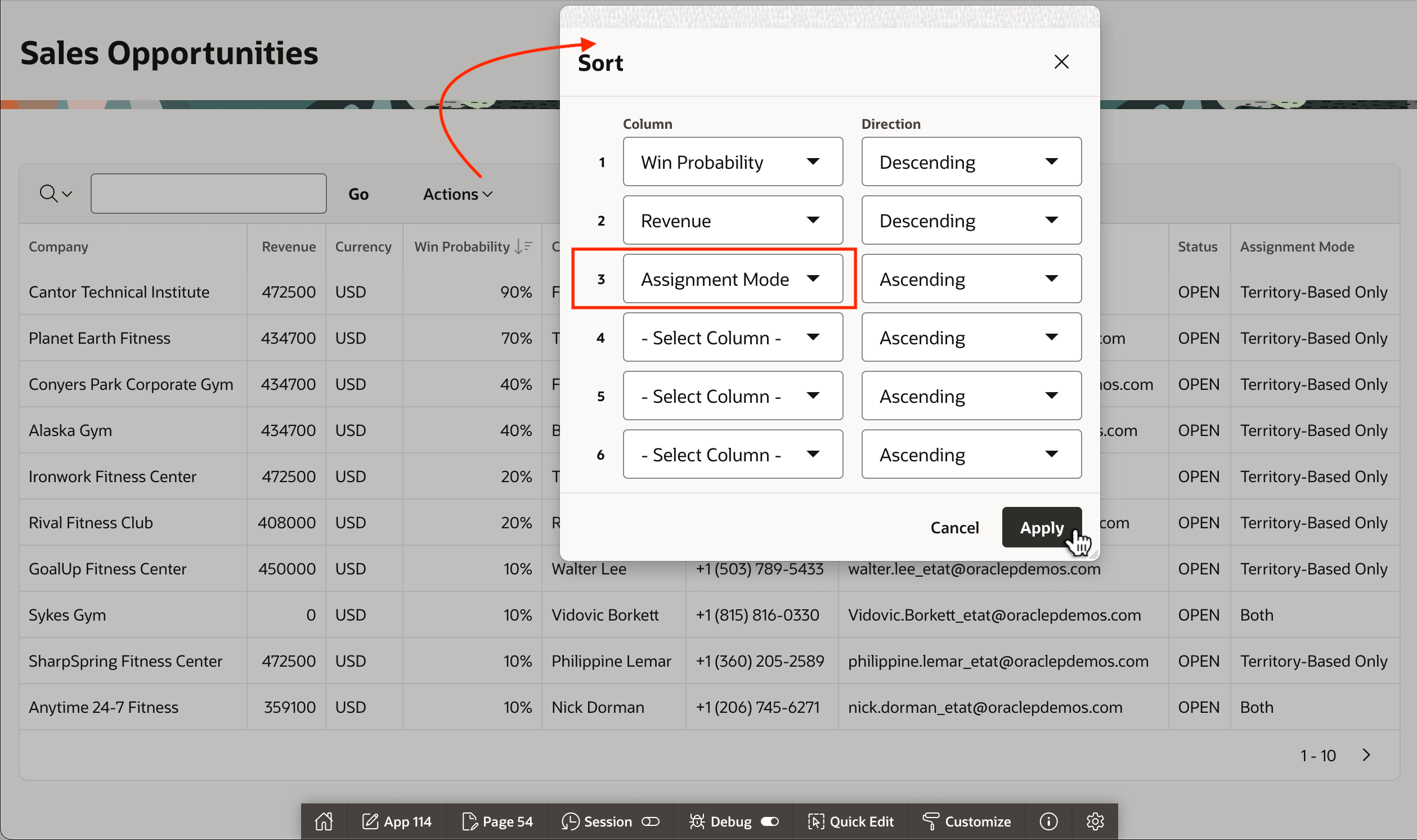
The figure below shows an Interactive Report that uses a REST Data Source based on the Fusion Applications Sales Opportunities REST API. The user chooses Actions > Data > Sort to configure their preferred sorting order. Notice that they choose the Assignment Mode column for the third sorting column. When they click (Apply) to refresh the interactive report with the data sorted in this new way, they receive a runtime error.
Figure 13-30 Interactive Report Based on Fusion Apps Sales Opportunities REST Data Source
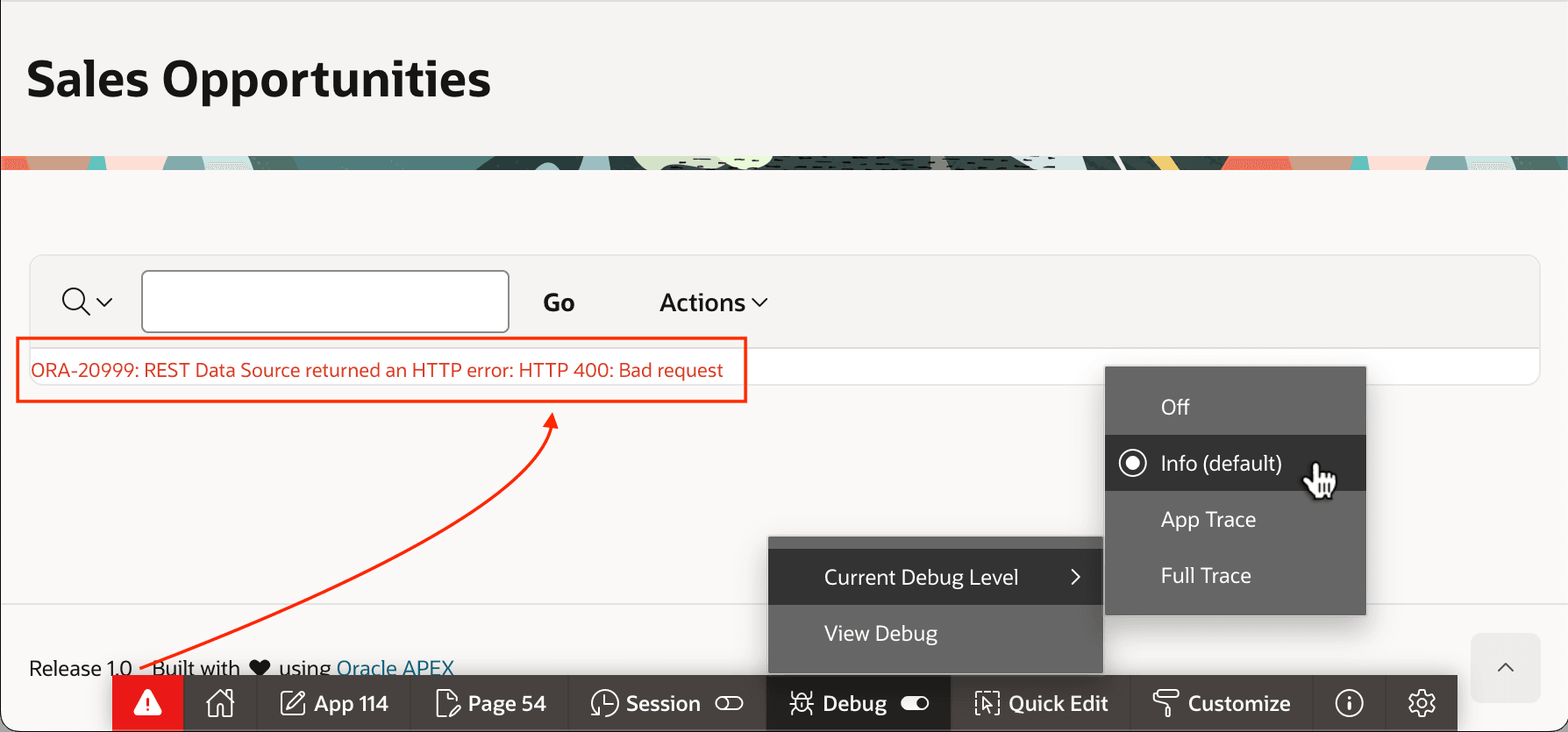
ORA-20999: REST Data Source returned an HTTP error: HTTP 400: Bad requestWhen running your application from App Builder, by default, a developer toolbar appears at the bottom of the page. Notice when an error occurs that it displays a warning icon. By choosing Debug > Current Debug Level > Info, you can enable debug tracing. When you set the debug level, the current page refreshes to capture a debug trace. While debug tracing is enabled, each subsequent HTTP request the browser makes to your APEX application produces a distinct debug trace log entry. To browse the latest debug trace entries, choose Debug > View Debug from the developer toolbar.
Figure 13-31 Enable Debug Tracing to Diagnose HTTP 400 Error from REST Data Source
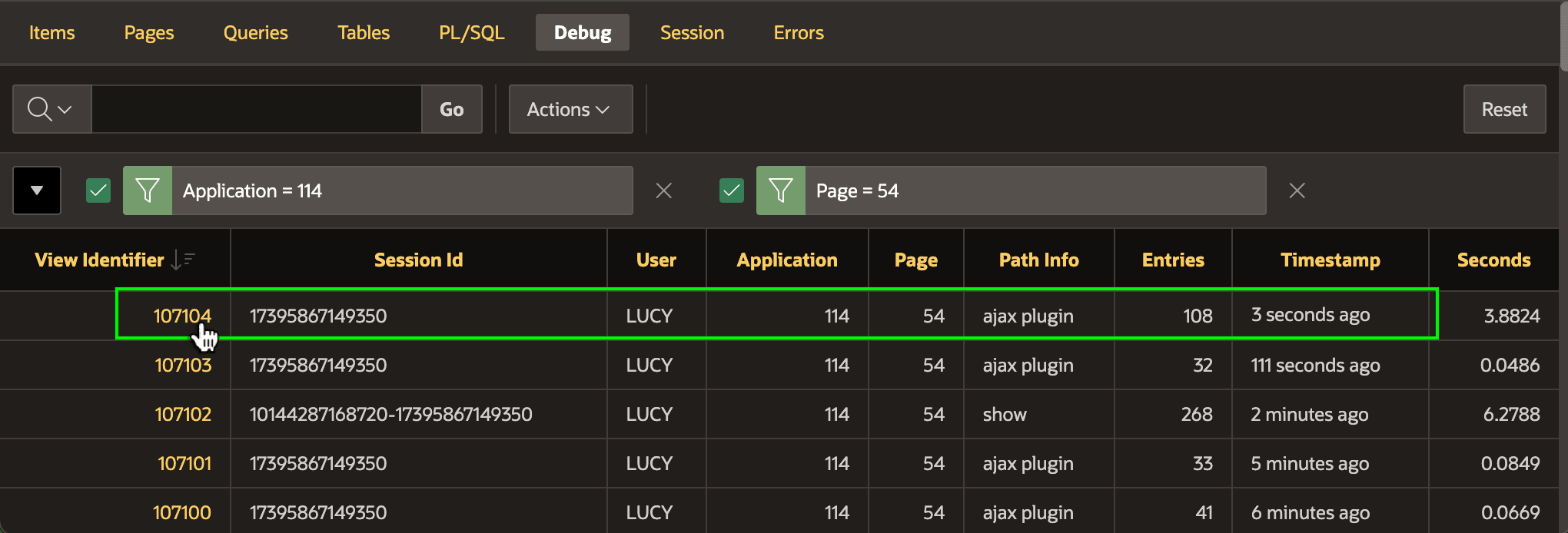
As shown below, the debug viewer opens in a new window and displays recent debug request traces in an Interactive Report. By default they should be sorted descending by Timestamp so the most recent entries are first. Notice the viewer's Interactive Report region already has an application id and page id filter applied to focus your attention on the most likely trace entries you want to see. However, you can use standard features of the Interactive Report to disable a filter or remove it if you need to see a more complete set of trace log entries.
In addition to the Timestamp column, the Path Info can also help
identify the right request to examine in more detail. Path Info will be
show for an initial page render, accept
REQUESTVAL/BUTTONNAME for a page submit, and one of
ajax, ajax plugin, or ajax
process for partial page requests that APEX components make to refresh a section of a page. In this case when the user applies a
new sort condition the Interactive Report native page item plug-in does a partial
refresh so Path Info is ajax plugin. The figure highlights the
most recent request debug trace record. Click on the view identifier link to drill down
to inspect the trace detail details for that request.
Figure 13-32 Identifying Most Recent Debug Trace and Drilling Down for Details
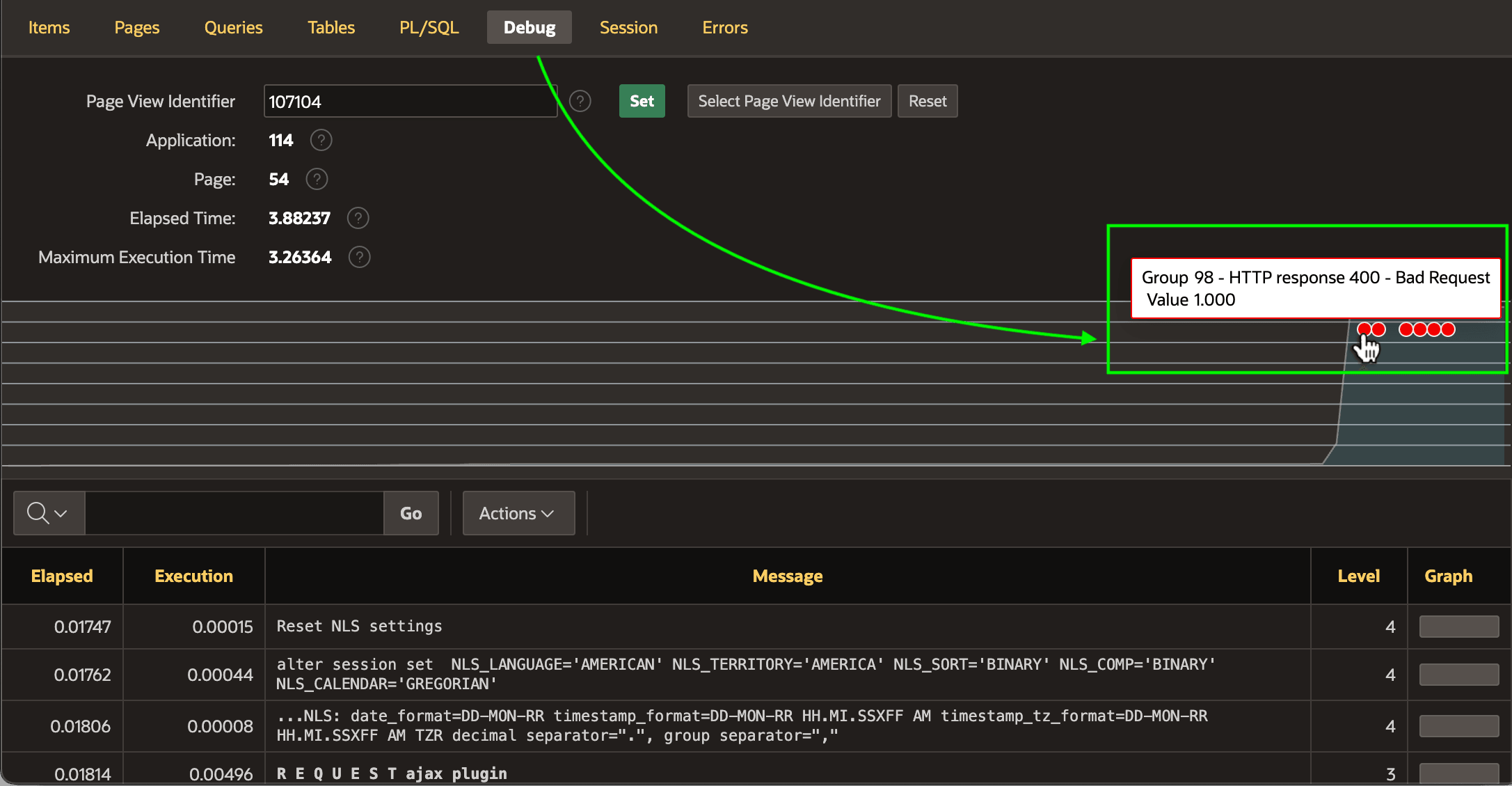
The debug viewer for a single request shows the complete logging detail. The Info level of debug tracing is usually enough to understand most problems. On occasion, when you require additional detail, choose a more granular debug trace level. A timeline accompanies the page to help understand at what point during the request work is performed that takes time and where errors occur. As shown below, errors display as red dots on the timeline. Hover over a dot to see an error message summary, and click a dot to navigate to that line of the debug trace log.
Figure 13-33 Quickly Navigating to an Error on the Debug Trace Timeline
AssignmentMode attribute is not
sortable.fetch_adfbc: HTTP 400 - The attribute AssignmentMode is not sortableFigure 13-34 Examining First Error and the Preceding REST API Call
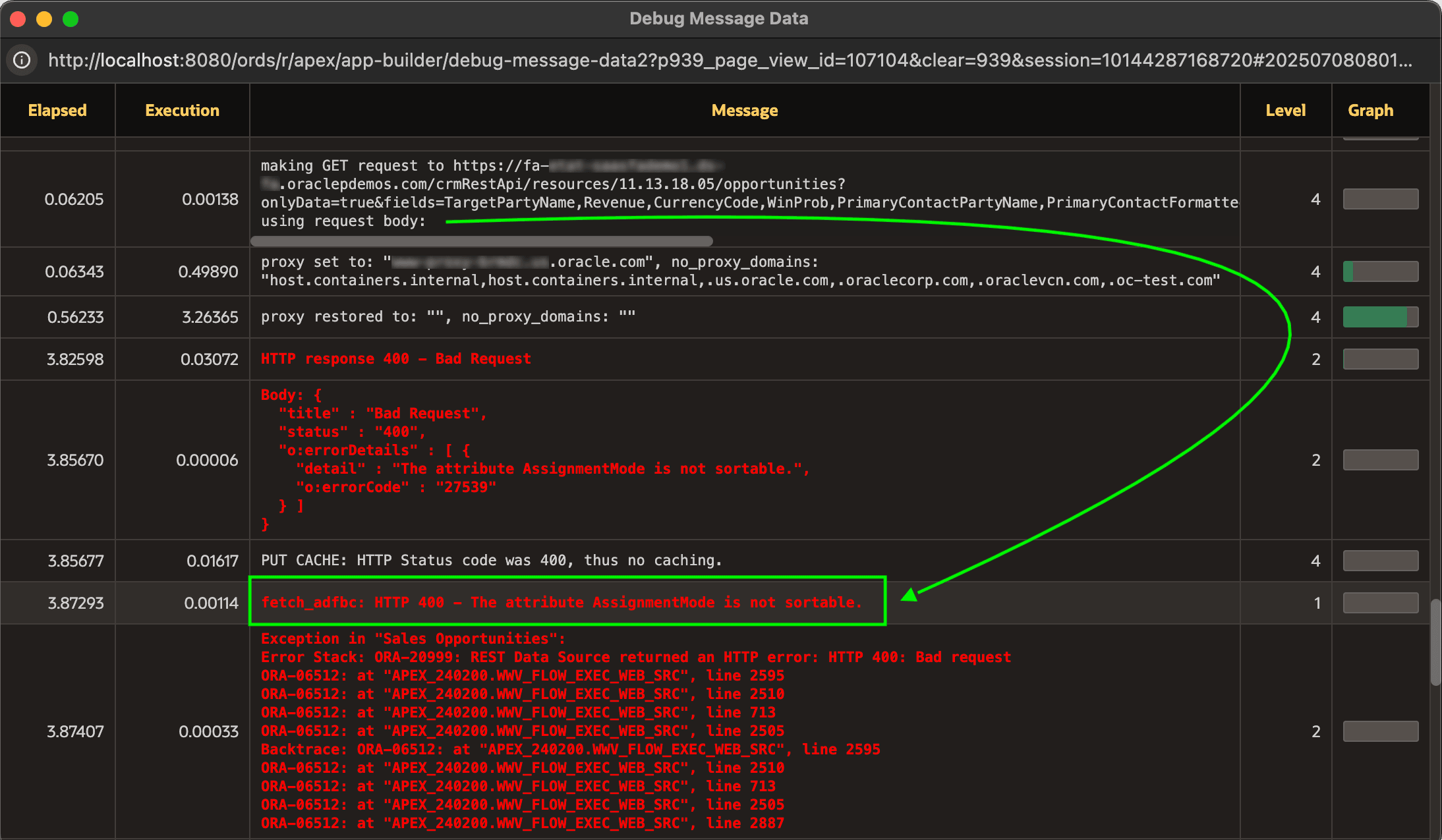
making and the HTTP method used for the request. The request looks like the following, that is slightly abridged and reformatted for readability:making GET request to https://server/crmRestApi/resources/11.13.18.05/opportunities
?onlyData=true
&fields=TargetPartyName,Revenue,CurrencyCode,WinProb,PrimaryContactPartyName,...
&orderBy=WinProb:desc,Revenue:desc,AssignmentMode:asc
&limit=500, using request body:orderBy query string sort expression so the Fusion Applications REST API could perform the requested sort on the server side::
&orderBy=WinProb:desc,Revenue:desc,AssignmentMode:asc
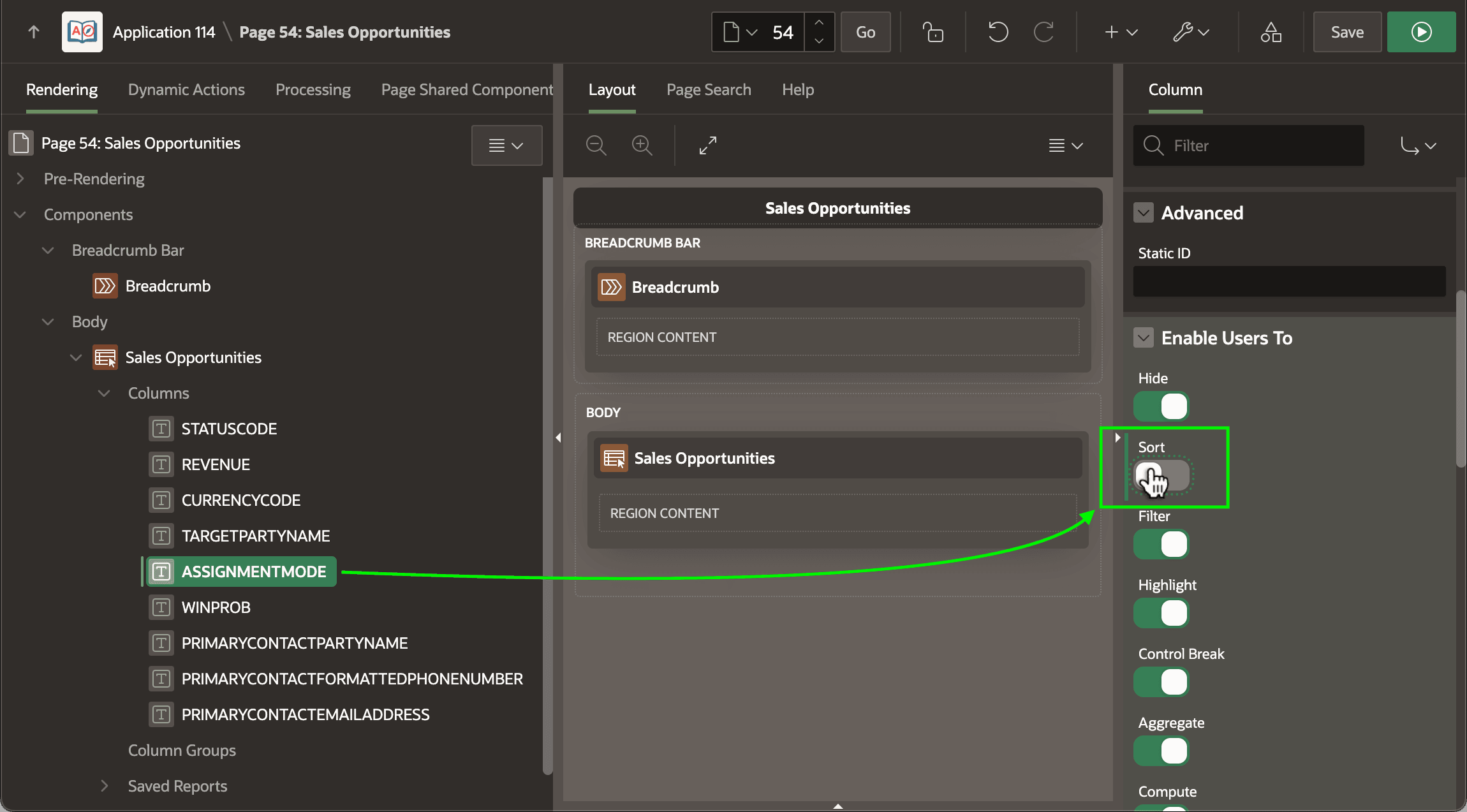
:The error message clearly explains that the server cannot sort on this attribute, so you've identified the problem. To remedy the situation, you just need to adjust one setting on the ASSIGNMENTMODE column in the Interactive Report to disable sorting. As shown below, you do this with a single click on the Enable Users To > Sort switch after selecting the column in the Rendering tab.
Figure 13-35 Disabling Sorting on Assignment Mode Column
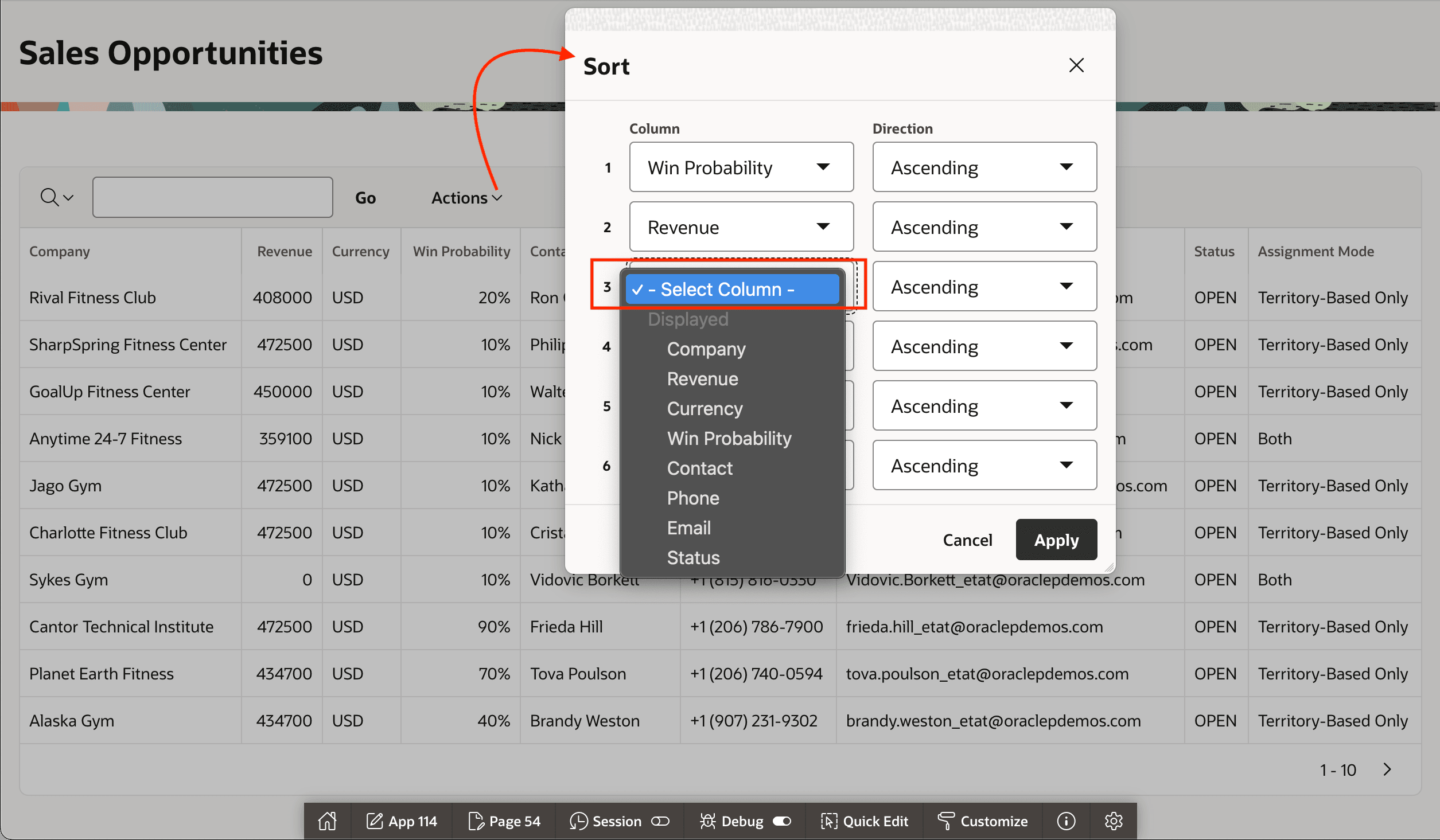
After diagnosing the problem using the debug trace log, and adjusting the page to avoid the issue in the future, as shown below, you can see the end user no longer has Assignment Mode available in the list of columns they can sort on. You can disable the debug tracing using the developer toolbar until the next time it proves useful. The figure shows the end user Interactive Report Action > Sort dialog where the end user configures the attributes to user to order the results.
Figure 13-36 Problem Fixed: Users Can No Longer Choose the Non-Sortable Column
Parent topic: Integrating Remote Data