24.7 Editing APEXlang in Visual Studio Code
Using the SQL Developer extension for Visual Studio Code, you can export, validate, import, and edit APEXlang applications with context-sensitive assistance and proactive highlighting of errors.
Exporting APEXlang with SQL Developer
In VS Code, SQL Developer shows APEX apps in a connection’s APEX folder. As an alternative to exporting from App Builder, choose Export… on an app’s context menu under the connection. Then pick a parent folder for the app’s APEXlang artifacts and click Apply. If necessary, for our example here, SQL Developer creates the employees subdirectory in that parent folder and exports the app in APEXlang format into it.
Figure 24-7 Exporting Employees App (104) in APEXlang from SQL Developer
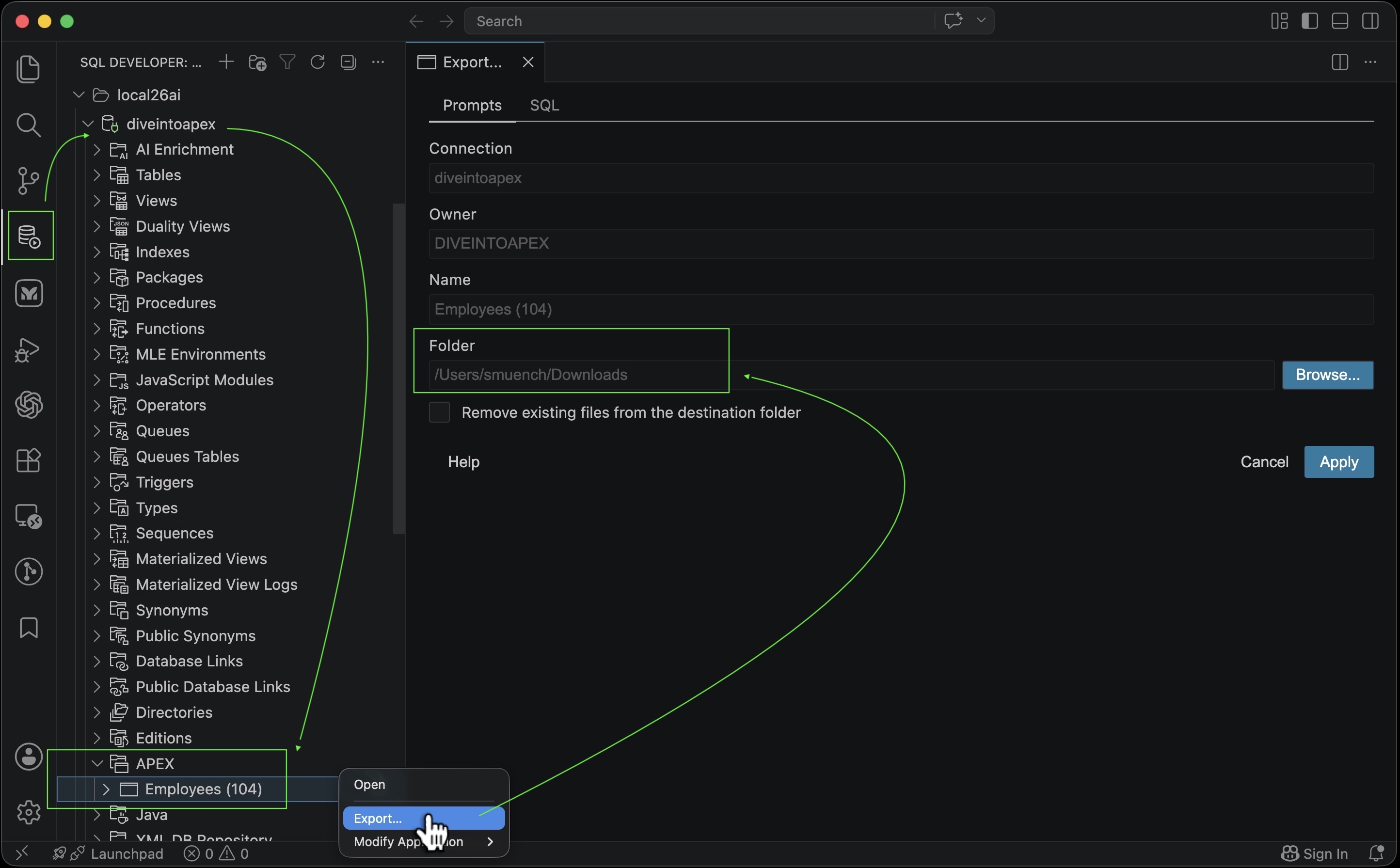
If you’re curious, the SQL tab in the Export… panel shows the SQLcl command to do this APEXlang app export. The -dir parameter is optional in practice. If omitted, SQLcl exports the app into a folder named after the app alias to the current directory.
apex export -applicationid 104
            -dir '/Users/smuench/Downloads'
            -exptype APEXLANG
Figure 24-8 Previewing SQLcl Command to Export App 104 in APEXlang Format to a Parent Directory

Editing APEXlang in Visual Studio Code
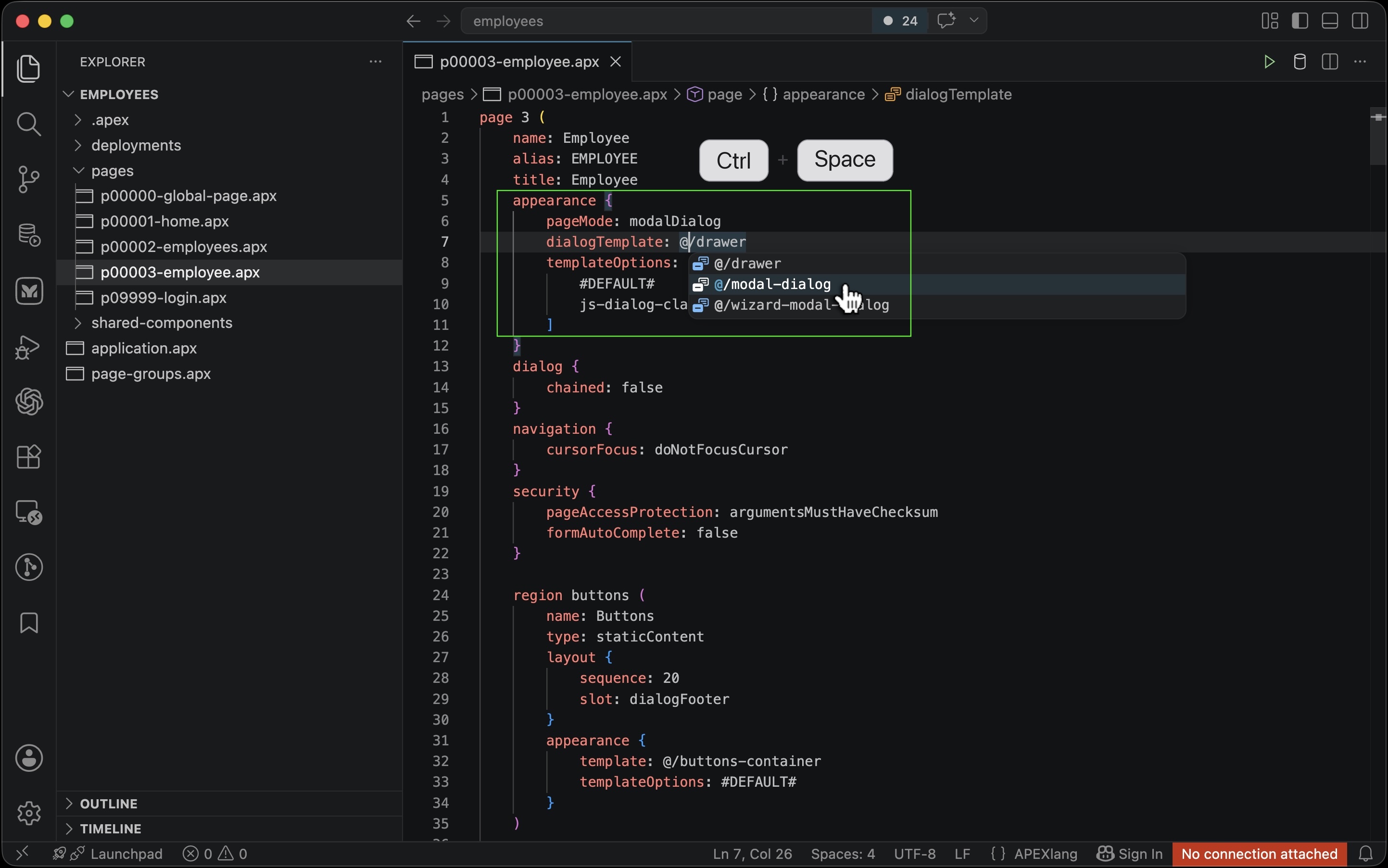
The SQL Developer extension adds APEXlang assistance for .apx files. For example, in the figure below when the cursor is in the value of the appearance.dialogTemplate property of page 3, pressing (Ctrl) + (Space) shows the valid templates available for this page whose pageMode is modalDialog. You can switch the page from a drawer template to a modal dialog one by choosing @/modal-dialog from this list.
Figure 24-9 Using APEXlang Code Completion While Editing an .apx File
Problems Panel Proactively Presents Errors
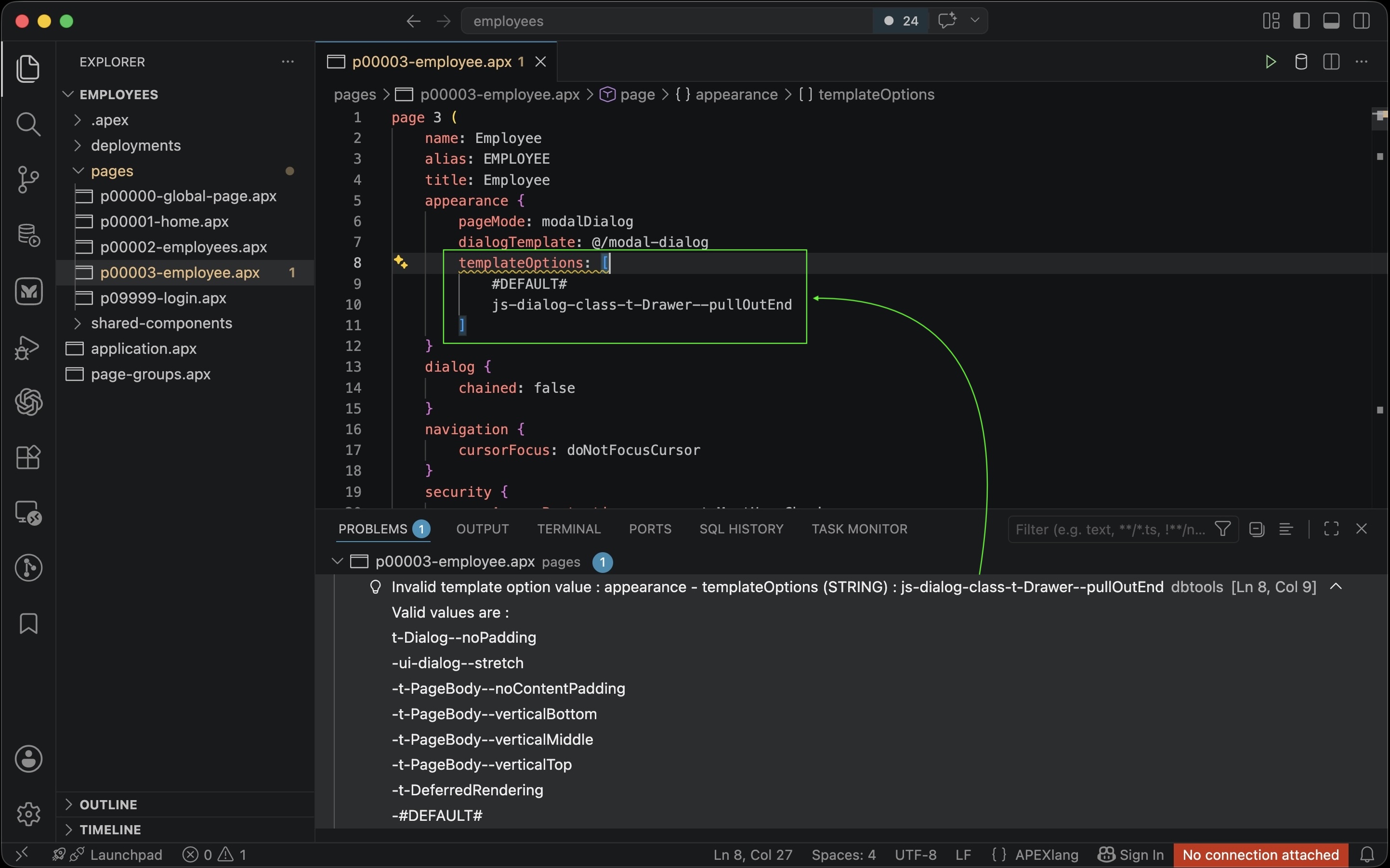
After changing the page to use the modal-dialog template, templateOptions gets a squiggly underline and the Problems panel shows “Invalid template option value…” This validation error indicates one of the existing values is no longer applicable to a modal dialog.
Figure 24-10 VS Code Problems Panel Shows APEXlang Validation Errors Proactively
Importing APEXlang from VS Code into App Builder
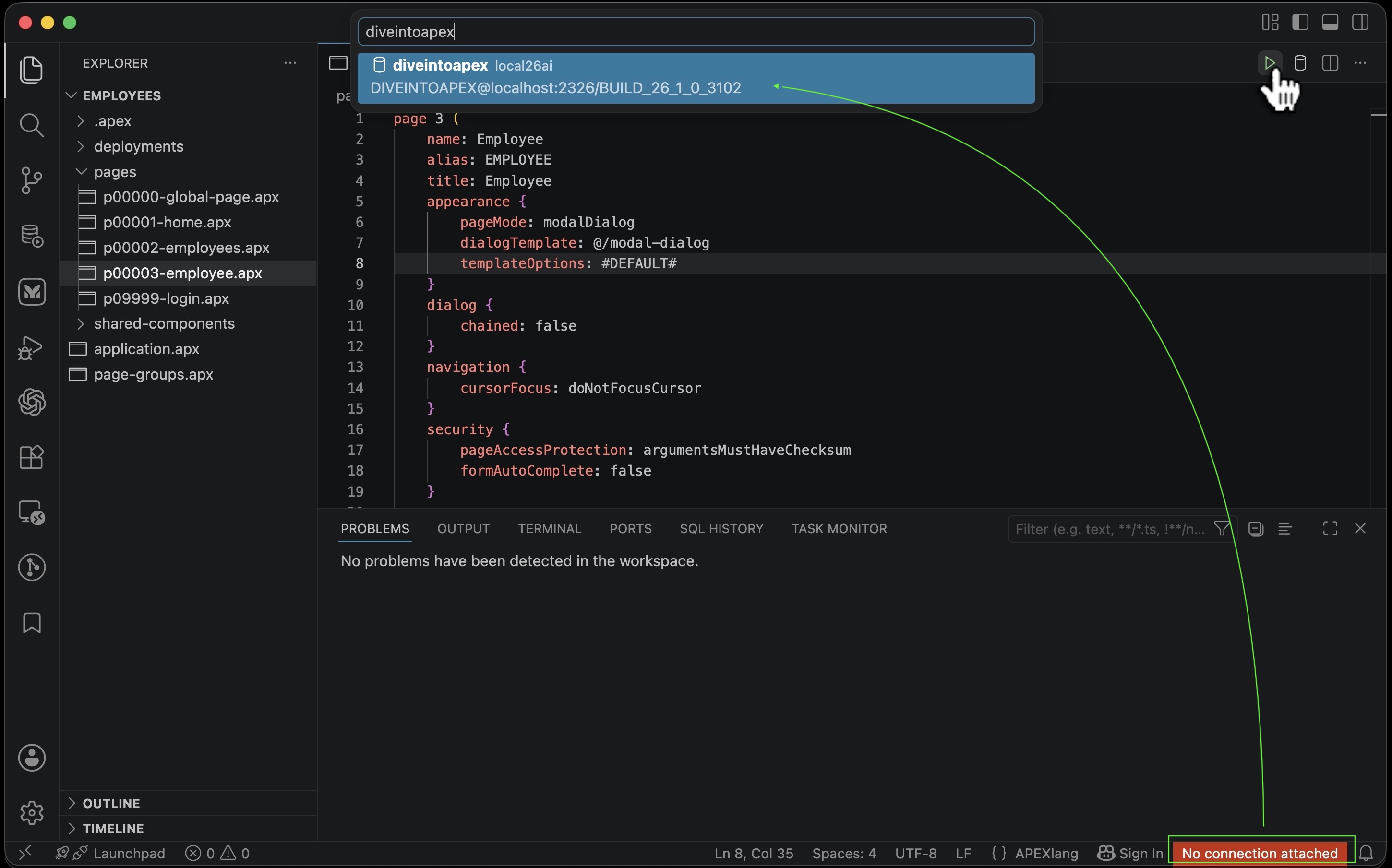
After correcting the templateOptions value, optionally removing the square brackets for a one-element array, we’re ready to import the changed application into App Builder. As shown below, just click the “play” button in toolbar in the upper right of the editor. Since importing an APEX app requires a connection to your APEX workspace’s parsing schema, SQL Developer prompts you to choose one if needed.
As always, importing an app overwrites the current version in App Builder so ensure all App Builder changes are already reflected in the APEXlang you’re about to import.
Figure 24-11 Clicking the “Play” Button to Import Your APEXlang Application to App Builder
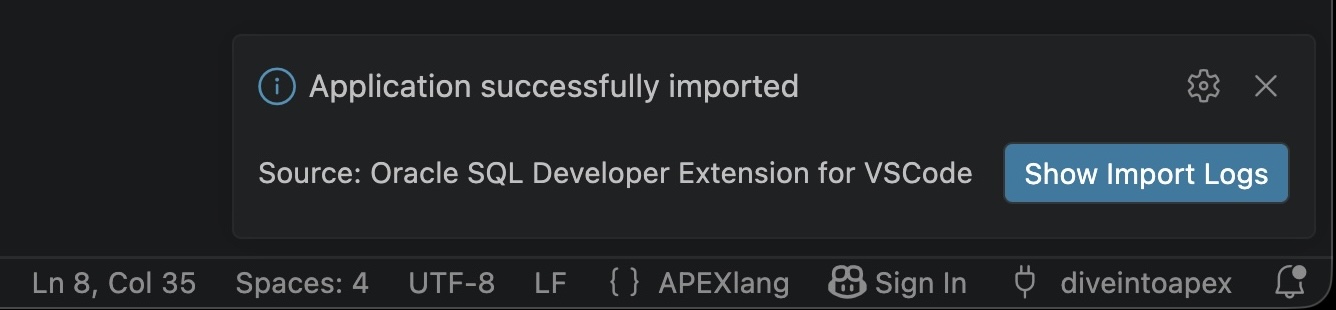
If the app validates successfully, then the import succeeds and a confirmation appears.
Figure 24-12 Confirmation of a Successful APEXlang Application Import in VS Code
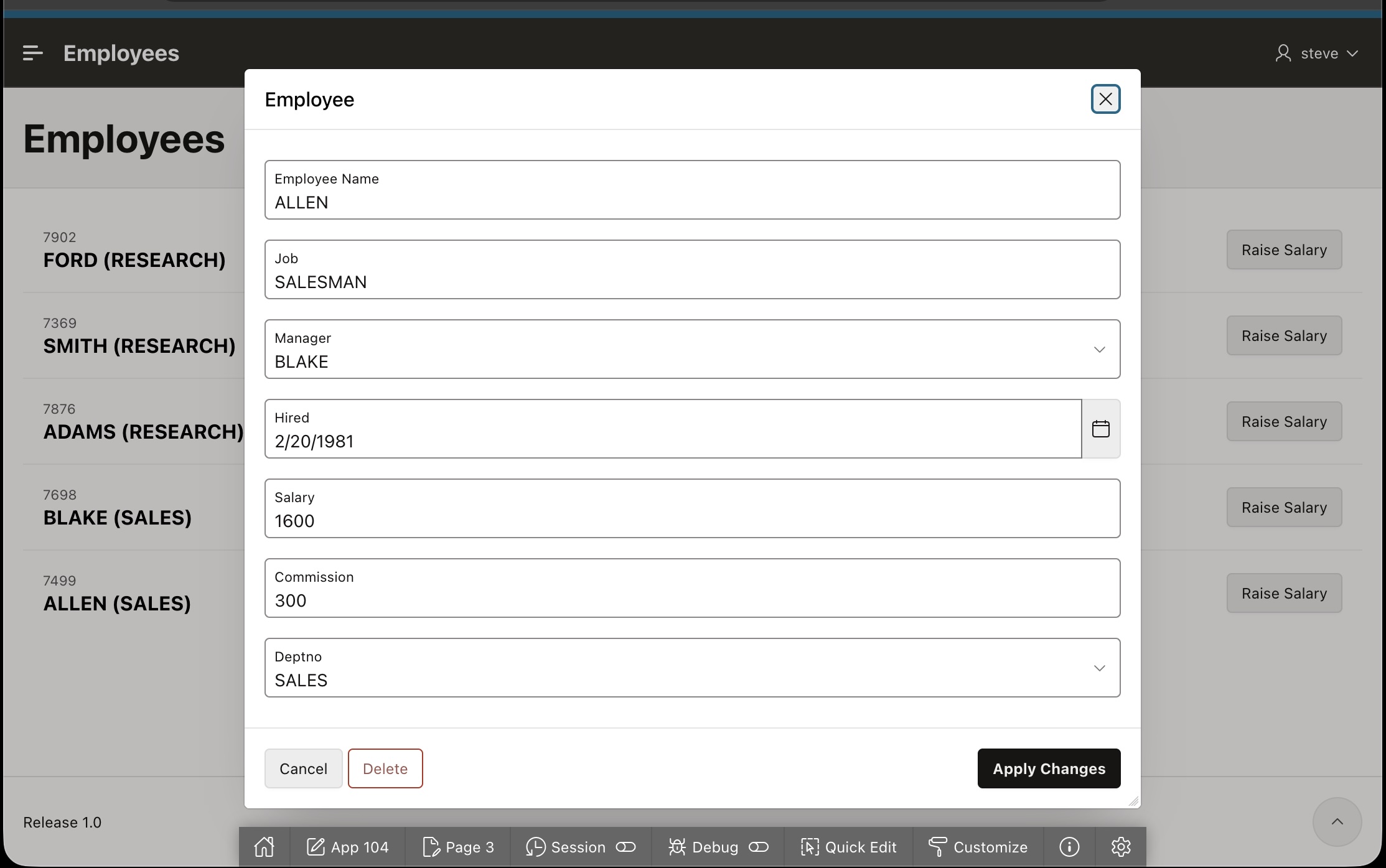
Refreshing the application page in the browser, you see the Employee page has changed from a modal drawer to a modal dialog.
Figure 24-13 Verifying the Results of Importing the Latest Application Version from VS Code
Parent topic: Working with APEXlang