12.2 Exploring Data with Natural Language
Let users shape Interactive Reports with plain-language requests that apply filters, sorts, highlights, charts, breaks, and other report features.
Asking Questions of Your Data and Seeing Results Immediately
The Interactive Report region offers filtering, sorting, conditional highlighting, grouping, charting, pivoting, computed fields and aggregates, and more. Your end users can gradually learn its features as they need them, but there's a simpler way.
By enabling Natural Language support on any Interactive Report in your app, users can explain what data they want to see in their own words and carry on a conversation with the report. APEX uses your app’s configured AI Service to understand the request and apply Interactive Report features that produce the result. The features applied are always visible, inspectable chips identical to the functionality an Interactive Report power user could have done manually.
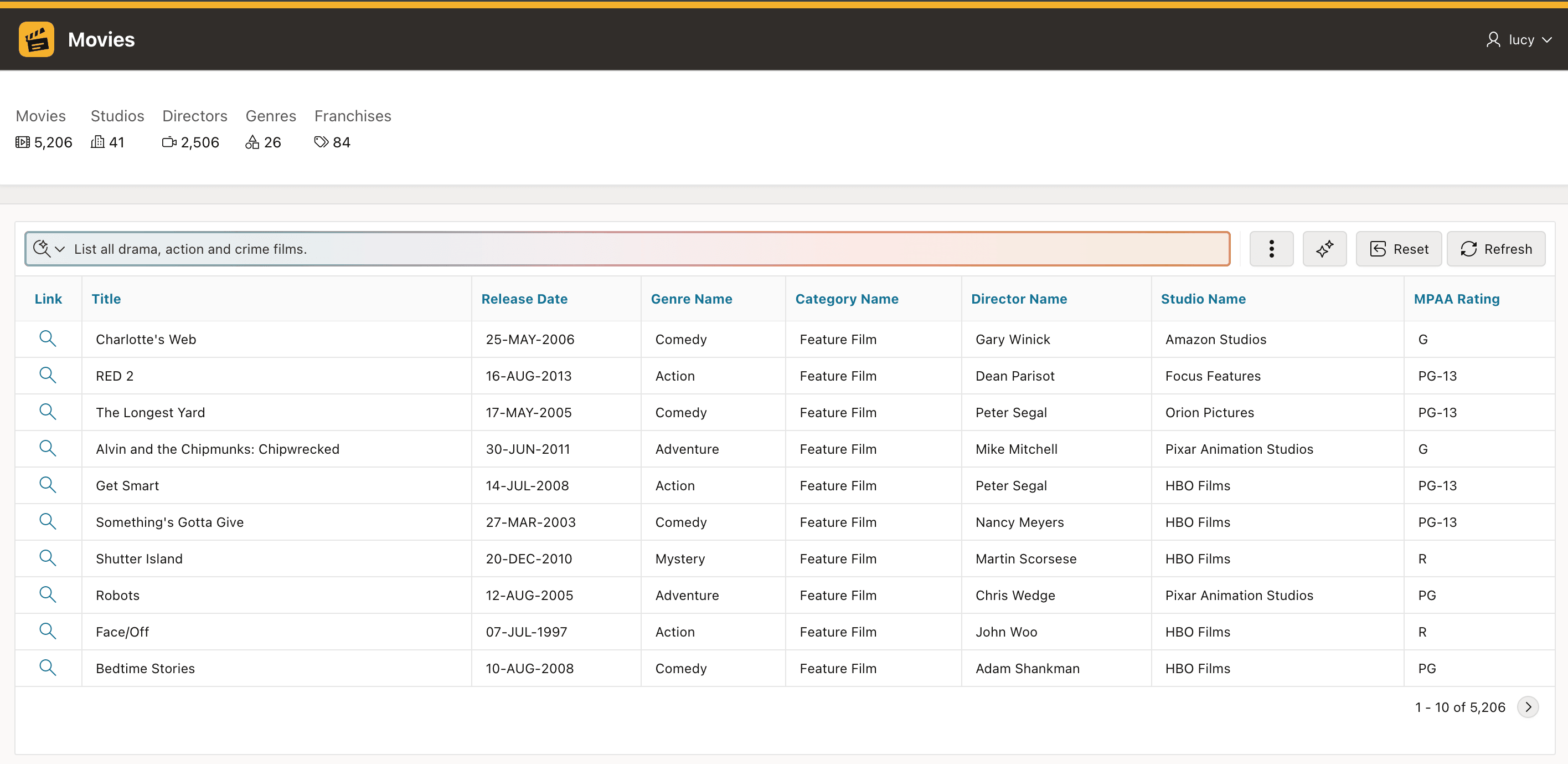
The figure below shows an Interactive Report in a Movies app with Natural Language Support enabled. The developer configured Search with AI as the default search experience in the search field. The usual Row Search is also available from the dropdown at the start of the search field, but the Search with AI is smart enough to handle both row search and natural language prompts.
List all drama, action, and crime films. [Lucy]
Figure 12-1 Typing a Request in Natural Language into the Interactive Report Search Field
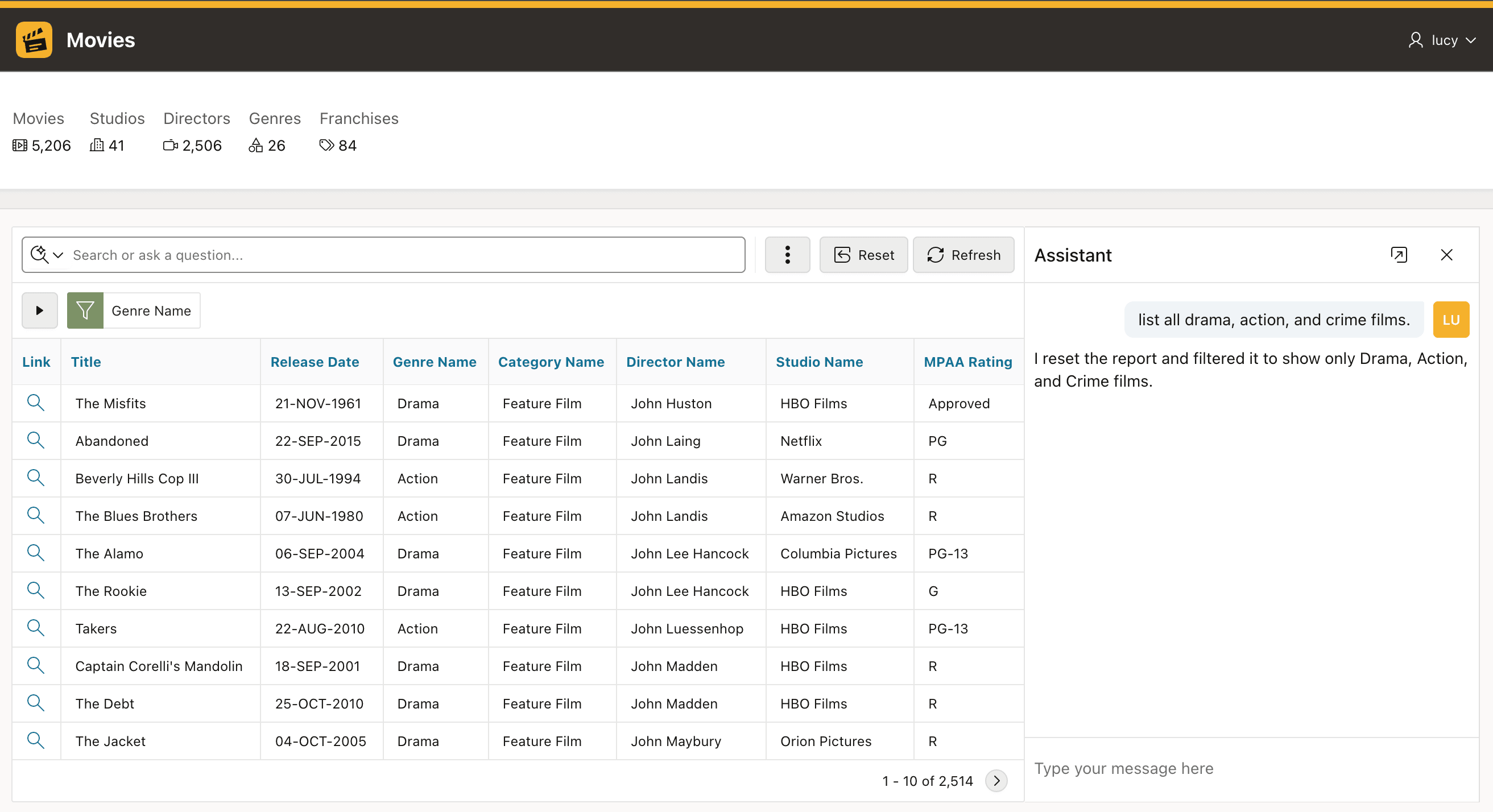
The report updates to show films in those requested genres, with an appropriate report filter applied. As shown below, you can see the filter "chip" for the Genre Name field above the results area.
This visibility is fundamental to confidence in the results. The Assistant does not return a standalone answer with no evidence of how it was produced. It maps Lucy’s request to ordinary Interactive Report features she can see, inspect, change, or remove. The chips above the report show the working: which filters, sorts, highlights, charts, breaks, and other settings produced the current result.
Clicking on the Assistant button in the toolbar, a chat window opens at the end of the report. It shows Lucy's first request, and the Assistant's reply:
I reset the report and filtered it to show only Drama, Action, and Crime films. [Assistant]
Figure 12-2 Applied Report Features Appear as Chips, and Assistant Button Opens Chat Area
In the Assistant chat area, Lucy continues the conversation to refine her search results:
Refine to show the films released in the last 5 years, sort on release date, showing the most recent first and only R rated movies. [Lucy]
The Assistant updates the report automatically to apply additional filters with the requested sort applied.
Figure 12-3 User Can Refine Results By Continuing the Conversation in the Chat Area
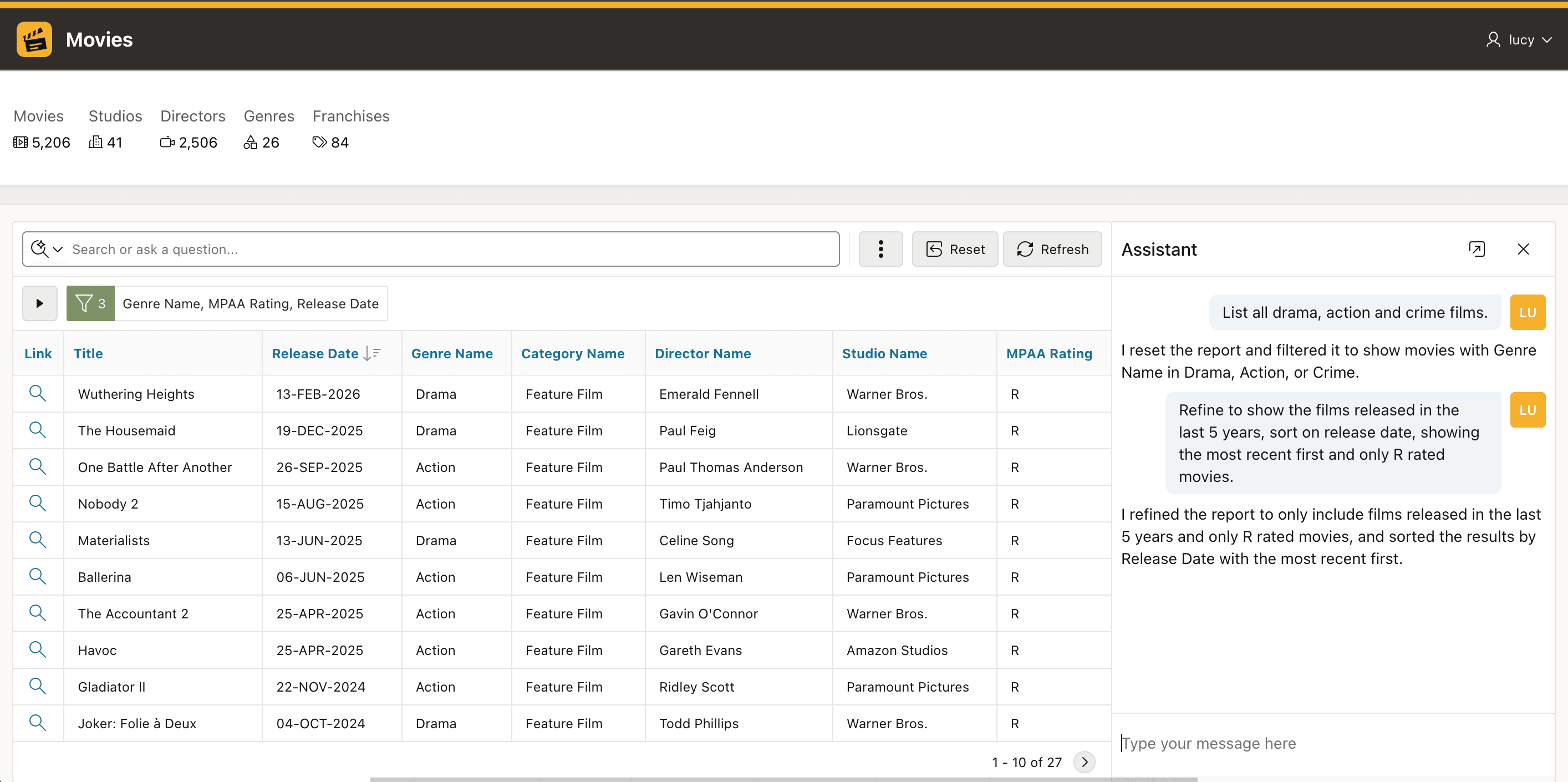
Description of "Figure 12-3 User Can Refine Results By Continuing the Conversation in the Chat Area"
Next Lucy asks:
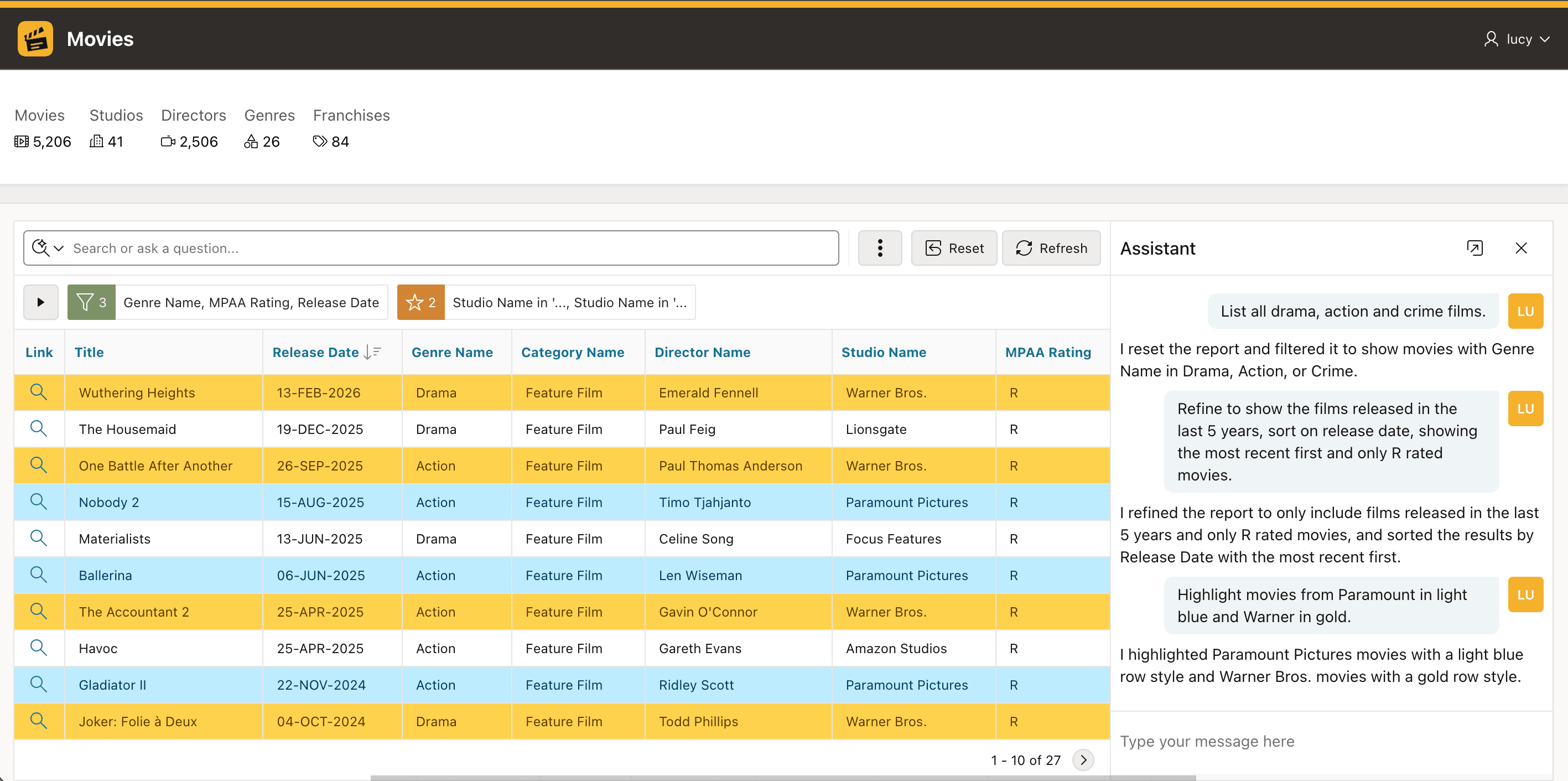
Highlight movies from Paramount in light blue and Warner in gold. [Lucy]
The Assistant adds multiple conditional highlight features to the report and the results appear.
Figure 12-4 Interactive Report Features Like Highlighting Get Configured Using Natural Language
To better understand the filtered results, Lucy asks to:
Create a pie chart of movie count by studio [Lucy]
A chart view appears, and the usual table and chart toolbar buttons appear to let Lucy toggle between the two views of her data.
Figure 12-5 Charting and Pivoting Data Are Also Available Just by Asking
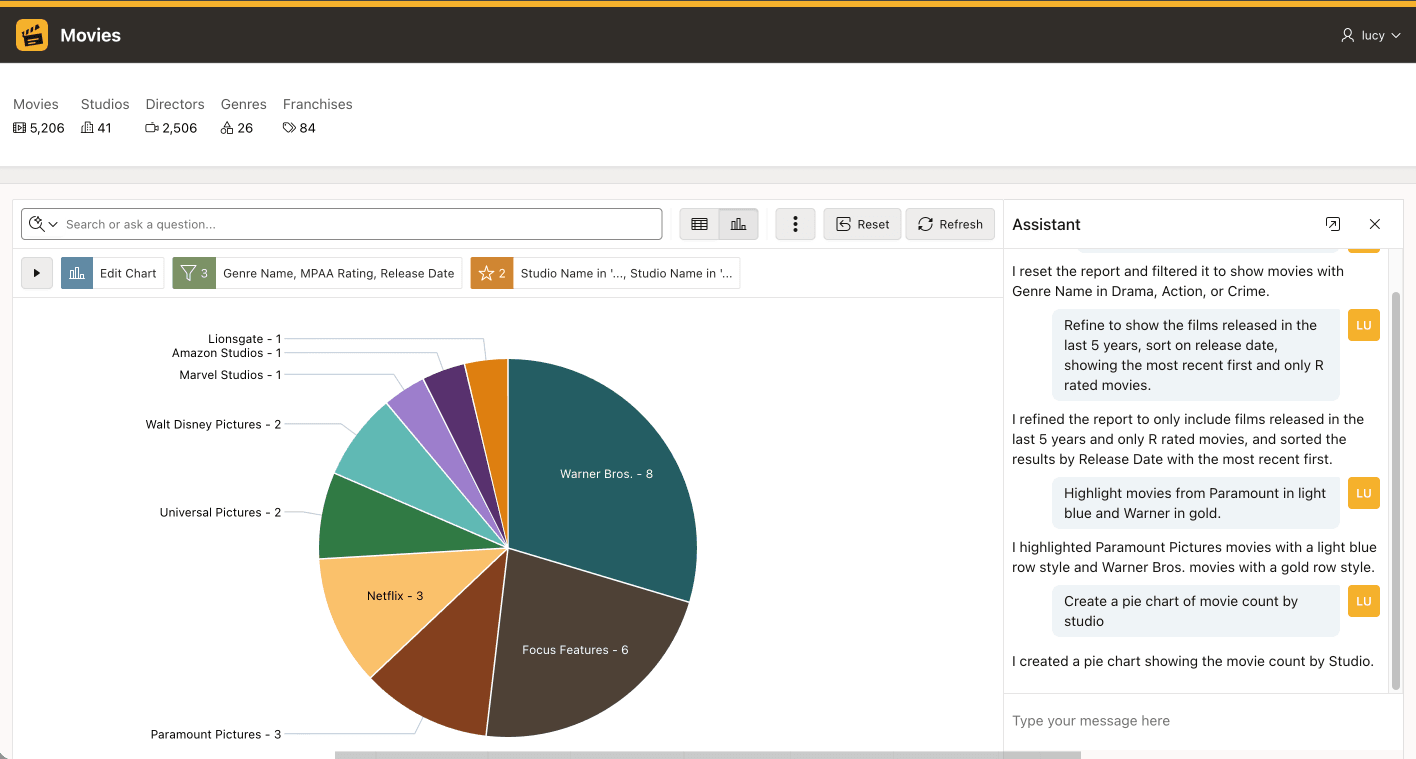
Since this is an Interactive Report, Lucy could save the current report with a meaningful name and then revisit this view of the data at any time in the future by selecting it from her saved reports list.
Lucy changes her mind, and now asks:
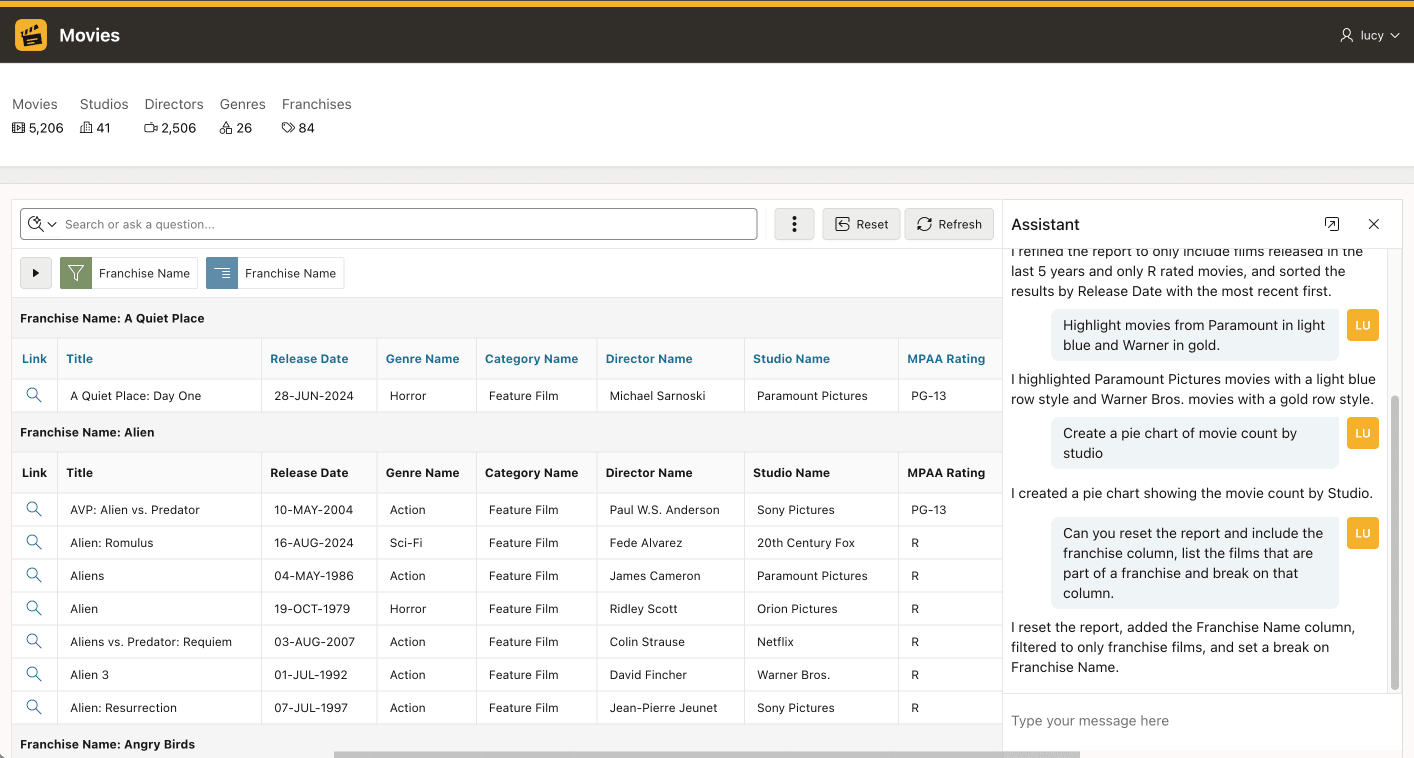
Can you reset the report and include the franchise column, list the films that are part of a franchise and break on that column. [Lucy]
The Assistant removes the existing report features, shows the requested column, uses it to separate films that share the same franchise into groups.
Figure 12-6 Hide or Show Columns and Add Break Groups with a Prompt
Lucy proceeds:
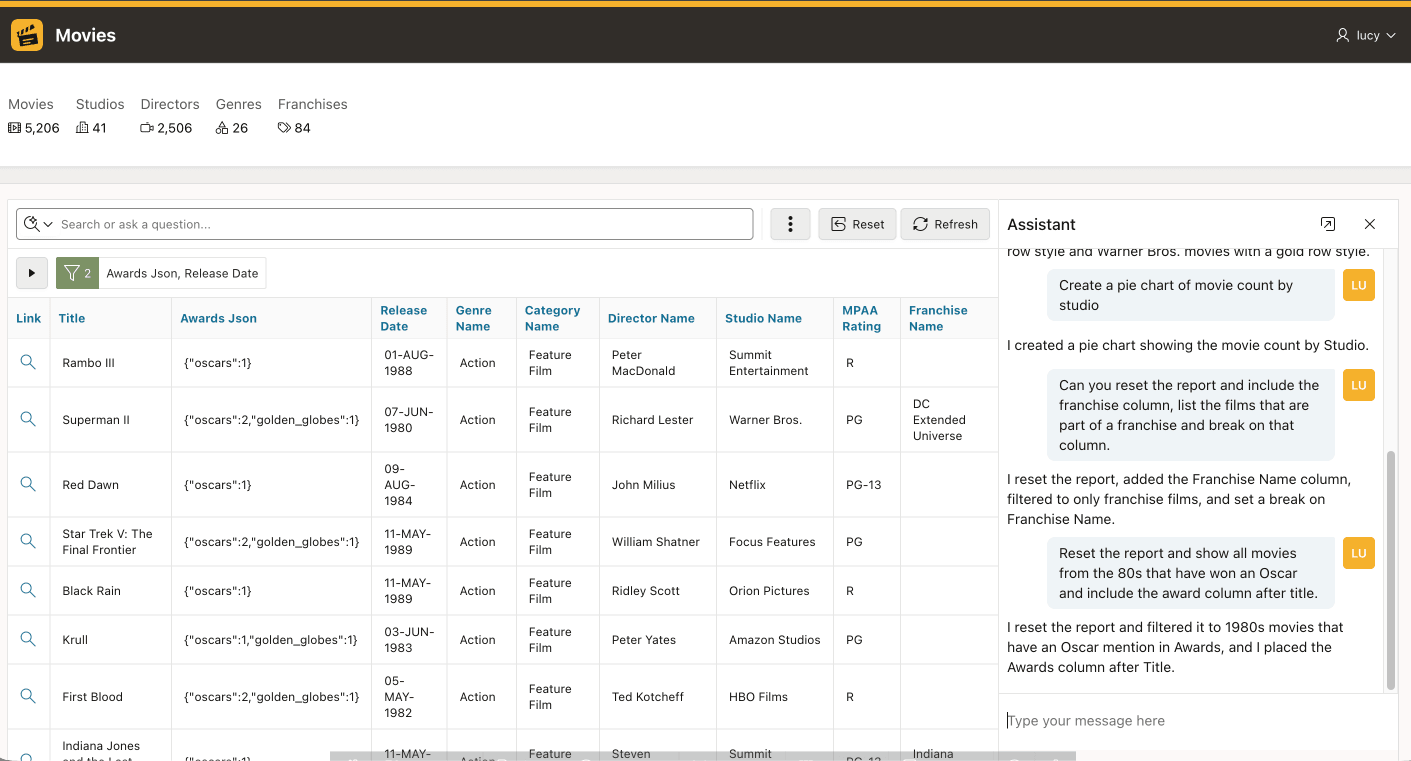
Reset the report and show all movies from the 80s that have won an Oscar and include the award column after title. [Lucy]
The Assistant replaces previous report features with appropriate new filters and the requested results appear.
Figure 12-7 Context You Add Helps Assistant Turn "the 80s" and "won an Oscar" into Filters
For a final refinement, Lucy asks:
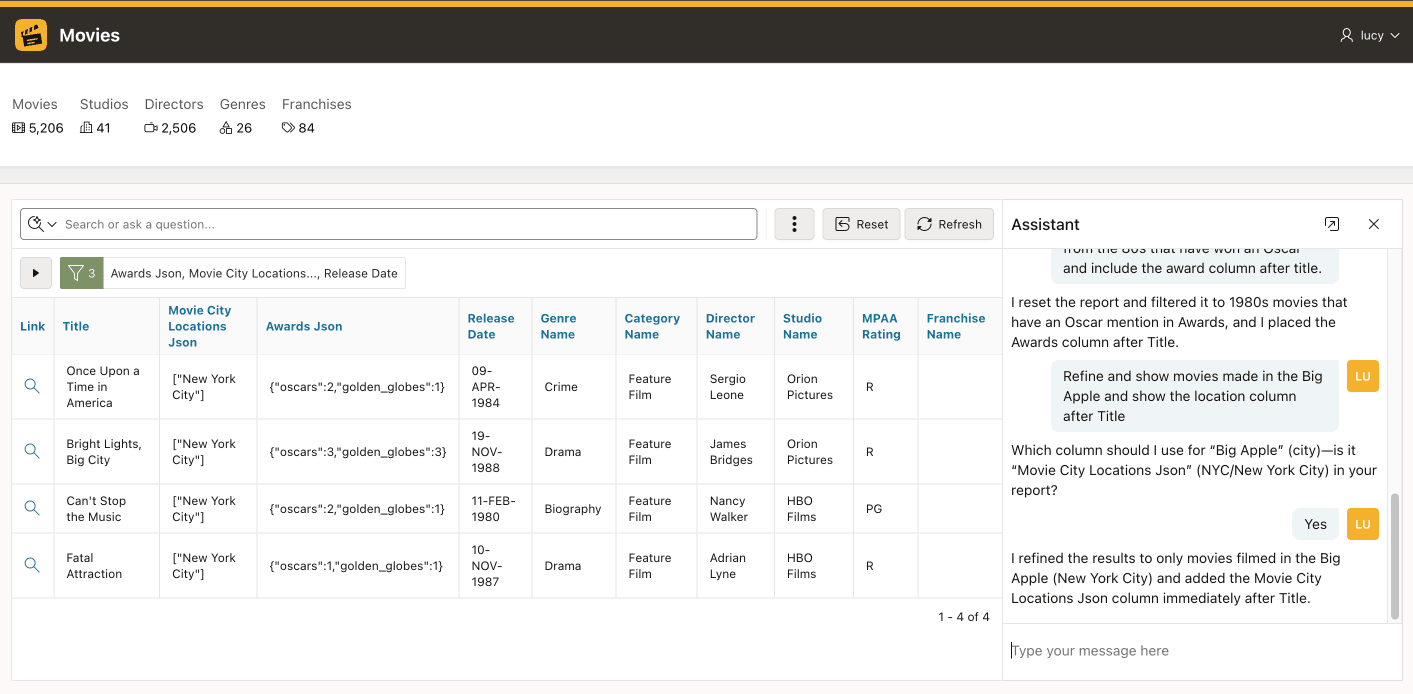
Refine and show movies made in the Big Apple and show the location column after Title [Lucy]
If Assistant needs Lucy to clarify something, it prompts her for a clarification:
Which column should I use for "Big Apple" (city) – is it "Movie City Locations Json" (NYC/New York City) in your report? [Assistant]
Lucy responds "Yes" and the report updates to show the subset of existing films that were filmed in New York City.
Figure 12-8 The Assistant Prompts the User for Clarification When Necessary
At any time while chatting with the Assistant, Lucy can expand or collapse the feature "chips" area of the report to inspect what Interactive Report features her prompts have produced. This makes the result transparent rather than opaque. She can continue to use the report in the normal way, adding or removing any features with the Actions menu. The Assistant is always aware of the report’s current settings. If the user adds, removes, or changes features, the Assistant stays in sync when interpreting the next request.
Understanding What Is Sent to the AI Service
When the Assistant uses the AI service to understand the user's prompt, it also sends the current report settings, column names and labels, and additional context you can add in Page Designer. The extra report and column context descriptions can help the AI Service better understand the kinds of questions users may ask about the report.
The Assistant never sends application data to the AI Service. Its only job is to understand the prompt and available columns names, and additional context, then translate the request into one or more existing Interactive Report features to apply. It produces report settings, not untraceable answers.
As a result, users can only see data they are already allowed to see, using features they could have applied manually. Natural language just gives them an easier way to do it.
Enabling Natural Language Support and Configuring Additional Context
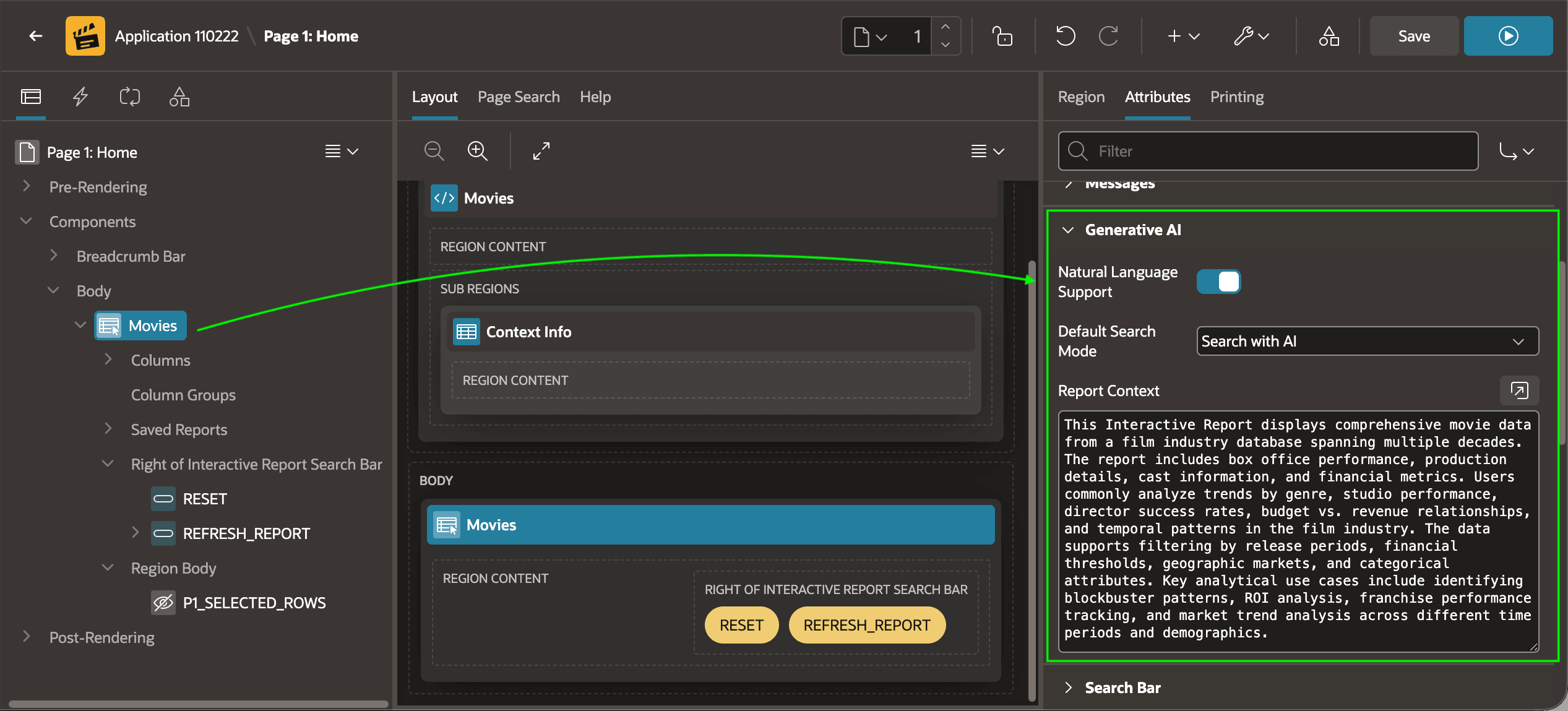
To enable Search with AI functionality on an Interactive Report, as shown below, set its Natural Language Support switch on. The Default Search Mode property controls the report search field's initial behavior. If set to Row Search, then users access Search with AI in the search field dropdown. Conversely, when Search with AI is the default users see AI-powered search by default. Users can always toggle to the other mode using the dropdown, as well as search on a specific field from there, too.
Add Report Context information to help the Search with AI Assistant handle the user’s prompt. As shown below, the Movies region configures the following report context description:
This Interactive Report displays comprehensive movie data from a film industry database spanning multiple decades. The report includes box office performance, production details, cast information, and financial metrics. Users commonly analyze trends by genre, studio performance, director success rates, budget vs. revenue relationships, and temporal patterns in the film industry. The data supports filtering by release periods, financial thresholds, geographic markets, and categorical attributes. Key analytical use cases include identifying blockbuster patterns, ROI analysis, franchise performance tracking, and market trend analysis across different time periods and demographics.
Figure 12-9 Report Context Helps Search with AI Assistant Better Understand User Requests
Sometimes a column's name and label suffices for the AI service to
understand a column's purpose. If your testing indicates additional context is
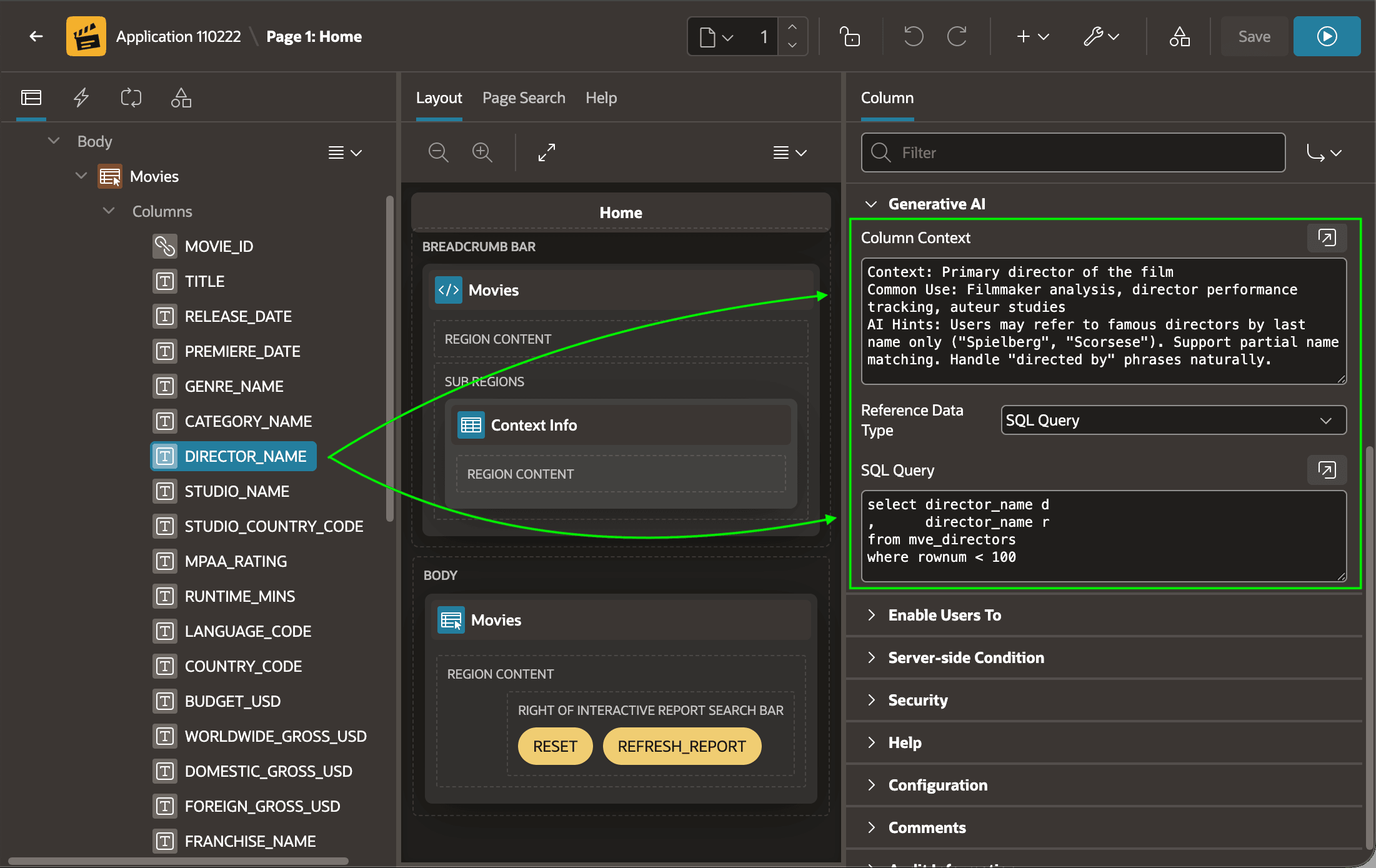
needed on a particular column, as shown below, you can add that Column
Context as needed. For example, the DIRECTOR_NAME
column has the following information added:
Context: Primary director of the film. Common Use: Filmmaker analysis, director performance tracking, auteur studios. AI Hints: Users may refer to famous directors by last name only ("Spielberg", "Scorsese"). Support partial name matching, Handle "directed by" phrases naturally.
You can also optionally define additional Reference Data to send to the AI service. For example, the Movies Interactive Report below adds a SQL Query to identify up to 100 director names.
select director_name d, director_name r
  from mve_directors
 where rownum < 100
Caution:
Consider carefully which reference data you send to the AI service. Like the report and context information, reference data uses extra tokens. Evaluate whether better prompt handling is worth the added token cost.
Parent topic: Applying Artificial Intelligence