3.9.1 Flexible Grid of Columns and Rows
Design a page's layout by arranging regions and page items into a flexible grid.
The grid of columns and rows uses three simple rules:
- Each region's width is divided into 12 logical columns of equal size.
- An element's start column and column span can be automatic or you can set them manually.
- An element stays in the same row as the one before it, unless you configure it to start a new row.
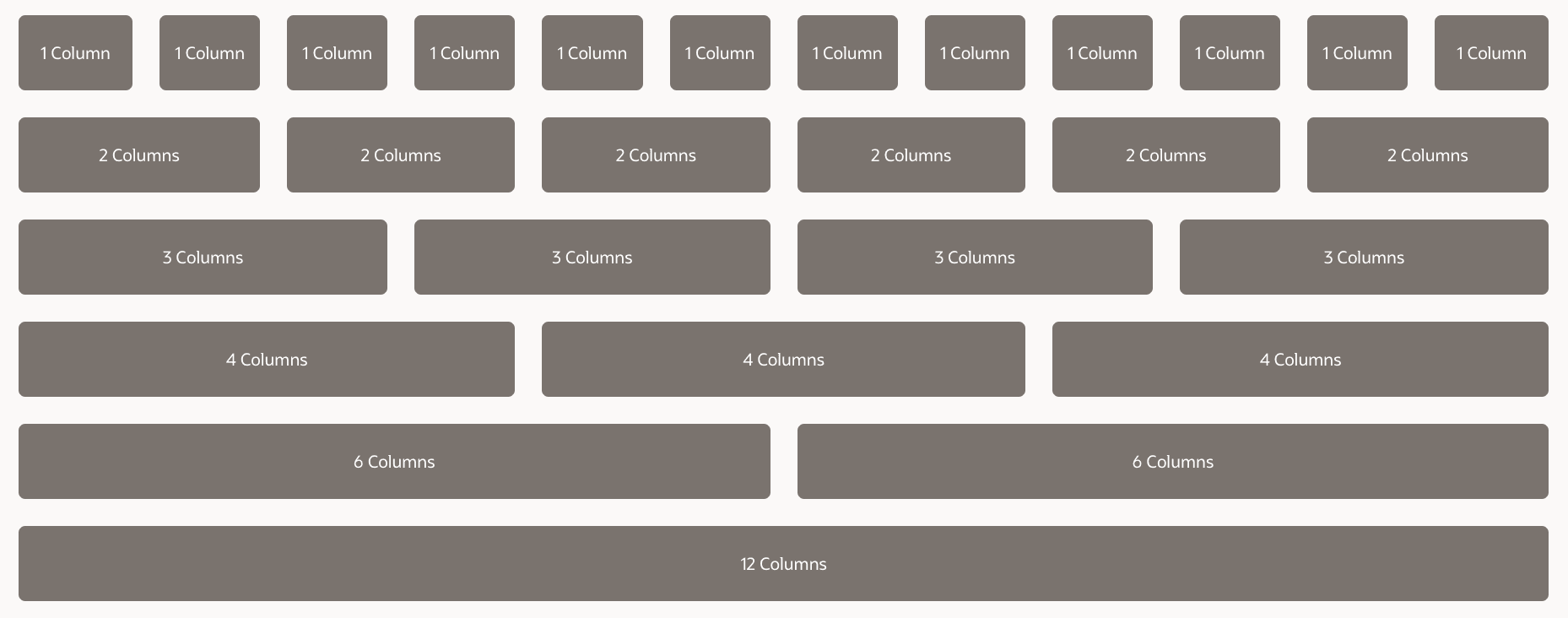
As shown below, APEX uses a 12 column grid since it gives six ways to divide a row evenly. This simplifies laying out elements in a visually appealing way by default.
Figure 3-45 Dividing Horizontal Space Evenly Using a 12 Column Grid
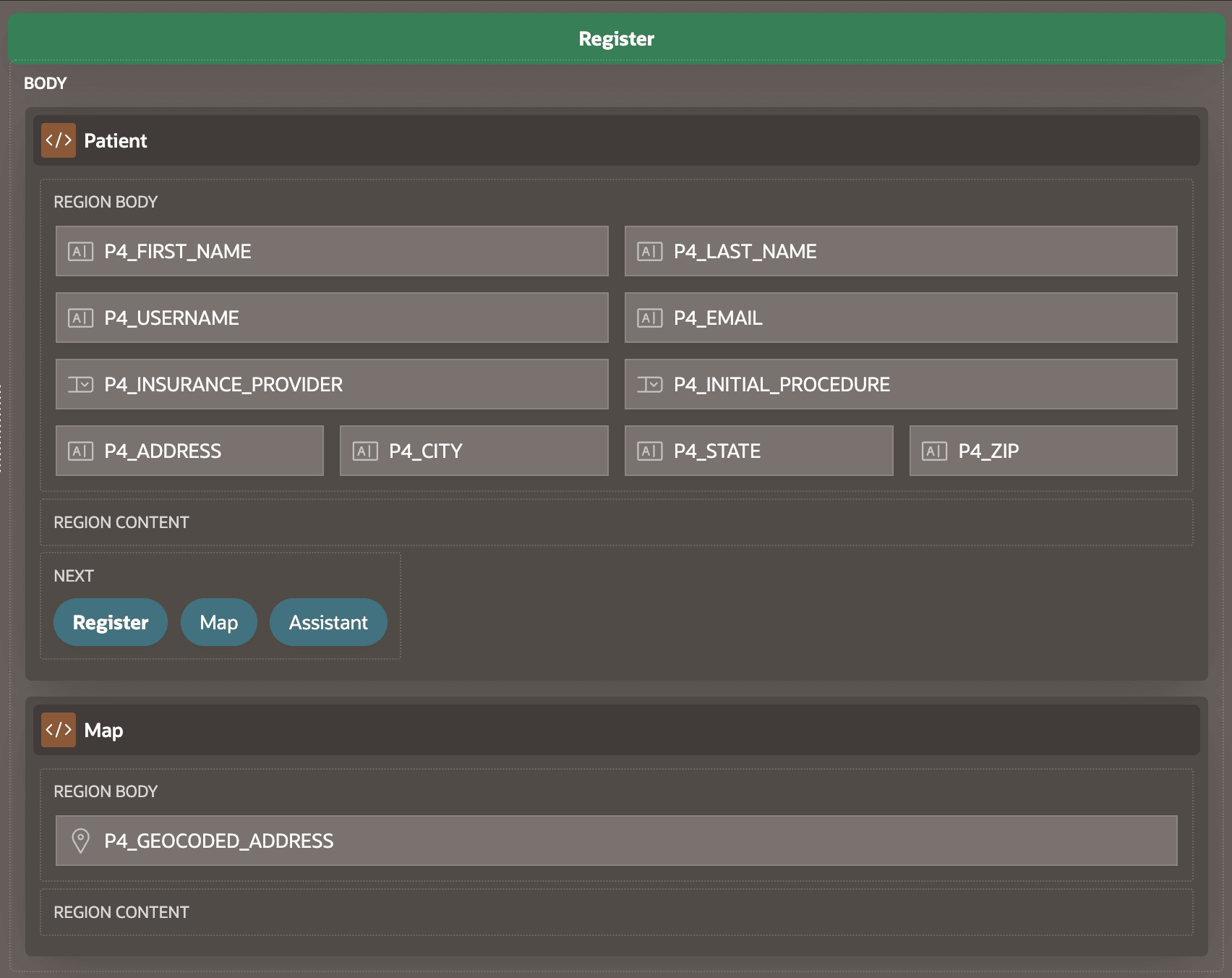
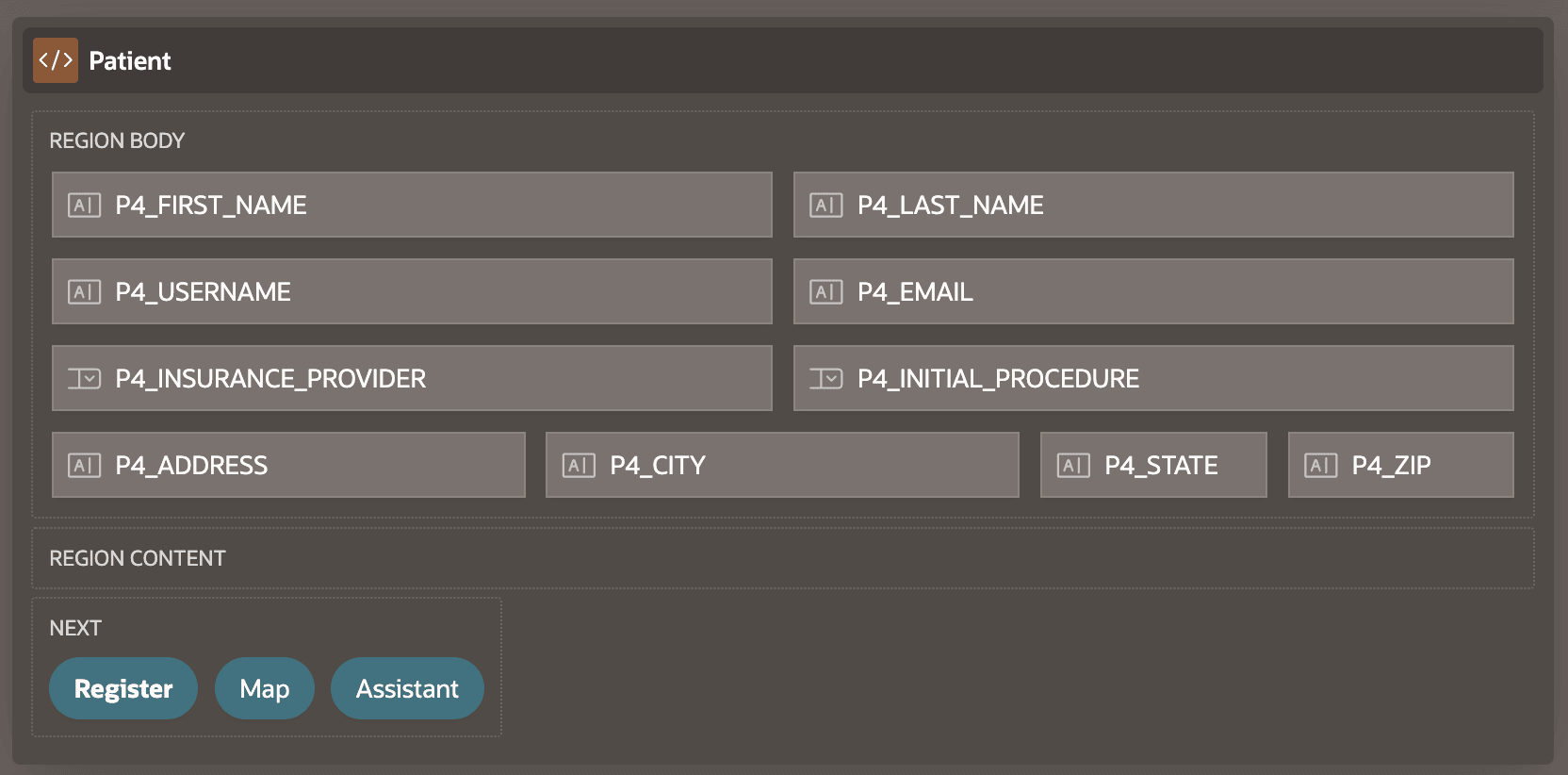
The figure below shows the Page Designer Layout pane for a patient registration page with a Patient region and a Map region. The Patient REGION BODY slot stretches its contents to fill the entire 12-column width. P4_FIRST_NAME starts in the first column, and takes up half the width: 6 columns. P4_LAST_NAME starts in column 7 and also spans 6 columns. In the fourth row starting with P4_ADDRESS, each of the four page items spans 3 columns. The Map REGION BODY slot similarly stretches its contents. Its single Geocoded Address page item starts in column one and spans all 12 columns.
The P4_USERNAME, P4_INSURANCE_PROVIDER, and P4_ADDRESS page items each has its Start New Row property set to true. Other page items have this property set to false, so each stays in the same row as the page item that comes before it in layout order.
Notice the Patient region's NEXT slot containing three buttons. It does not stretch its content to fill the region's available width. Instead, some slots meant for buttons do not use the grid layout. The buttons use only the width they need, with uniform space between them.
Figure 3-46 Automatic Column Spanning Using Only "Start New Row"
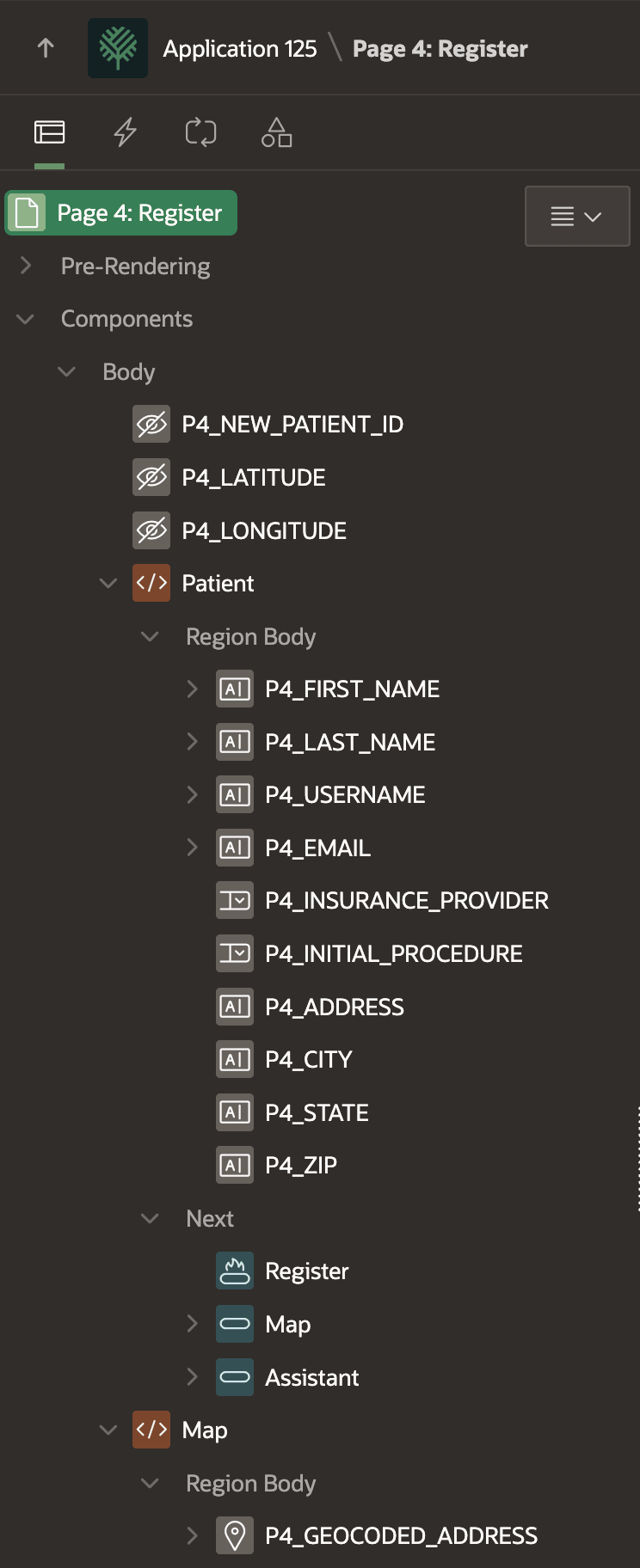
As shown below, the sequence of elements in the component tree in Page Designer sets the layout order. You can drag an element to reorder it in the tree, and the Layout pane immediately reflects the change. Alternatively, you can resequence items by changing the value of their Sequence property.
At the top of the tree, the elements whose icons are an eyeball with a diagonal line through it are hidden page items. These act like invisible page variables that users never see, so they do not appear in the Layout pane.
Besides the visible difference in the buttons' layout, another clue that the NEXT slot does not use the columns and rows grid is that the Property Editor has no Start New Row property for a button like Assistant in this slot. If that same button were instead in the BODY slot that does uses the grid, its Start New Row property would appear.
Figure 3-47 Component Tree Dictates Layout Order
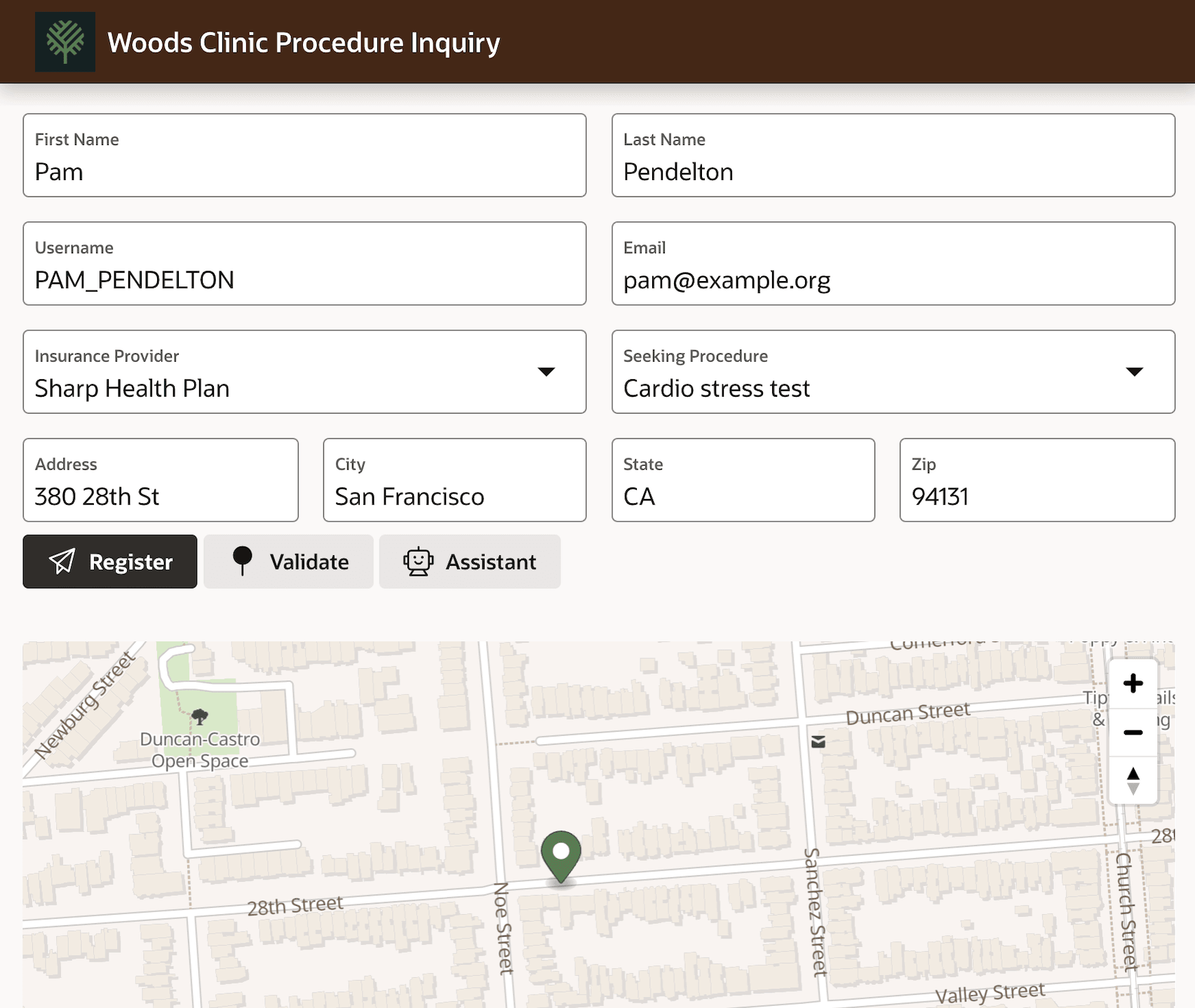
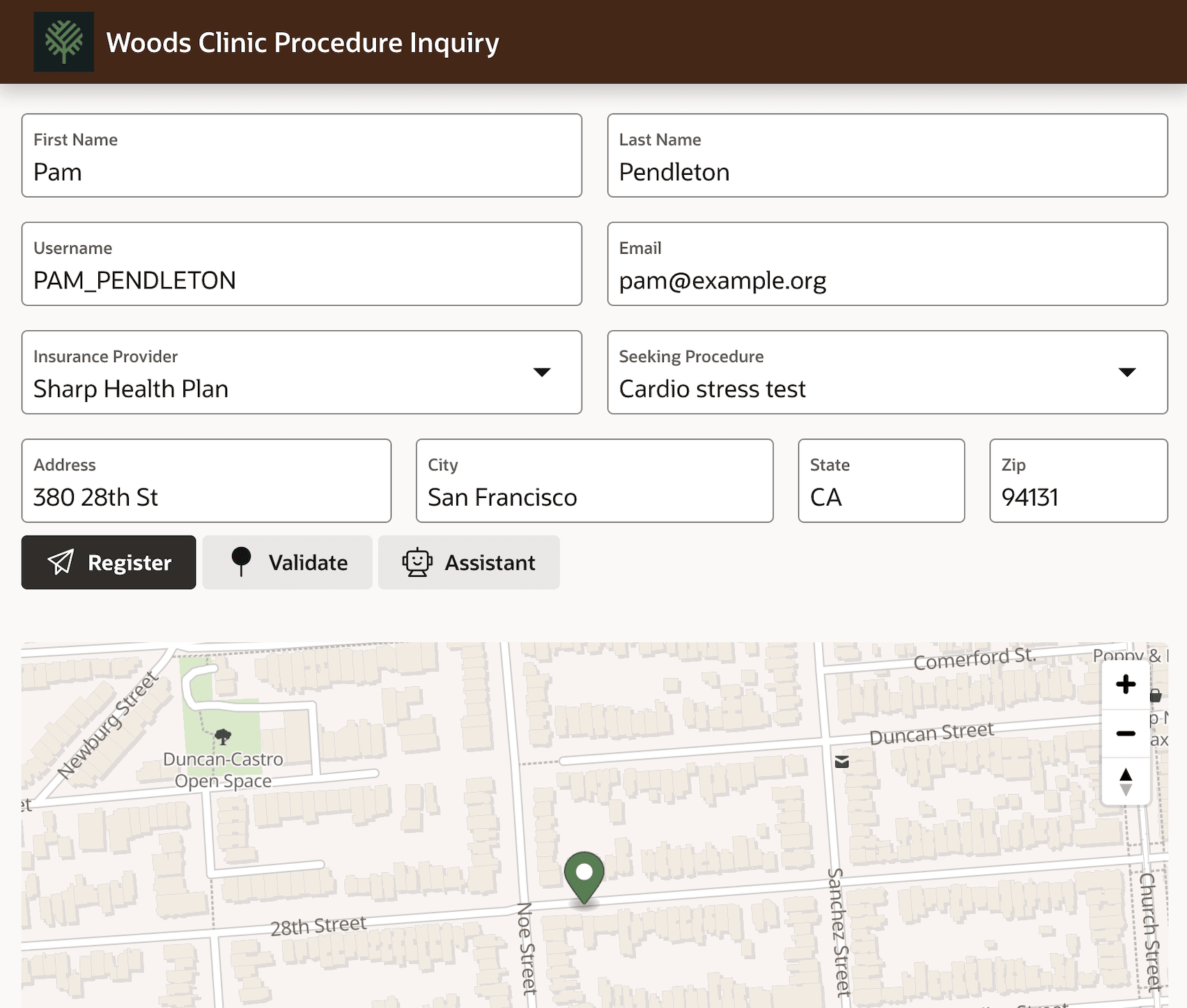
If you run this page, the figure below shows what you see in the browser. The page items in the Patient region's Body slot fill the available width, maintaining the relative layout from Page Designer. The Map region appears below the Patient region and also occupies all 12 logical columns. The buttons in the NEXT slot just use the space required by their label and icon.
Figure 3-48 Automatic Column Spanning at Runtime
By default, the Column Start and Column Span properties are set to Automatic. This means each element in a row tries to occupy the same amount of space if possible, and each starts in the next available column after the one that comes before it in layout order.
Sometimes you want to dedicate more width to a particular item or have it start in a specific column. You can manually set an item's Column property to explicitly start in a column from 1 to 12. Independently, you can set the Column Span property to the number of columns the item should occupy. Only legal combinations are allowed. So, for example, if you set an item to start in column 10 and also manually set a Column Span, then the only allowed values are 1, 2, or 3. Any more would cause that item to go beyond the 12th grid column.
In the figure below, both P4_ADDRESS and P4_CITY have their Column Span set to 4. This leaves 4 of the 12 columns to P4_STATE and P4_ZIP in that same row. Since they are set to Automatic, they evenly divide the remaining space with 2 columns each.
Figure 3-49 Manually Specifying Column Span
Running the page, the figure below now reflects the custom column spans.
Figure 3-50 Effect of Manually Specifying Column Spanning at Runtime
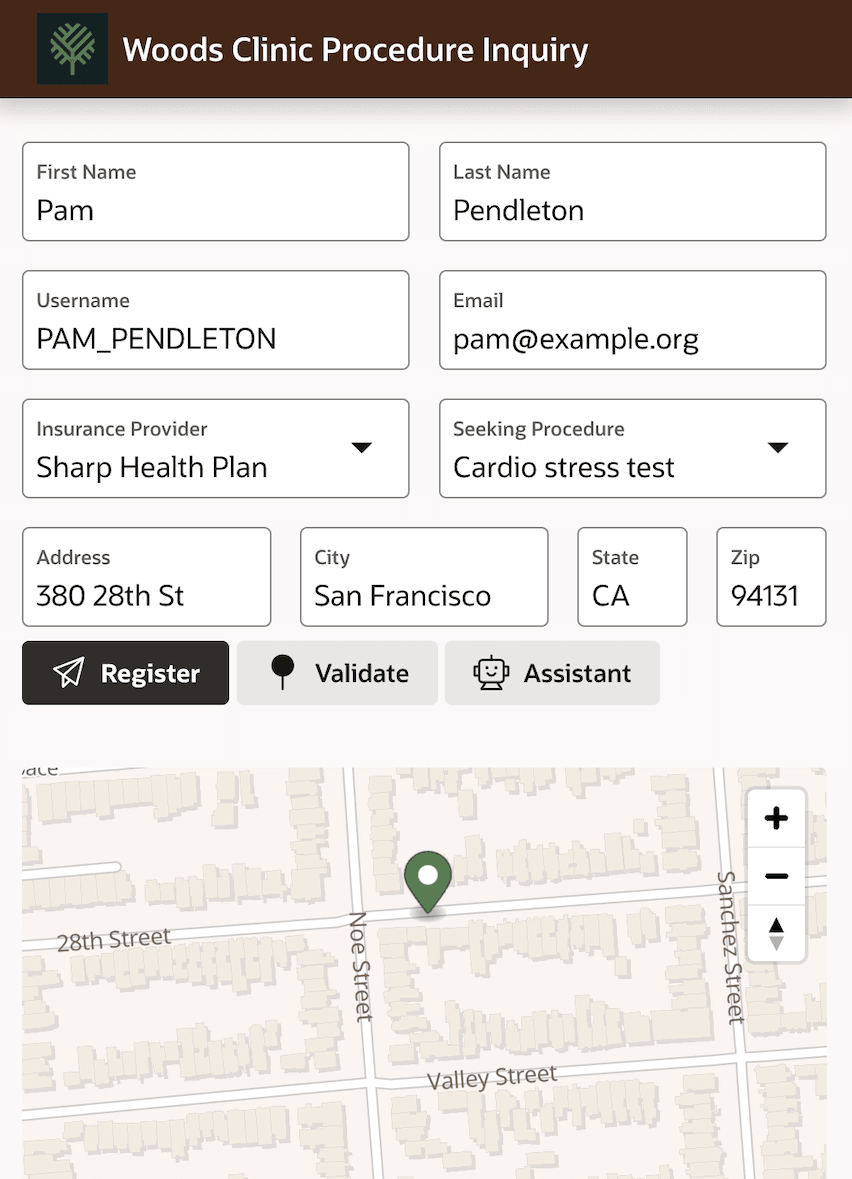
While you are testing the page, you can reduce the width of the browser window to see how the page responds to a new screen size. APEX preserves your logical layout as long as it can as the screen gets narrower. The figure below shows how the same page looks on a narrower mobile device.
Figure 3-51 Layout Responds Automatically to Narrower Screen
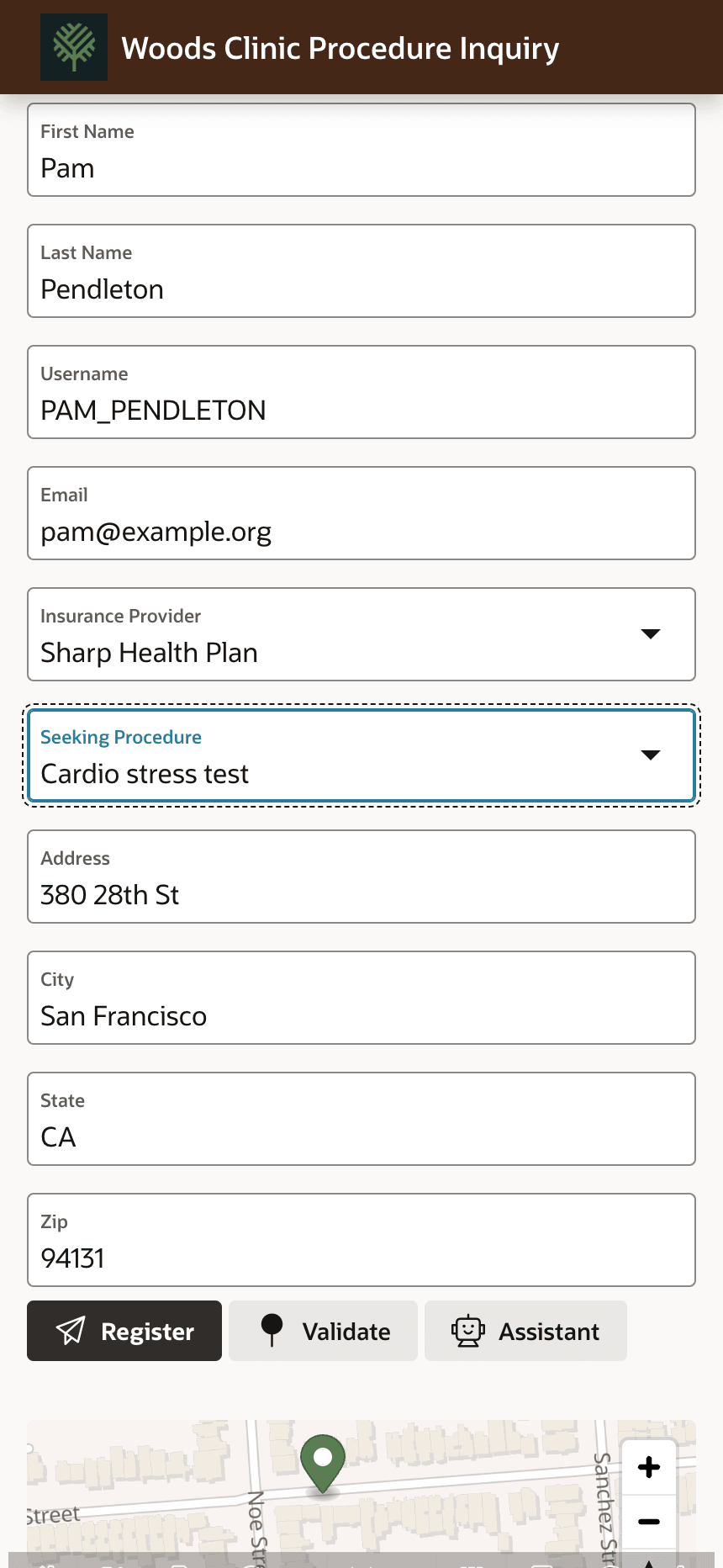
However if you continue to make the window narrow enough, at some point it will switch to showing each item in its own row to preserve the usability of the page. For example, the figure below shows the same page on the width of an iPhone 14 screen. This is responsive design in action. Every APEX page you create behaves this way. There's no need to design different versions of the same page for different screen sizes. Your single logical layout adapts to any device you use it on automatically.
Figure 3-52 Registration Page on a Mobile Device with Even Narrower Screen
So far, the Map region has appeared below the Patient region. The figure below explains why. The same simple to understand grid of columns and rows also operates at the page level. The component tree nodes representing the Patient and Map regions are collapsed to emphasize how they are elements at the same level of the tree. Their Layout pane contents are blurred to focus attention on how the regions themselves are two consecutive elements contained in the BODY of the page. Each is using the Automatic setting for Column Span, so each occupies the entire width available: all 12 logical columns in the page BODY. Notice the Map region has its Start New Row property set to true, so it starts in a new row.
Figure 3-53 The Same Grid of Columns and Rows Operates at Page Level
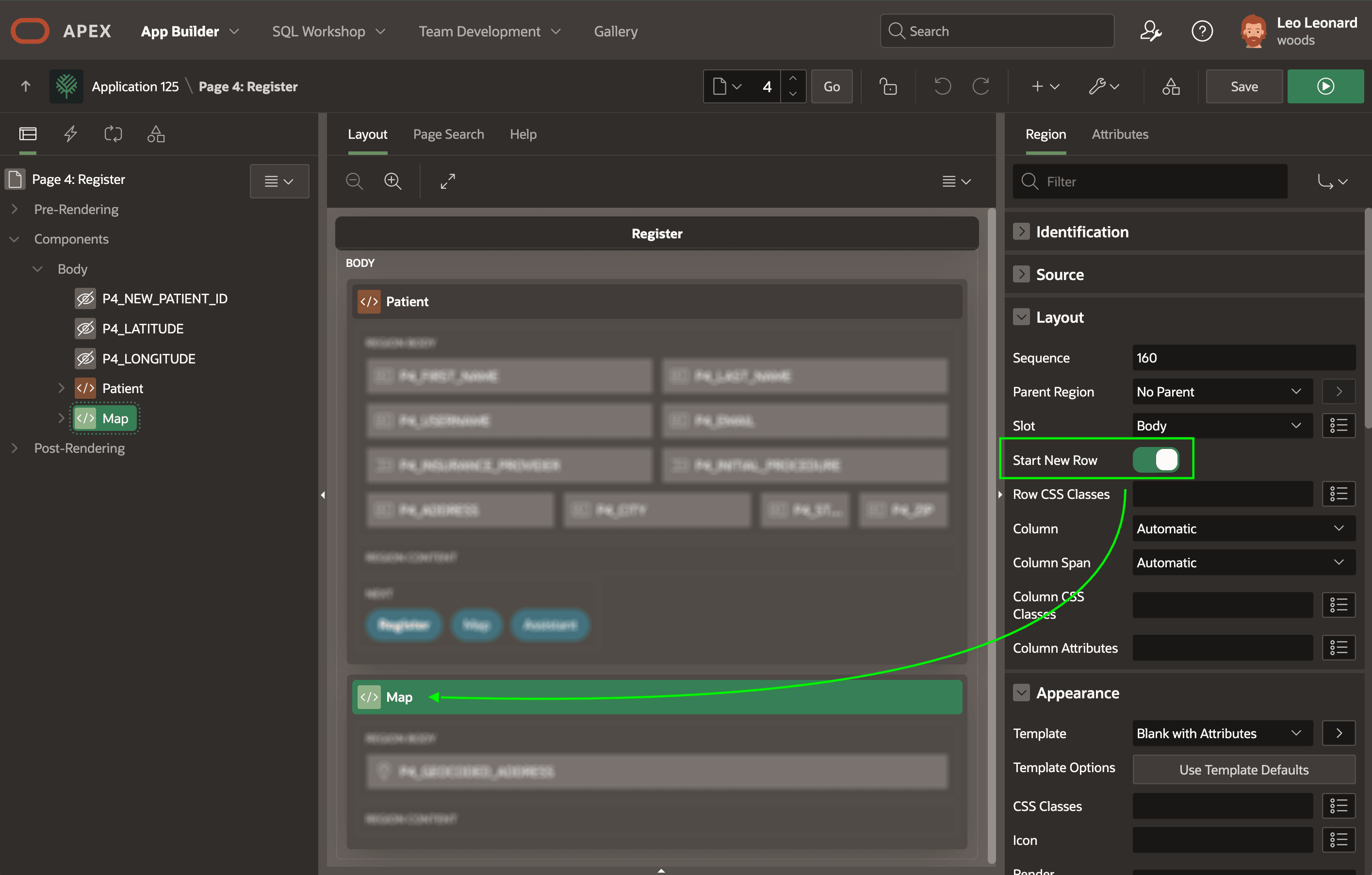
By setting the Map region's Start New Row property to false, it stays on the same row as the element before it at the same level of the component tree. As shown below, this puts the Map region to the right of the Patient region in the same row of the page BODY. Since both regions use the Automatic setting for Column Span, they evenly split the space in their row. The same intuition for configuring Column and Column Span in a region's contents, also applies at page level. You could force the map to only occupy one third of the width instead of one half, simply by setting the region's Column Span to 4. This is because 4 is one third of the 12 available columns.
Figure 3-54 Disabling "Start New Row" for Map Region
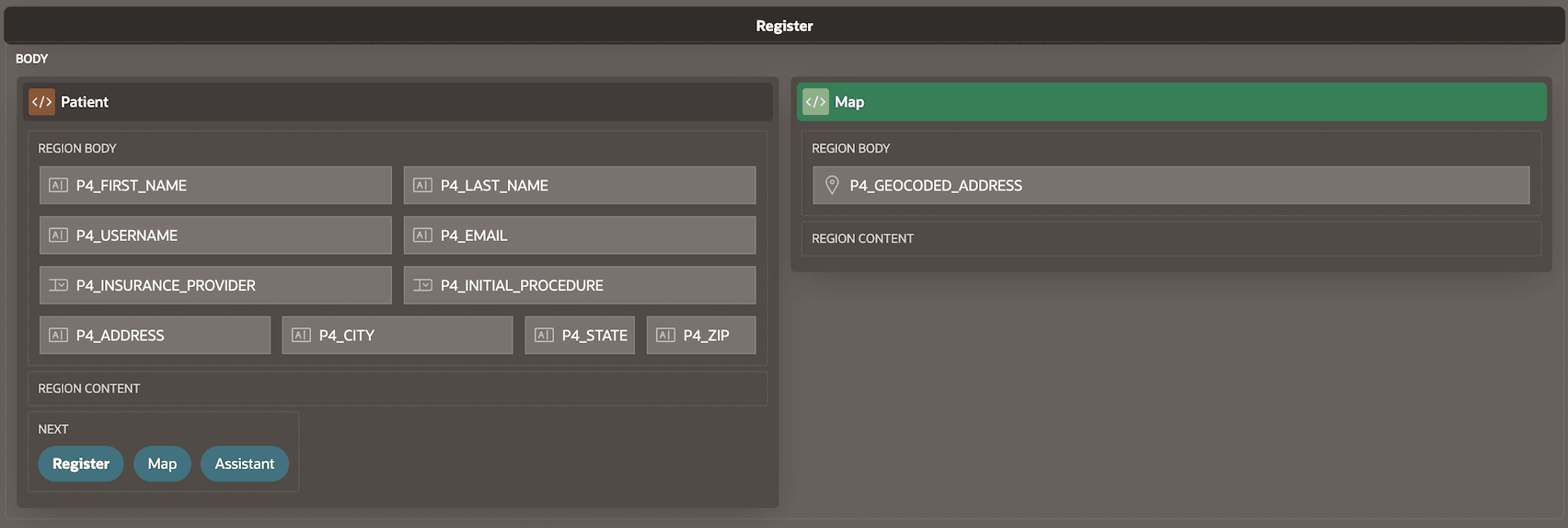
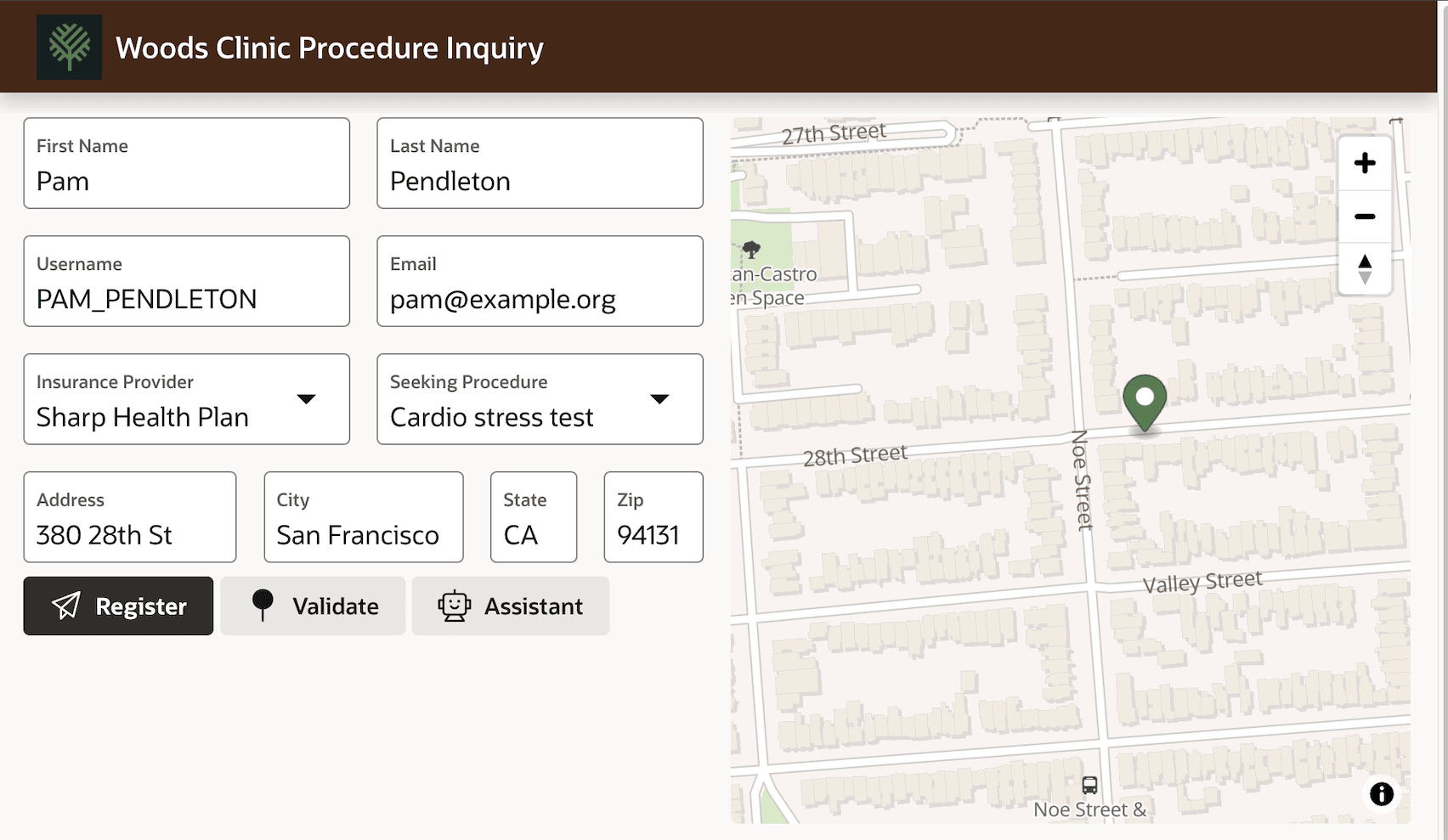
Leaving the Automatic setting and running the page produces the result in the figure below. The Patient region occupies half the width of the page's body. Within that half of the page, the relative 12-column layout of the region's BODY contents is preserved. Since the Map region's only Geocoded Address item spans all 12 column in that region's BODY contents, the map fills its entire half of the page body.
Following the three simple rules illustrated here, laying out any page that works at any screen size becomes a breeze with a bit of practice.
Figure 3-55 Disabling "Start New Row" for Map Region
Parent topic: Simple Layout for Any Screen Size