3.8.1 List-Driven Items Available
Your pages can use ten different kinds of list-driven items.
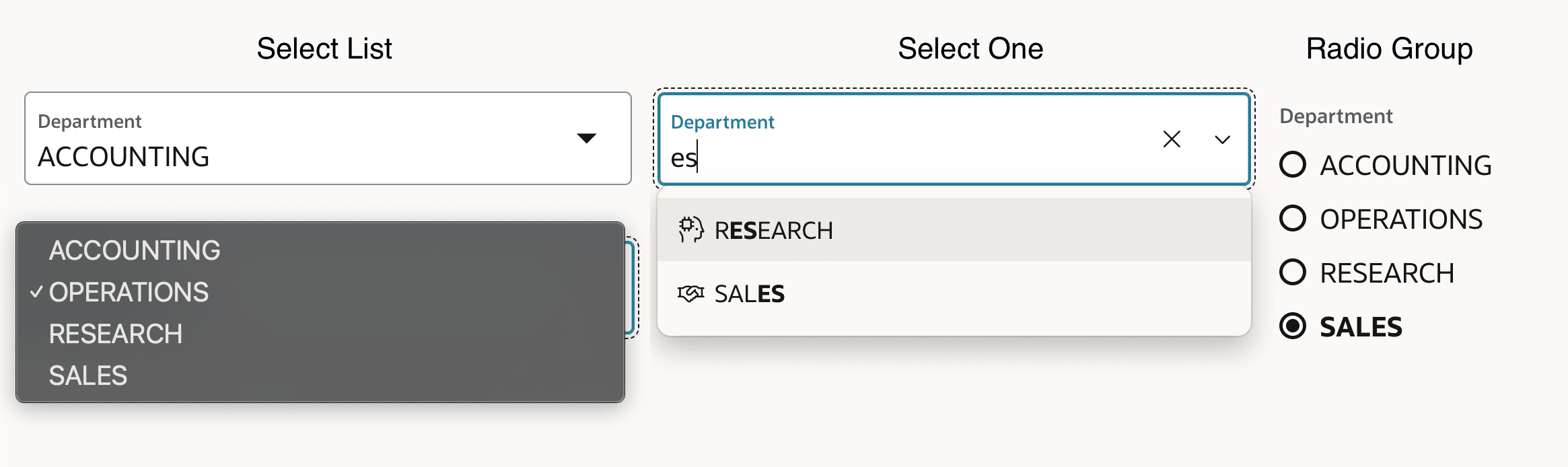
The Select List, Select One, and
Radio Group items all support a single selection. The
Select One item has a type-to-search capability, and lets
you use icons and have full control over how list items appears in the dropdown. The
figure below shows examples of Select List, Select One, and Radio Group page items
displaying choices from the DEPT table. Notice how the user has typed
es into the Select One and its list has narrowed to only show
choices containing those letters. The Select One item also features icons in the
list.
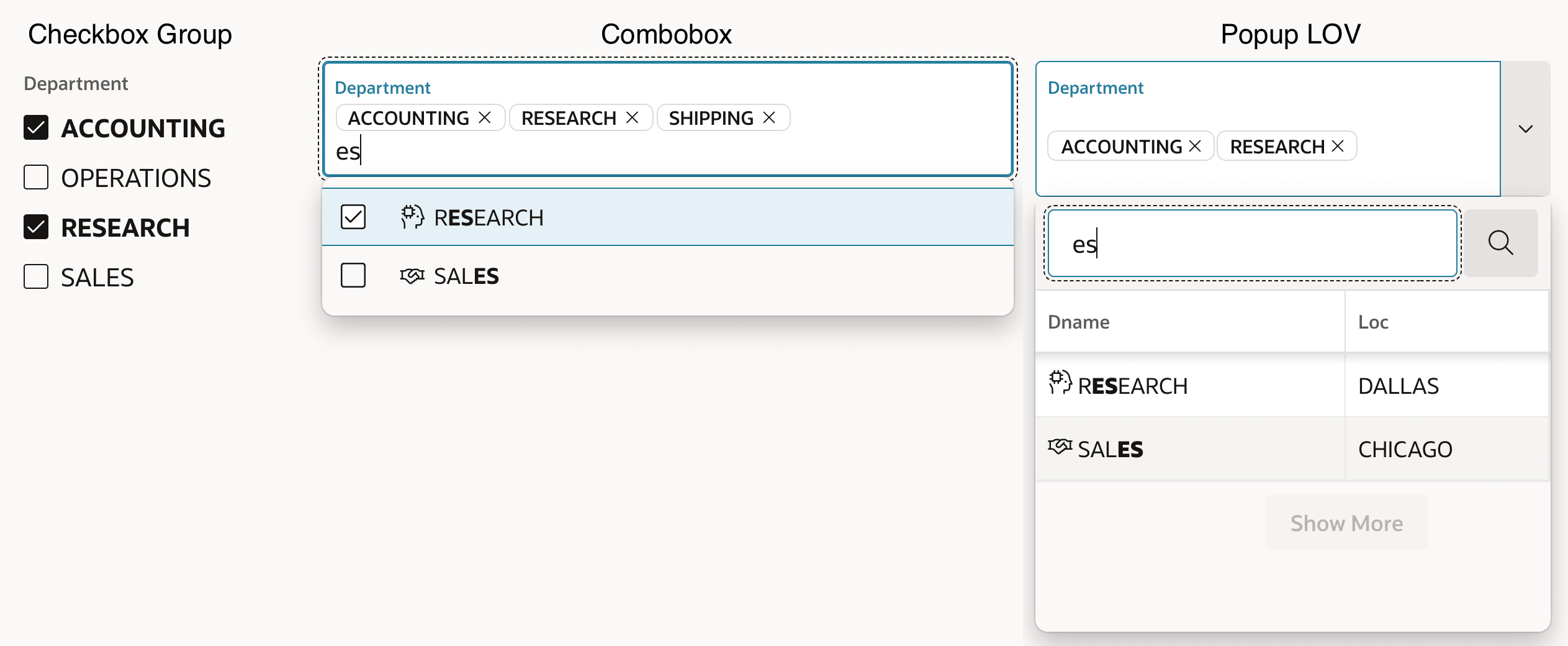
The Checkbox Group,
Combobox, and Popup LOV items all
support either single or multiple selections. The Combobox item also lets a user type in a manual entry like "SHIPPING" below that's not in the list and supports icons and styling
control on how list items appear. The Popup LOV can display additional columns and
search across them. When used in single-selection mode, it can optionally return values
of the additional list columns into other page items or grid columns in the page.
Examples of the Checkbox Group, Combobox, and Popup LOV items appear in the figure
below. Notice the Combobox and Popup LOV display selections as "chips", the user
has typed es into to filter both's list options, and the icons that
they support.
Figure 3-38 Single- or Multi-Selection List Items
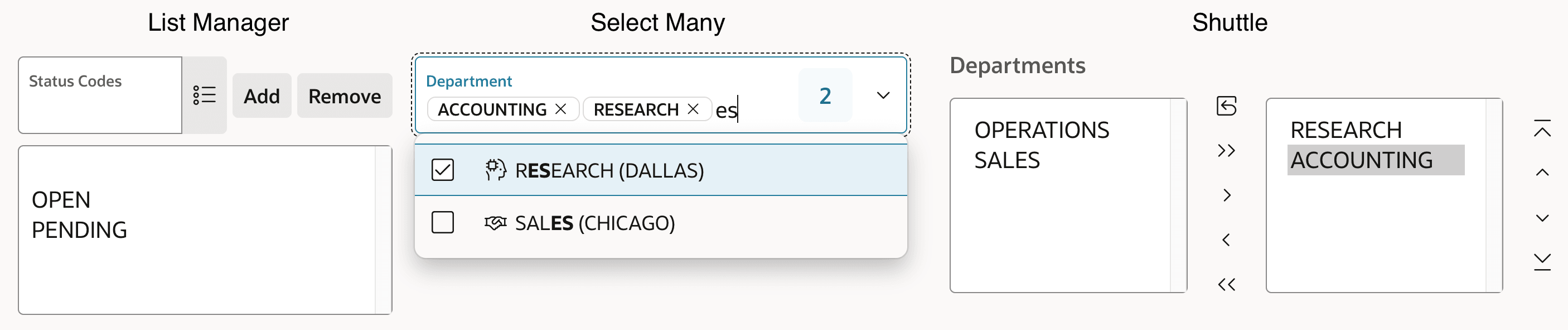
The Select Many, List Manager, and Shuttle items offer multiple selection only. The List Manager provides a search popup that combined with the Add button is used to add selected options to a list. The Select Many supports type-to-filter and gives styling control on how list items appear. The Shuttle has configurable controls for moving and reordering the selections. This figure shows examples of List Manager, Select Manager, and Shuttle in action.
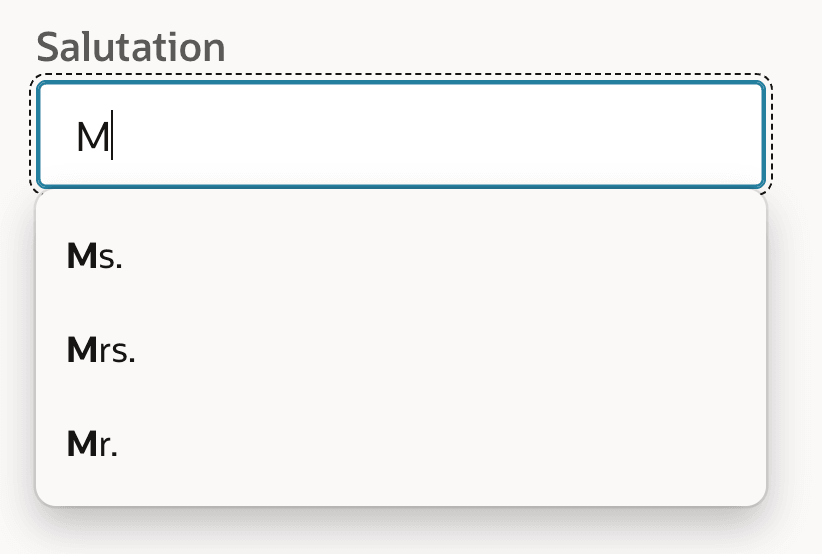
The Text Field with Autocomplete supports free form text
entry, with autocomplete from a list. The user can type to search and pick from the
autocomplete list of pre-defined entries, or type in any other value that's appropriate.
Similar to the List Manager, its related list of options only
uses the Return Item. As shown below, the user has typed the
letter M in a Salutation field, and the choices
Ms., Mrs., and
Mr. appear.
Figure 3-40 Text with Autocomplete Page Item
The Select List, Radio Group, and
Popup LOV items support optionally including an item in the
list that represents the null value, and if included it can have a
custom label. This can be useful to display text that helps a user understand the
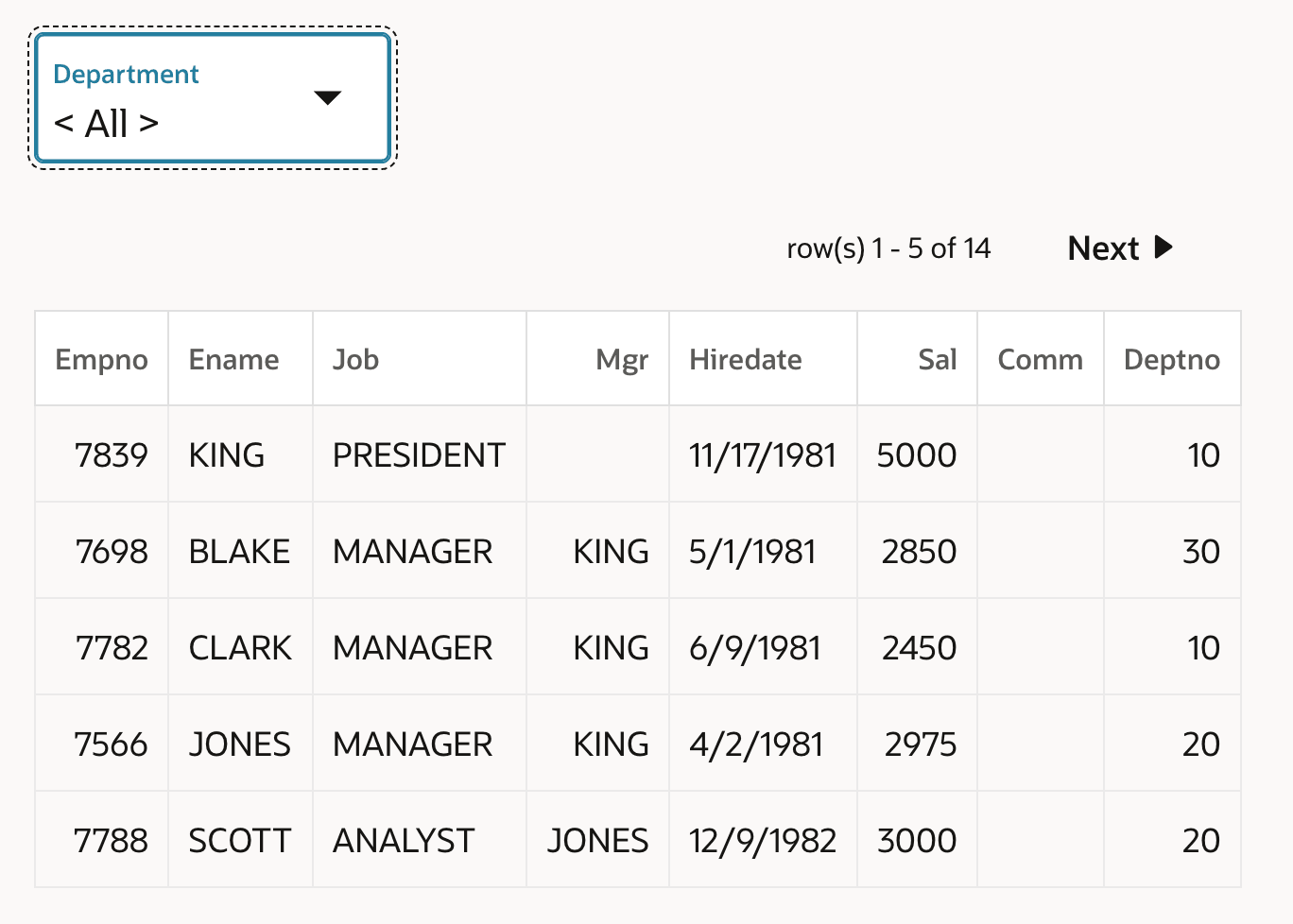
meaning of not selecting a value. For example, the Department
Select List page item shown below is used as an optional
query by example criteria field. A Null Display Value of
All helps the user understand that employees from all departments
are retrieved if they don't select a specific department.
Figure 3-41 Query by Example Select One Page Item with Null Display Value
Parent topic: Cascading, List-Driven Items