16.9.3 Listing Buckets with REST Data Source
Create and test a REST Data Source that lists object buckets in an OCI namespace.
https://objectstorage.eu-frankfurt-1.oraclecloud.com/n/x1y2z3a4b5c6/b/On the Authentication step of the Create REST Data Source Wizard, use the OCI Object Bucket web credential created before, and click the (Advanced >) button to add the compartmentId parameter of type URL Query String having your object bucket's compartment OCID as its static value. Then proceed with the automatic discovery of the data profile and complete the wizard.
Tip:
After creating the first REST Data Source, edit its Remote Server to remove the trailing /b/, and adjust the URL Path Prefix of the REST Data Source to add the /b/ there instead. This ensures your setup will be similar to the screenshots in this section.
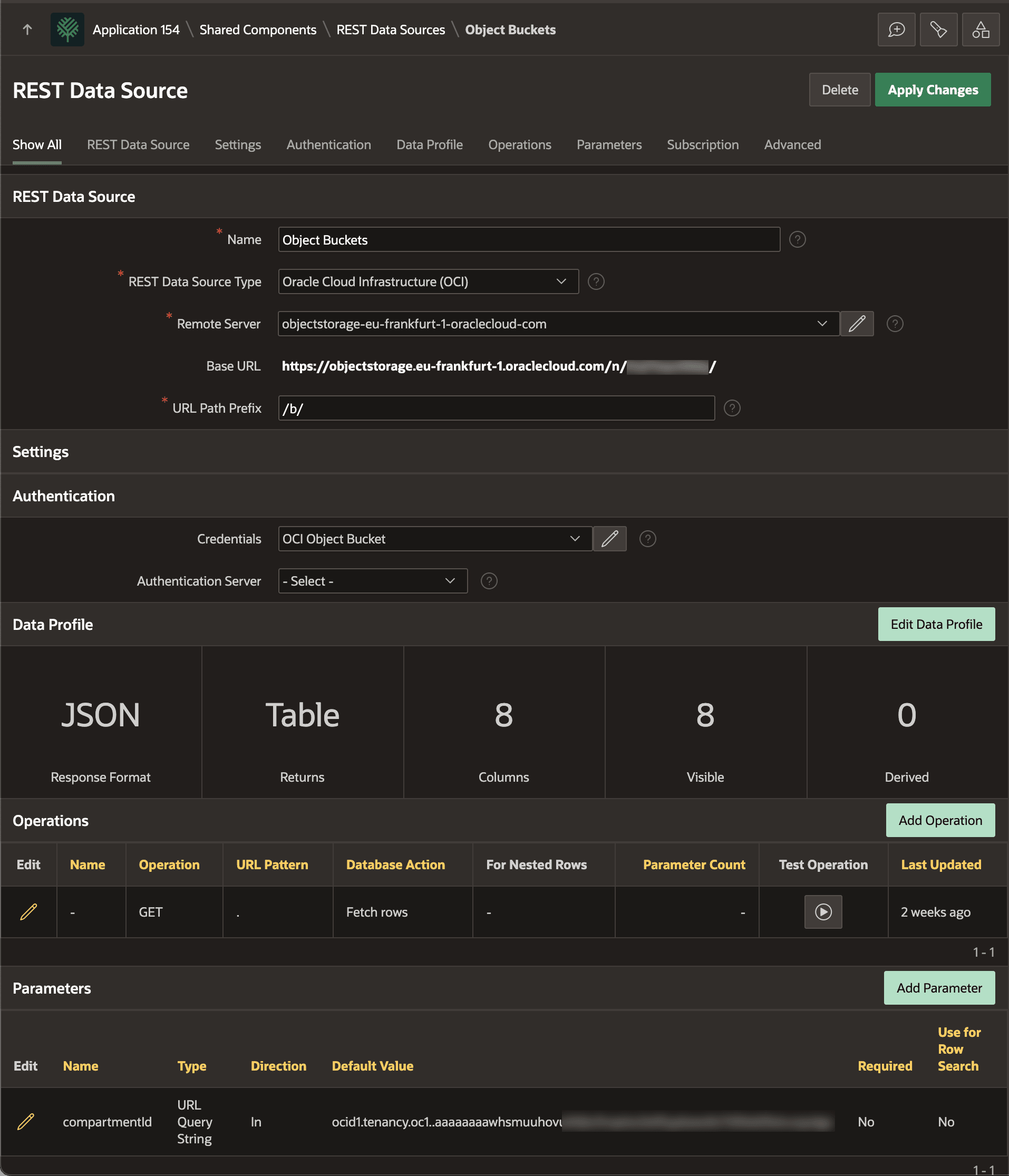
The figure shows the REST Data Source edit page in App Builder for the Object Buckets component. Notice the compartmentId parameter and the use of the OCI Object Bucket Web Credential.
Figure 16-86 Defining Object Buckets REST Data Source
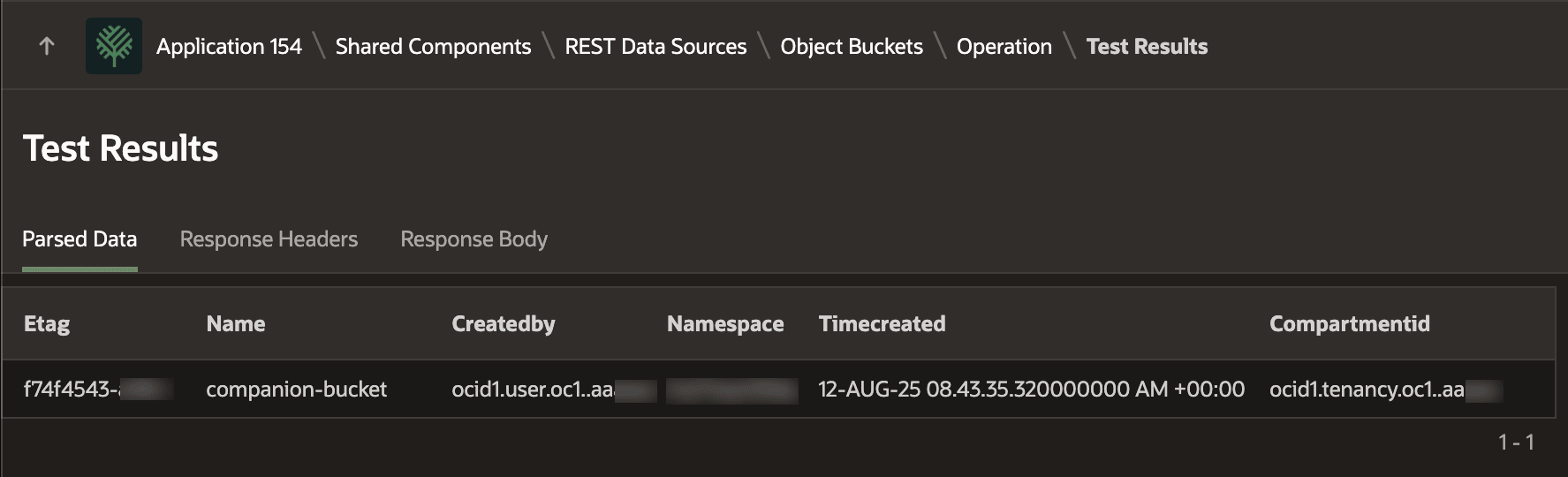
To test that the REST Data Source is working, click the "play" button for the
GET
Fetch rows operation in the Test Operation column of the Operations
grid. You see the list of your object buckets to validate that the REST Data Source is
working.
Figure 16-87 Testing Object Buckets REST Data Source
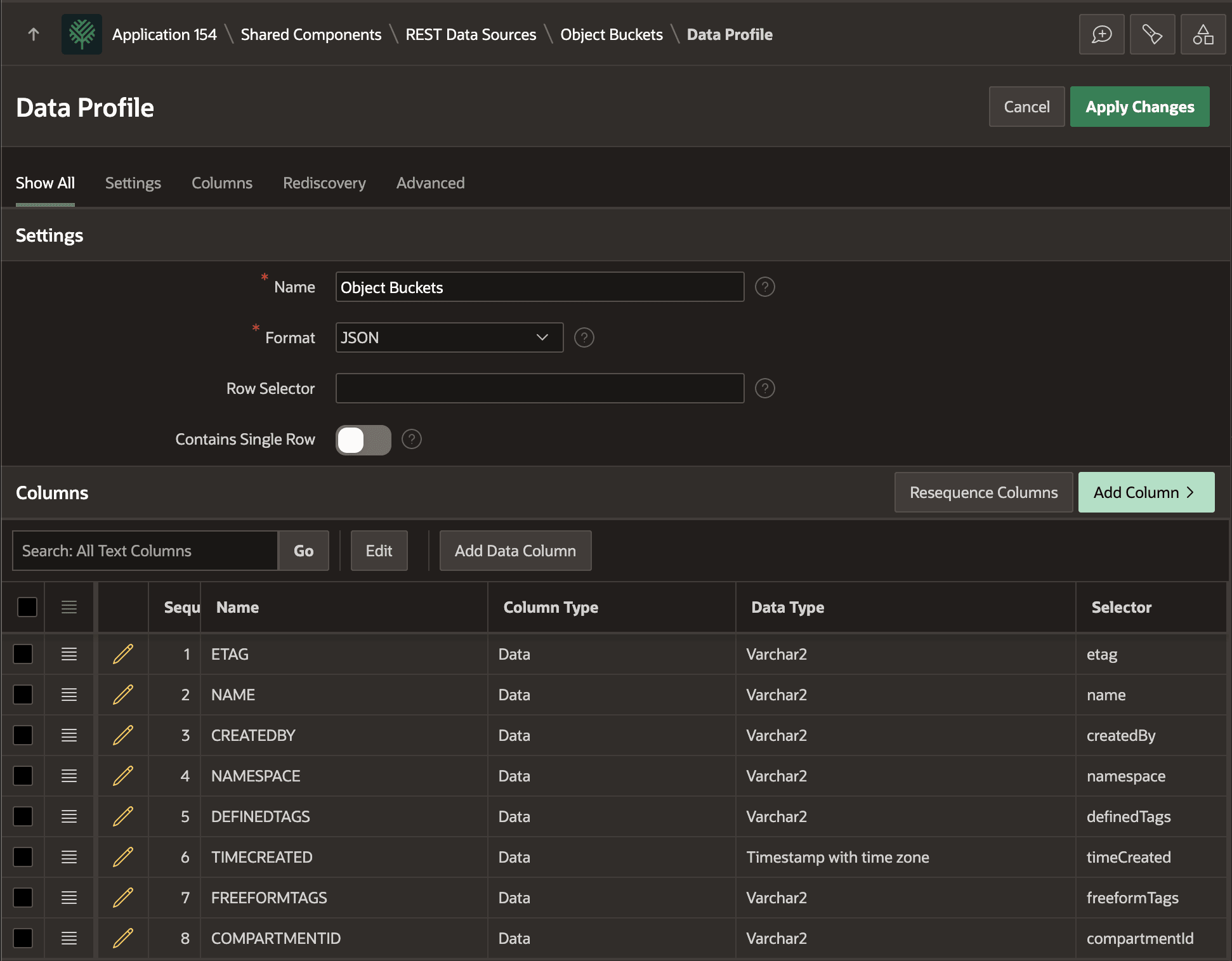
Examining the automatically-discovered Data Profile, as shown below, you confirm the 8 columns of information available for object buckets.
Figure 16-88 Data Profile for Object Buckets REST Data Source
Parent topic: Using an OCI Object Bucket for Files