21.2.7 Printing Report from a Page
Print and download a report from a page using a button, application item, and Print Report process.
To print the report from a page, just configure a button to trigger its generation
and download. The PRINT button below appears in the same row as the
P35_DEPTNO select list HR Reps use to choose the desired
department.
Tip:
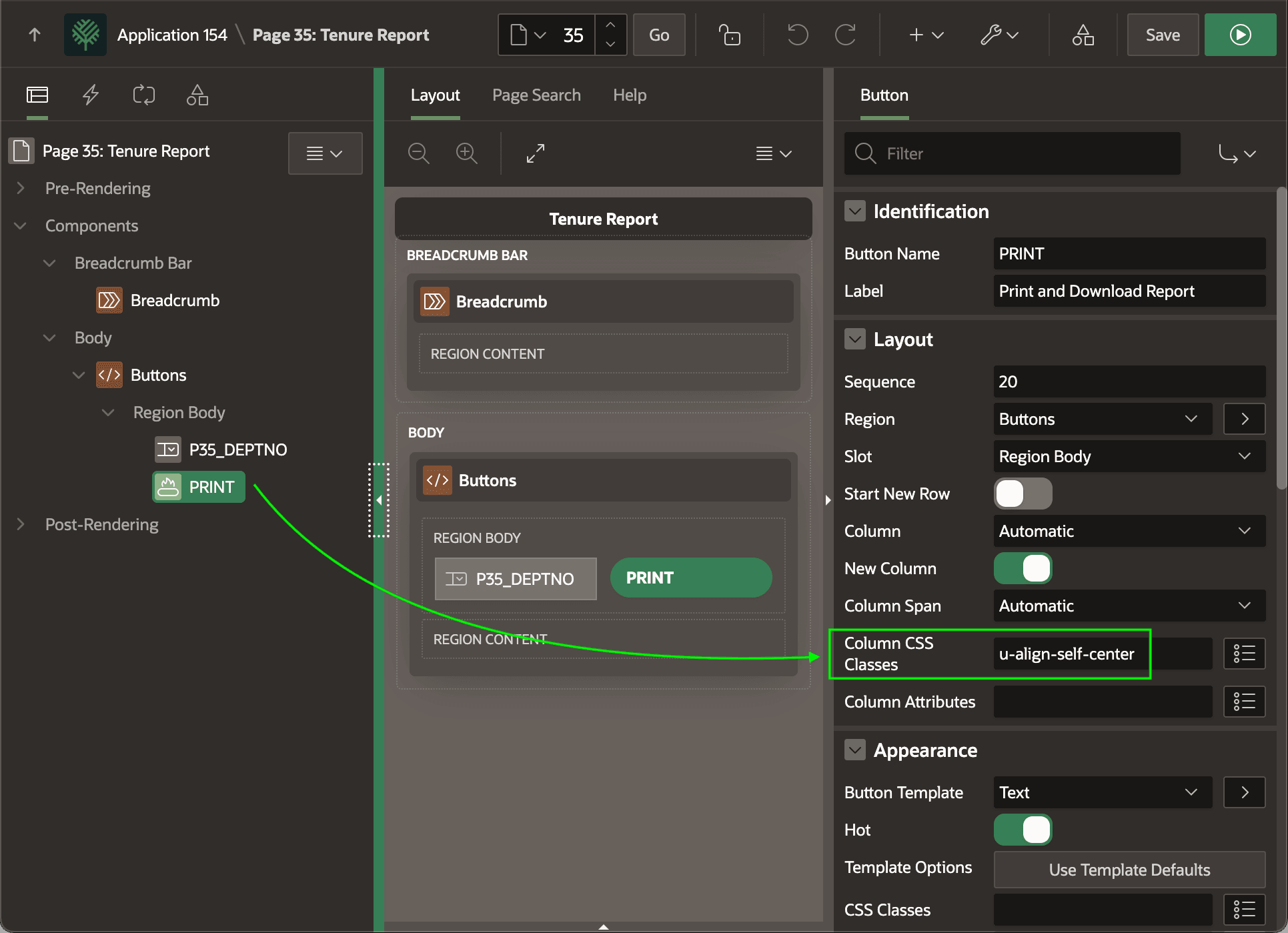
To avoid having the page item and button stretched across the full width of the page, the Buttons static content region containing them uses the Buttons Container template. To keep the styling simple, its Style template option is set to Remove UI Decoration. The PRINT button uses the native Universal Theme CSS class u-align-self-center in its Column CSS Classes to vertically center the button with the select list.
Figure 21-7 Using CSS Class to Vertically Center Button with Page Items in the Same Row
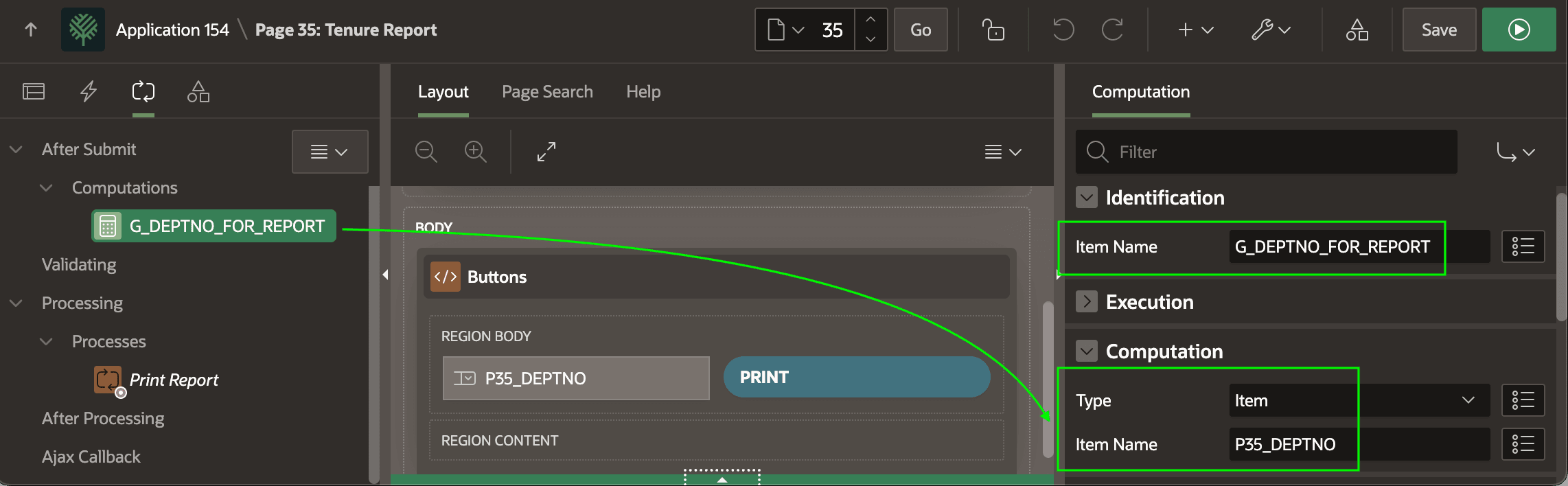
When an HR Rep selects a department and clicks the (Print and Download Report) button, it submits the page. As shown below, an After Submit computation sets the value of the G_DEPTNO_FOR_REPORT application item to the value of the P35_DEPTNO select list containing the user's selected department number. This ensures the report source queries have the right value when they reference this application item as a bind variable.
Figure 21-8 Setting Application Item to Selected Department Number
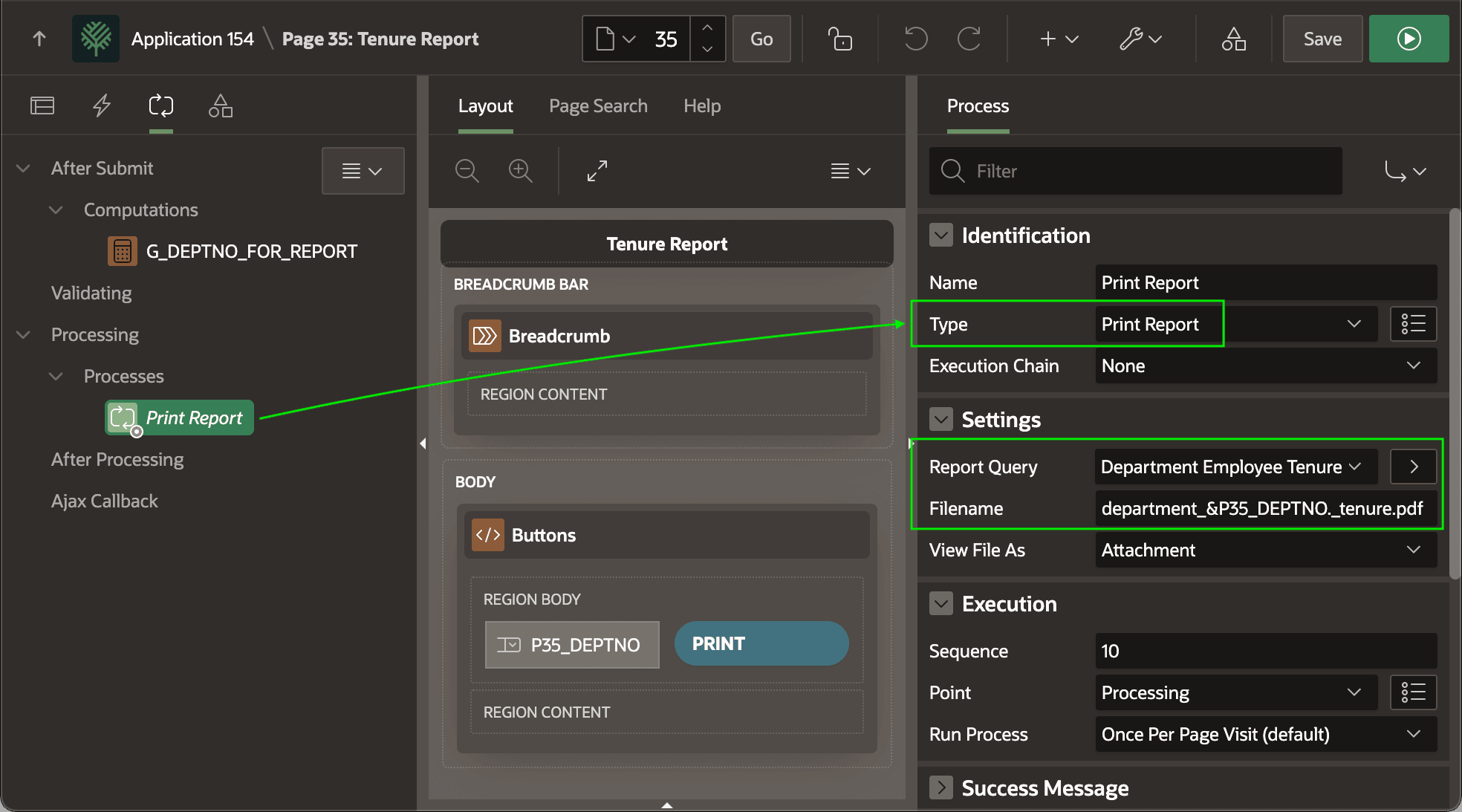
With the application item value assigned, the Print Report page process generates and downloads the pixel-perfect PDF using the native Print Report process. It configures its Report Query property to use the Department Employee Tenure definition. Notice the Filename uses a substitution &P35_DEPTNO. as part of the PDF file name to download. A similar native Print Report dynamic action is also available. It does the same job, just triggered from a page event instead of a page submit.
Tip:
Use a Print Report page process either in the Pre-Rendering section, or the Processing section of your page. In the latter case, also set your page's Reload on Submit property to Always.
Figure 21-9 Printing Tenure Report Using Report Query
Parent topic: Printing Report with an Excel Template