21.1 Setting Your App's Remote Print Server
Use instance print server settings to generate reports with the configured remote printing service.
While you can choose from multiple remote printing solutions, here you explore using Oracle Cloud Infrastructure Document Generator Function. It defines a set of "tags" you use to reference the data inside your layout document template. In this section's examples, you encounter a few simple tags to include data. Consult the Document Generator's reference guide for a complete tag list.
- using Microsoft Word or Excel files as layouts, and
- producing PDF, Word, or Excel files as the report output.
Tip:
Other remote printing solutions may support additional layout file types and output formats. They may also use a different syntax for the tags to include data.
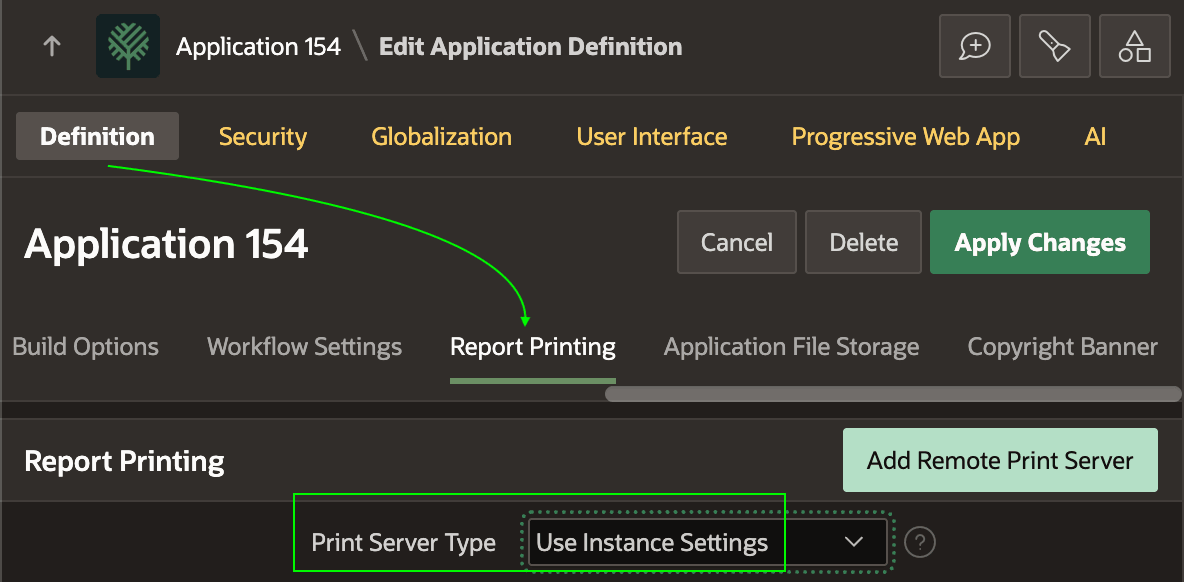
The only setup step required in your own apps is to set the Print Server Type as shown below to Use Instance Settings. This is the simplest path to pixel-perfect printing.
Figure 21-1 Configuring App to Use Instance Settings for Remote Printing
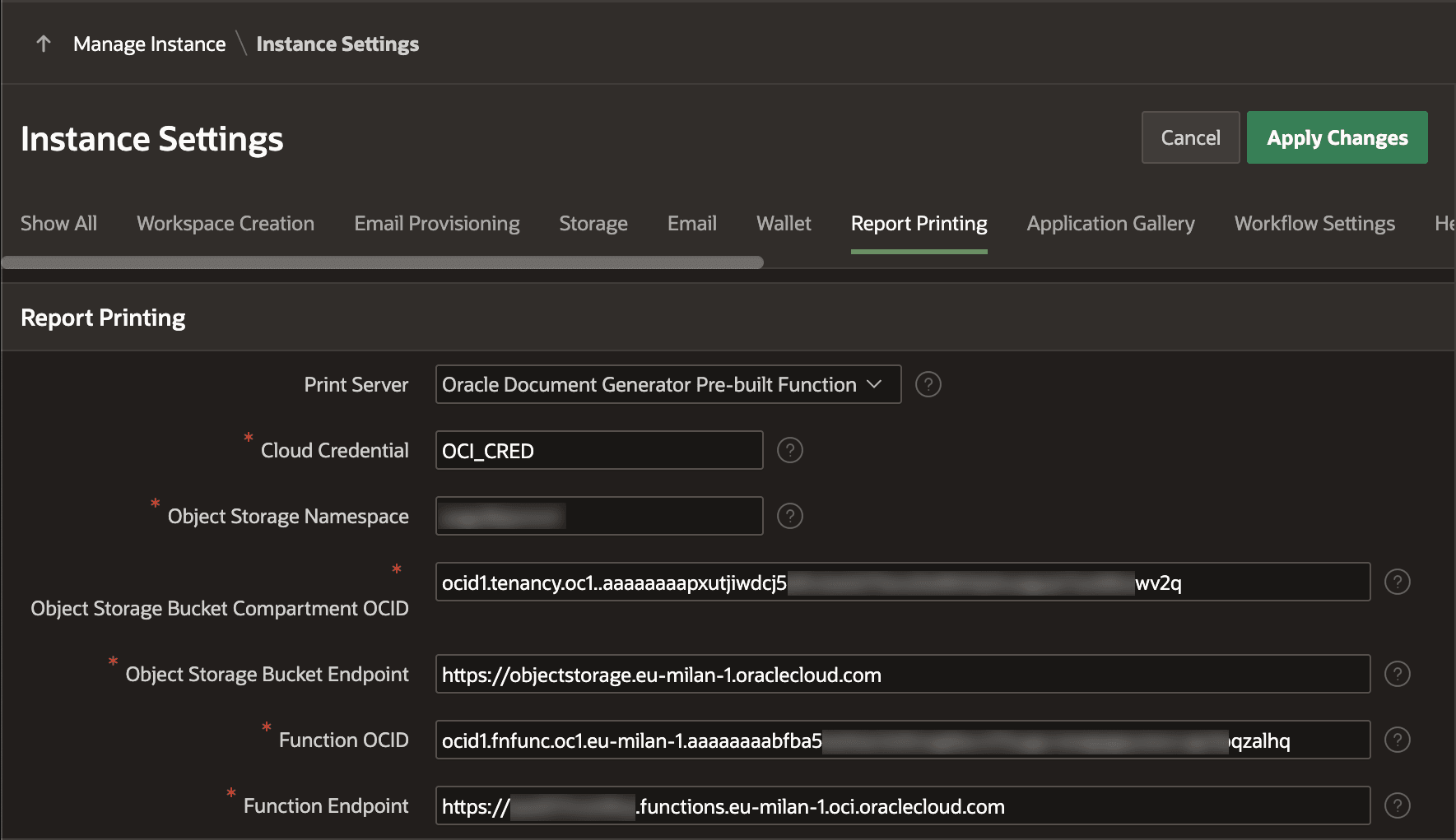
Your APEX instance administrator should have already setup a remote print server for use by all workspaces. When they setup the instance to use Oracle Document Generator as the Print Server, as shown below, they configure the details that let APEX automate reporting for your applications. Details include a database cloud credential for an OCI user with access to an object bucket and the Oracle Document Generator Function. They also provide OCIDs and URLs to access them. However, once they have setup the remote print server, all app developers can use it without being aware of these details. The figure shows the APEX instance administrator's view of the Report Printing tab of the Instance Settings page.
Figure 21-2 Glimpse of the Oracle Document Generator Instance Settings
Parent topic: Producing Pixel-Perfect Reports