25.1.1 Using the Diagram and Activities Palette
Use the Workflow Designer to add activities, connect them, and edit their properties.
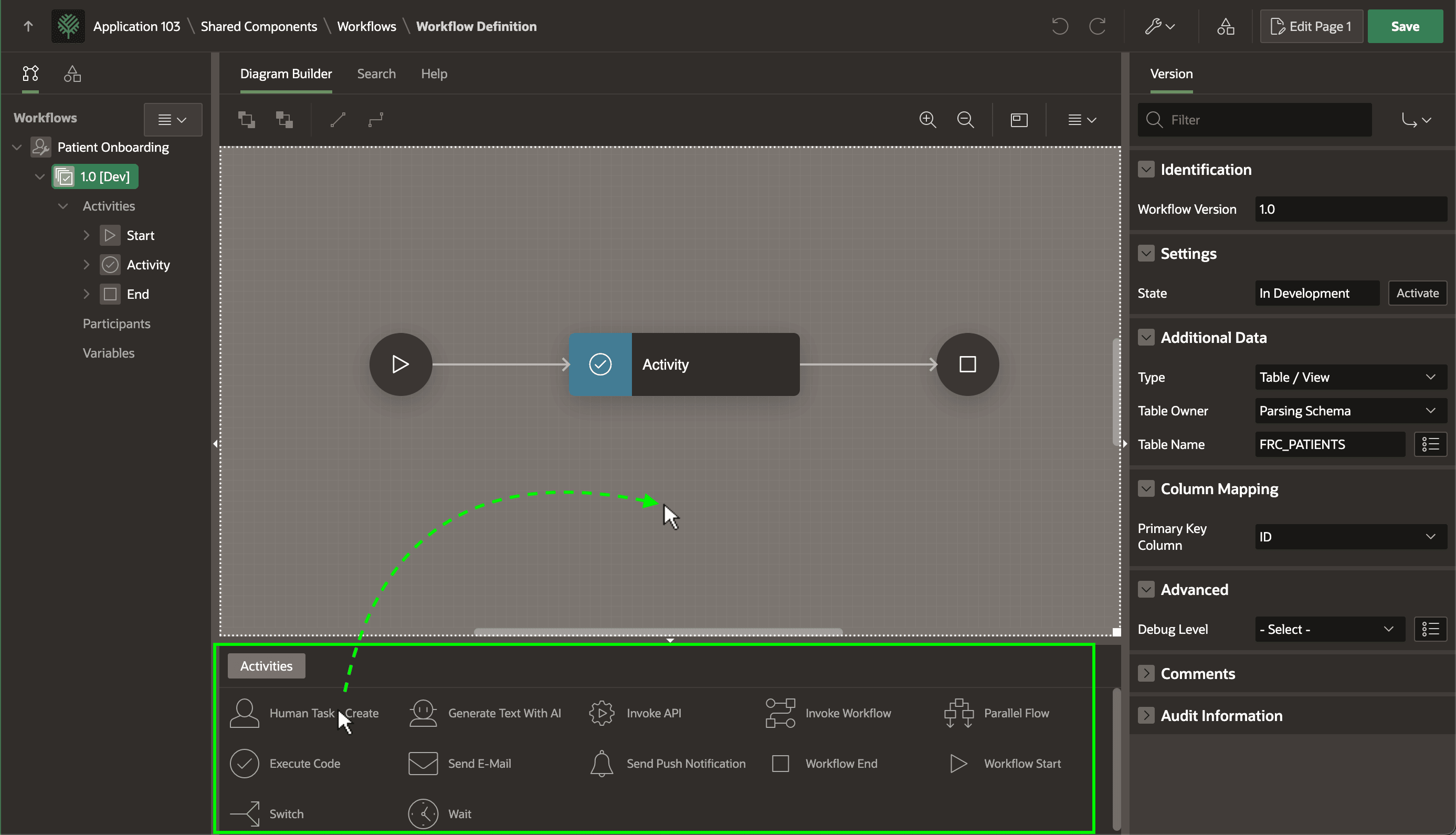
The Diagram Builder surface occupies the bulk of the Workflow Designer layout. The Activities palette below contains actions you can drag onto the diagram as workflow steps. Connection arrows between activities define the sequence the APEX engine follows. The Workflows tab on the left presents diagram elements organized in a tree. The Property Editor on the right lets you inspect and change settings for activities and connections.
A workflow begins with the Start activity shown below as a circle with the "play" triangle icon. If the workflow contains Switch activities to make decisions, there are multiple "paths" from the start activity to a Workflow End activity that appears as a circle with the "stop" square icon. While there is always only one Start activity, to simplify diagram layout you can include as many End activities as needed.
Figure 25-1 Activities Palette Shows Available Types You Can Drag onto Diagram
Parent topic: Automating a Process with Workflow