16.4.7.1 Using GET_BLOB_FILE_SRC for Image URL
Build an image URL with GET_BLOB_FILE_SRC and display it in
an Interactive Grid using a generated img tag.
The grid in the page below uses the following query. Its CASE
expression for the IMAGE column checks that the BLOB contains data. If
so, it calls APEX_STRING.FORMAT to build an
<img> tag. The alt attribute aids
accessibility, title is the tooltip text, and src
contains the URL to fetch the image. FORMAT replaces each
%s with the expression values that follow, in order. The first and
second placeholders for the alt and title attributes
both get the image TITLE "escaped" as needed, while the
GET_BLOB_FILE_SRC function generates the image URL for the
src attribute using the third %s placeholder. For
details on the arguments to this function and the required P12_IMAGE
BLOB page item it references by name, see Configuring Reference Image Page Item.
select id,
       title,
       case
           when     image is not null
                and dbms_lob.getlength(image) > 0
           then apex_string.format('<img alt="%s" title="%s" src="%s">',
                apex_escape.html_attribute(title),
                apex_escape.html_attribute(title),
                apex_util.get_blob_file_src('P12_IMAGE', ID))
       end as image,
       file_name,
       posted,
       posted_by,
       updated
from eba_demo_emp_breakroom_photo_v
Tip:
HTML_ATTRIBUTE function in the APEX_ESCAPE package replaces them with equivalent character references using the Unicode numeric representation. This is known as "escaping" the value. For example, a break room photo title like:Team's "Best" Food & DrinkTeam's "Best" Food & DrinkForgetting to escape values can lead to unexpected formatting or incorrect behavior.
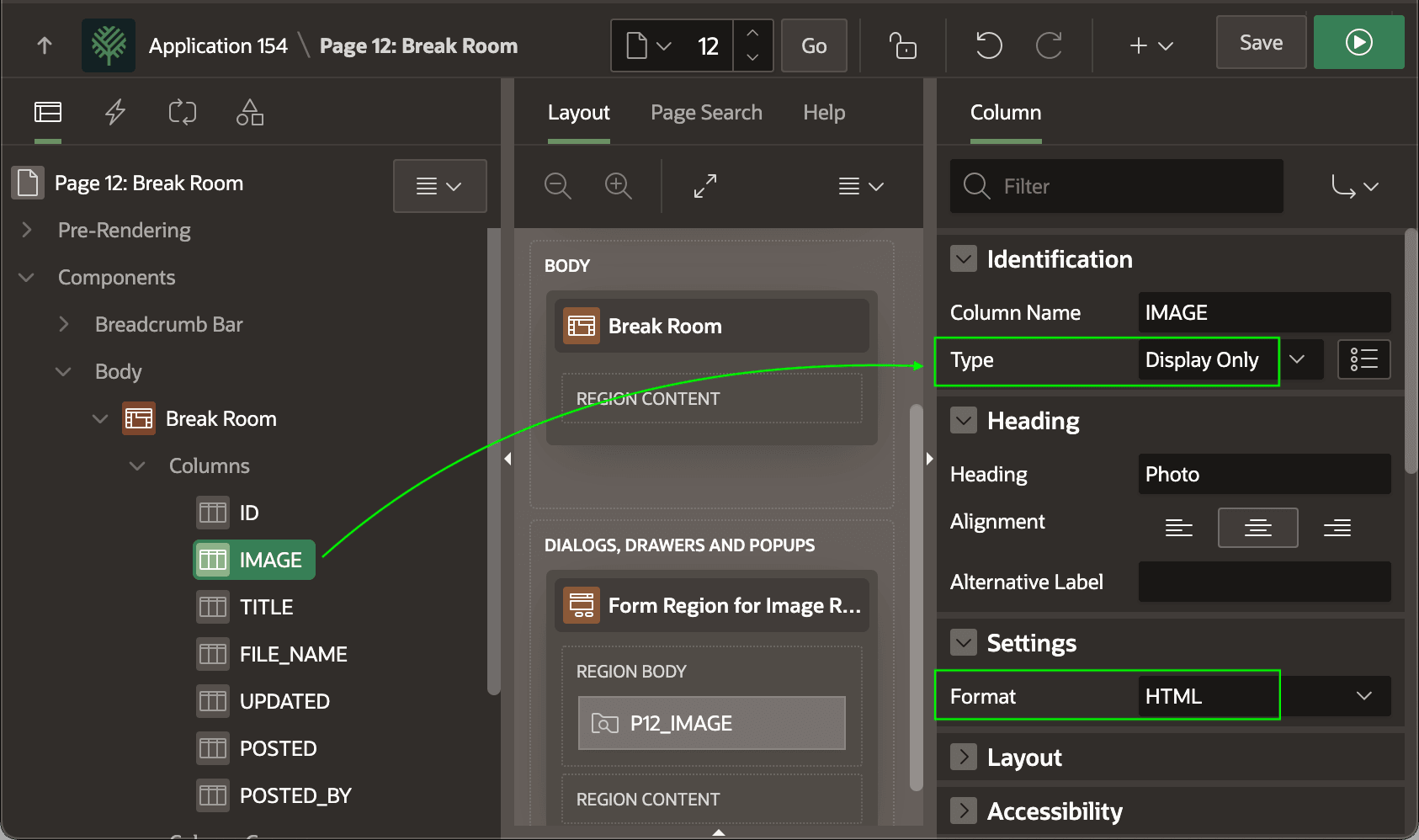
The query produces the <img> tag as the IMAGE column value. To configure it to display as an image, set its column Type to Display Only, and its Format to HTML, as shown below.
Figure 16-29 Configuring HTML IMAGE tag to Display Only
Size the image by adding the rule below to the page's CSS > Inline section. It constrains the height and keeps the image's aspect ratio. You can also just constrain the width by specifying that property instead of height.
.a-IG img {
    /* constrain width or height + keep aspect ratio
     * width: 90px;
     */
    height: 90px;
    object-fit: contain;
}
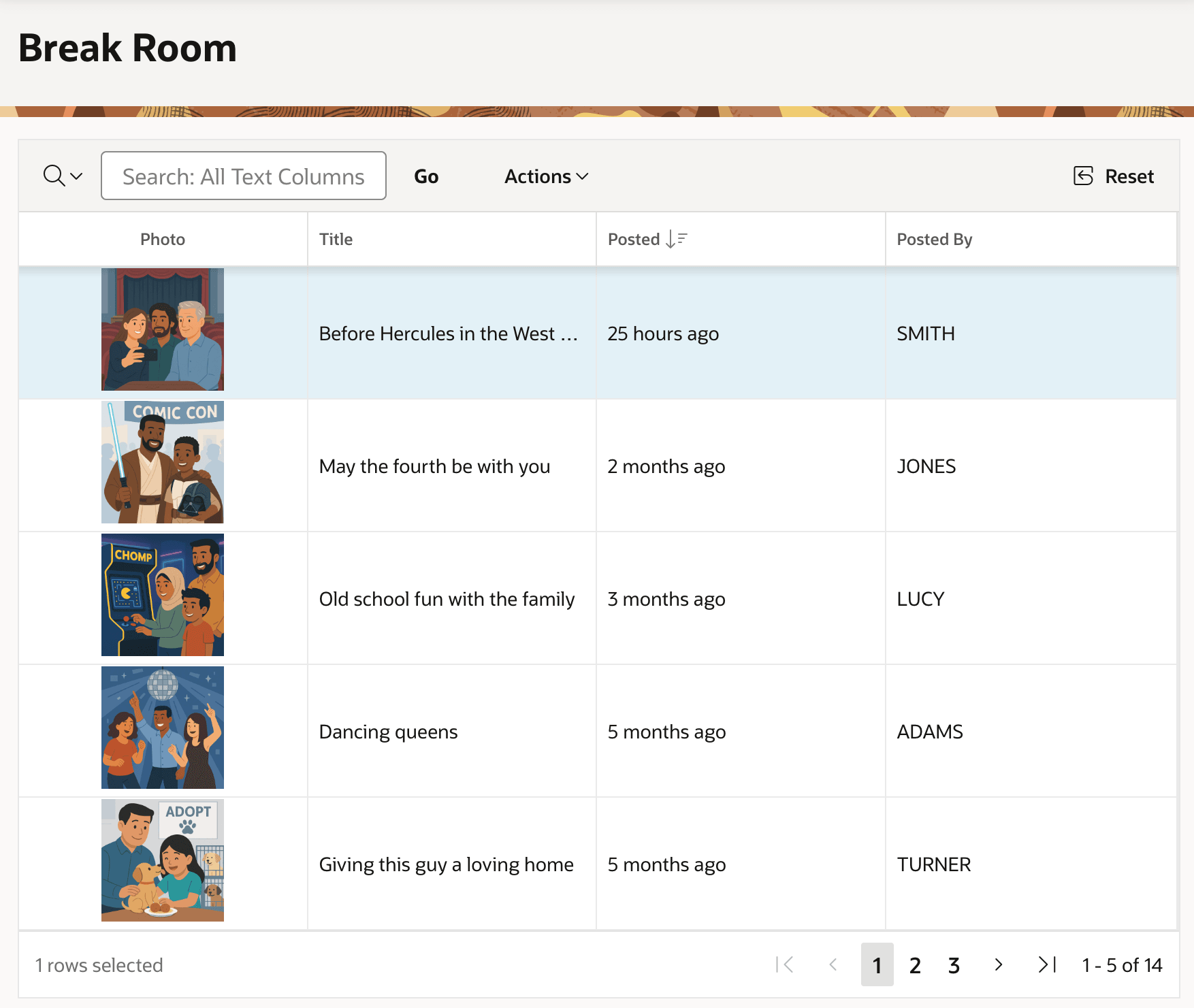
This combination produces the Interactive Grid shown below.
Tip:
If your Interactive Grid is editable, make sure to enable Query Only on the IMAGE column.
The figure displays breakroom photos page-by-page in a read-only Interactive Grid, five rows at a time.
Figure 16-30 Displaying BLOB Image Using Image URL via GET_BLOB_FILE_SRC
Parent topic: Showing BLOB Images in Interactive Grid