6.2 Adding a New Page Using Generative AI
Add a new page using Generative AI and enter natural language.
Note:
This feature requires you create a Generative AI Service and enable the Used by App Builder setting. If no Generative AI Services are available in the workspace, the Create App Using Generative AI option in the Create Application Wizard is hidden. To learn more, see Managing Generative AI Services.When create a page using the Using Generative AI option, the APEX Assistant appears and guides your through the process of creating page.
The example that follows builds page on the sample dataset, Project Data. To learn more about installing a sample dataset, see Using Sample Datasets in Oracle APEX SQL Workshop Guide.
To create a new page using Generative AI:
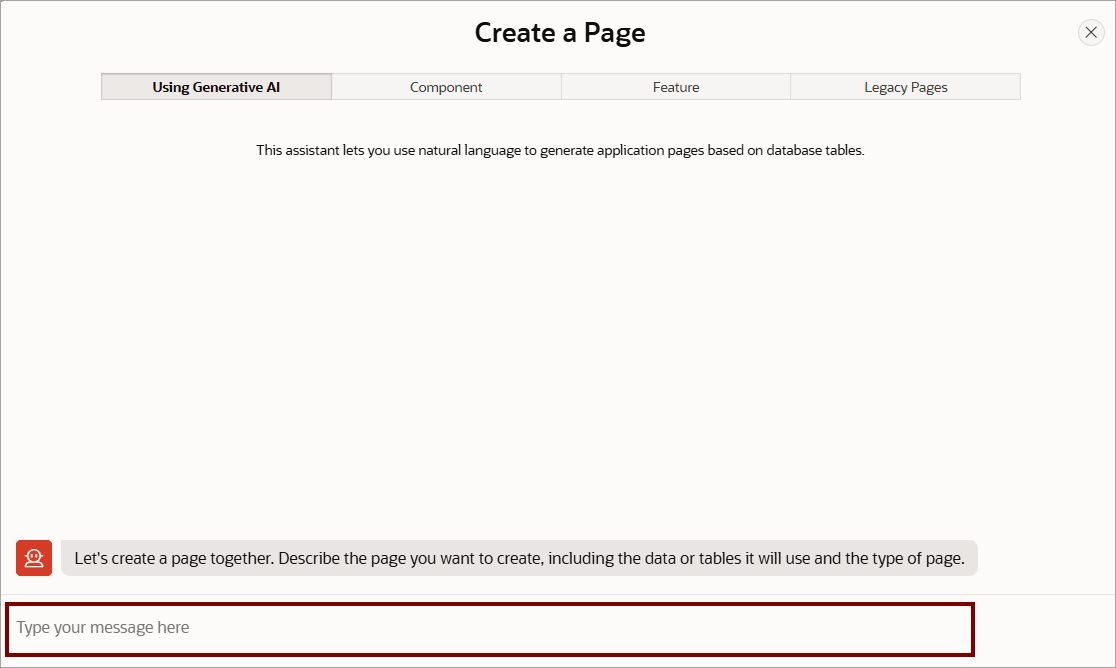
- On Create a Page, accept the default option, Using Generative
AI.
APEX Assistant prompts you enter a message.
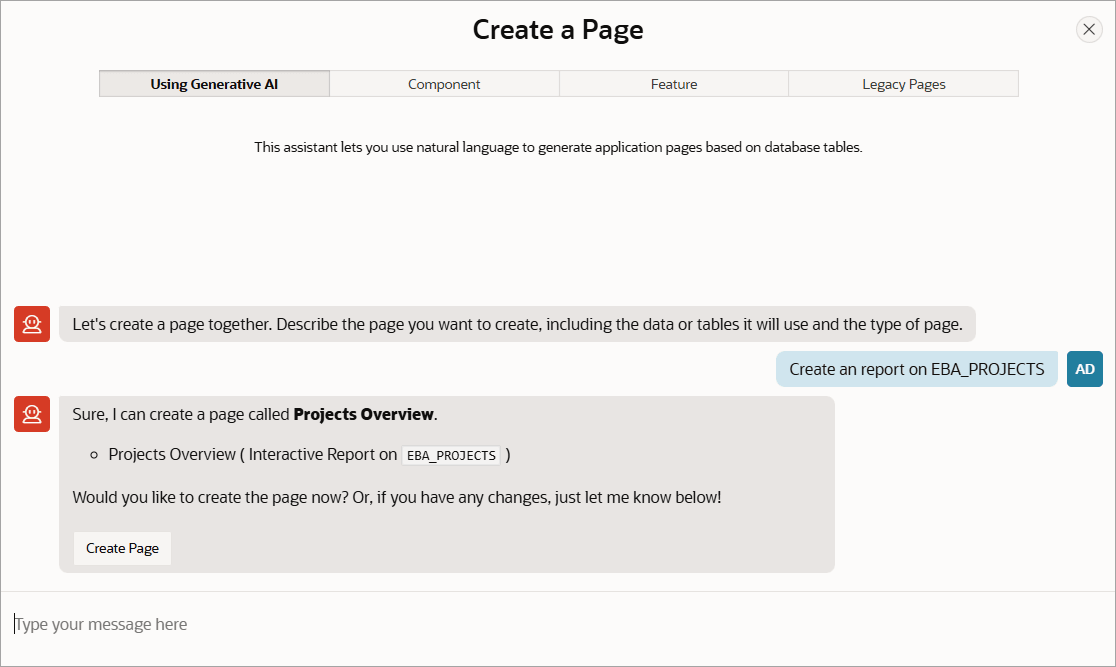
- Enter a message:
- Click Send Message (or press
Enter).
APEX Assistant displays a brief summary outlining the page to be created.
- Click Send Message (or press
Enter).
Parent topic: Managing Pages in an Application