5.5 Creating an App Using Generative AI
Create an application using Generative AI and enter natural language.
Note:
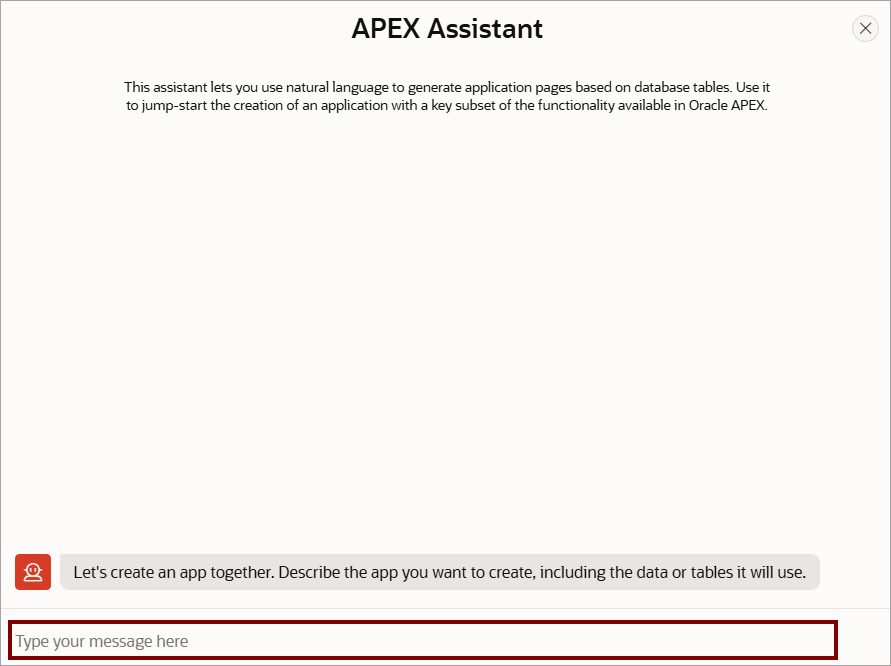
This feature requires you create a Generative AI Service and enable the Used by App Builder setting. If no Generative AI Services are available in the workspace, the Create App Using Generative AI option in the Create Application Wizard is hidden. To learn more, see Managing Generative AI Services.When you click Create App Using Generative AI option in the Create Application Wizard, the APEX Assistant appears and guides your through the process of creating an application.
Tip:
If you have made changes to the tables in your workspace, the APEX Assistant may prompt you to refresh the data dictionary cache to work with the latest tables. Follow the on-screen instructions. If you want to send a sample prompt from APEX Assistant, you can install any of the available sample dataset. Once installed, APEX uses two of the most recently installed sample datasets and APEX Assistant provides sample prompts as quick pick buttons. Click on one of these buttons to send the sample request to the AI Service.The example that follows builds an application on the sample dataset, Project Data. To learn more about installing a sample dataset, see Using Sample Datasets in Oracle APEX SQL Workshop Guide.
To create an app using Generative AI:
- Click Create App Using Generative AI.
The APEX Assistant appears.
Tip:
If APEX Assistance does not detect any tables, it may prompt you to browse the sample datasets included with APEX. If prompted, click Browse Sample Datasets and install a sample dataset.
APEX Assistant prompts you enter a message.