8.7.1 Example Faceted Search
View an example faceted search page.
A faceted search page features a faceted Search region and report. The Search region displays on the left side of the page and enables users to narrow down the search result by selecting facet values. Narrowing the search result, makes it easier for users to find the data they want. The right side of the page features a Search Results region which can display as a classic report or cards report.
The following shows a faceted search page built on the
EBA_PROJECT_TASKS table. In this example the Project,
Develop Bug Application, is selected and the report
displays 11 rows.
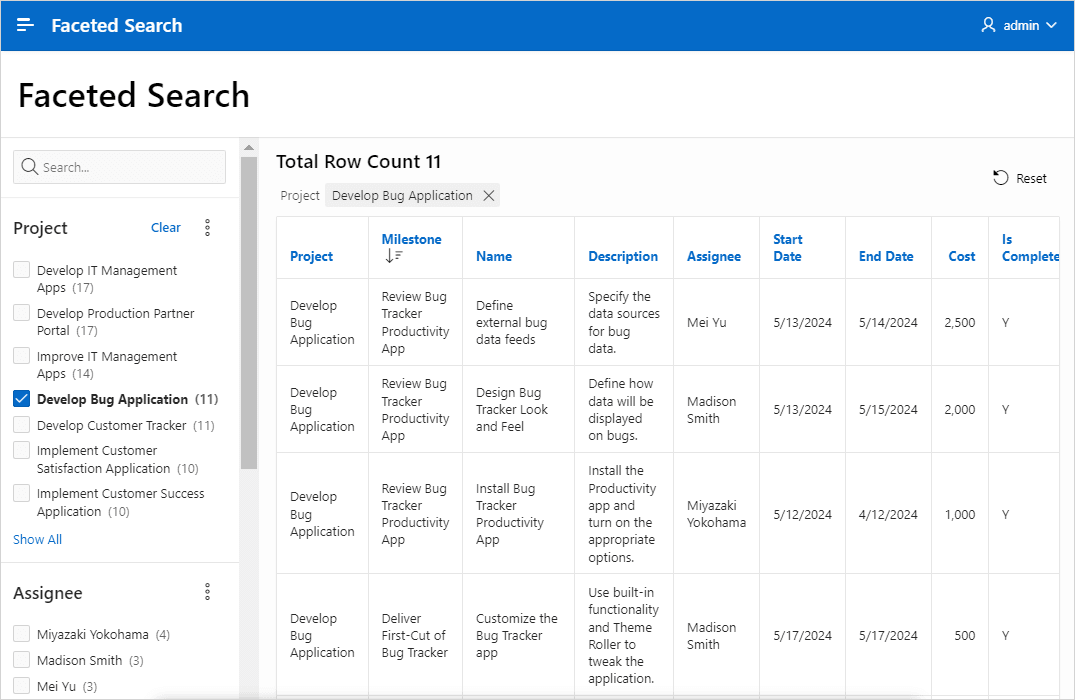
Description of the illustration faceted_search.png
Tip:
To view an example, install the sample app, Sample Reporting. To learn more, see Installing Apps from the Gallery.
Viewing Charts Based on Facet Counts
When you create a facet that computes counts with a wizard, each facet that computes counts includes a chart based on the facet counts. Clicking Project Options (the three dots) and then selectingShow Chart displays a chart based on the facet counts in a popup dialog.
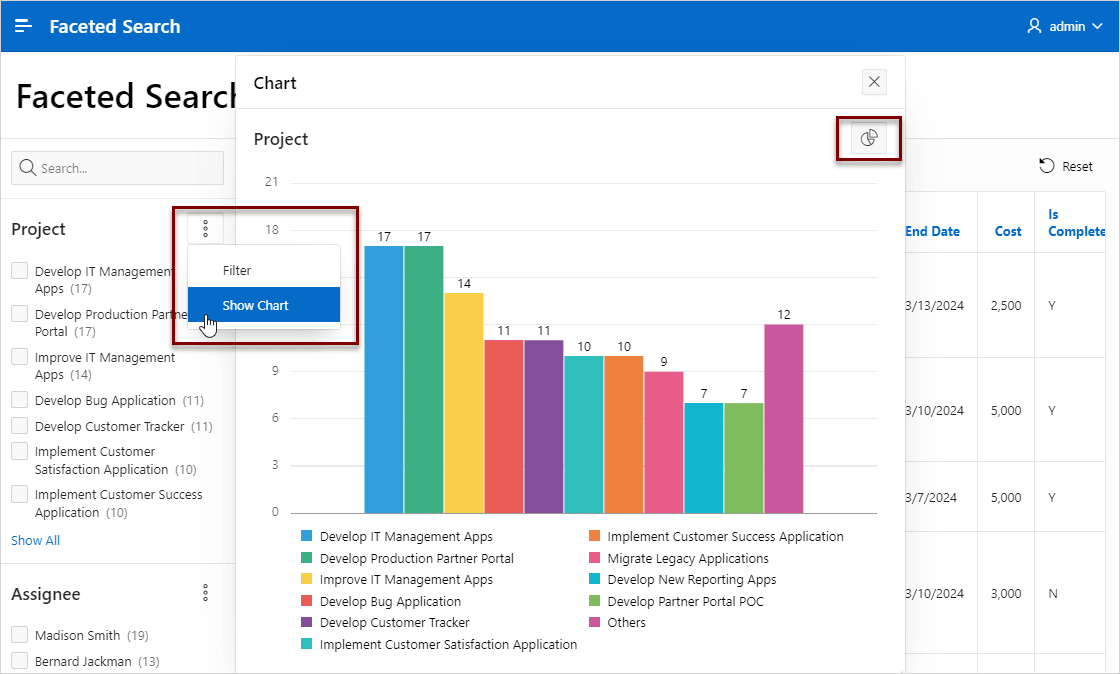
Description of the illustration faceted_search_charts.png
You can toggle between a bar chart or a pie chart by clicking the Project chart options in the upper right of the popup window.
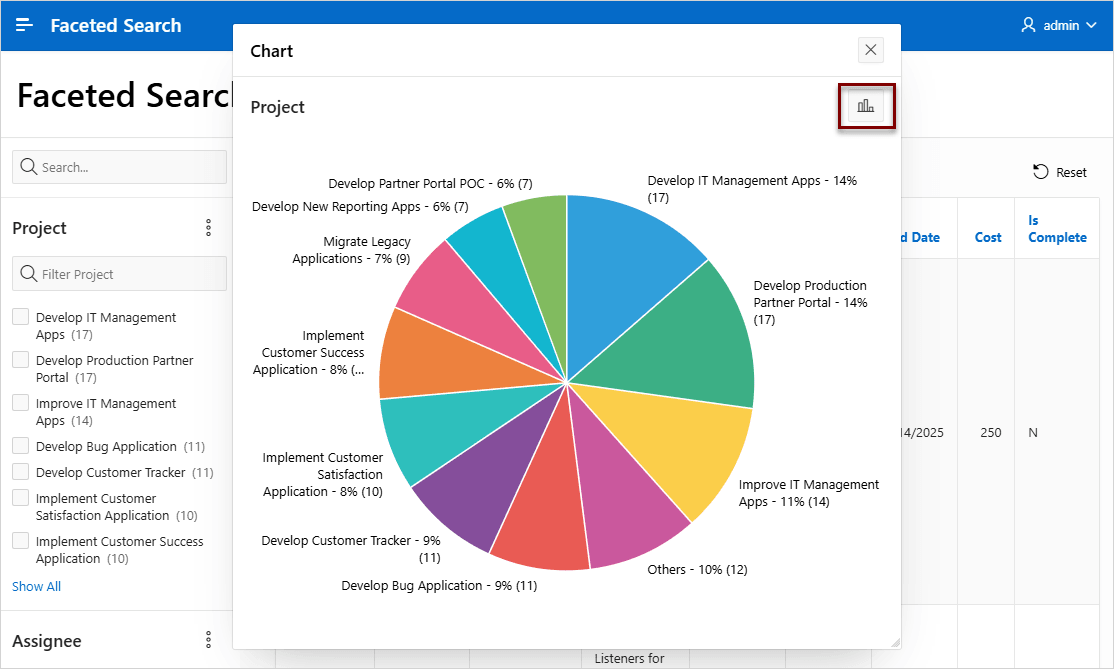
If additional data is available in a slice, click the slice to view more detail. In the previous example, clicking Others - 10% displays more detail. To revert to the previous display, click Reset.
Parent topic: Managing Faceted Search