About Workflows
Learn about workflows, including workflow and activity states, participants, and the workflow console.
The workflow component in APEX allows APEX developers to design, implement, and automate business processes, in whole or part, during which documents, information, records, or tasks are passed from one participant to another for action according to a set of procedural rules.
The structure of a workflow is determined by the Workflow Definition , which is established by an application developer. Every time a workflow starts, APEX creates a Workflow Instance , which is a specific runtime from a workflow definition. To learn about designing workflows for an application, see About the Workflow Designer in Oracle APEX App Builder User’s Guide.
A workflow instance may include Workflow Variables and Workflow Parameters. Workflow Parameters are inputs provided when starting a new workflow instance. For example, in a laptop requisition workflow, parameters could include:
-
the type of laptop requested
-
the requisition date
-
the employee number of the person requesting the laptop
Workflow Variables are additional data that may be used by one or more workflow activities. For example, if one activity in a workflow generates a laptop order, the order ID from that activity can be saved as a workflow variable. The order ID could then be used by a later activity in the workflow instance, such as an activity that sends a confirmation email.
Workflow parameters are read-only. Workflow variables can be updated by a workflow administrator.
Workflows may involve Tasks. For more information on tasks, see Using Tasks.
About Workflow States
A workflow instance can be active, suspended, completed, terminated, or faulted.
Workflow States
A workflow state is the current state of a workflow instance. There are five separate workflow states, and a workflow may only be in one state at a time:
-
Active - A workflow that is currently running.
-
Suspended - A workflow that is currently suspended at a particular activity. A suspended workflow can be resumed by the Workflow Administrator.
-
Completed - A workflow that has reached an end activity and completed successfully.
-
Terminated - A workflow that has been stopped by the Workflow Owner or Workflow Administrator or a workflow that has reached an end activity with the state attribute set to terminated.
-
Faulted - A workflow that produced an error at one of its activities. The Workflow Administrator can retry or stop a faulted workflow.
About Activity States
An activity in a workflow instance can be active, waiting, faulted, or completed.
Activity States - An activity state is the current state of an activity in a workflow instance. There are five separate activity states, and an activity may only be in one state at a time:
-
Active - An activity that is currently running.
-
Waiting - An activity that is currently waiting for a result. For example, an activity might be waiting on approval from a task, or waiting for an invoked workflow to run.
-
Completed - An activity that completed successfully.
-
Terminated - An activity that was in active state when the workflow was stopped.
-
Faulted - An activity that fails to run.
Tip: If an activity in a branch of a parallel flow activity transitions to the faulted state, the parallel flow activity also transitions to faulted. Retrying the workflow retries all faulted activities in all branches of the parallel flow activity. It may be necessary to retry the workflow multiple times until all faults in all branches are fixed.
About Workflow Participants
Workflow participants can take action on workflows, including starting or terminating workflow, retrying faulted workflows, and updating workflow variables.
Workflow Participants are APEX users with operational privileges over a workflow.
There are three types of workflow participants:
-
Workflow Initiator - Can start and terminate an instance of the workflow. Does not need to be specifically named in the workflow definition.
-
Workflow Owner - Can start and terminate any instance of the workflow. Can retry a faulted workflow. Must be specifically named in the workflow definition.
-
Workflow Administrator - Can start, terminate, suspend, resume, and retry any workflow instance. Can update variable values of a workflow instance. Must be specifically named in the workflow definition.
About the Workflow Console, Workflow Details, and Workflow Dashboard
The workflow console is a summary of workflows for an application. Select a workflow from the workflow console to view details about that specific workflow. If configured, use the workflow dashboard to view analytics for workflows.
Every application that uses workflows has two pages used for monitoring those workflows: the Workflow Console page, which summarizes workflows in the current application, and the Workflow Details page, which contains details about a specific workflow instance. Applications may also have a Workflow Dashboard page that shows analytics for workflows.
The Workflow Console Page
The Workflow Console allows you to see a summary of your workflows. Although the name and exact configuration of a workflow console is specific to the application you’re using, there are different report contexts available:
-
Initiated by Me, for workflows where you are the Workflow Initiator.
-
My Workflows, for workflows where you are a Workflow Owner.
-
Admin Workflows, for workflows where you are a Workflow Administrator. Depending on your role and the configuration of the application you’re using, you may not be able to see all three pages.
The Workflow Details Page
Clicking on a workflow in the workflow console page opens the Workflow Details page. The workflow details page shows:
-
activity instances and their states
-
when an activity was started, completed, retried, faulted, or terminated
-
workflow instance variables, which can be edited by workflow administrators
Tip: The Workflow Details page shows
VARCHAR2representations of the variables. ForCLOBvariables, the workflow details page displays the section of theCLOBthat is accommodated within theVARCHAR2limit. -
workflow instance parameters
-
an audit history of the workflow instance including, if applicable, the parent workflow and parent activity instance
-
a read-only visual representation of the workflow
-
(invoked workflows only) a button to navigate to the details of the parent workflow
Depending on the workflow context and your role, you can perform certain operations on active workflows:
-
If you are the Workflow Initiator, you can terminate a workflow that you started.
-
If you are the Workflow Owner, you can start a workflow, retry a faulted workflow, or terminate a workflow.
-
If you are the Workflow Administrator, you can start, suspend, resume, retry, or terminate a workflow. If the workflow is faulted or suspended, you can update workflow variables. A visual representation of the workflow (the Workflow Diagram region) is also available on the workflow details page. The workflow diagram highlights the route the workflow instance has taken so far.
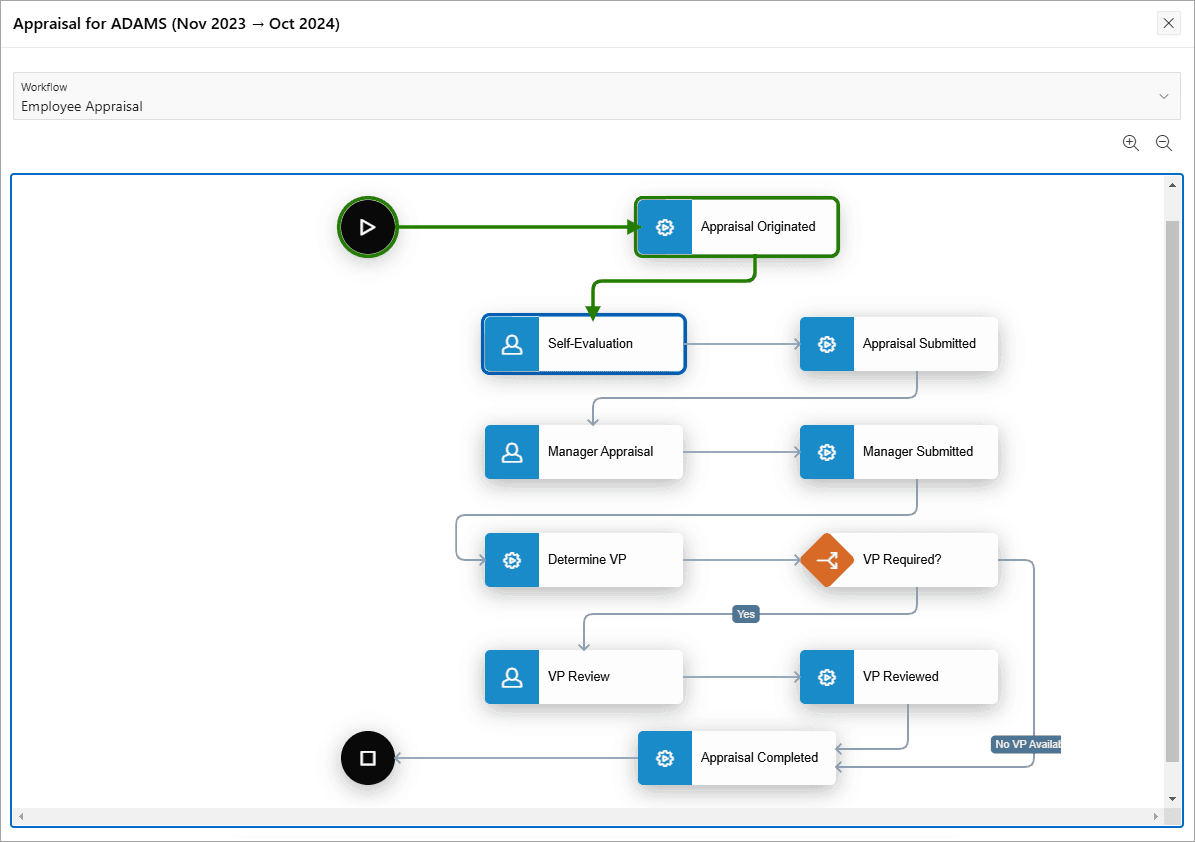
Description of the illustration workflow_diagram_example.png
The Workflow Dashboard Page
The workflow dashboard page provides charts to monitor the progress of workflow instances and compare the performance of activities and workflows. The workflow dashboard includes the following tabs:
-
Workflows by State - Shows a pie chart with the distribution of workflows by state. Clicking on a particular state shows the number of workflow instances currently in that state.
-
Active Workflows - Shows the number of workflows in an active or suspended state. Clicking on a particular workflow shows the number of workflow instances waiting at a particular activity.
-
Faulted Workflows - Shows the number of workflows in a faulted state. Clicking on a particular workflow shows the number of workflow instances that are faulted at a given activity.
-
Performance - Shows the average completion time for workflows. Use the Time Unit dropdown list to change the chart’s time unit.
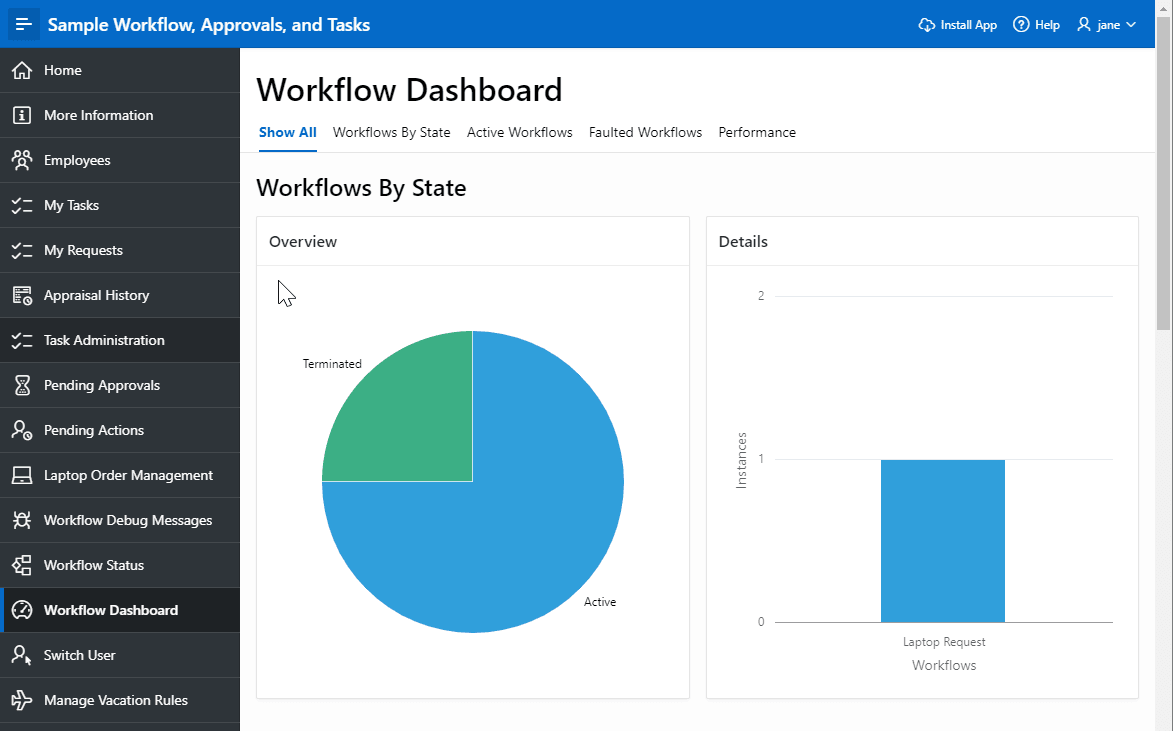
Description of the illustration workflow_dashboard_example.png