Adding Highlighting
Customize the display to highlight specific rows in a report by selecting Highlight on the Actions, Format submenu.
To add highlighting:
-
Click the Actions menu and select Format and then Highlight.
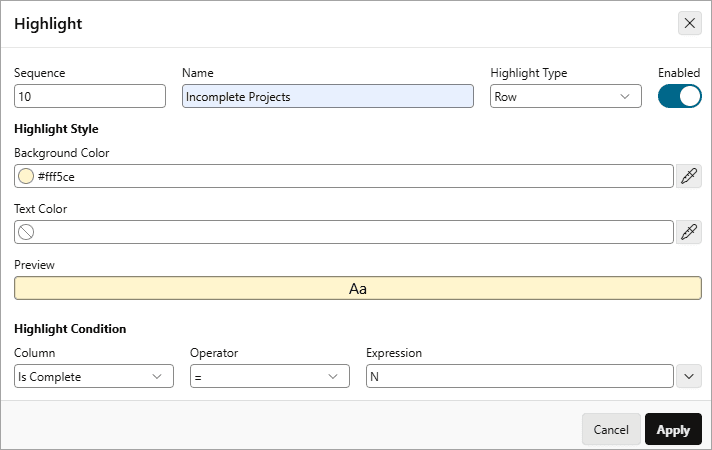
The Highlight dialog appears.
-
Edit the following information:
-
Sequence - Enter a numeric value to identify the sequence in which highlighting rules are evaluated.
-
Name - Enter a name that describes this filter.
-
Highlight Type - Select Cell or Row.
-
Enabled - Select Yes.
-
Background Color - Select a new color for the background of the highlighted area.
-
Text Color - Select a new color for the text in the highlighted area.
-
Highlight Condition - Select a column, an operator, and an expression.
-
Click Apply.
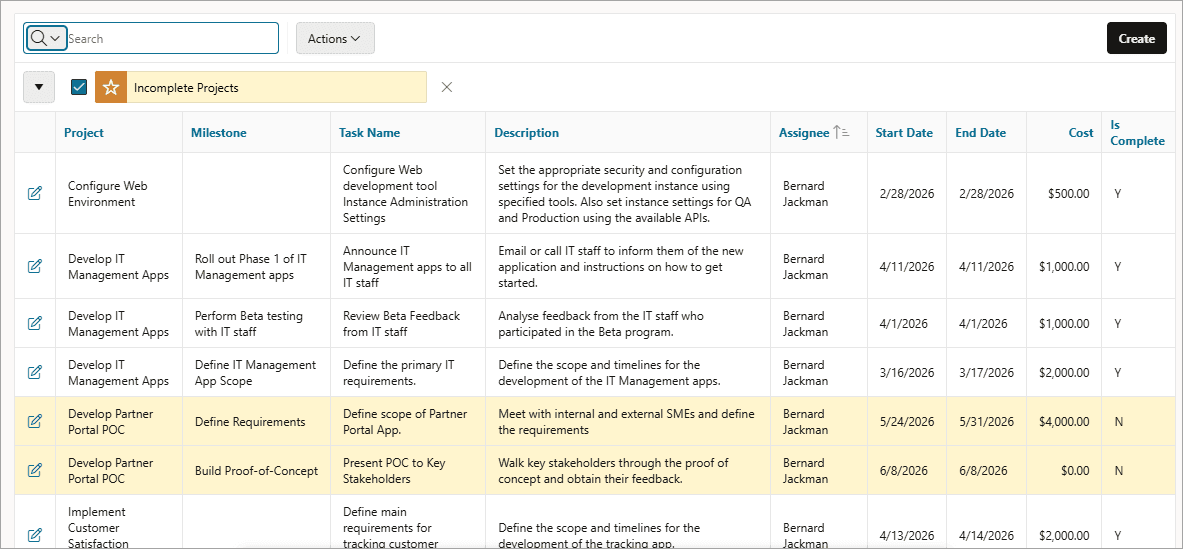
Description of the illustration ir_highlight_rpt.png
Tip: Note the highlight
On-Hold Projectsdisplays in the Report Settings area above the report. You can show or hide the filter details by clicking the arrow to the left of the filter name. -
-
To revise the highlight, click the highlight name and make the following edits:
-
Background Color - Select Black.
-
Text Color - Select White.
-
Click Apply.
-
-
To disable the highlight, select the Enable/Disable check box.
-
To remove a filter, select the Remove Filter icon (X) to the right of the filter name.