Computing Columns
Add mathematical computations (for example, NBR_HOURS/24) or standard Oracle functions to columns.
Creating a Computation
Use the Compute function in the Actions, Data submenu to add a computation to a column.
To create a computation:
-
Click the Actions menu and select Data and then Compute.
The Compute dialog appears.
-
In the Compute dialog:
-
Computation - Select New Computation.
-
Column Label - Enter the name of the new column to be created. For example,
Available Budget. -
Format Mask - Select an Oracle format mask to be applied to the new column. For example,
$5,234.10.
-
-
Create the computation:
-
Column Aliases - Select a column to add the column alias in the computation expression.
-
Keypad - Select a shortcut for commonly used keys.
-
Functions - Select the appropriate function.
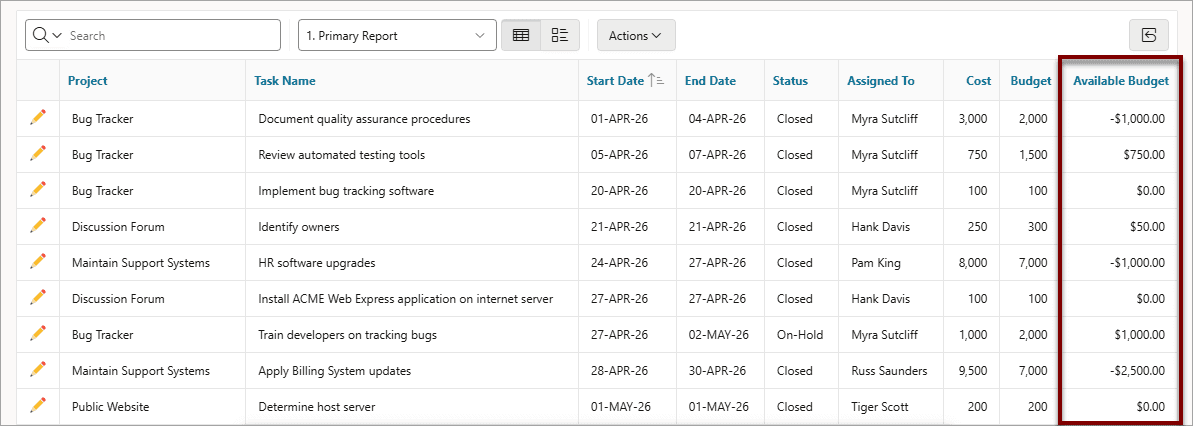
In the following example, a new column compares the actual cost to the budgeted amount, using the formula
I - H, whereIis the budgeted amount andHis the cost. -
-
Click Apply.
The revised report appears with the new Available Budget column.
Deleting a Computation
Open the Compute dialog to remove a computation.
To delete a computation:
-
Click the Actions menu and select Data and then Compute.
The Compute dialog appears.
-
From Computation, select the computation.
The computation appears.
-
Click Delete.