Creating a Control Break
You can create a break group of one or several columns by selecting Actions, Format, and Control Break.
Creating a break group pulls the columns out of the interactive report and displays them as a master record.
To create a break group:
-
Click the Actions menu and select Format and then Control Break.
The Control Break dialog appears.
-
Select a column and then a status (Enable or Disable).
-
Click Apply.
A revised report displays.
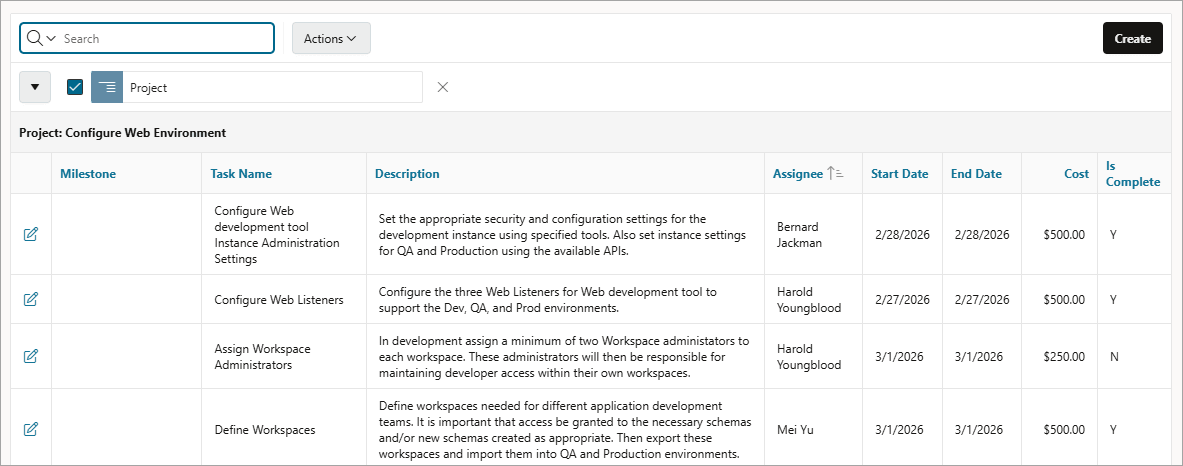
Description of the illustration ir_ctrl_break_rpt.png
Note the defined filter displays in the Report Settings area above the report.
-
Click the left arrow to minimize the filter display.
-
To disable the Control Break filter, deselect the Enable/Disable Filter check box. To activate a disabled filter, select the Enable/Disable Filter check box again.
-
To delete the filter, select the Remove Filter icon (X) to the right of the filter name.