Resetting Interactive Grids
You can refresh, reset, or flashback a grid to revert your changes to it. Resetting an interactive grid can have different outcomes depending on the report type.
Refresh an interactive grid to update it with the most recent version of the data in the database. Reset an interactive grid to undo any changes since it was last saved. Flashback a grid to a point in the past (in minutes) to retrieve data from the database as it existed at that time, which ignores any changes made to the data in the database since that time.
Refreshing an Interactive Grid
Update an interactive grid with the most current data available on the database by selecting Refresh in the Actions, Data submenu.
Refreshing an interactive grid is quicker than reloading the entire page in the browser. Refreshing is also a valuable feature for highly fluid data sets.
To refresh an interactive grid:
-
Click the Actions menu and select Data.
-
Select Refresh.
The grid refreshes. Updates to the data are applied, but not marked.
Resetting an Interactive Grid
Undo changes to an interactive grid by clicking the Reset button or by selecting Reset from the Actions, Report submenu.
WARNING: Resetting an interactive grid reverts it to a previously saved state. Any changes since that time may be lost.
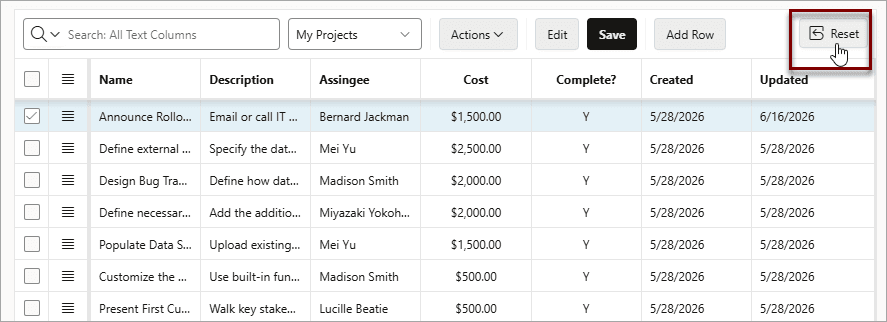
Description of the illustration ig_reset_button.png
To reset an interactive grid, do one of the following:
-
Click the Reset button.
-
Click the Actions menu, select Report, and select Reset.
The grid reloads the last saved state.
How the Reset Button Affects Saved Interactive Grid Reports
Clicking the Reset button reloads an interactive grid’s last saved state. The saved state varies between report types.
In a Primary report, the Reset button undoes all changes that you have made-including reorganization and new content-because only developers can overwrite Primary reports. To preserve your changes, save a Private report.
In a Private report, the Reset button undoes only the changes that you have made since the last time you saved the report.
See Also: Saving an Interactive Grid
Reverting an Interactive Grid to a Specific Save State
Revert an interactive grid to a specific point in time by selecting the Flashback in the Actions, Data submenu.
Flashback allows you to revert the interactive grid back a specific number of minutes.
To revert an interactive grid:
-
Click the Actions menu, select Data, and select Flashback.
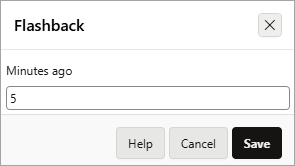
The Flashback dialog displays.
-
Enter the number of minutes you want to revert. For example, enter
10to go back ten minutes. -
Click Save.
The grid reverts to the state it was in ten minutes ago.