Generating SQL with SQL Shorthand Syntax
Generate a SQL script for simple tables and views by entering SQL shorthand syntax in the the left Quick SQL pane.
Tip:
Viewing samples is a great way to learn about Quick SQL shorthand syntax. To learn more, see Loading Quick SQL Sample Models.
To generate a SQL script with SQL shorthand syntax:
-
Navigate to the Quick SQL page:
-
On the Workspace home page, click the SQL Workshop icon.
-
Click Utilities.
-
Click Quick SQL.
-
-
In the left pane, enter SQL shorthand syntax.
The generated SQL displays in the right pane under the SQL tab.
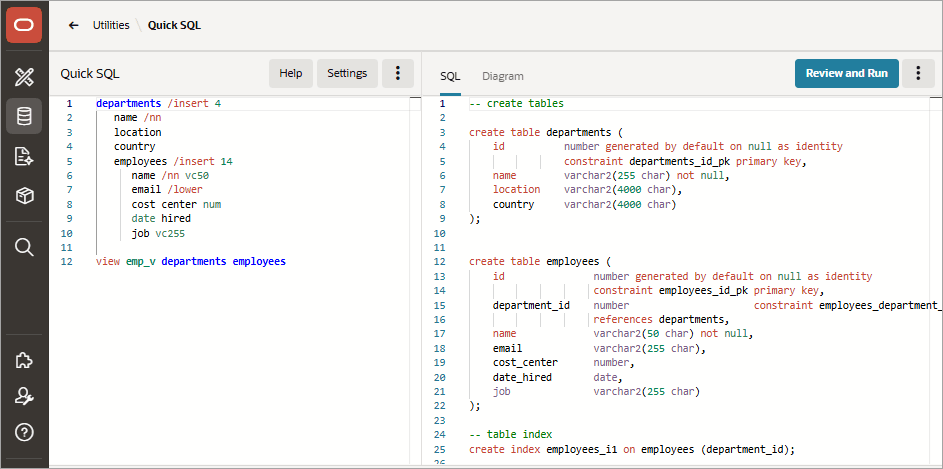
Description of the illustration shorthand_syntax.png
You can save the generated script, or review and run the script.
-
To save the generated SQL script:
-
In the right pane, click the SQL Actions menu (three vertical dots) and select Save SQL Script.
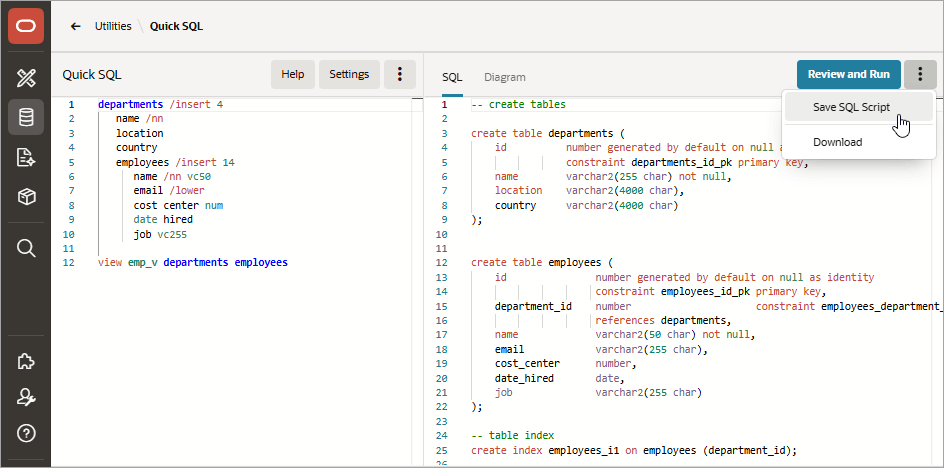
Description of the illustration save_sql_script.png
The Save Script dialog appears.
-
In the Save Script dialog:
-
Script Name - Enter a name.
-
Click Save Script.
The script is saved in SQL Scripts.
-
-
-
To run the SQL script, click Review and Run above the right pane.
SQL Scripts appears. To learn more, seeUsing SQL Scripts.
-
To reset Quick SQL and remove any entered text:
-
In the left pane, click the Quick SQL Actions menu (three vertical dots) and select Reset.
Any previously entered text and corresponding SQL disappears.
-