Adding a Task Details Page
Add or assign a Task Details page so users can open a task from its subject link.
Like all task definitions, the action task Provide Two Random Numbers in this example starts off with no Task Details Page. The blank Task Details Page Number field below confirms this. Before clicking the (Create Task Details Page) button, you can either:
-
Leave Task Details Page Number blank,
-
Enter the number of an existing page, or
-
Type the number of your desired new page.
If you leave the field blank, APEX asks your confirmation to proceed using the next available page number.
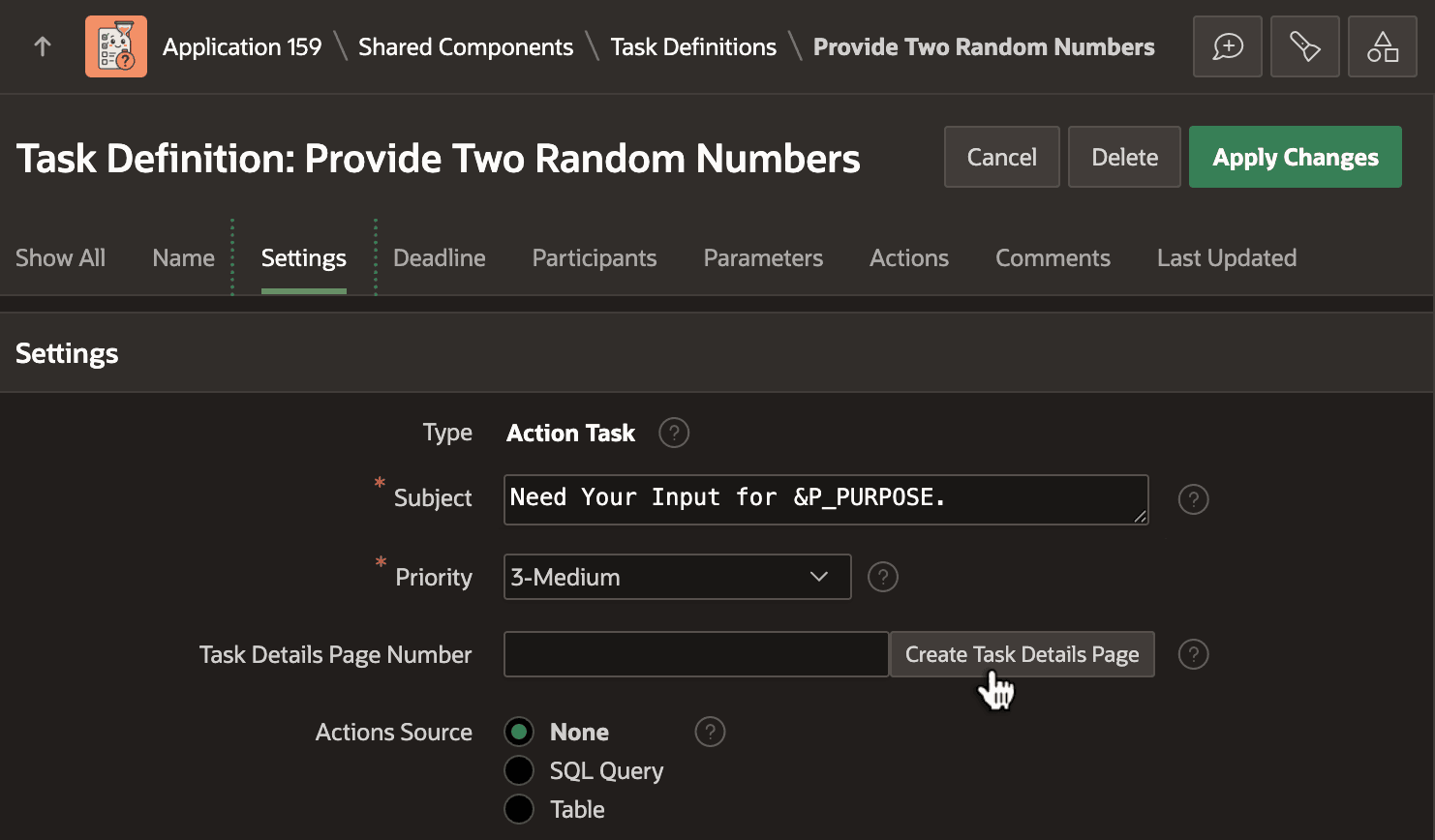
Description of the illustration workflow-acttask-two-values1.png
In this case, the new Task Details Page gets assigned page number 6. After you associate a Task Details Page to a task definition, it displays thereafter as a Task Details Page URL. It uses the classic format of an APEX page URL:
f?p=App:Page:Session:Request:Debug:ClearCache:itemNames:itemValuesThe Task Details Page URL shown below for page 6 looks like this:
f?p=&APP_ID.:6:&SESSION.::&DEBUG.:RP,6:P6_TASK_ID:&TASK_ID.It leaves the Request segment empty and uses substitution values for &APP_ID., &SESSION., &DEBUG., and &TASK_ID. in the respective segments of the p query string parameter value. In short, the URL navigates to page 6 in the current application, using the current session, and the current debug mode, passing the value of the current task instance’s unique ID as the value of the P6_TASK_ID parameter in that page.
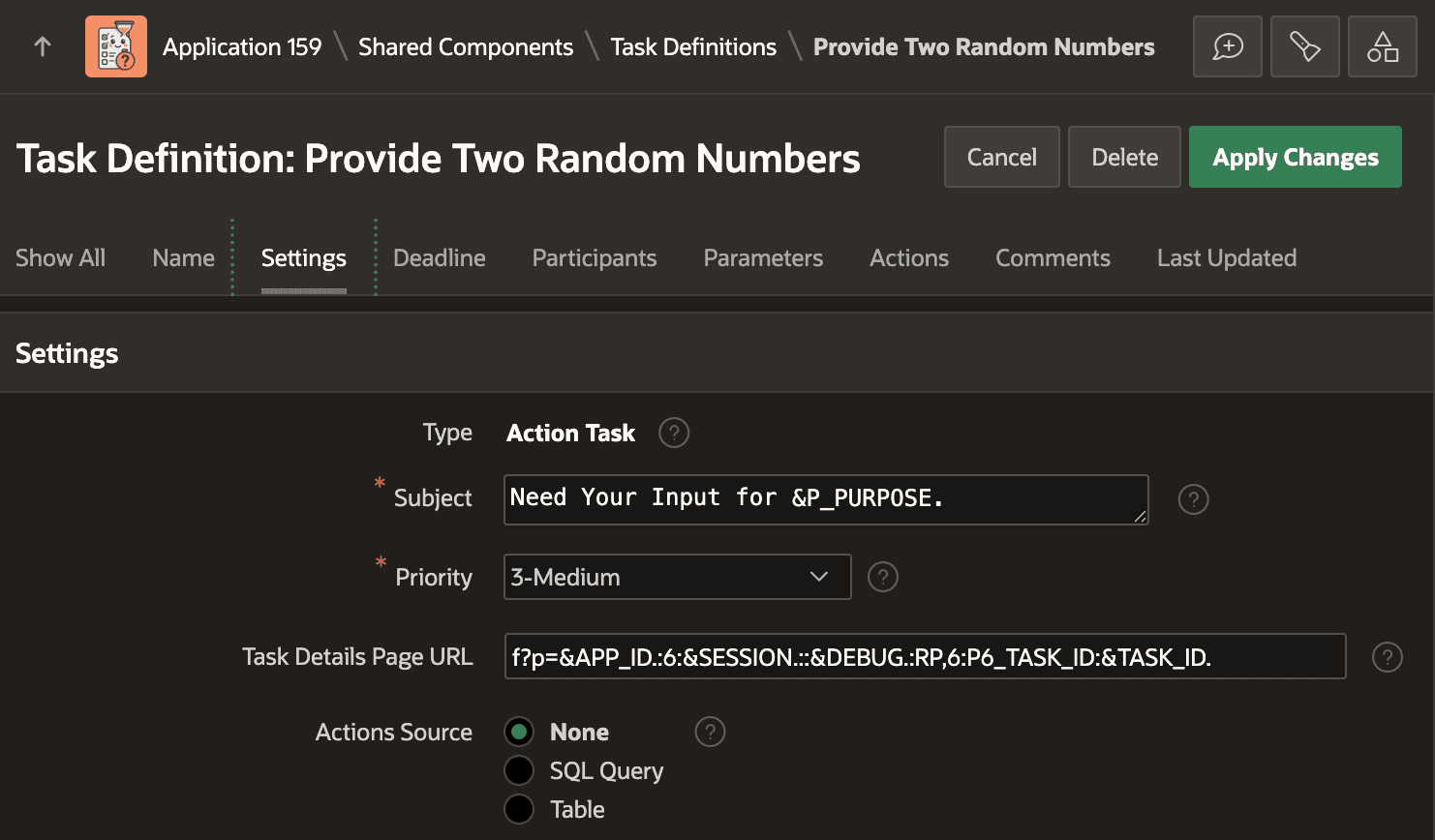
Description of the illustration workflow-acttask-two-values.png
Tip: In addition to the substitutions mentioned above, your Task Details Page URL can also reference the substitution string &DETAIL_PK. to pass the value of the Details Primary Key of the business entity row associated with the task instance. This can be useful if your task details page needs to display and possibly modify data in that associated business entity row using a Form region you add to the generated page as a fine-tuning step.