Branches Link Pages to Define Flows
You establish the page navigation flow an end user can follow by defining branches.
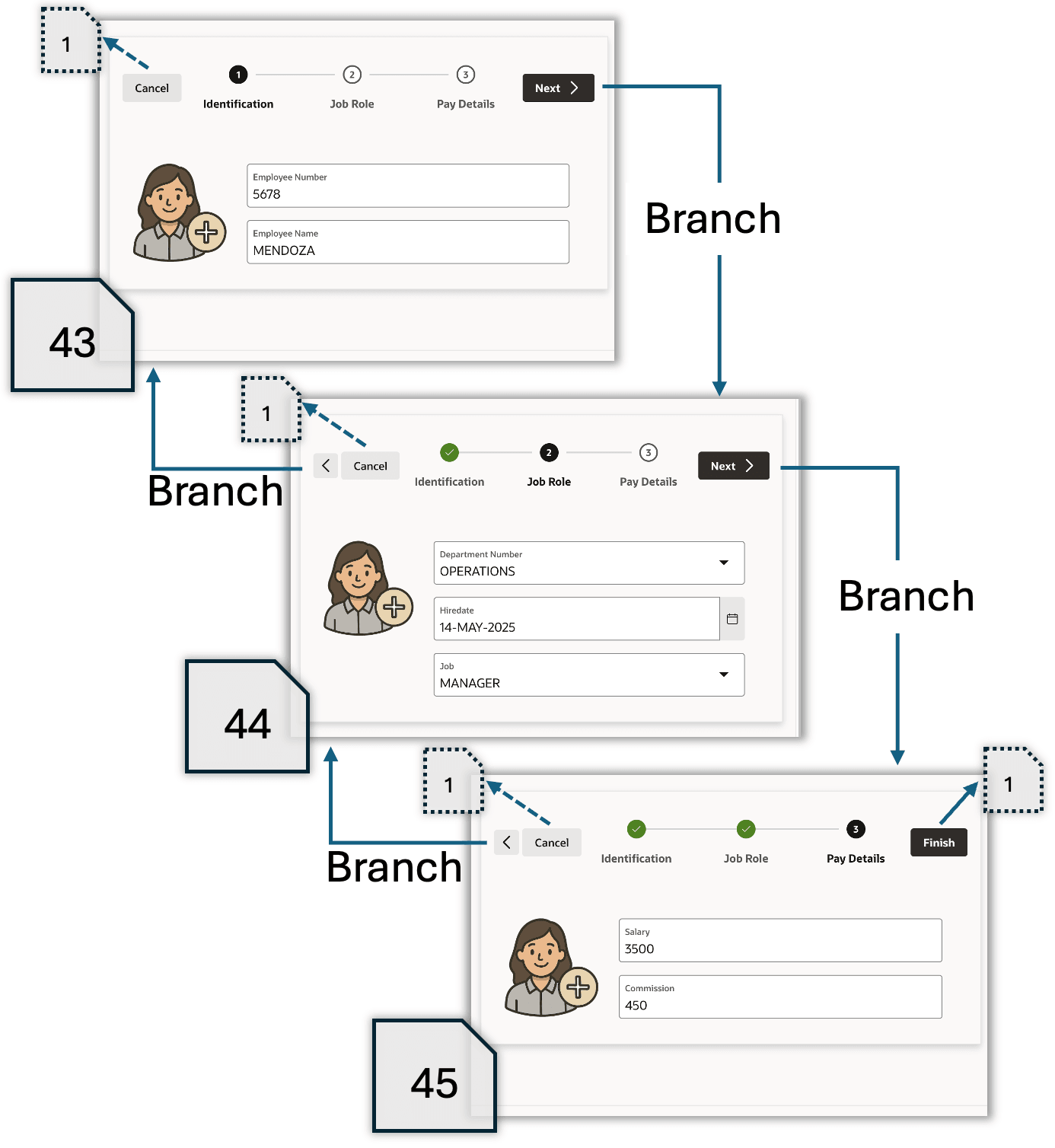
In Page Designer’s Processing tab, you create a branch to identify a target page the user should see next, optionally passing along parameter values. By setting the When Button Pressed property on the branch to the name of a button, you indicate the branch should happen only when the user clicks that button. As shown below, branches connect the three pages of the Onboard New Employee wizard:
-
Page 43 has a branch for the
- (Next) button that targets page 44.
-
Page 44 has a branch for the
-
(<) previous button that targets page 43, and
-
(Next) button that targets page 45.
-
-
Page 45 has a branch for the
-
(<) button that targets page 44, and
-
(Finish) button that targets a home page (1).
-
Each of the three pages configures its (Cancel) button to redirect to the home page (1) and this button’s Warn on Unsaved Changes property to Do Not Check. A redirect acts like a hyperlink. It navigates the user to another page without submitting any data from the current page for processing. Later sections explain how branches and redirects differ. The figure shows the three wizard pages and the branches their buttons trigger to navigate between pages.