Configuring Upload Image Item Source
After creating a form region on your table containing the BLOB image column, set the item type of the BLOB column to Image Upload.
Set the Storage > Type to:
- BLOB column specified in Item Source attribute.
Check the Source section in the Property Editor to confirm the expected BLOB column is selected. Finally, as shown below, configure the column names for the:
-
MIME Type Column – the type of image (e.g.
image/jpeg,image/png) -
Filename Column – the uploaded file name
-
BLOB Last Updated Column – date the image was last modified.
Setting up these additional column names is important. It ensures the browser handles the image correctly when viewed or downloaded.
Tip: Enable the Primary Key switch for form items tied to primary key columns. (e.g. P6_ID here)
The figure shows the P6_IMAGE page item selected in the Page Designer component tree. It highlights the Storage and Source group properties related to automatic BLOB file handling.
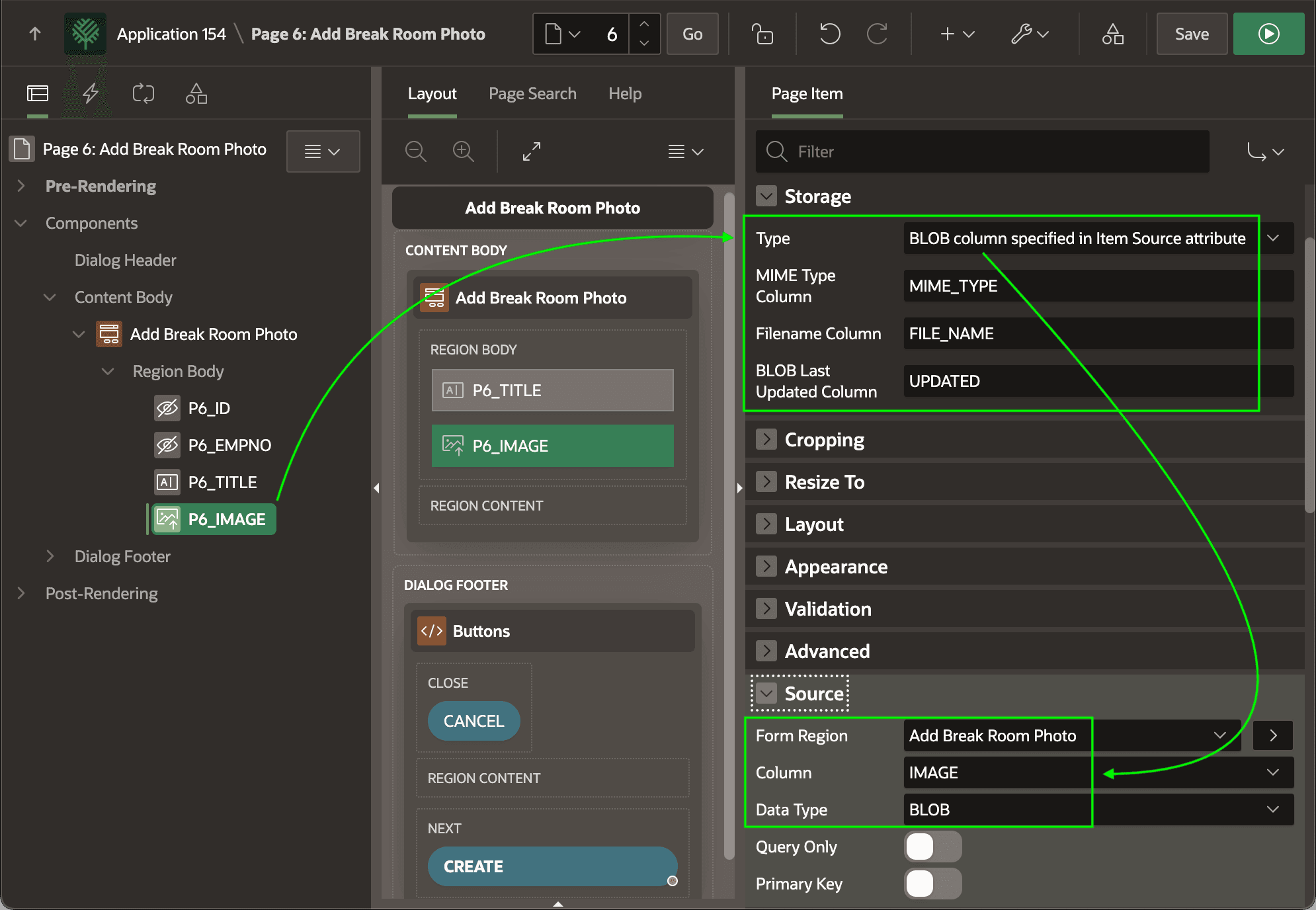
Description of the illustration upload-image-source.png
Then, in the Processing tab of the Page Designer tree, ensure you have:
-
a page process of type Form - Automatic Row Processing (DML)
-
with its Form Region property set to the form region,
-
sequenced before the Close Dialog process if the page is a modal dialog or drawer, and
-
-
a button like the
CREATEone here with its Database Action property set to SQL INSERT action.
Tip: The Create Page Wizard creates the DML page process on a new Form page, and sets the Database Action property to SQL INSERT action on the CREATE button. However, when you add a Form region to an existing page you need to do these two steps yourself.
The figure shows the Process form Add Break Room Photo page process selected in the component tree. It highlights the process type is Form - Automatic Row Processing (DML) and the associated Form region is Add Break Room Photo.
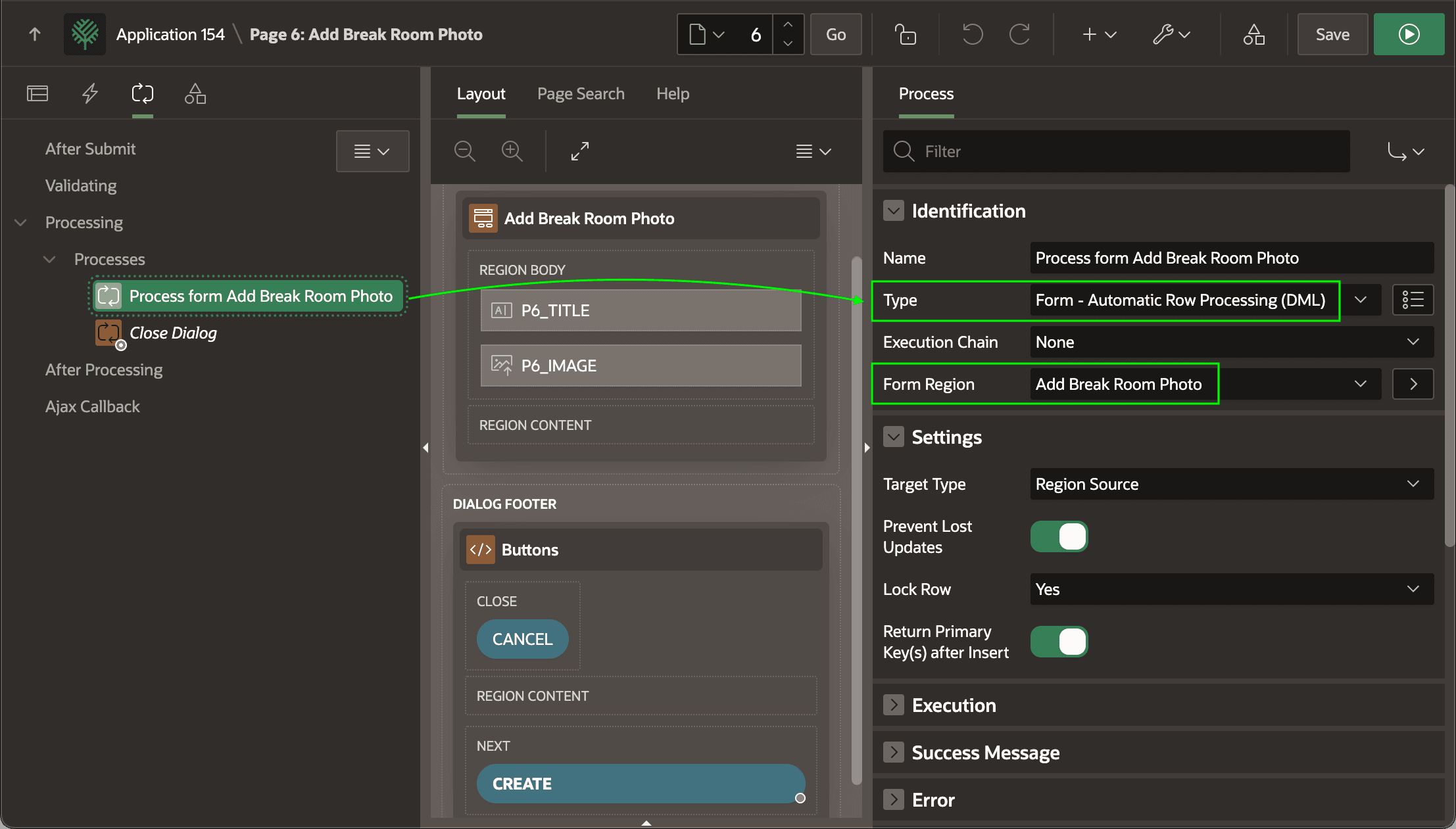
Description of the illustration image-upload-dml-process.png