Creating an Agent-Driven Chatbot
Create a chatbot using an agent to answer questions and fulfill user requests.
To create a chatbot, use the Show AI Assistant dynamic action, typically on page load or in response to a button click. It can open its own dialog window, or you can point it at a Static Content region in your page as an inline display area. In either case, at runtime a welcome message greets the end user and they can begin asking questions. The display is familiar to anyone who has used a messaging app. The end user and the bot chat in an alternating timeline of question and answer speech bubbles, each marked with an avatar icon.
As shown below, choose an Agent in the Generative AI section to handle the chatbot’s conversation and decide whether it will Display As a dialog or inline. The agent’s prompt and tools offer users a more complete and effective experience. You can also configure the dynamic action to use a Generative AI Service directly when the chatbot only needs a prompt.
Tip: To configure the avatar icons or images that represent the AI service and the end user, visit the Shared Components > Component Settings > Show AI Assistant in your application and adjust the respective settings.
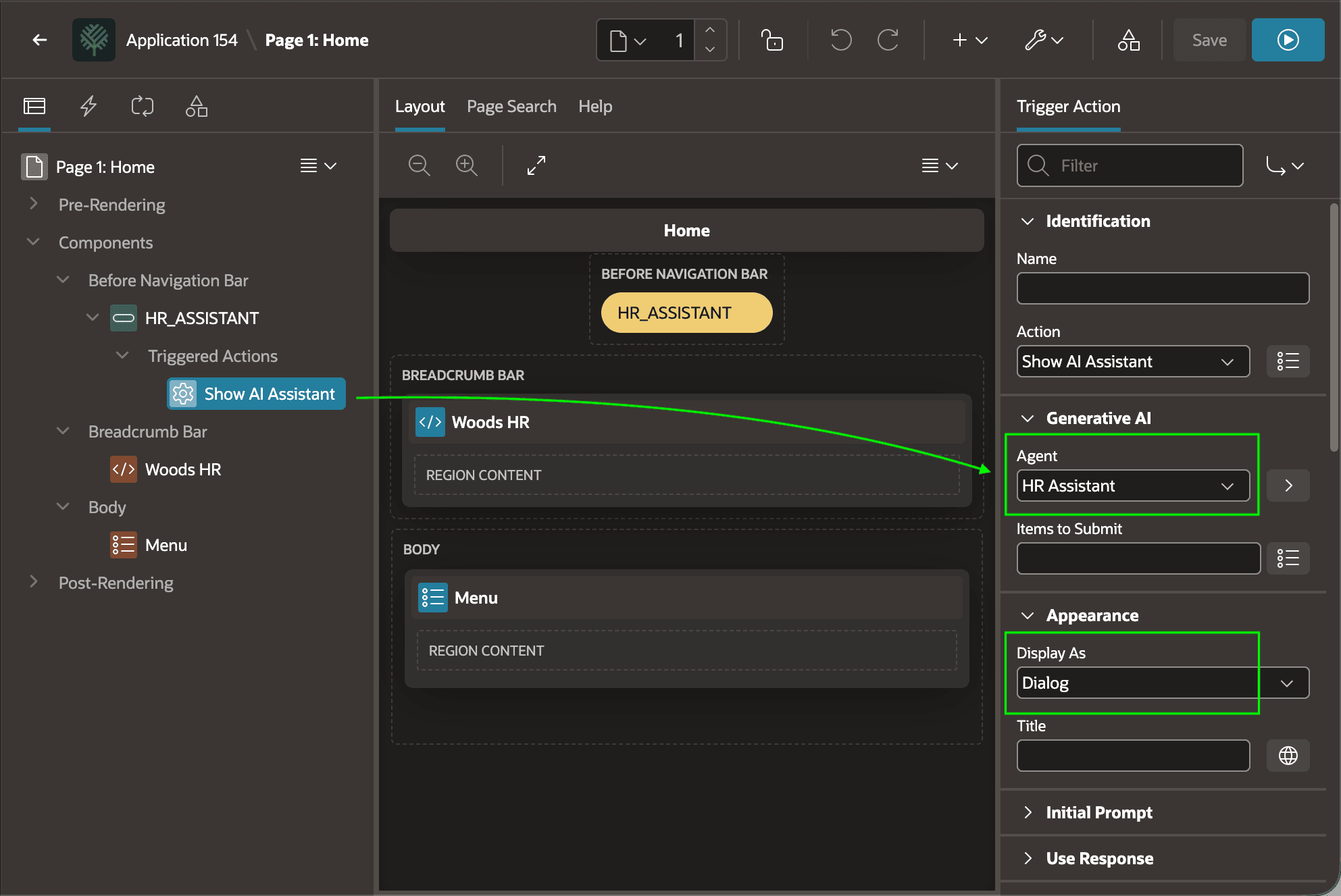
Description of the illustration show-ai-assistant-ta.png
To create a custom chatbot experience, you can:
-
engage the AI service with the
CHAT()function in theAPEX_AIpackage, -
store questions and responses in a collection using the
APEX_COLLECTIONpackage, and -
display the conversation by combining a Comments region with the
APEX_COLLECTIONSview.