Experiencing Post Multiple Photos Flow
Walk through the multi-photo posting flow, from selecting images to adding titles and posting them.
At runtime, when the user clicks on the Image Upload preview drop zone, it opens the system file dialog. The user can select multiple images now. For example, after SMITH selects two photos to share, the preview item looks like the figure below. The Add Break Room Photos modal drawer page shows multiple file icons in the Image Upload dropzone.
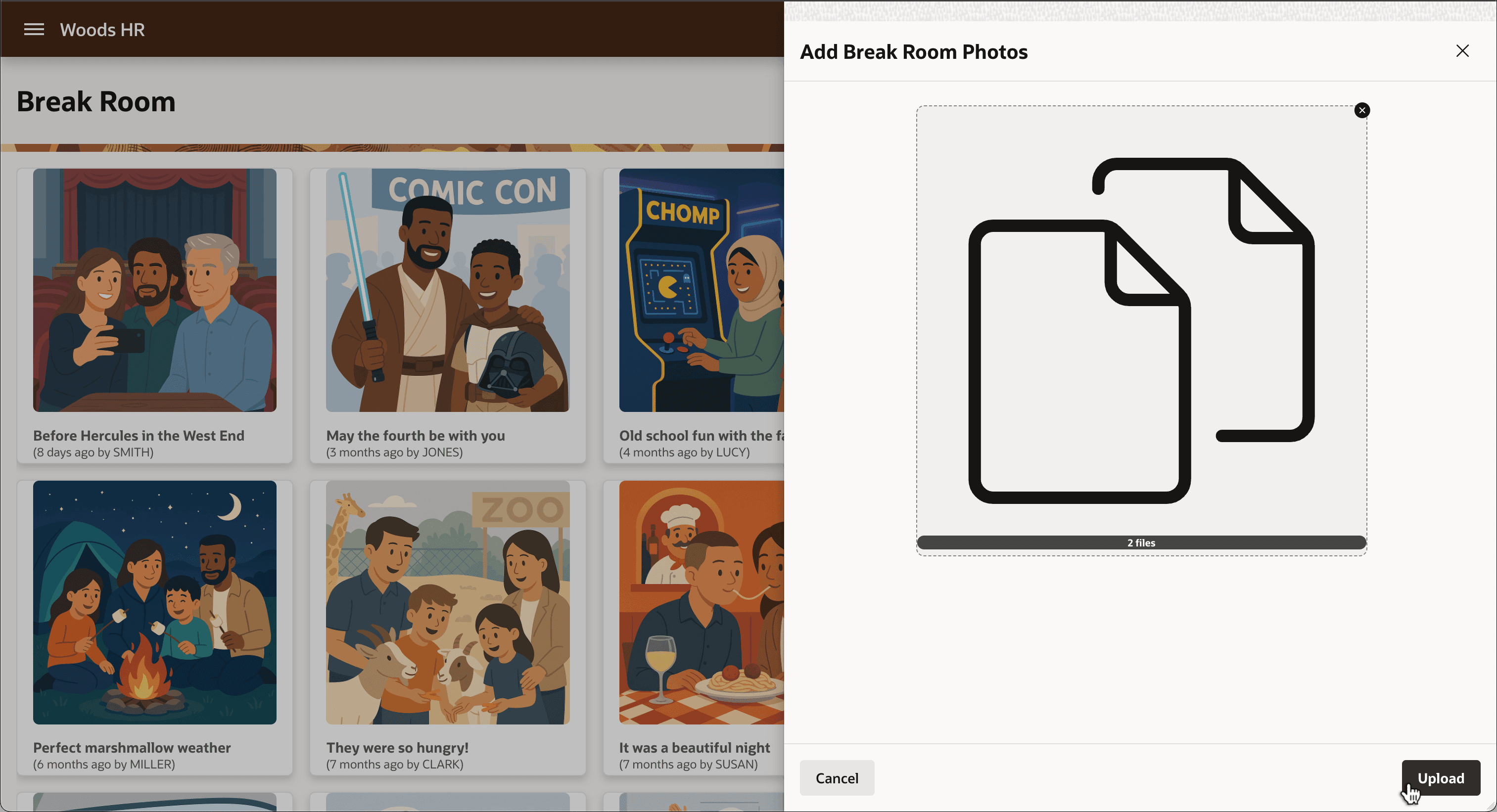
Description of the illustration multiple-photos-chosen.png
When the user clicks (Upload), they see an Interactive Grid with image previews and a place to assign a title to each uploaded image. Validation ensures they enter a title for each one.
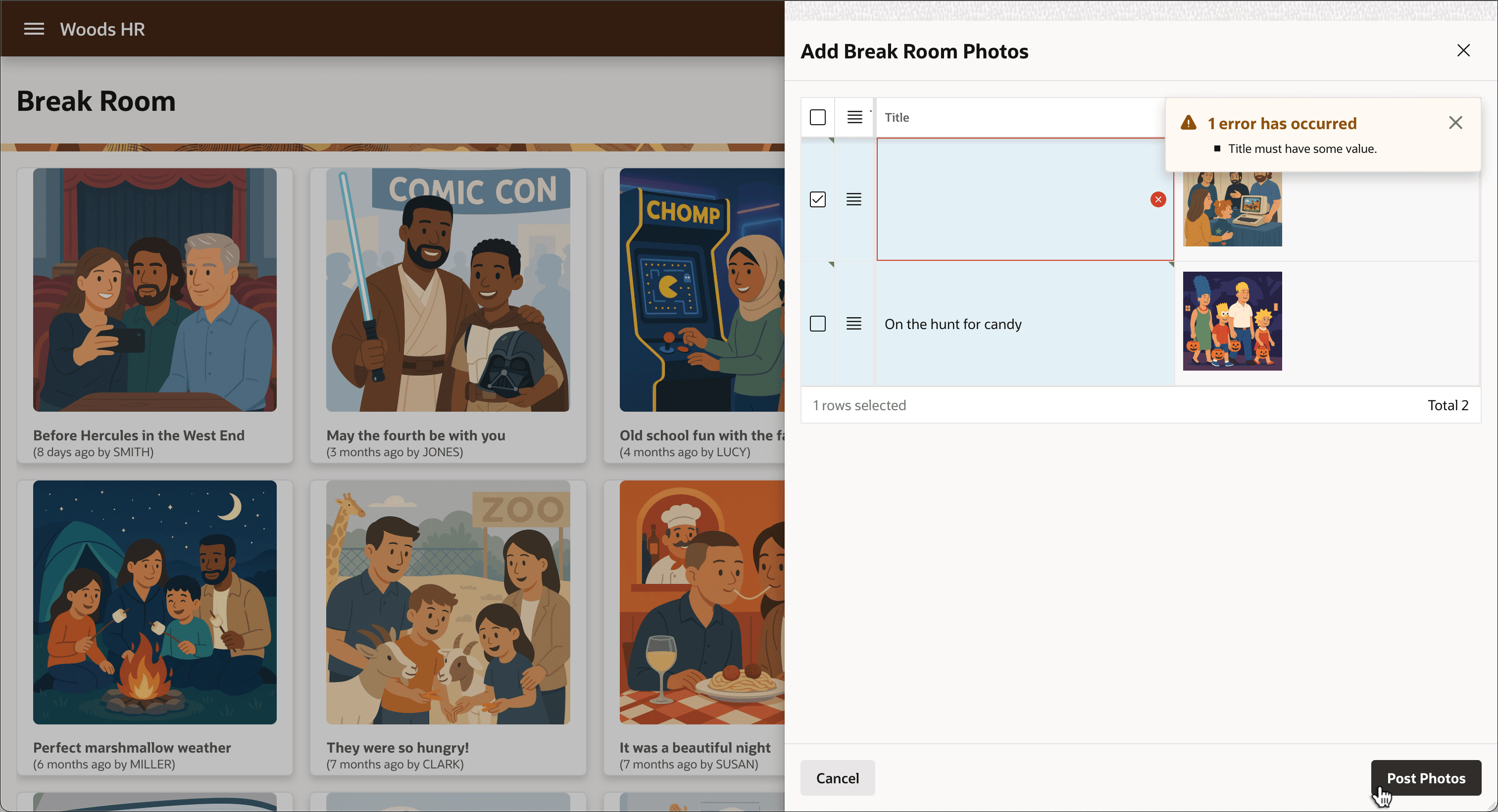
Description of the illustration entering-titles-grid-validation.png
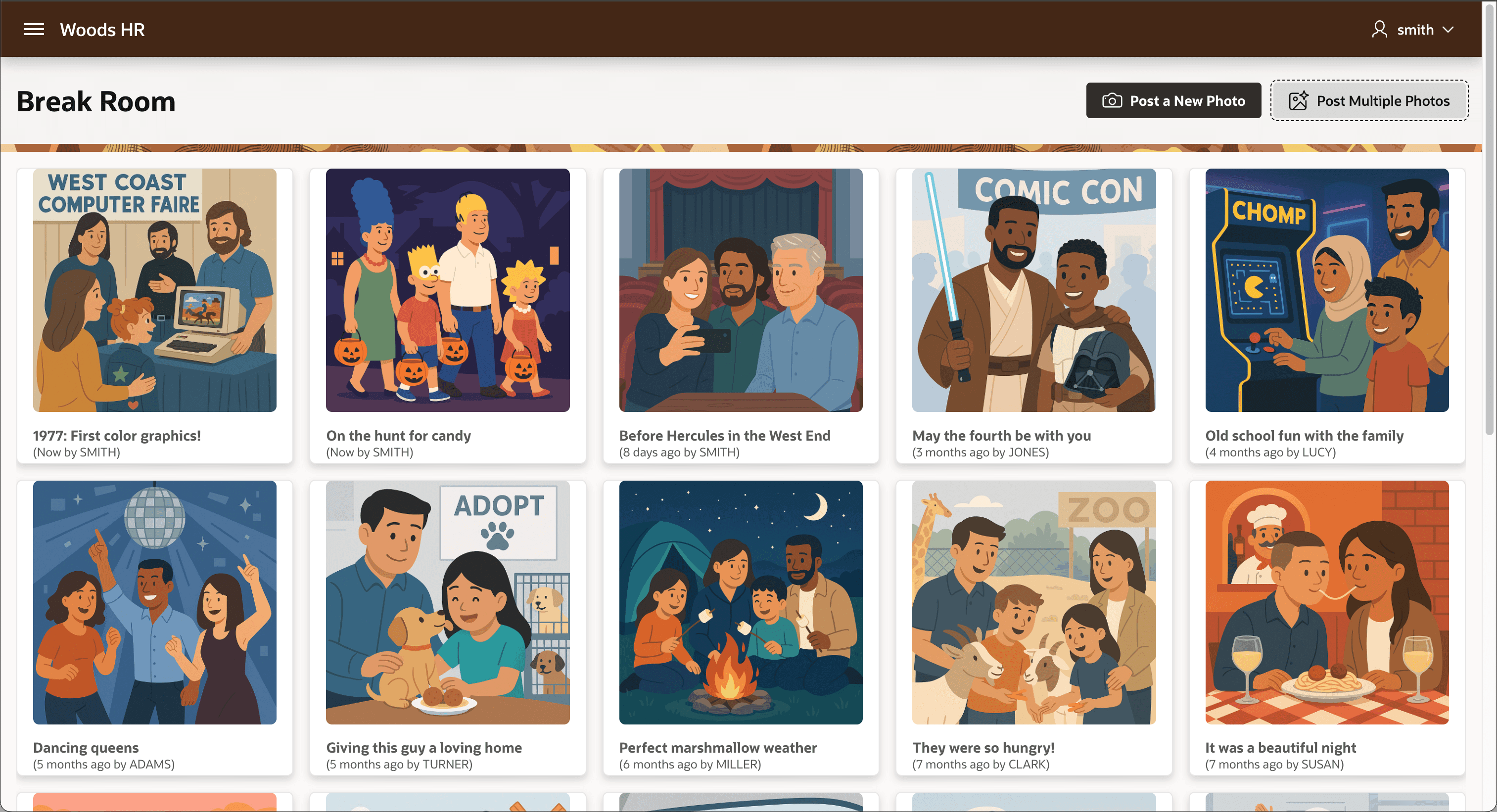
After entering a title for each posted photo, clicking (Post Photos) adds them to the break room photo gallery. The figure shows the two newly added photos first in the list in the gallery.