Invoicing Patient for the Balance
Mark the invoice complete so the workflow emails it to the patient and advances the procedure lifecycle.
When David sees the regenerated invoice badge shows Prepared again, he reviews it to make sure the Covered Amount and patient’s Balance Due look right. He confirms the insurance company’s 5000 payment shows as expected, and the patient’s remaining balance to pay is correct.
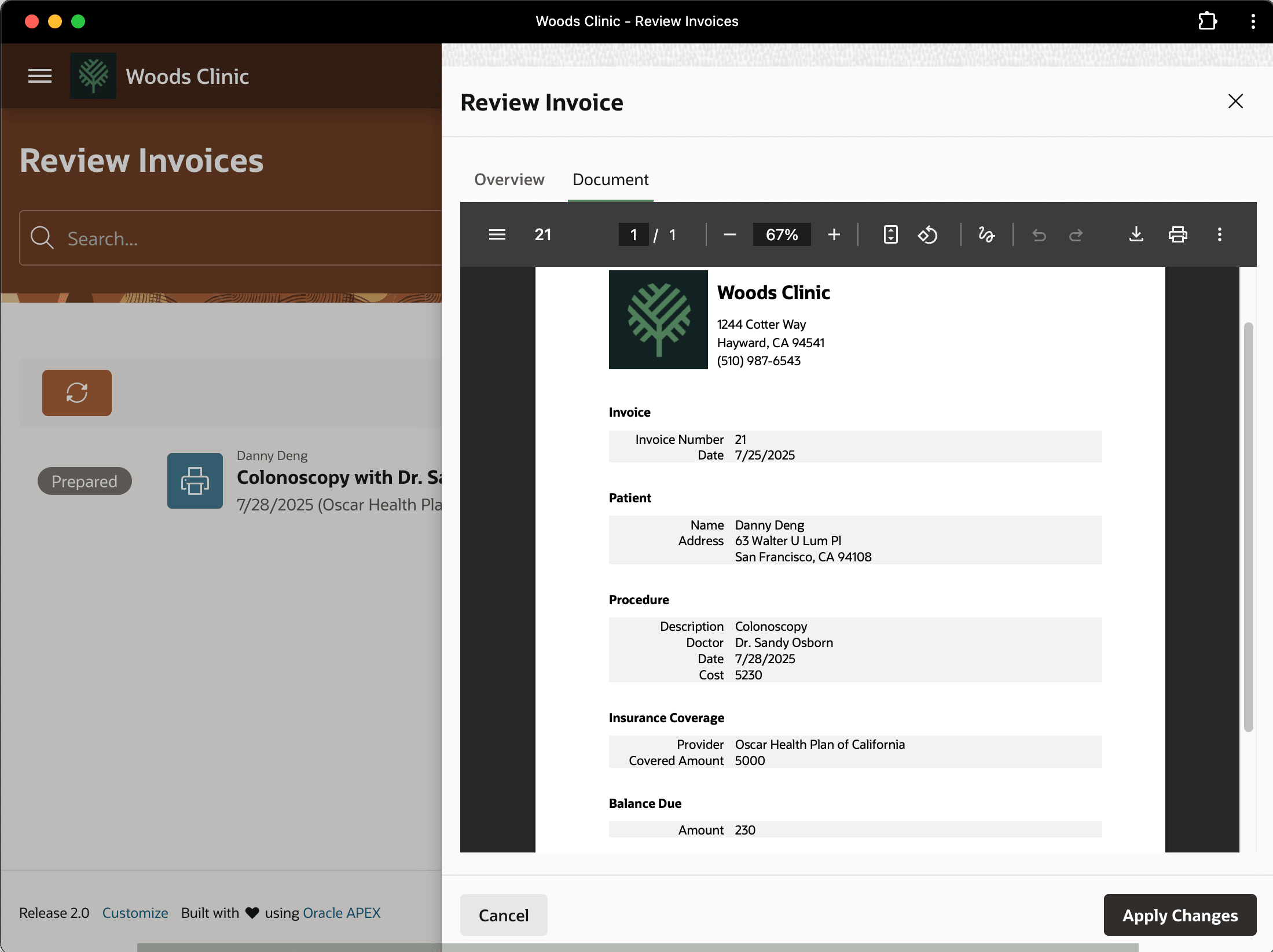
Description of the illustration walkthrough-regenerated.png
David marks the invoice as ready to send to the patient by choosing Invoice Complete from the three-vertical-dots dropdown menu as shown below.
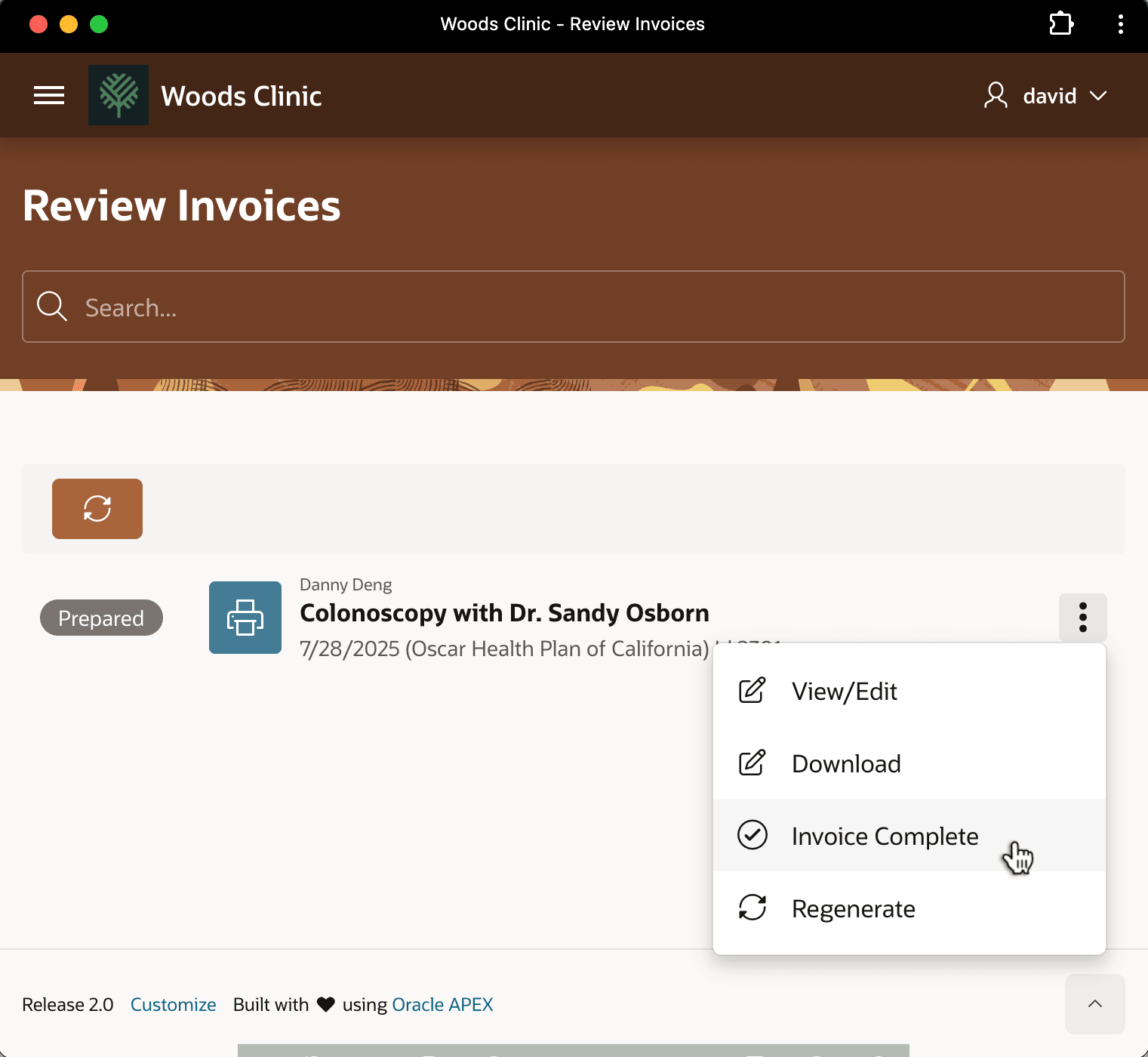
Description of the illustration walkthrough-markinvoicecomplete.png
When David reviews Danny Deng’s procedure progress later, he notices, as shown below, that your workflow reacted to the completion of the invoice by emailing it to the patient.
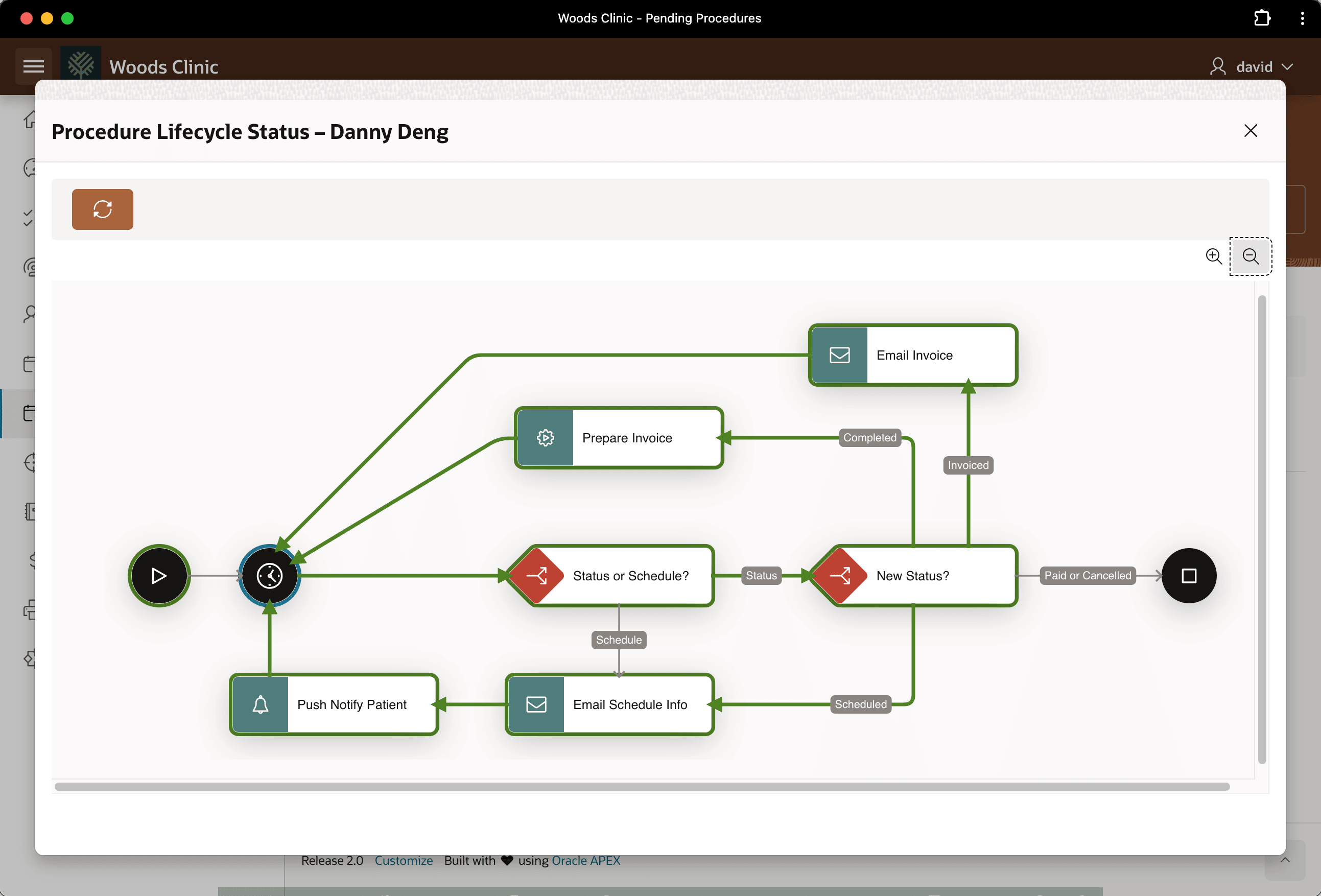
Description of the illustration walkthrough-checkwf3.png
He also sees Danny Deng’s procedure shows in the Invoiced column in the Kanban board as shown below.
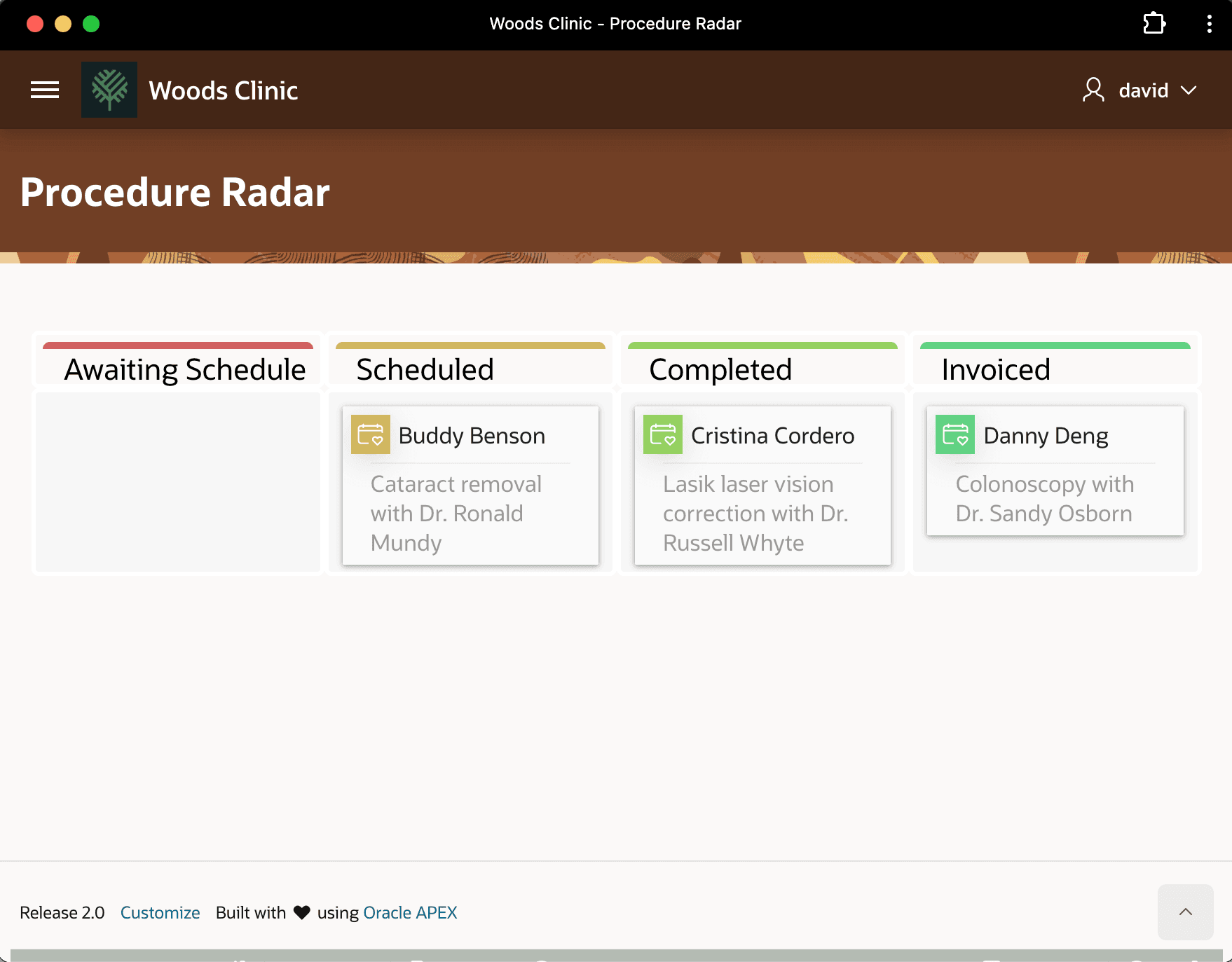
Description of the illustration walkthrough-invoiceonradar.png