Launching Like Native Apps
With a single click, you can let any user install and launch your APEX app like a native app.
By enabling the Installable switch in your application’s Progressive Web App settings, you give users a simple installation experience on their smartphone or desktop. Your app icon appears in the device’s Home Screen, in the Dock of their Mac, or in their Windows Taskbar. Tapping or clicking the icon launches a full-screen experience that looks and feels like other native apps on the platform. A key difference with progressive web apps is that your APEX app is always up to date, and you are always certain all users have your latest fix or feature.
You can try this experience yourself on your smartphone or desktop by visiting the Universal Theme Reference App at <https://oracleapex.com/ut>. As shown below, clicking the “cloud with download arrow” icon in the navigation bar opens the simple installation experience to guide you.
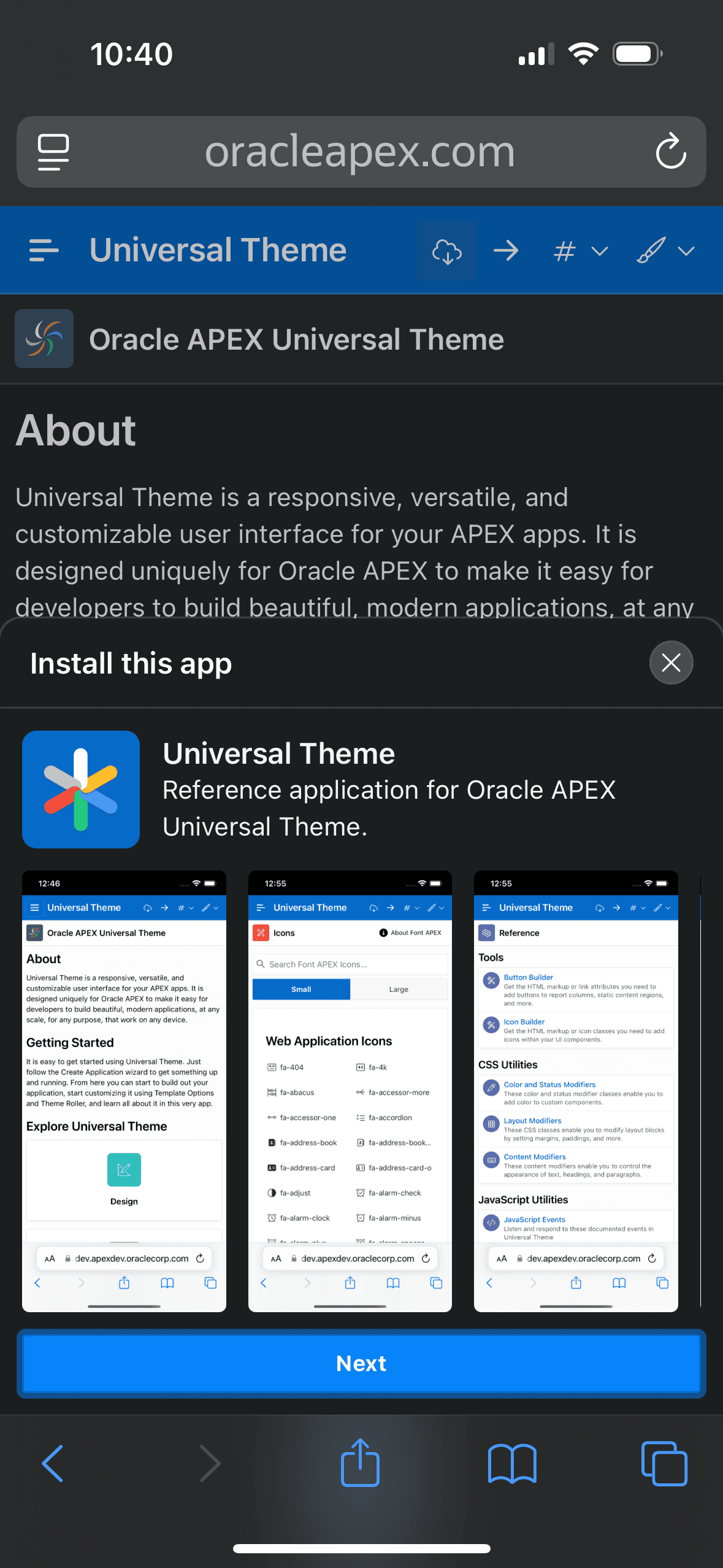
Description of the illustration pwa-installation-experience.png
After the quick installation process, tapping the Universal Theme app icon on your Home Screen opens the app in full screen where it works and behaves like any other native iPhone app. The figure below shows one of the pages in the reference app used for finding icons. You can install the APEX Progressive Web App reference app at <https://oracleapex.com/pwa> in an identical way.
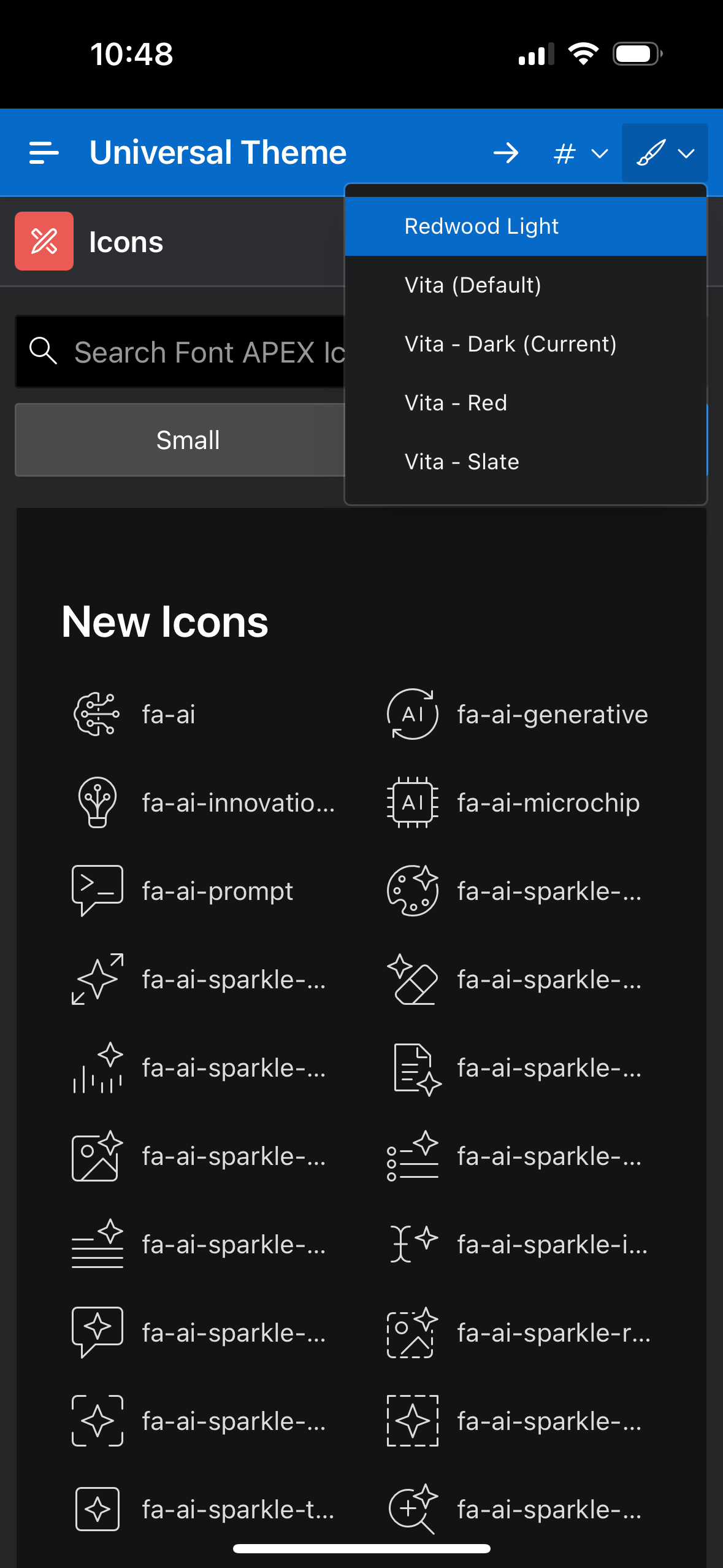
Description of the illustration pwa-installation.jpg
Your APEX app can use mobile device features like front-facing (selfie) cameras and mobile location, and take advantage of optimized mobile keyboards for searching and entering numbers, email addresses, phone numbers, and URLs. Check out the APEX To Go mobile sample app shown below at <https://apex.oracle.com/go/apextogo> to learn more about creating APEX apps that are optimized for the mobile experience.

Description of the illustration apextogo-sample-app.jpg
For more information, see Creating a Progressive Web App in Oracle APEX App Builder User’s Guide.