Moving a Group of Activities
Move selected activities as a group while their connections follow.
If you’ve already positioned a set of activities and connections but need to make space, you can select and move a group. Use [Control]-Click on Windows or [Command]-click on the Mac to select multiple activities as shown below. Then you can drag the group as a unit by clicking on a shape inside the selected area. This action maintains relative positions and alignment of the group elements. You only need to select activities, the connection lines move accordingly.
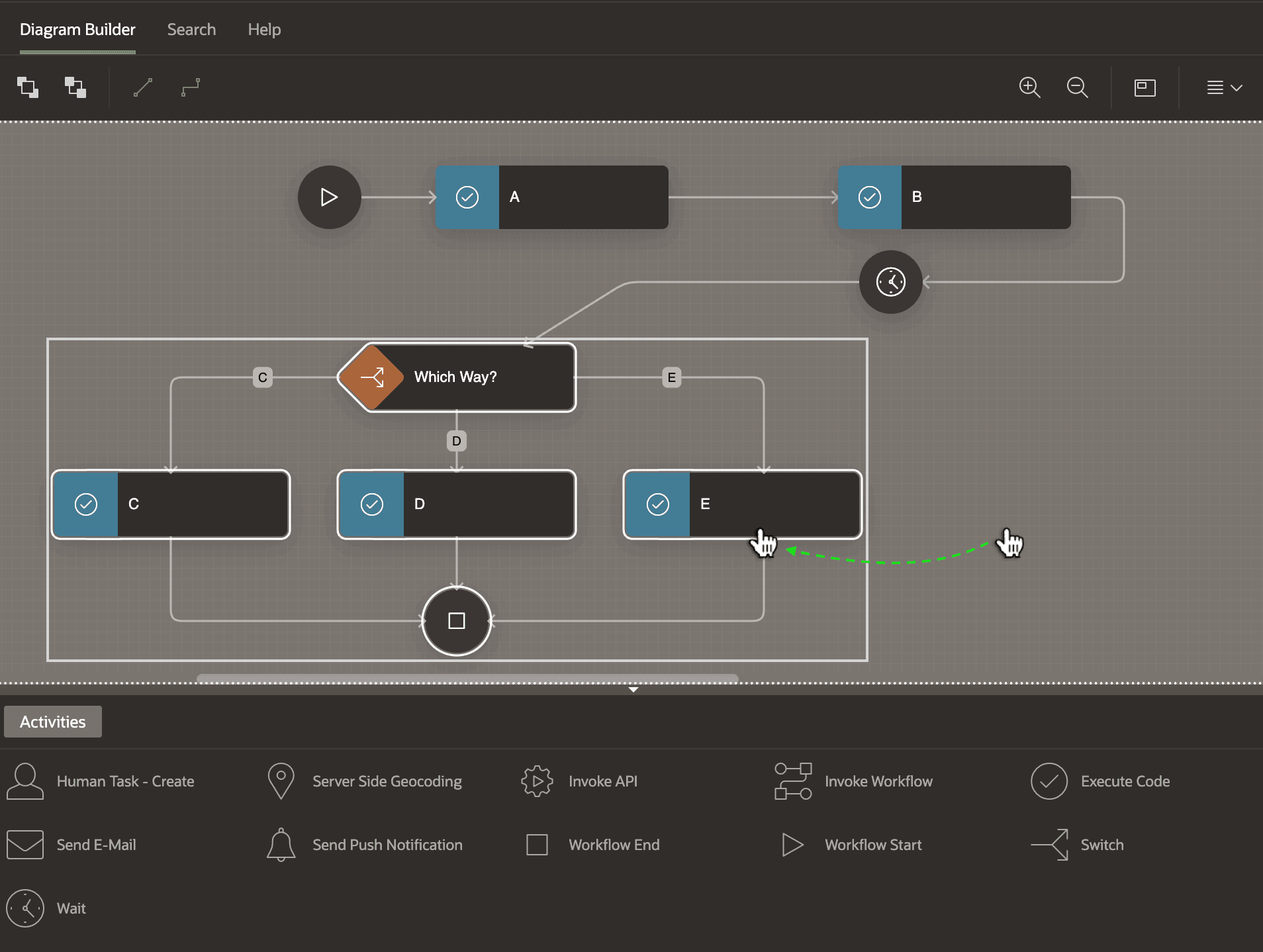
Description of the illustration workflow-tidy-movegroup.png
An even faster way to select multiple activities is to hold down the [Shift] key and drag out a rectangle as shown below. This gesture selects any activities the rectangular selection touches. Once selected, as before, you can move them as a group by clicking on a shape inside the selected area.
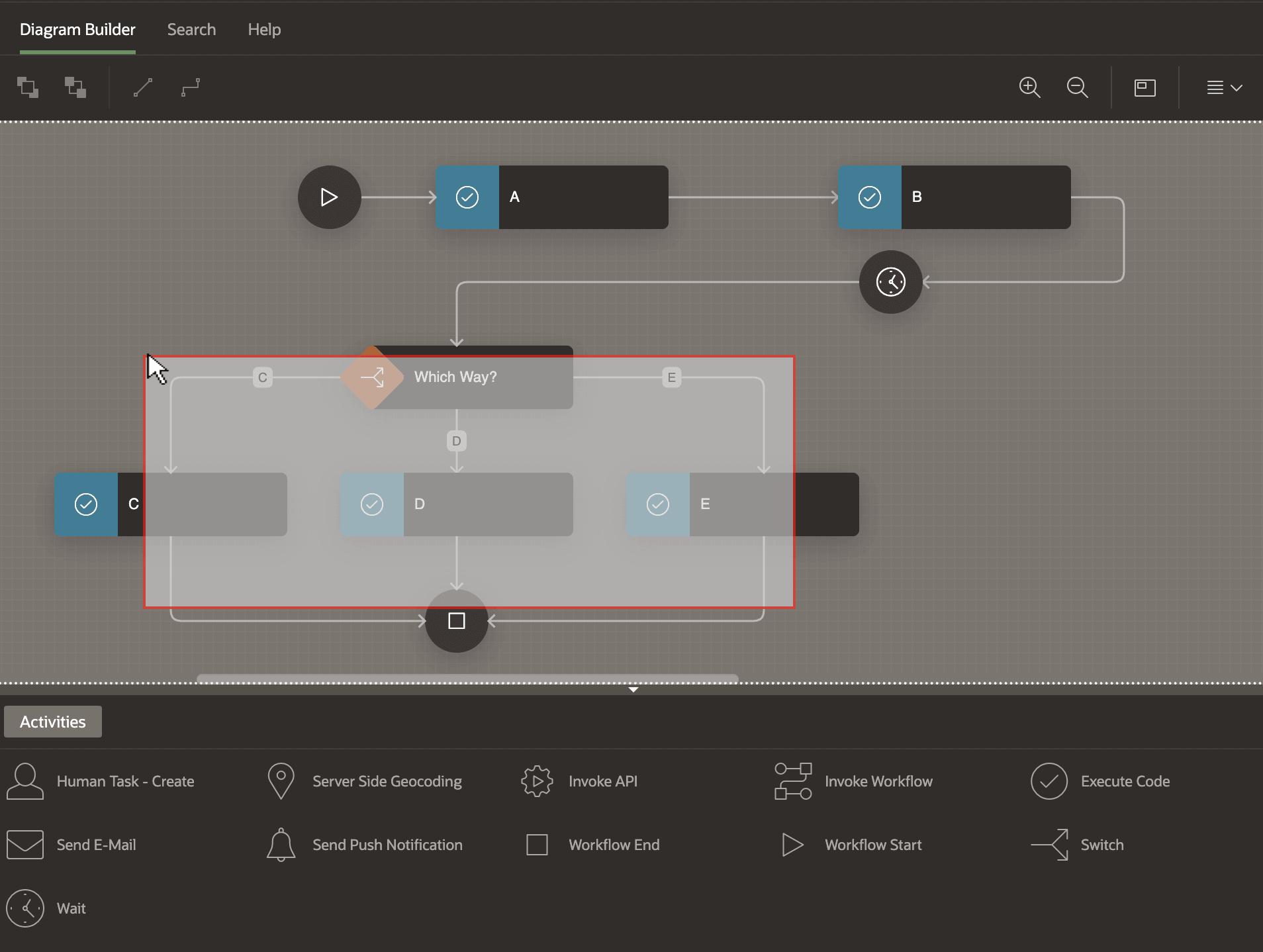
Description of the illustration workflow-tidy-shiftselect.png