Posting a Break Room Photo
Walk through a photo upload flow, from image selection to the refreshed Cards region on the calling page.
Now, when user SMITH adds a break room photo, she sees the modal drawer dialog shown below with a large upload image item and a field to enter a title.
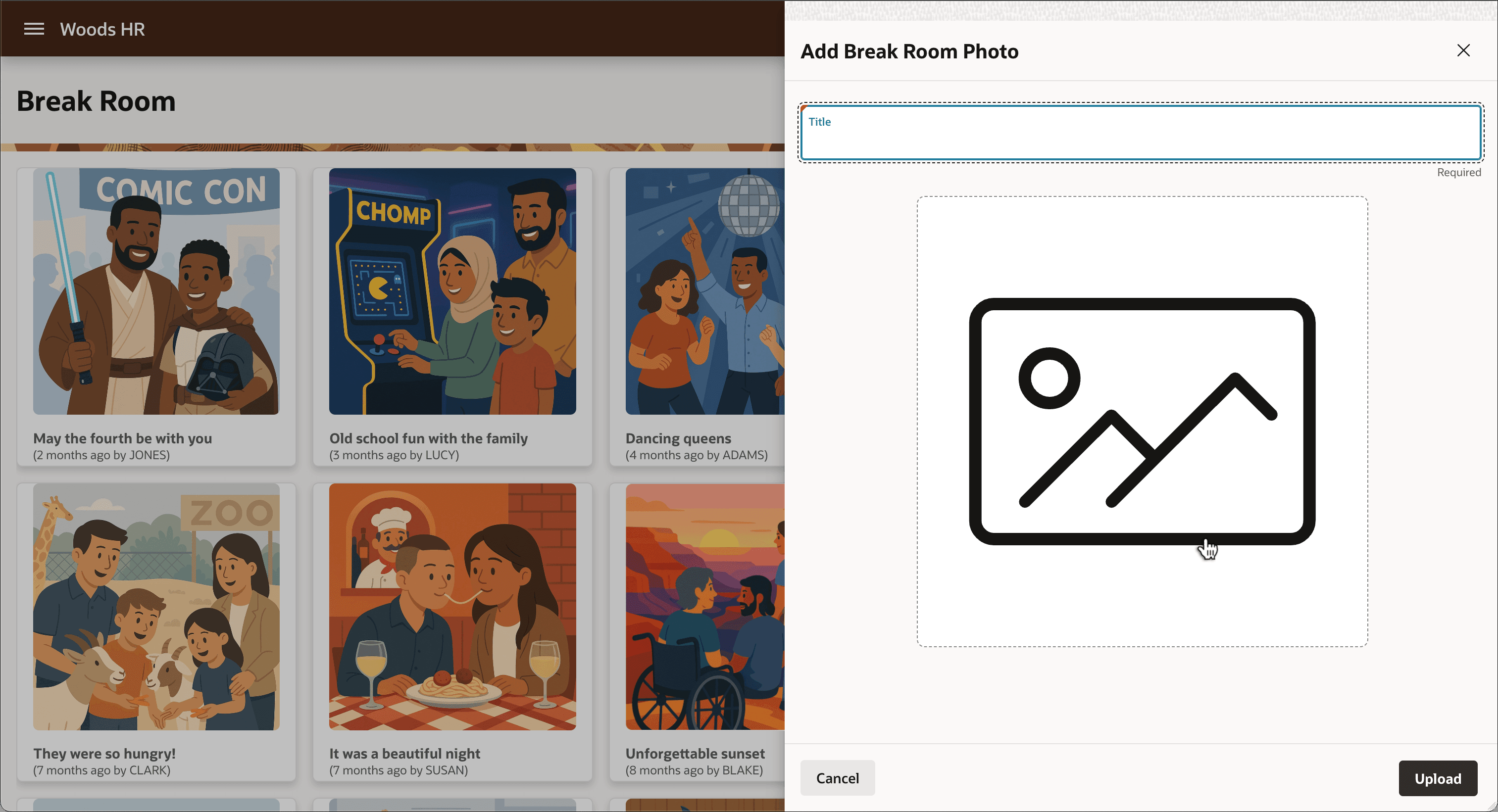
Description of the illustration image-upload-drawer.png
After clicking on the empty image icon a file dialog appears. If Capture Using had been set, the device’s camera would have turned on to snap a new photo. After choosing - or taking - a photo, the preview of the selected photo appears as shown below. Clicking (Upload) submits the form. The Form - Automatic DML page process inserts the new row into the form’s data source: the EBA_DEMO_EMP_BREAKROOM_PHOTO_V view. It sets the title, image, and hidden P6_EMPNO value defaulted from the G_APP_USER_EMPNO application item. This results in a new row in the underlying EBA_DEMO_EMP_BREAKROOM_PHOTOS table with the IMAGE BLOB column containing the uploaded photo.
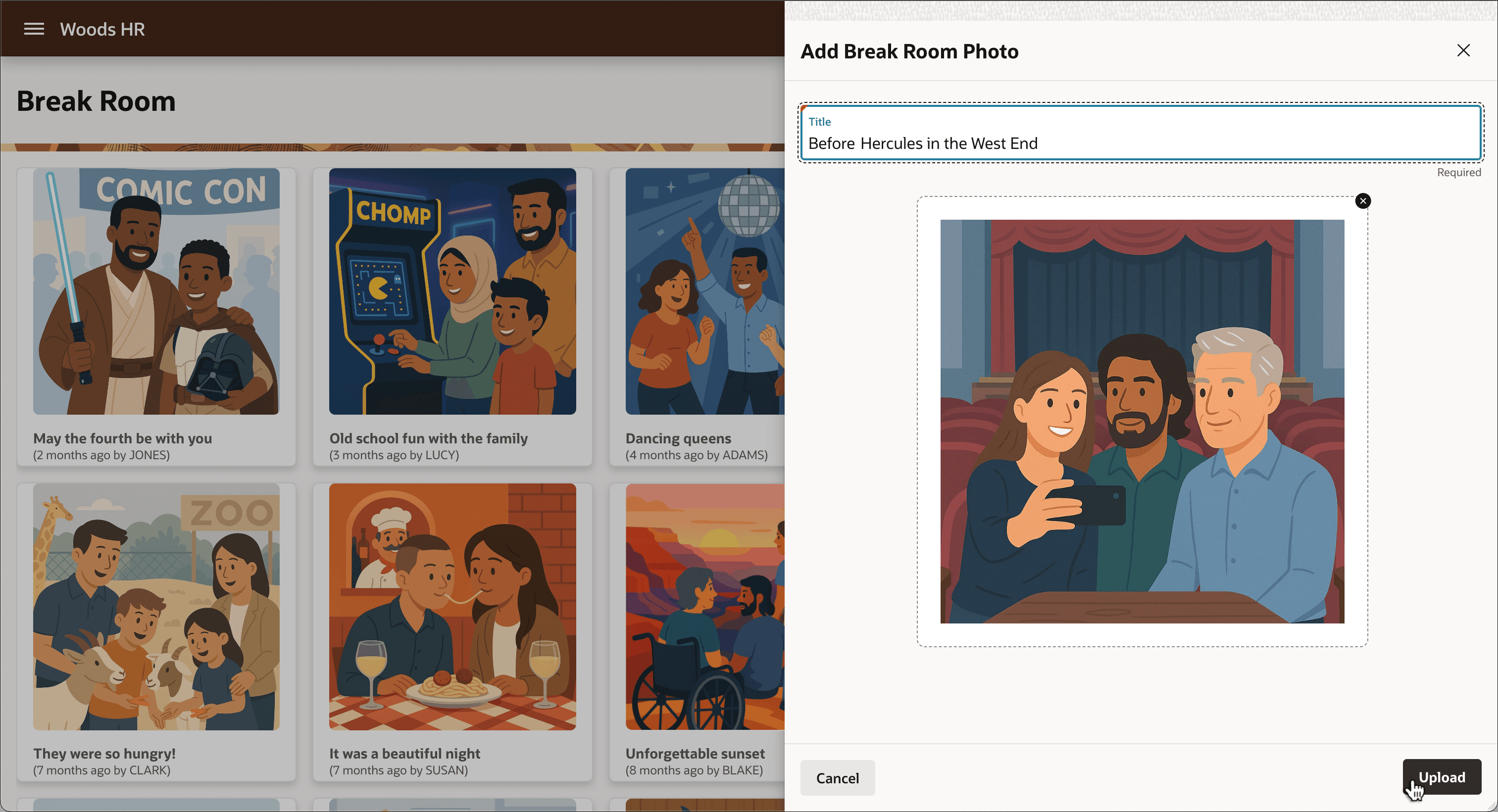
Description of the illustration image-upload-drawer1.png
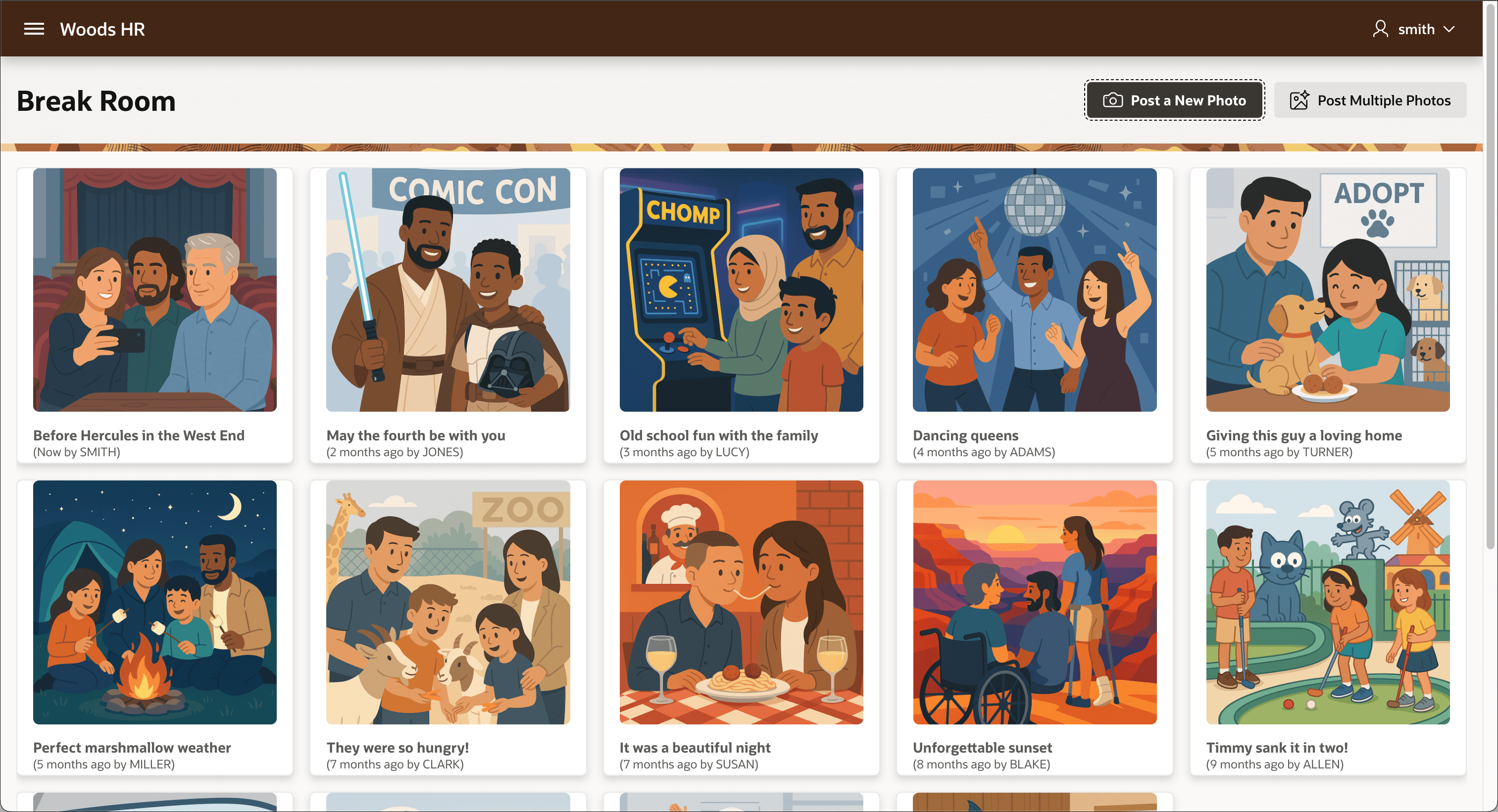
A dynamic action on the Dialog Closed event refreshes the Cards region, so SMITH immediately sees her posted photo.