Scheduling a Medical Procedure
Schedule a medical procedure and let the workflow notify the patient.
David visits the Scheduling screen and sees that Danny Deng’s medical procedure needs a date and doctor assigned. As shown below, he clicks on Danny’s card to open his procedure details and schedules the exam for July 28th at 11:30am with Dr. Sandy Osborn.
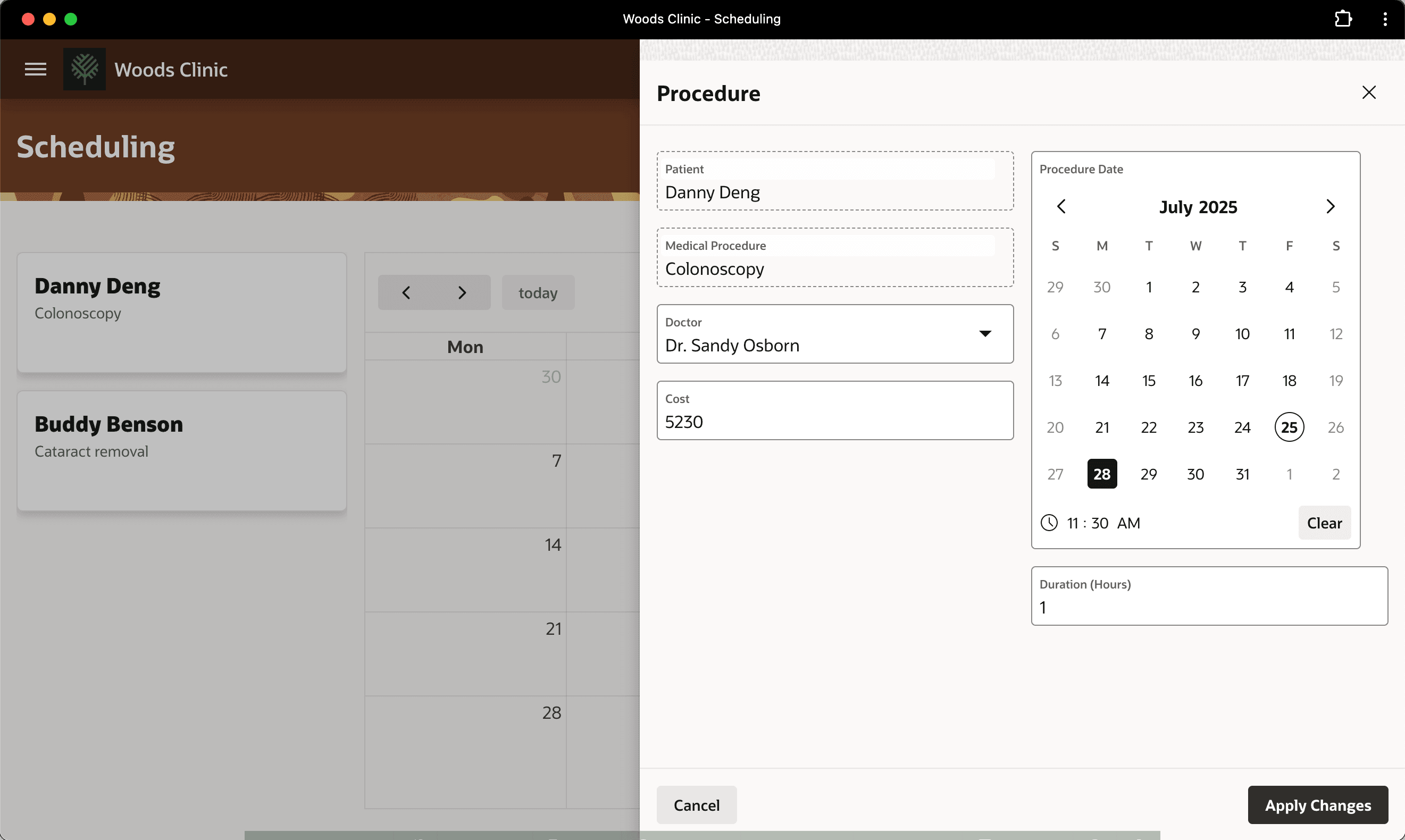
Description of the illustration walkthrough-scheduling1.png
When David confirms the scheduling details, as shown below, Danny’s procedure appears on the calendar and no longer shows in the pending list.
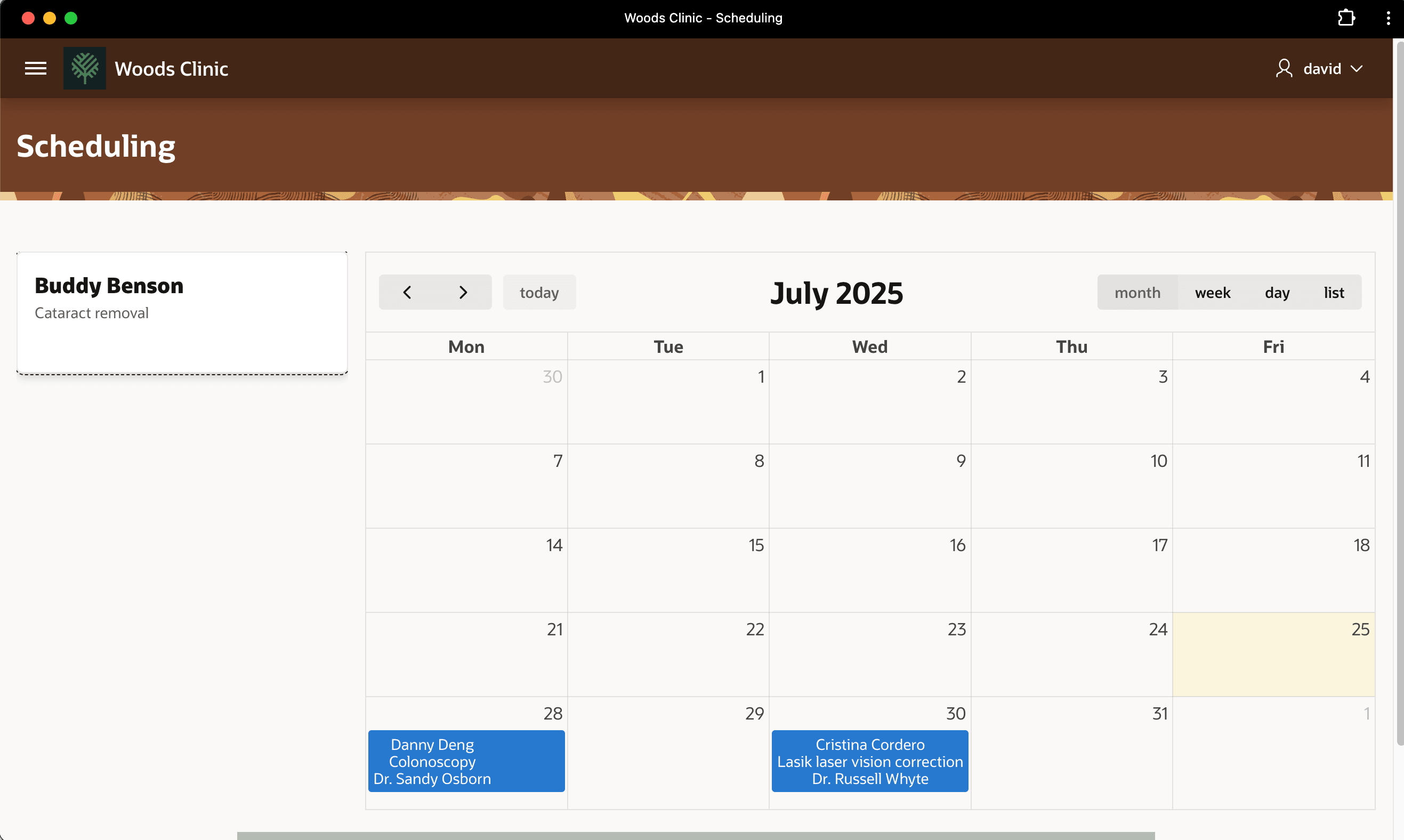
Description of the illustration walkthrough-scheduling2.png
Checking the Procedure Radar page, as shown below, David now sees Danny Deng’s procedure in the Scheduled column on the Kanban board.
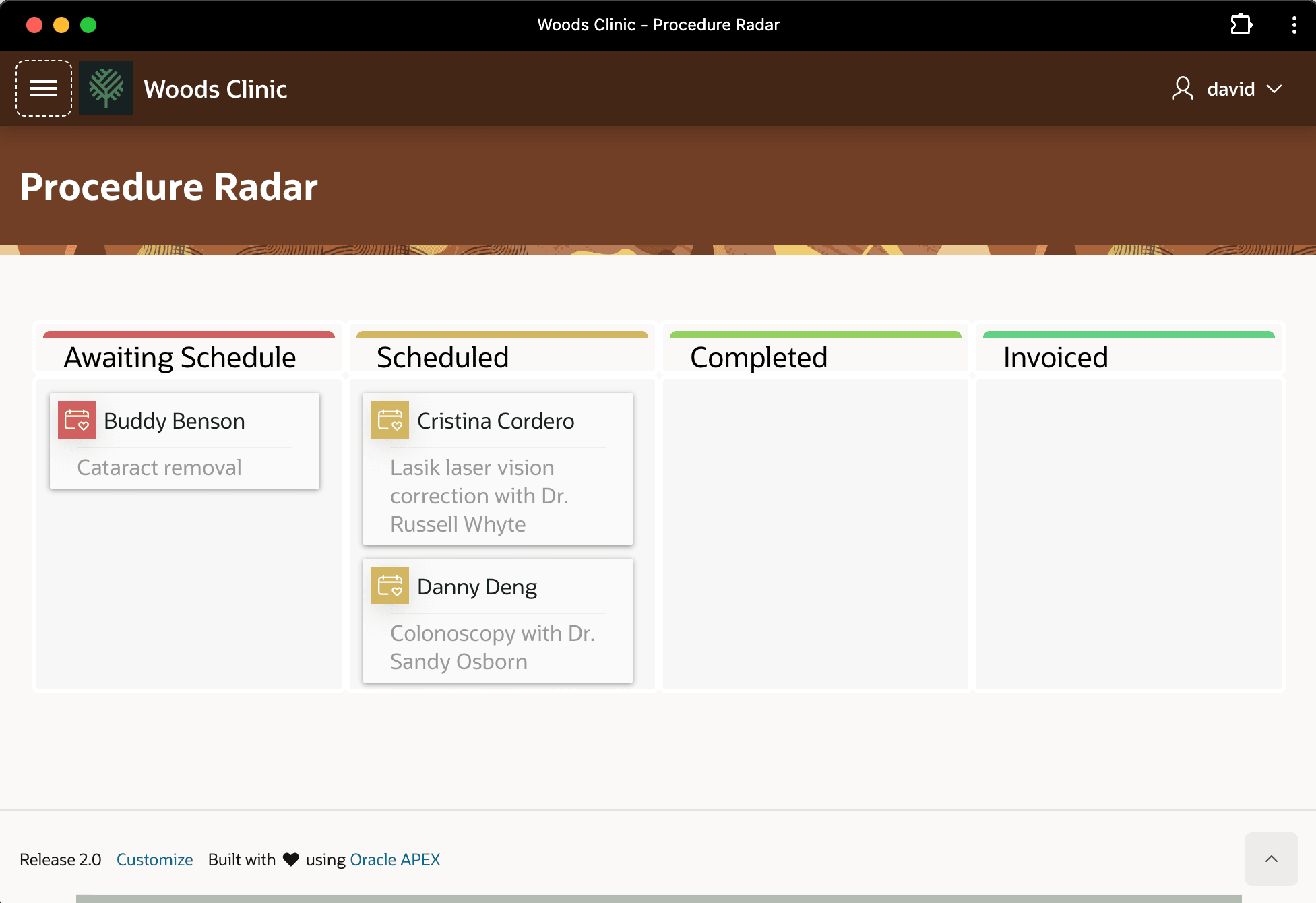
Description of the illustration danny-scheduled-radar.png
In the background, your Procedure Lifecycle workflow reacts to the change in status to “Scheduled”. It automates notifying Danny Deng of the details. Later in the morning, when David visits the Pending Procedures page, as shown below, he clicks on the workflow icon next to Danny’s procedure in the list.
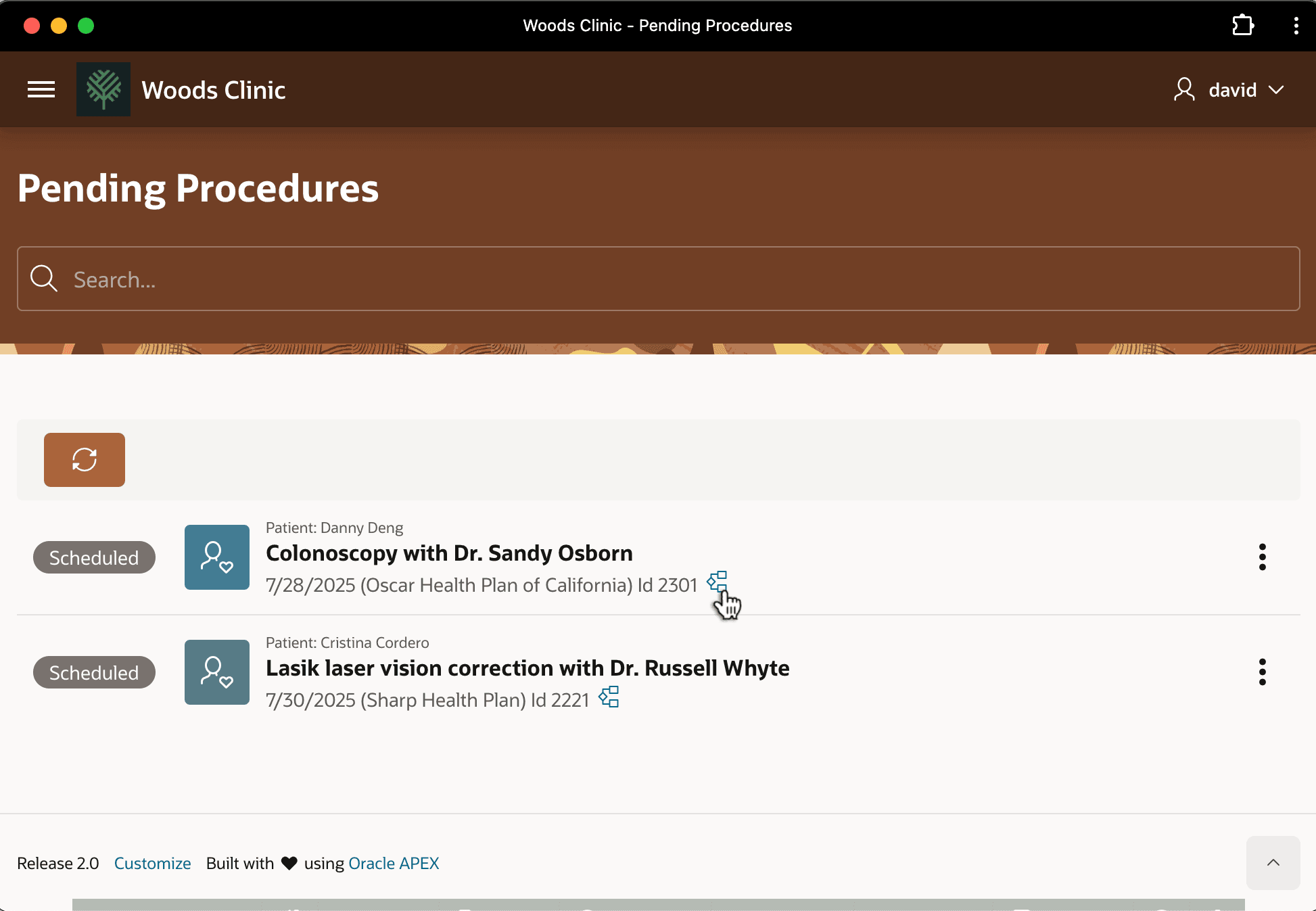
Description of the illustration walkthrough-checkwf1.png
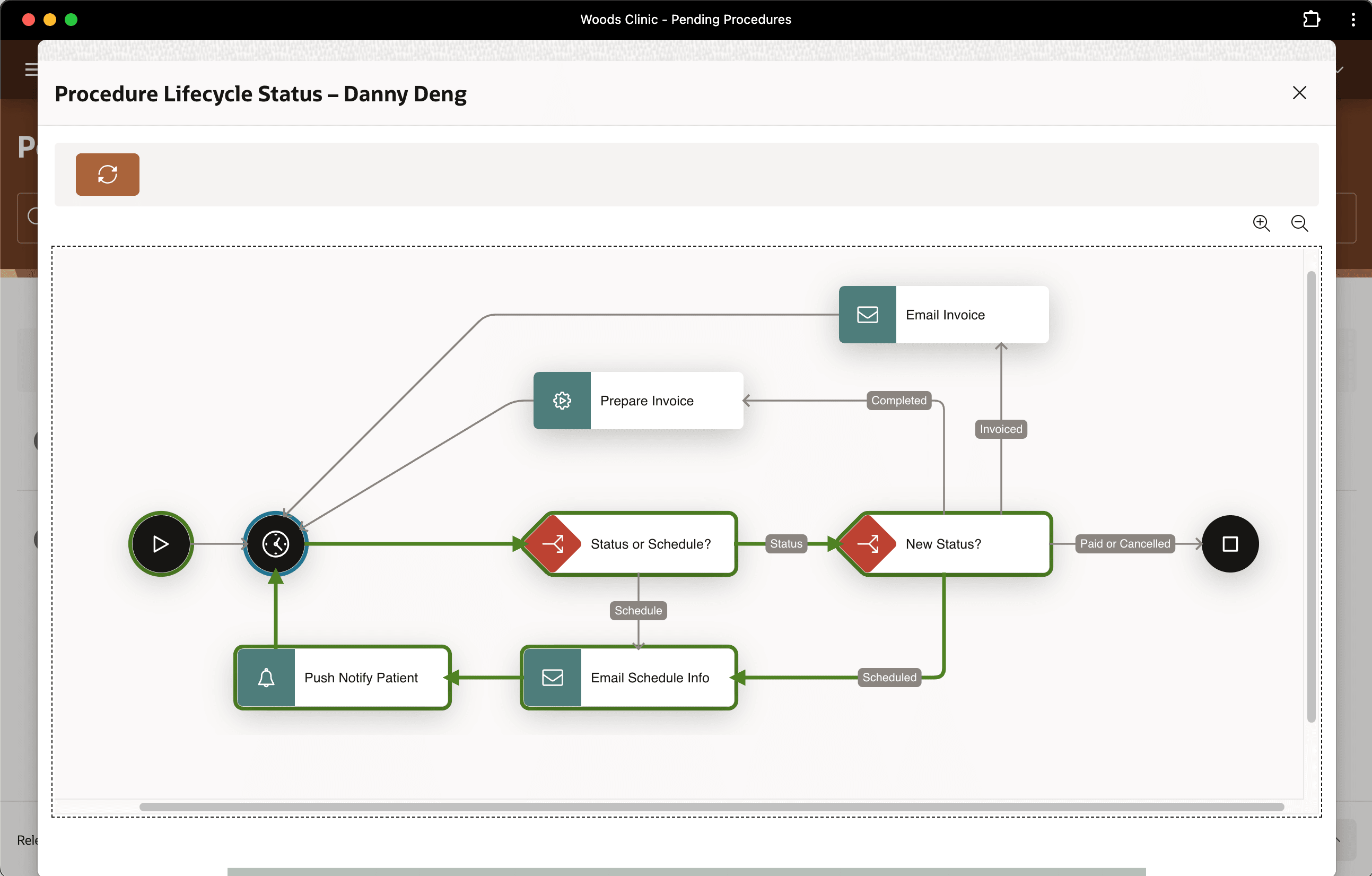
The Procedure Lifecycle Status page for Danny Deng appears. It gives David a progress report at a glance. As shown below, he observes colored highlights on the workflow diagram that confirm it sent the patient email and push notifications.
Tip: APEX only sends the push notification if Danny Deng opted-in to receiving these mobile notifications after installing the Woods Clinic app on his smartphone, tablet, or desktop computer. If he hasn’t explicitly allowed them, APEX silently skips your workflow’s attempt to deliver the message.