Specifying the File and Uploading It
Understand how the generated Data Loading page uploads a selected file and stores it temporarily..
The Load Employees from Excel page shown below is a wizard-created page. It contains the P32_FILE File Upload page item configured to display as a Block Dropzone. It stores the uploaded file in the Table APEX_APPLICATION_TEMP_FILES for the duration of the user session. By default, it’s set to upload a single file at a time.
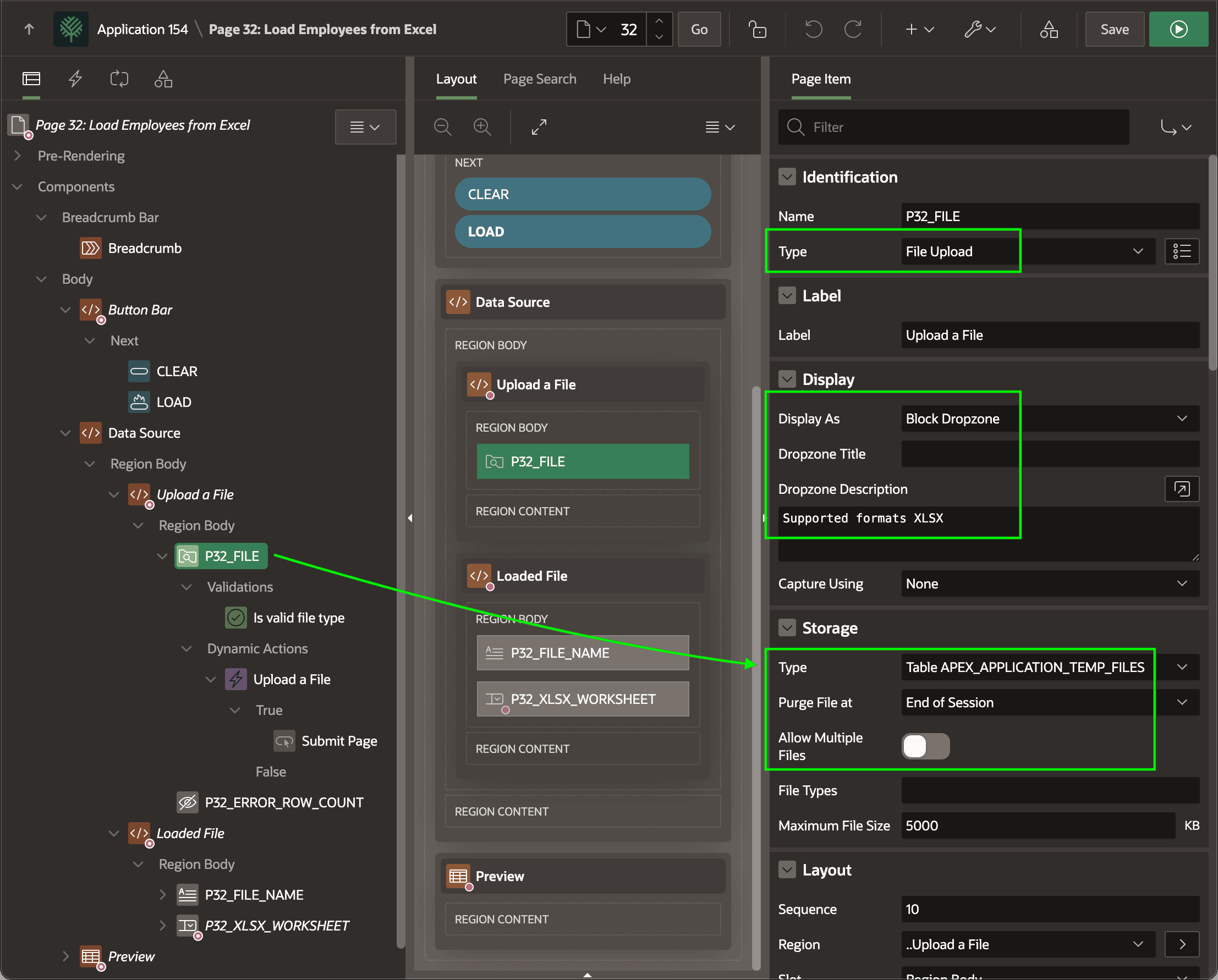
Description of the illustration dataload-file-upload-item.png
The Upload a File dynamic action event handler reacts to the P32_FILE File Upload item’s Change event. This happens when the user chooses a file to upload. It triggers an immediate page submit using the native Submit Page action. This uploads the file to the server. The figure shows the Submit Page dynamic action step selected in the component tree and highlights the Submit Page action it’s configured to perform.
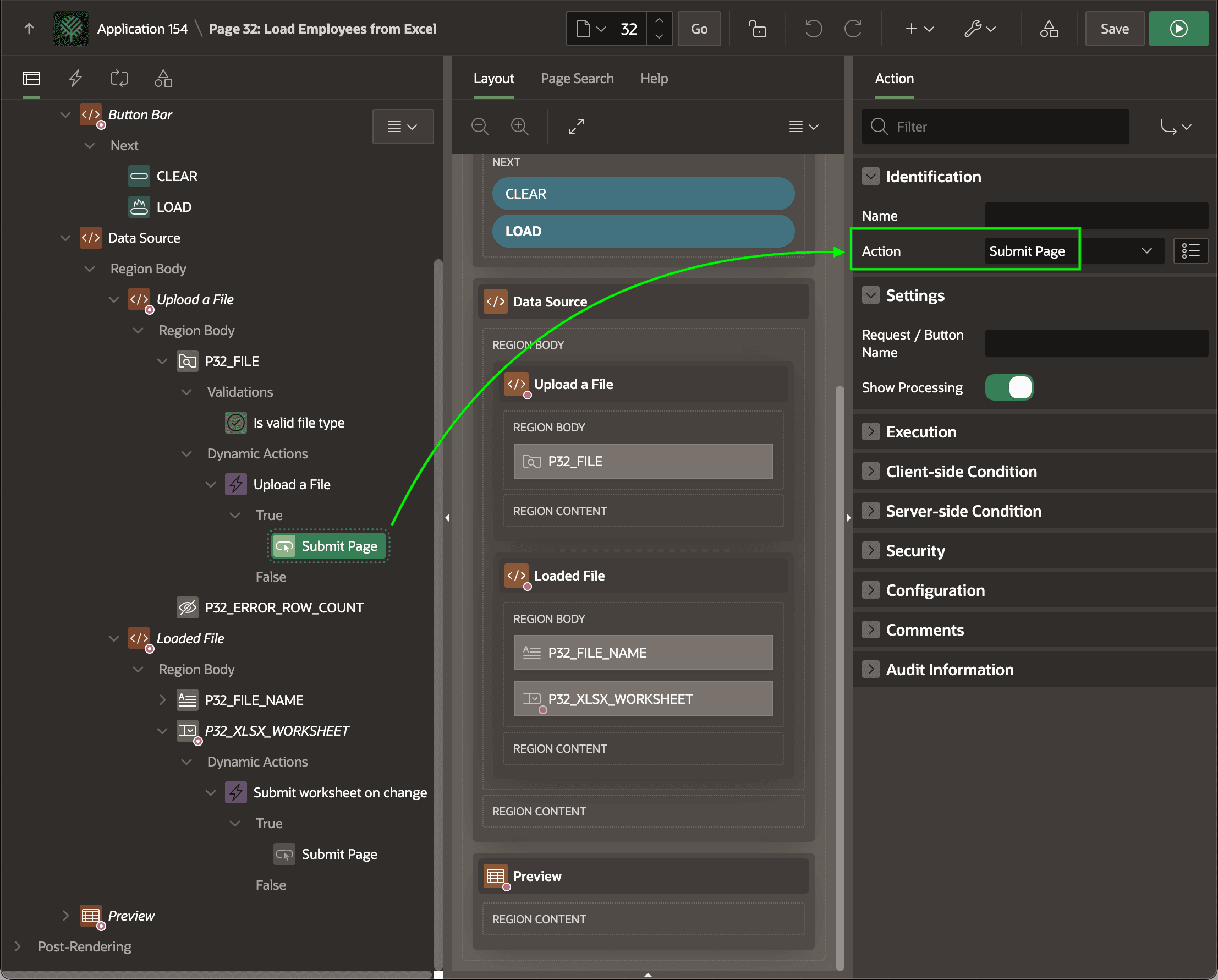
Description of the illustration dataload-file-upload-da.png
An After Submit computation shown below populates the display only P32_FILE_NAME page item with the uploaded file name. It selects the FILENAME column from the APEX_APPLICATION_TEMP_FILES table using the unique uploaded file name in the P32_FILE File Upload item.
Then, since the page contains no branches to navigate elsewhere the page re-renders after processing the page submit.
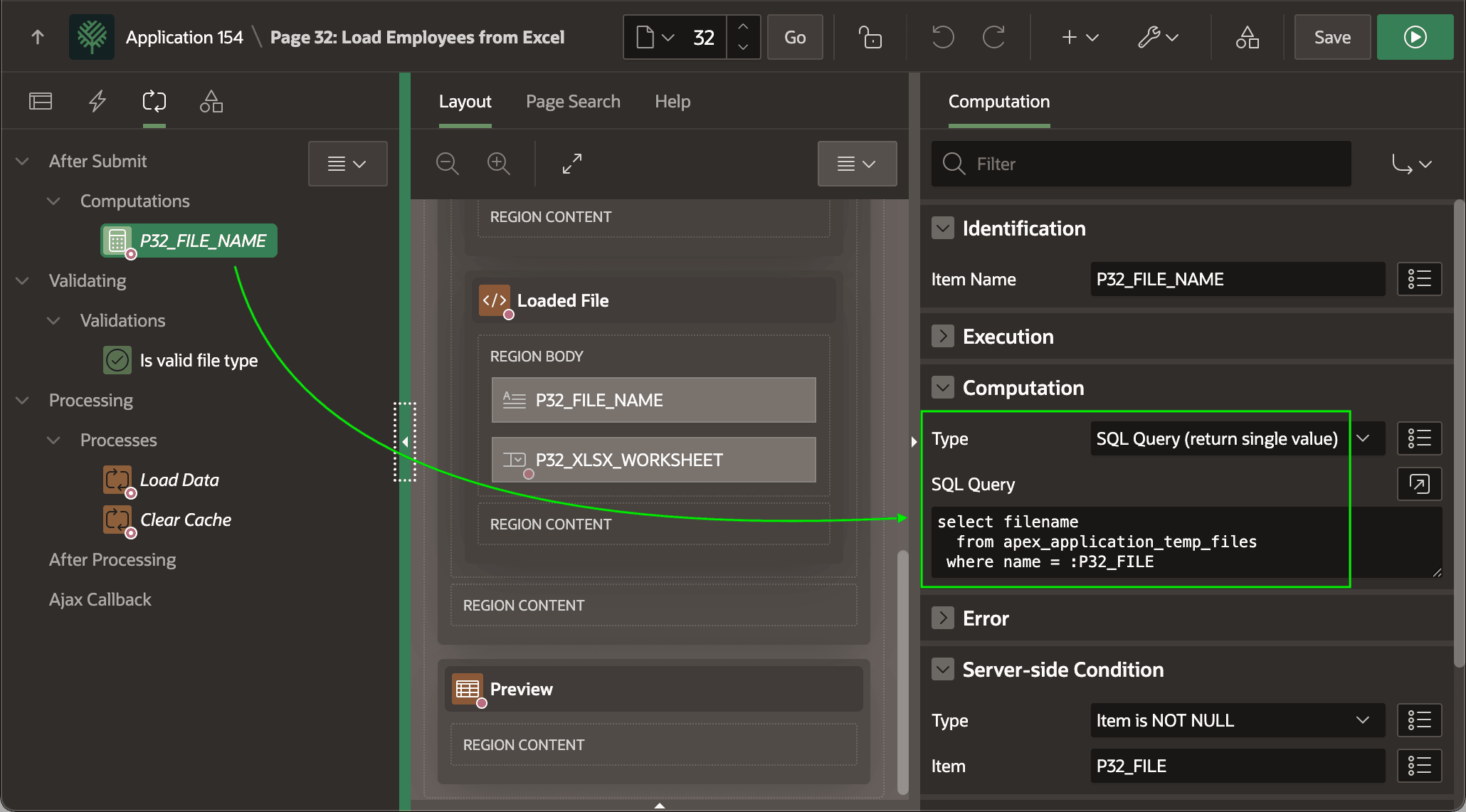
Description of the illustration dataload-aftersubmit-computation.png