Using a Data Loading Page
Run a generated Data Loading page to upload, preview, and load external employee data.
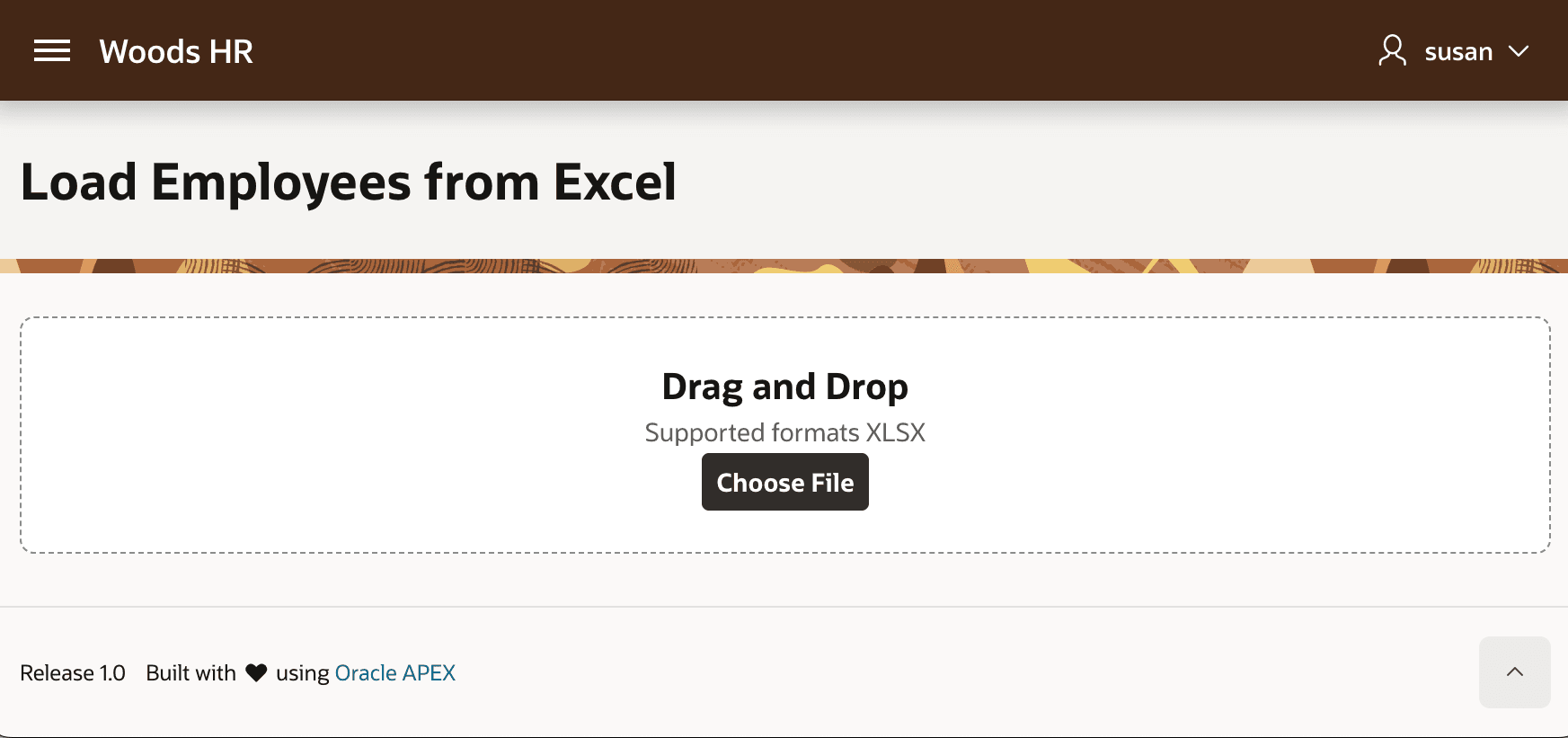
Running the generated Data Loading page, it displays a file drop zone as shown below.
Description of the illustration running-dataload-dropzone.png
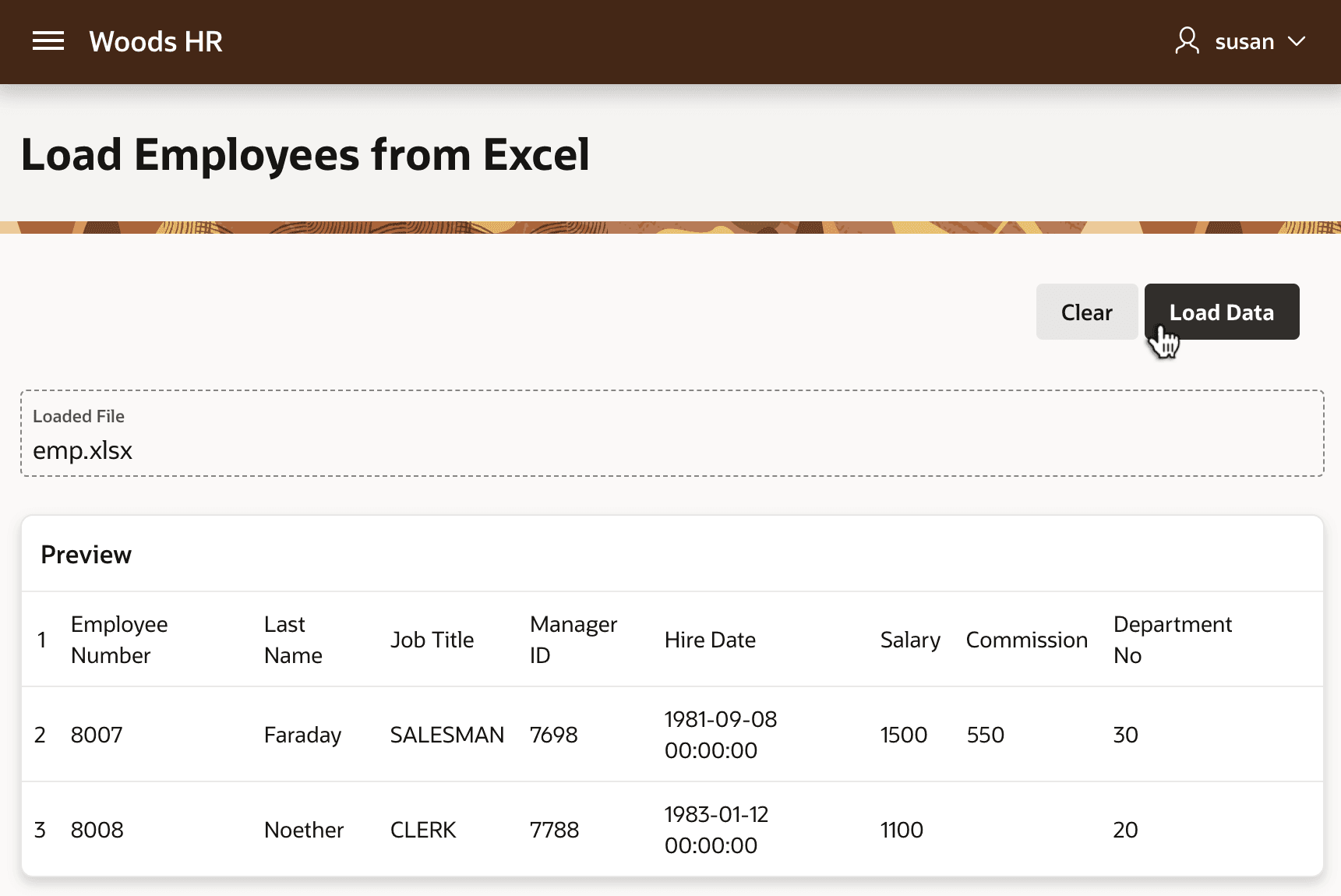
After dragging and dropping an emp.xlsx Excel spreadsheet file onto the drop zone, the page uploads the file straight away and previews the data to load. Clicking (Load Data) completes the operation. The figure shows the generated Data Loading page’s preview of the uploaded spreadsheet data.
Description of the illustration running-dataload-preview.png
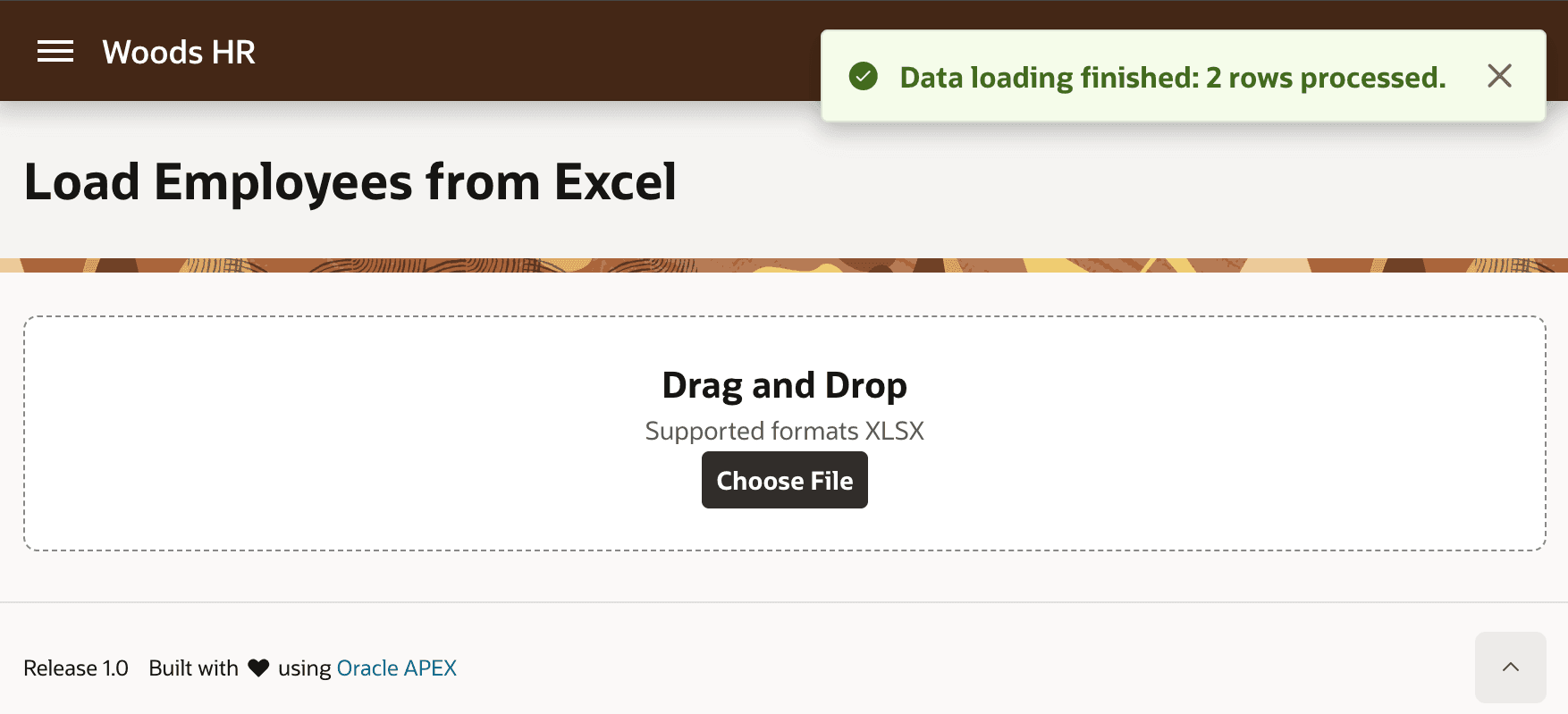
The success message shown below confirms the number of rows processed.
Description of the illustration running-dataload-loaded-finished.png
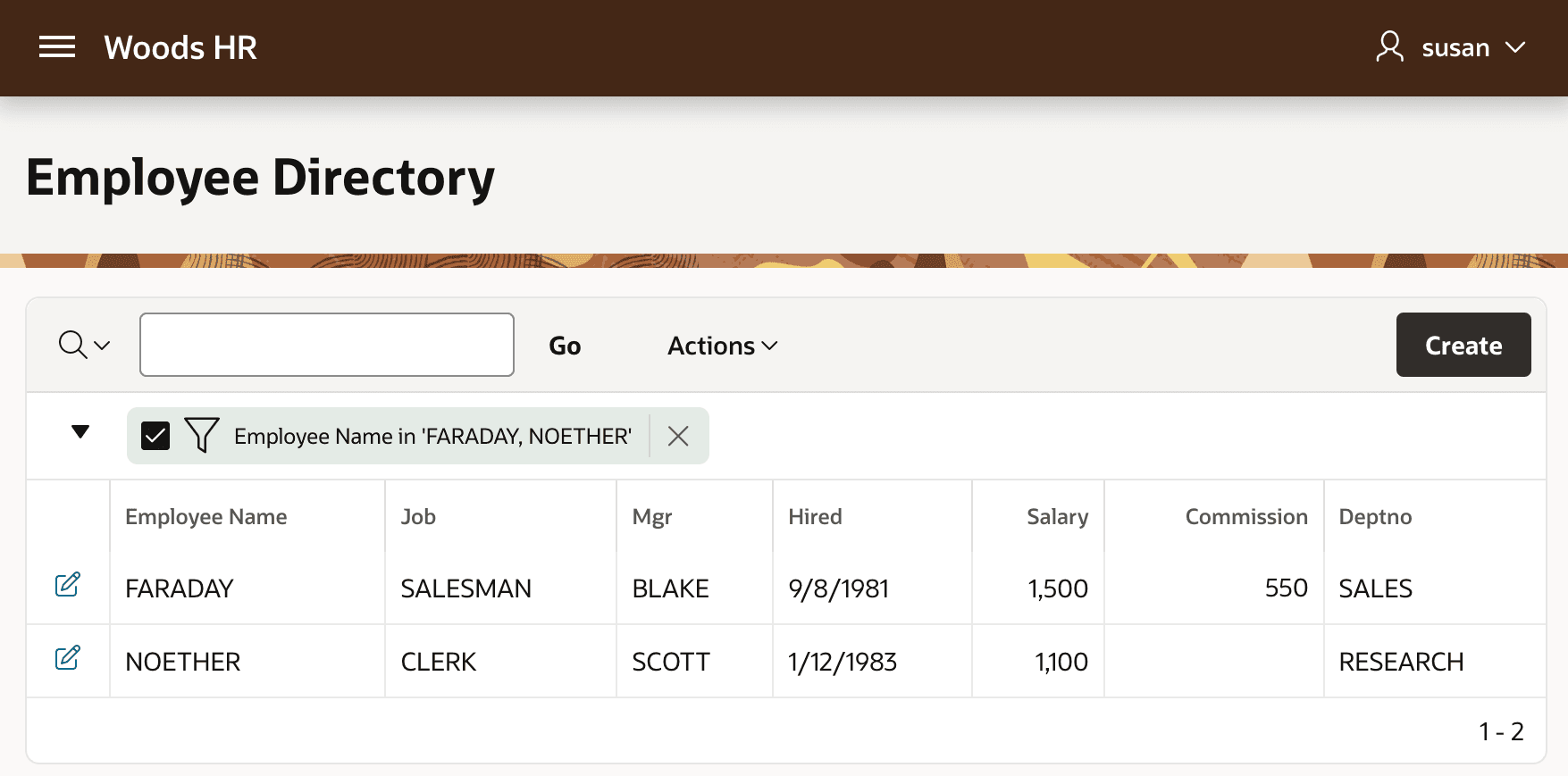
When Susan, the HR Representative, visits the Employee Directory page, she sees the two new employees, with Employee Name values in uppercase, so the SQL Expression data profile column explained in Augmenting Data Load Profile Columns functioned as expected. The figure shows the Woods HR Employee Directory page, with its Interactive Report filtered to show employees with names FARADAY and NOETHER.
Description of the illustration running-dataload-loaded-data.png