Viewing BLOB Images in Search Results
When creating a Search page, base your related Search Configuration on table or view including the BLOB image column.
It can also use a query that includes the image column like:
select id,
       title,
       **image, /* BLOB image */**
       file_name,
       posted,
       posted_by,
       mime_type,
       updated
from eba_demo_emp_breakroom_photo_v
Set the Icon Source to Image BLOB Column in the Icon and Display section. Then choose the image BLOB column and Mime Type Column as shown below.
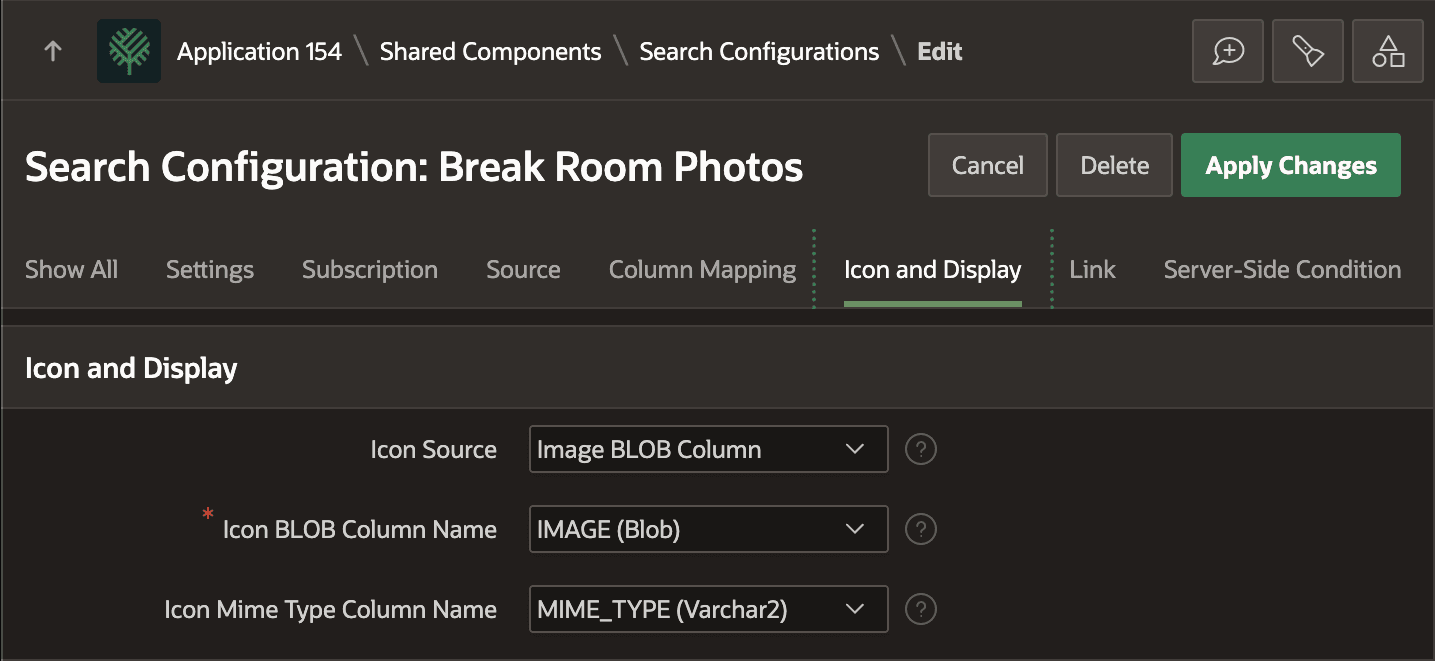
Description of the illustration search-config-blob-image.png
In the Search page, size the image preview by adding the following rule to the page’s CSS > Inline settings. It constrains the width and keeps the image’s aspect ratio. You can also just constrain the height by specifying that property instead of width.
.a-ResultsItem-image img {
    /* constrain width or height + keep aspect ratio
     *
     * height: 50px;
     */
   width: 50px;
   object-fit: contain;
}
With that in place, your search results show the BLOB Image exactly to your specifications.
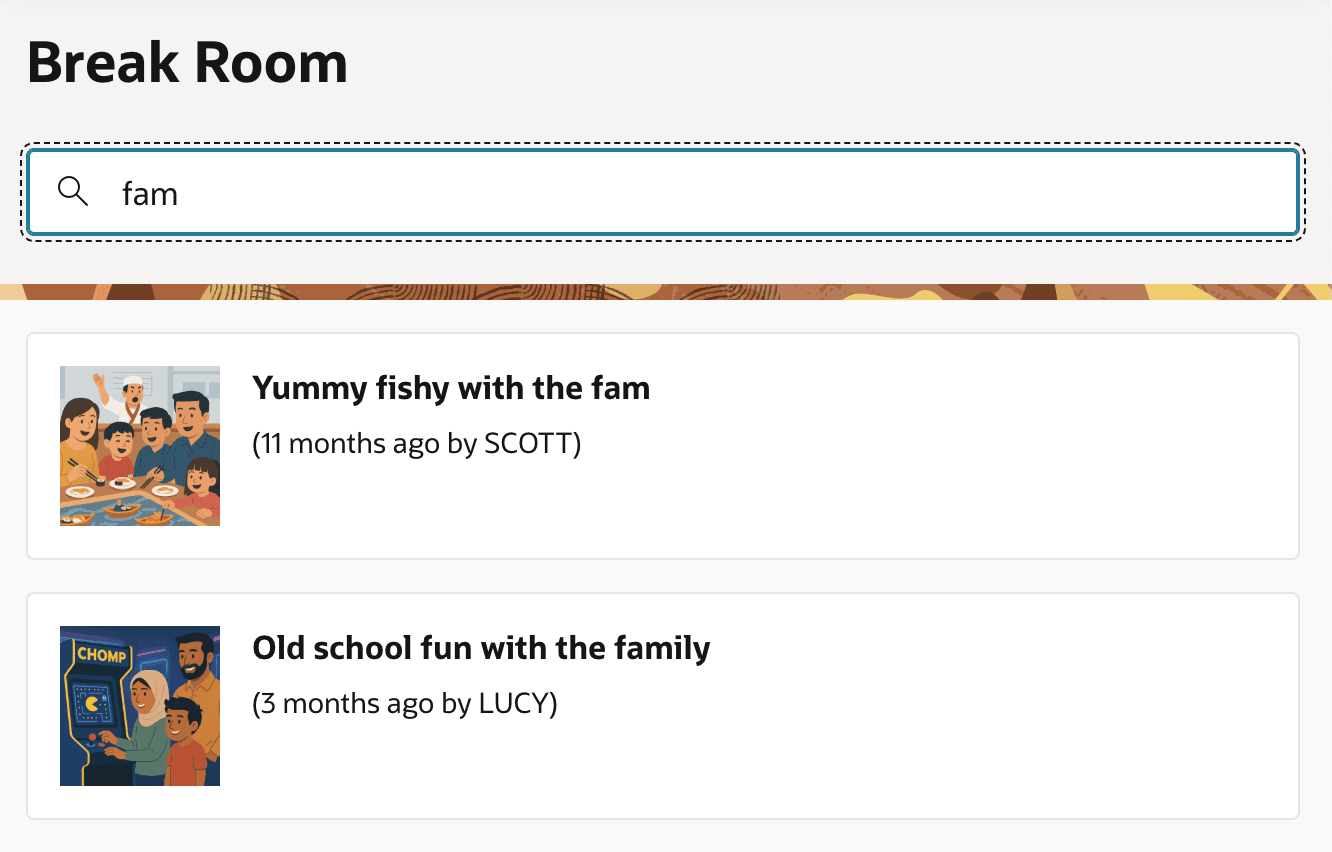
Description of the illustration show-images-search-results.png