Working with Data Values as Dates
If a page item contains a date value, then using its value as a VARCHAR2-typed bind variable can raise an error if the page item uses a different format mask than the application default.
For example, consider the following where clause using the value of a Date Picker page item as a bind variable:
HIREDATE < :P34_HIRED_BEFOREIf the page item uses format mask DD-MON-YYYY and the application default is DS for the short date format of the current locale, then the page encounters the error below at runtime:
ORA-01858: A non-numeric character was found instead of a numeric character.The solution is to reference the value as a date using the GET_TIMESTAMP() function in the APEX_SESSION_STATE package like this. Notice the bind variable notation is replaced by passing the name of the page item to the GET_TIMESTAMP() function.
HIREDATE < apex_session_state.get_timestamp('P34_HIRED_BEFORE')This automatically accounts for any format mask you might have configured on the page item to correctly convert the value to a date result. Forgetting this can also lead to unexpected results, especially when comparing date values.
Consider the following query by example page featuring a P1_HIREDATE_RANGE_START and P1_HIREDATE_RANGE_END page items of type Date Picker.
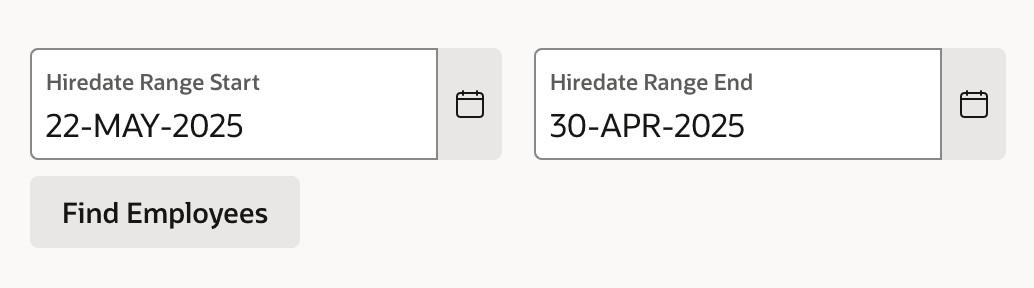
Description of the illustration date-range.png
If you define a validator Check Hiredate Range with the PL/SQL expression below, the user submitting a low value of 22-MAY-2025 and a high value of 30-APR-2025 does not receive a validation error as expected. This happens because the two string values get compared in text order rather than date order.
:P1_HIREDATE_RANGE_START <= :P1_HIREDATE_RANGE_ENDTo have the values compared as dates, rewrite the validation rule as follows:
apex_session_state.get_timestamp('P1_HIREDATE_RANGE_START')
 <= apex_session_state.get_timestamp('P1_HIREDATE_RANGE_END')
With this solution in place, clicking Find Employees now produces the expected validation error as shown below, “Hiredate Range ends before it starts.”
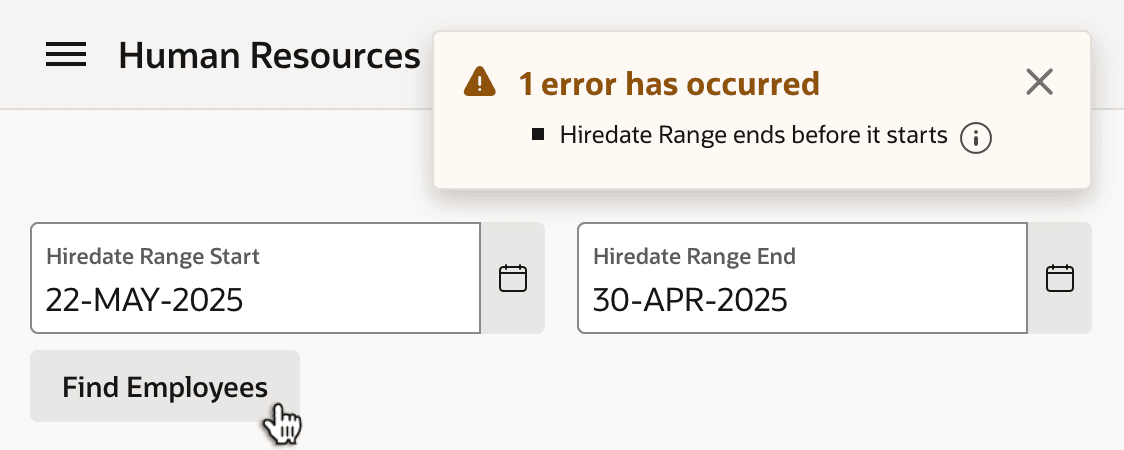
Description of the illustration date-range-correct.png
Tip: When working with date or timestamp values of Interactive Grid columns, convert the column’s VARCHAR2 value to a date using the to_date or to_timestamp function with an appropriate format mask.