About the Workflow Console, Workflow Details, and Workflow Dashboard
The Workflow Console displays all workflows for a given report context. The Workflow Details shows details for a specific workflow instance. The Workflow Dashboard shows analytics for all workflows in a given report context.
When you create the Workflow Console using the Create Page Wizard, the wizard creates two pages in the application: an overview page with all the workflows for the given report context, and a details panel that opens when a user selects a workflow from the overview page. If you select the Include Dashboard Page option, the wizard also creates a dashboard page with charts that compare workflow performance and workflow states in the given report context.
You can further customize all three pages with Page Designer.
The Workflow Console Page
The Workflow Console allows workspace users to view and manage their workflow instances. When you configure the workflow console, you have different Report Contexts to choose from:
-
My Workflows, for workflow owners
-
Admin Workflows, for workflow administrators
-
Initiated by Me, for workflow initiators Clicking on a workflow in the Workflow Console brings you to the workflow details page.
Tip: In a multi-tenant environment, the Workflow Console honors the APEX session Tenant ID, and only shows workflows for that tenant.
The Workflow Details Page
The workflow details page shows:
-
activity instances and their states
-
when an activity was started, completed, retried, faulted, or terminated
-
workflow instance variables, which can be edited by workflow administrators
Tip: The Workflow Details page shows
VARCHAR2representations of the variables. ForCLOBvariables, the workflow details page displays the section of theCLOBthat is accommodated within theVARCHAR2limit. -
workflow instance parameters
-
an audit history of the workflow instance including, if applicable, the parent workflow and parent activity instance
-
a read-only visual representation of the workflow
-
(invoked workflows only) a button to navigate to the details of the parent workflow
-
(parallel flow activities only) a button to navigate to the details of the parallel flow activity with all branches and activities Depending on the workflow context, users can perform various actions from the workflow details page, including suspending, resuming, terminating, and retrying a workflow instance. To learn more about these actions, see Working with Workflows in Oracle APEX End User’s Guide.
The workflow details page includes a Workflow Diagram region. The workflow diagram region is a read-only visual representation of the workflow instance. It shows the progress of the workflow instance and the activities already completed.
The Workflow Dashboard Page
The workflow dashboard page shows different tabs of information for a given workflow:
-
Workflows by State - Shows a pie chart with the distribution of workflows by state. Clicking on a particular state shows the number of workflow instances currently in that state.
-
Active Workflows - Shows the number of workflows in an active or suspended state. Clicking on a particular workflow shows the number of workflow instances waiting at a particular activity.
-
Faulted Workflows - Shows the number of workflows in a faulted state. Clicking on a particular workflow shows the number of workflow instances that are faulted at a given activity.
-
Performance - Shows the average completion time for workflows. Use the Time Unit dropdown list to change the chart’s time unit. The workflow dashboard has the same report context as the workflow console.
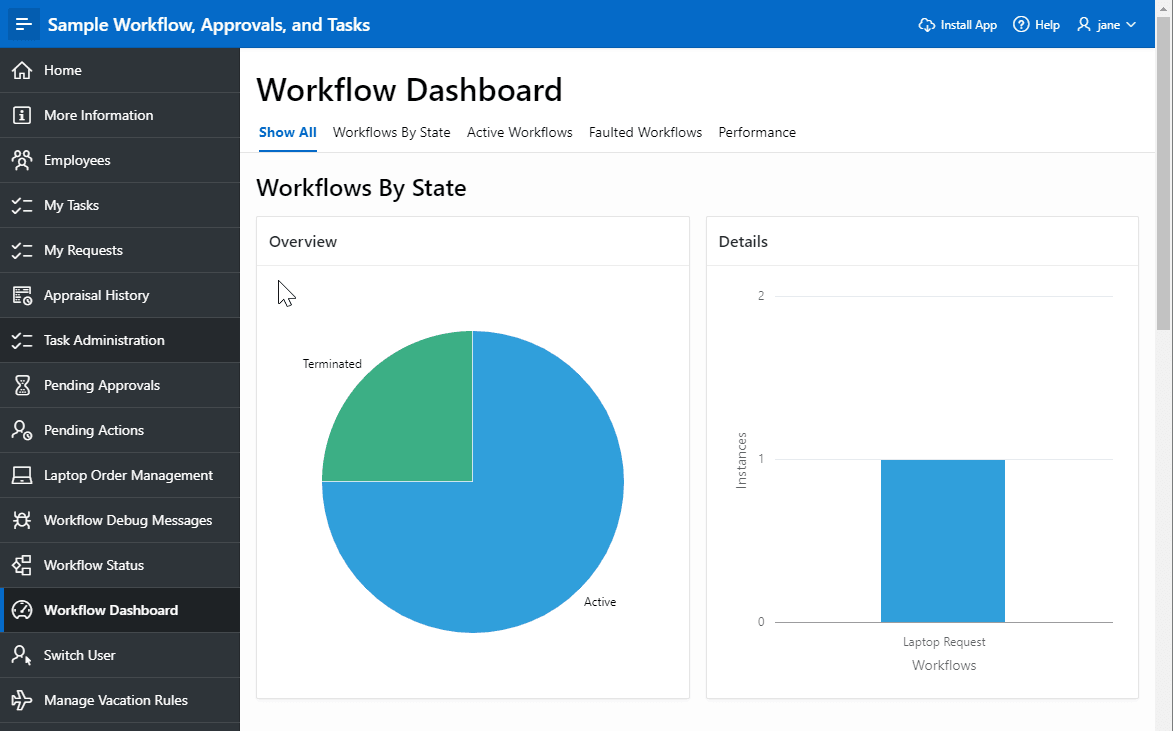
Description of the illustration workflow_dashboard_example.png