Closing an Issue
Close an issue on the Issues Details page.
Closing an Issue
View an issue and then close it.
To close an issue:
-
View the issue:
-
Navigate to Team Development.
-
Click the issue title.
The Issue Details page appears.
-
-
From the Actions menu, select Close Issue.
The icon adjacent to the issue title changes from green to red and contains a red check mark. In addition, a new event is added to the Event Timeline which reads:
set status for this issue to CLOSED Now
Viewing or Reopening a Closed Issue
View or reopen a closed issue on the Issues page.
To view or reopen a closed issue:
-
Navigate to Team Development.
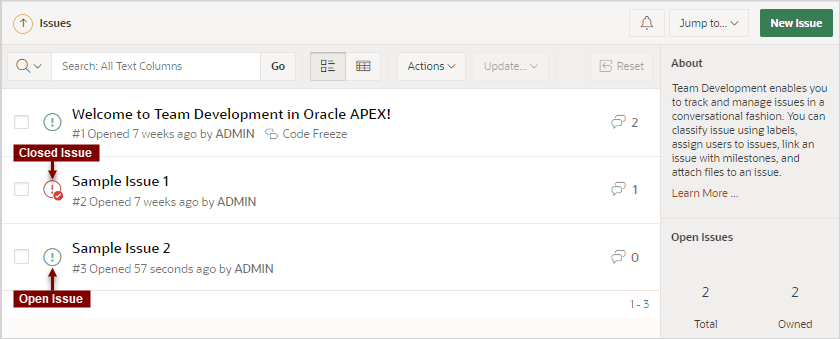
The Issues page appears. Open issues have a green icon and closed issues have a red icon and check mark.
-
Find the closed issue and click the issue title.
The Issue Details page appears.
-
From the Actions menu, select Reopen Issue.
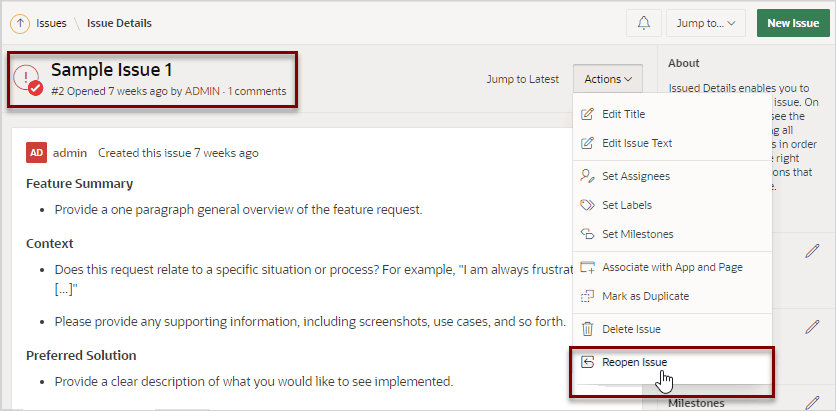
Description of the illustration reopen_issue.png
The icon adjacent to the issue title changes from red to green and the red check mark disappears.
A new event is added to the Event Timeline which reads:
set status for this issue to OPEN Now