Comparing Changes between a Working Copy and Main
Compare changes between a Working Copy with the Main application.
Comparing changes in a Working Copy with the Main application displays a dialog that summarizes what has been changed, added, or is missing.
Note: To actually merge or refresh the changes, see Merging Changes from a Working Copy into Main and Refreshing a Working Copy with Changes from Main.
To compare changes between a Working Copy and the Main Application:
-
View the Working Copy:
-
On the Workspace home page, click the App Builder icon.
The App Builder home page appears.
-
If not already selected, change to Icon view. On the navigation bar, click View Icons.
-
Select the Main application.
The Application home page appears.
-
Under Working Copies on the side bar, select a copy to view.
The Working Copy appears. Note that the Working Copy Name displays next to the application name.
-
-
Click the Working Copy: Name menu and select Compare Working Copy with Main.
Note: You can also select Compare Changes from the side bar. Alternatively, if viewing a page in Page Designer, click the Working Copy: Name menu and select Compare Working Copy with Main.
App Builder exports the Main app and Working copy and compares the two versions. The Compare Project Name with Main dialog appears summarizing what has been changed, added, or is missing.
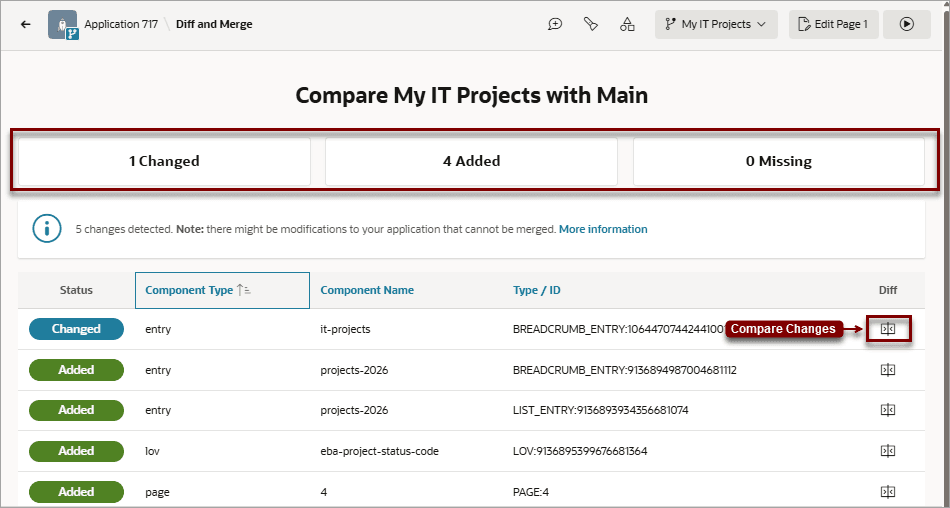
Description of the illustration compare_working_copy_and_main.png
-
To view a Diff of the changes, click the Compare Changes icon.
The View Differences window appears. Click Close to exit the window.