Creating a Static List of Values at the Application-Level
Run the Create List of Values Wizard to define a named static list of values at the application-level.
Oracle APEX stores named (or shared) lists of values in the List of Values repository in Shared Components. A static list of values contains display values, return values, and the sort sequence that you specify. Once you add a list of values to the repository, you edit the item in Page Designer and select the display Type.
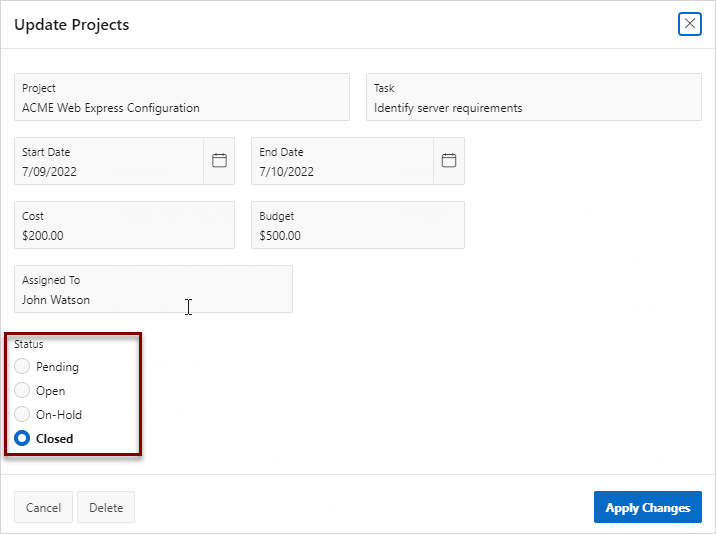
The following procedure demonstrates how to create a static list of values in Shared Components for the form item, Status, and then display it as a Radio Group. The following example is built on the EBA_DEMO_IR_PROJECTS table which available in the sample dataset, Project Data.
To create a named static list of values:
-
Navigate to the Shared Components page:
-
On the Workspace home page, click App Builder.
-
Select an application.
-
On the Application home page, click Shared Components.
The Shared Components page appears.
Tip:
You can also access Shared Components from Page Designer by clicking Shared Components (
 ) on the Page Designer toolbar.
 -
-
Under Other Components, select Lists of Values.
-
Run the Create List of Values Wizard. On the Lists of Values page, click Create.
-
In the Create List of Values Wizard:
-
Source:
-
Create List of Values - Specify how to create a list of values. For this example, select From Scratch.
-
Click Next.
-
-
Name and Type:
-
Name - Enter a name for the list of values. For example:
Status -
Type - Select Static.
-
Click Next.
-
-
Static Values: Enter static display and return values. For this example, enter the following
-
Sequence 1:
-
Display Value - Pending
-
Return Value - Pending
-
-
Sequence 2:
-
Display Value - Open
-
Return Value - Open
-
-
Sequence 3:
-
Display Value - On-Hold
-
Return Value - On-Hold
-
-
Sequence 4:
-
Display Value - Closed
-
Return Value - Closed
-
Values will display in the order entered. You can display additional attributes including build option controls and item level conditional display by editing the List of Values later.
Note: Return Value does not display, but is the value that is returned to the Oracle APEX engine. If you do not specify a Return Value then it is equal to the Display Value.
-
-
Click Create List of Values.
The new list of values appears on the Lists of Values page.
-
-
Update the form item to reference the list of values:
-
Return to Page Designer. Click the Application XX breadcrumb where XX is the page number.
-
On the Application home page, select the page where you want to add list of values.
-
In the Rendering tab, select the form page item. For example, select P7_STATUS.
-
In the Property Editor, edit the following attributes:
-
Identification, Type - Select Radio Group.
-
List of Values, Type - Select Shared Component.
-
List of Values, List of Values - Select STATUS.
-
List of Values, Display Extra Values - Disable this option.
-
List of Values, Display Extra Values - Disable this option.
-
-
Click Save and then run the page.
As shown in the folllowing example, the form item, Status, now displays as Radio Group with four values: Pending, Open, On-Hold and Closed.
-