Enabling Detail View
Add Details view to an interactive report.
Be default, most interactive reports display as a report. You can optionally display details about each column. When configured, a View Details icon displays on the Search bar.
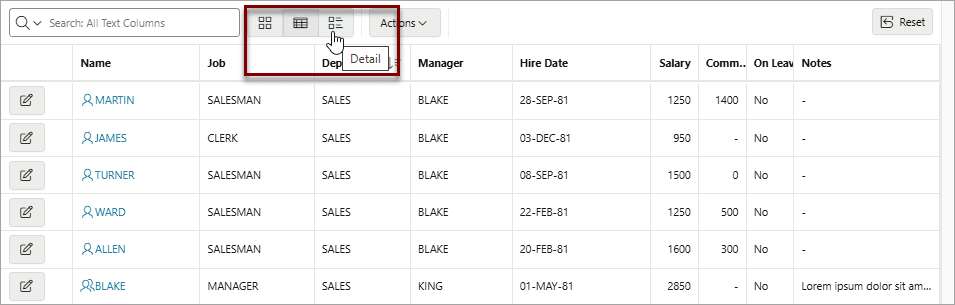
Description of the illustration ir_search_bar_detail.png
To add Details view to an interactive report:
-
View the page in Page Designer:
Page Designer appears.
-
In the Rendering tab, select the region containing the report.
-
In the Property Editor, select the Attributes tab.
The Property Editor displays the attributes. Attributes are organized in groups
-
Find Detail View. Configure the following attributes:
-
Show - Select On.
-
Before Rows - Enter the HTML to be displayed before report rows. For example:
<table> -
For Each Row - Enter the body for report rows in the Detail View. Use
#COLUMN_NAME#substitution strings for column names and column labels. For example:<tr><td class="u-textRight">#ENAME_LABEL#:</td><td>#ENAME#</td></tr> <tr><td class="u-textRight">#JOB_LABEL#:</td><td>#JOB#</td></tr> -
After Rows - Enter the HTML to be displayed after report rows. For example:
</table>
-
-
To save your changes click Save. To save and run the page, click Save and Run Page.